TL;DR:
If you are looking for the best way to take notes on iPhone and manage them across devices, this guide will help you find the right solution:
If you use your iPhone for work, study, or daily planning, having a reliable note taking app can make a big difference in productivity. From quick reminders to structured project notes, the right app helps you stay organized across devices. In this guide, we'll explore the 6 best note taking apps for iPhone in 2026, covering free and advanced options like Apple Notes, Notion, OneNote, and more. You'll also learn how to manage and transfer iPhone notes easily on your computer.
Apple Notes is the default note taking app on iPhone, designed to provide a simple and seamless way to capture ideas, to-do lists, and important information. Because it is built directly into iOS, users can start taking notes instantly without installing any additional software. It also syncs automatically across Apple devices via iCloud, making it a reliable choice for everyday productivity.
Features:
Notion is a powerful all-in-one note taking and productivity app for iPhone that goes beyond simple note writing. It allows users to create structured pages, databases, task lists, and collaborative workspaces, making it especially popular among students, professionals, and teams. Unlike traditional note apps, Notion combines notes with project management tools, helping users organize both information and workflows in one place.
Features:

Microsoft OneNote is a versatile digital note taking app designed for organizing information in a structured and flexible way. It is widely used by students, professionals, and office users who need a reliable tool for capturing lecture notes, meeting minutes, and project ideas. With its notebook-style system, OneNote allows users to separate content into sections and pages, making it easy to manage large amounts of information.
Features:
Evernote is one of the most established note taking apps for iPhone, known for its powerful organization and advanced search capabilities. It is designed for users who need to store large amounts of information, including web clippings, documents, images, and handwritten notes. With its structured system and reliable syncing, Evernote is often used for long-term knowledge management and personal productivity.
Features:

Bear is a clean and beautifully designed note taking app for iPhone, popular among writers, bloggers, and users who prefer a distraction-free writing experience. It focuses on simplicity while still offering powerful formatting and organization tools. With support for Markdown and a smooth writing interface, Bear is ideal for creating structured notes, articles, and personal journals.
Features:

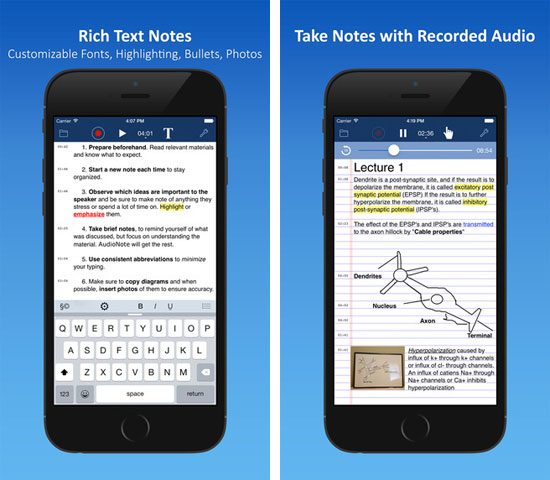
Audio Note is a note taking app for iPhone that combines voice recording with text and written notes, making it especially useful for meetings, lectures, and interviews. It allows users to synchronize audio with written content, so you can replay specific parts of a recording while reviewing related notes. This makes it a practical tool for users who need both audio capture and structured note organization in one place.
Features:
Coolmuster iOS Assistant is a powerful iPhone data management tool designed for Windows and Mac users who want to easily manage, transfer, and back up iPhone notes on a computer. It allows you to export notes from iPhone to PC/Mac for safe storage, organize them more efficiently, and even import data back to your device when needed. For users who handle large amounts of notes or want a reliable backup solution, it provides a simple and stable way to manage iPhone content outside the device.
Key features of Coolmuster iOS Assistant:
Free download Coolmuster iOS Assistant on your computer now:
How to Manage, Transfer and Back up iPhone/iPad Notes with Coolmuster iOS Assistant:
01 Use a USB cable to connect your iPhone to your PC or Mac. Launch Coolmuster iOS Assistant and wait for the device to be detected.
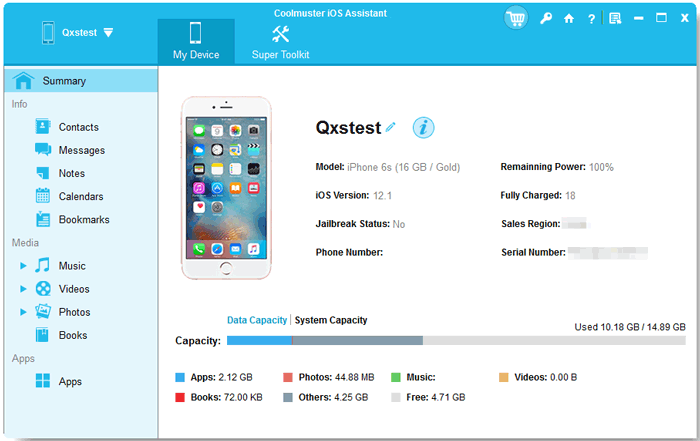
02 From the left sidebar, click on "Notes" to display all notes stored on your iPhone. In the main panel, view your notes in a table format, including title, content preview, and timestamp.

03 Now, you can click the "Export" button at the top toolbar and choose a destination folder on your computer to save the notes. You can also click "Import" to transfer notes from your computer back to your iPhone, or use "New" to add new notes to your iPhone via the computer.
Video Guide:
In conclusion, choosing the right note taking app for iPhone depends on your personal needs, whether it is simple daily note-taking, advanced organization, or creative writing. Apps like Apple Notes, Notion, OneNote, Evernote, Bear, and Audio Note each offer unique strengths for different users. Meanwhile, using tools like Coolmuster iOS Assistant makes it easier to manage, back up, and transfer iPhone notes on a computer. Together, they help you stay organized and improve productivity across devices.
Related Articles:
[Solved] How to Delete Notes on iPhone in 3 Quick Ways?
How to Transfer Notes from iPhone to iPhone in 5 Easy Ways




 Free Download for PC
  Free Download for Mac


