TL;DR:
Learn how to find, view, and manage your favorite tracks on Apple Music with simple methods for different devices.
Liking songs on Apple Music is a convenient way to tell the service what kind of music you enjoy. By marking songs as favorites, Apple Music can better understand your listening preferences and help you discover more tracks you may like. However, finding a complete list of your loved songs is not always straightforward, especially after Apple changed the old Love feature. If you want to view, organize, or back up your favorite songs on iPhone, Mac, or iTunes, this guide will show you the best ways to find and manage them.
If you have marked many songs as favorites on Apple Music, you may want to find them again for playback or organization. However, Apple has changed the way it handles liked songs over time. The previous "Love" option has been replaced with "Favorite" in newer versions of Apple Music, so you may need to look in different places depending on your iOS version.
Steps to find loved songs on Apple Music:
Note: Apple Music does not create a default playlist called "Loved Songs." Your liked tracks are generally saved as Favorite songs in your library.
Finding all your loved songs on an iPhone can sometimes be difficult, especially after Apple changed the way it handles liked tracks. However, if you have a Mac with the Apple Music app installed, you can easily view songs you previously marked as loved or favorite, as long as those songs have been added to your Apple Music library.
Depending on your macOS version, the old Love feature may appear as a heart icon, while newer versions may use the Favorite option. Follow the steps below to find your loved songs on Apple Music using a Mac:
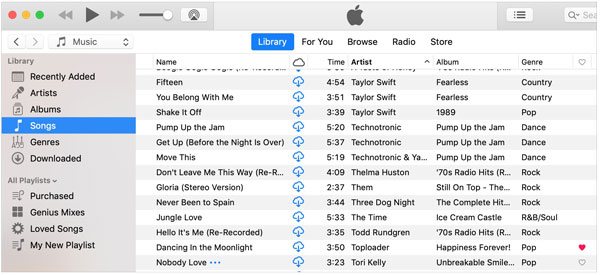
If you still use iTunes on your computer, creating a Smart Playlist is a convenient way to collect your loved songs in one place. Unlike a regular playlist, a Smart Playlist automatically updates based on the rules you set. This means any song marked as loved or favorited can be added to the playlist automatically.
Follow these steps to create a Smart Playlist for loved songs in iTunes:
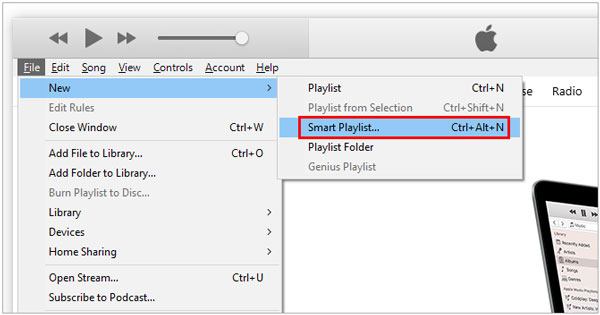
If your loved songs do not appear in the Smart Playlist, make sure they have already been added to your iTunes library. Songs that are only streamed through Apple Music but not saved to your library may not appear in the playlist. (Read Also: How to Transfer Only Favorite Photos from iPhone?)
After finding your loved songs on Apple Music, you may want to organize them better, keep track of your favorite tracks, or save your music collection for future use. Whether you want to create a playlist, check your Apple Music history, or back up your iPhone music, the following methods can help you manage your loved songs more efficiently.
Creating a dedicated playlist is one of the easiest ways to organize your favorite songs. Instead of searching for loved songs every time, you can put them all in one place and quickly access them whenever you want.
To create a playlist on Apple Music:
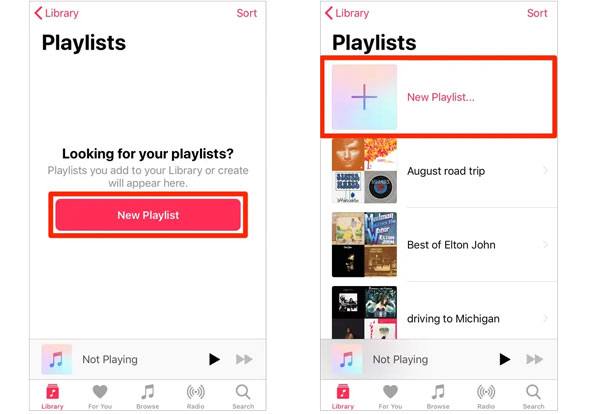
After creating the playlist, you can easily find and play your favorite songs without searching through your entire music library. (How to Transfer Music from Mac to iPhone without iTunes?)
If you cannot find some of your previously loved songs, you can request your Apple Music data from Apple. Apple allows users to download a copy of their account information, including Apple Media Services data, which may contain records of liked and disliked songs.
Follow these steps:
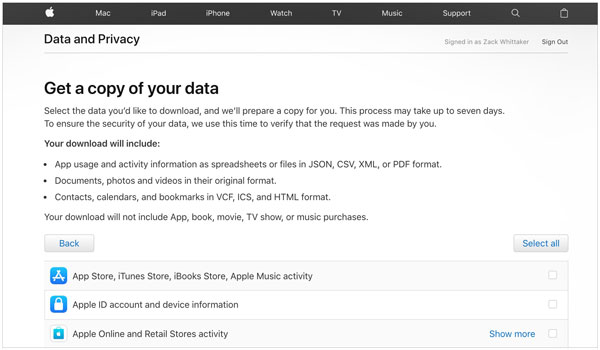
This method is useful if you want to review your previous likes and dislikes, especially when some songs are no longer visible in your Apple Music library.
If you use Apple Music on multiple devices, enabling Sync Library can help keep your favorite songs, playlists, and music library updated across your iPhone, iPad, and Mac.
To enable Sync Library:
After enabling this feature, your Apple Music library will stay synchronized as long as you sign in with the same Apple ID.
If you want to keep a local copy of your iPhone music or manage songs more flexibly, a professional iOS data management tool can be helpful. Coolmuster iOS Assistant allows you to transfer music from your iPhone to a computer, back up important iOS data, and manage files without depending on iTunes.
With Coolmuster iOS Assistant, you can:
To back up and manage your iPhone music with Coolmuster iOS Assistant:
01Download and install Coolmuster iOS Assistant on your computer, then connect your iPhone with a USB cable. Tap "Trust" on your iPhone if prompted.
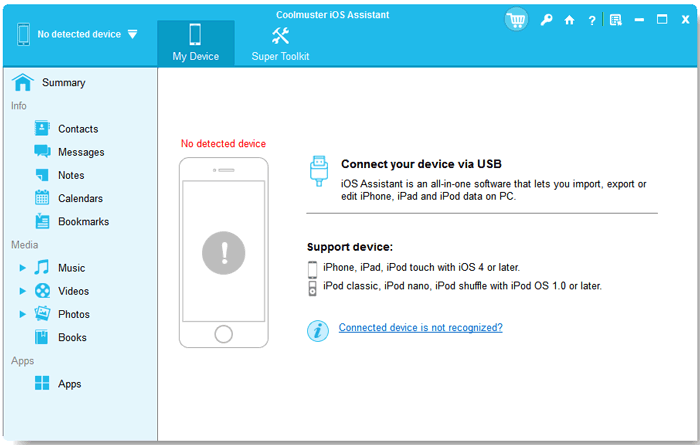
02Launch the program and select "Music" from the left sidebar to view the songs stored on your iPhone.
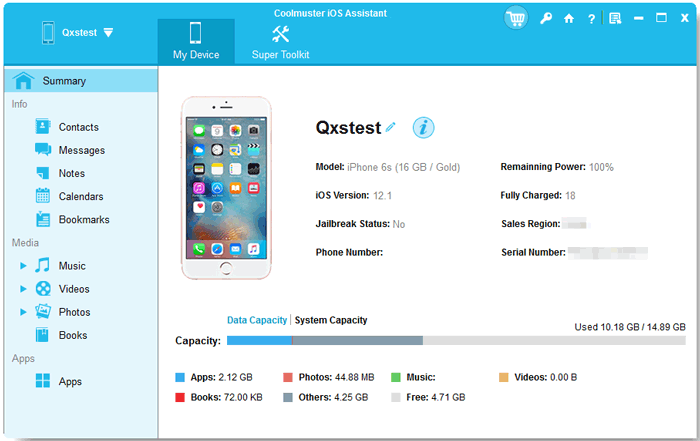
03Choose the songs you want to back up or manage, then click "Export" to transfer them to your computer.
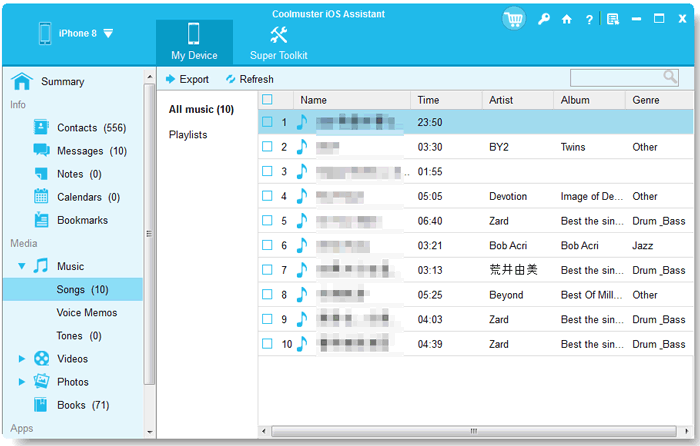
After the transfer is complete, you can access and manage your iPhone music files directly from your computer. By organizing playlists, checking your Apple Music history, syncing your library, and creating backups, you can keep your loved songs safe and easier to access whenever you need them.
Video Guide:
Q1. Why Can't I Find My Loved Songs on Apple Music?
If you cannot find your loved songs on Apple Music, it may be because Apple has changed the way it manages liked tracks. The old "Love" feature has been replaced by "Favorite" in newer versions of Apple Music. Make sure you are signed in with the correct Apple ID, enable "Sync Library", and check your Library instead of looking for a playlist named "Loved Songs".
Q2. Does Apple Music Have a Loved Songs Playlist?
No. Apple Music does not automatically create a playlist called "Loved Songs." Songs you mark as loved or favorite are usually stored in your music library as Favorite songs. If you want easier access, you can manually create a playlist and add your favorite tracks to it.
Q3. Where Are My Favorite Songs Stored on Apple Music?
Your favorite songs are stored in your Apple Music library and linked to your Apple ID. On iPhone or iPad, you can check them from the Library section, while Mac users can view them in the Music app by using the Love/Favorite column. Make sure Sync Library is enabled if you want to access the same songs across multiple devices.
Q4. Can I View My Apple Music Likes History?
Yes. You can request a copy of your Apple account data through Apple's Data and Privacy website. After downloading your Apple Media Services information, you may find records related to Apple Music likes and dislikes. This is useful if you want to review older liked songs that are no longer visible in your current library.
Q5. Can I Recover Deleted Loved Songs on Apple Music?
It depends on what happened to the songs. If you only removed them from your library, you can search for them again on Apple Music and add them back to Favorites. However, if the songs are no longer available in Apple Music or were removed from your account, they may not be recoverable. Keeping a backup of your iPhone music library with a tool like Coolmuster iOS Assistant can help you preserve important music data for future use.
Finding your loved songs on Apple Music can be confusing, especially after Apple changed the way it handles liked tracks. However, with the right method, you can easily locate your favorite songs on iPhone, Mac, or iTunes. Whether you want to create playlists, check your Apple Music history, or back up your music collection, the tips in this guide can help you manage your loved songs more efficiently.
Related Articles:
How to Transfer Videos from Computer to iPhone without iTunes
3 Ways to Transfer Music from iPhone to Computer without iTunes




 Free Download for PC
  Free Download for Mac


