TL;DR:
This article covers four ways to save WeChat chat history from an iPhone to a computer:
For users who want flexibility, selective export, and attachment management, iOS Data Backup & Restore is the recommended solution to safely save WeChat messages from iPhone to computer.
WeChat has become an essential communication tool in daily life, storing a large amount of important information such as chat histories, photos, videos, voice messages, and work-related files. If an iPhone is lost, damaged, or data is accidentally deleted, these valuable records may be at risk of being permanently lost. Therefore, many users want to know how to save WeChat messages from an iPhone to a computer.
In this article, we will introduce four effective methods to help you back up or export WeChat chat history from your iPhone to your computer. Let's get started.

The WeChat desktop app comes with a built-in Backup & Restore feature that allows you to back up your chat history directly to your computer without installing any third-party software. You can follow the instructions below to transfer WeChat messages from iPhone to computer step by step:
Step 1. Download the WeChat desktop app from the official website. Install the application and open it on your computer.
Step 2. Sign in with your WeChat account. After logging in, click the three horizontal lines located in the lower-left corner of the WeChat window.
Step 3. From the menu, select "Backup and Restore", then click "Back up on PC" to begin the backup process.
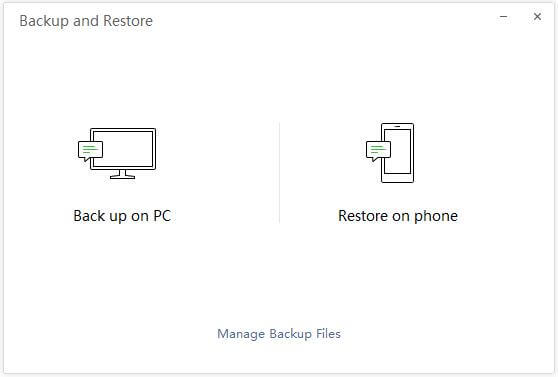
Step 4. Select the chat conversations you want to back up and confirm your selection. WeChat will then securely save the chosen chat history to your computer.
If you want more flexibility when saving WeChat messages from iPhone to computer, a professional iOS backup tool may be a better choice. iOS Data Backup and Restore is designed specifically for iPhone and iPad users who need to back up, export, and manage their data efficiently.
Unlike the official WeChat backup feature, this software allows you to selectively back up WeChat messages and attachments without backing up the entire device. It also supports previewing backup content and restoring selected files without overwriting existing data.
The main features of iOS Data Backup and Restore:
Here is how to save WeChat chat history from iPhone to computer using iOS Data Backup and Restore:
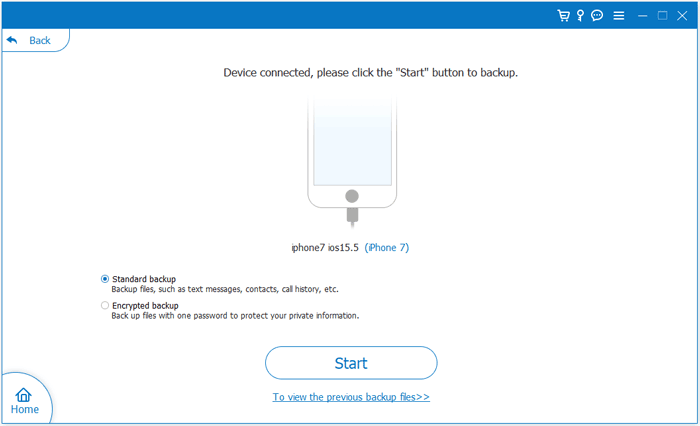
01Download and install the software on your computer. Launch the program and connect your iPhone using a USB cable. Select "iOS Data Backup", then choose either "Standard Backup" or "Encrypted Backup" based on your preferences.
02Select "WeChat" and "WeChat Attachments", along with any other data categories you wish to back up.
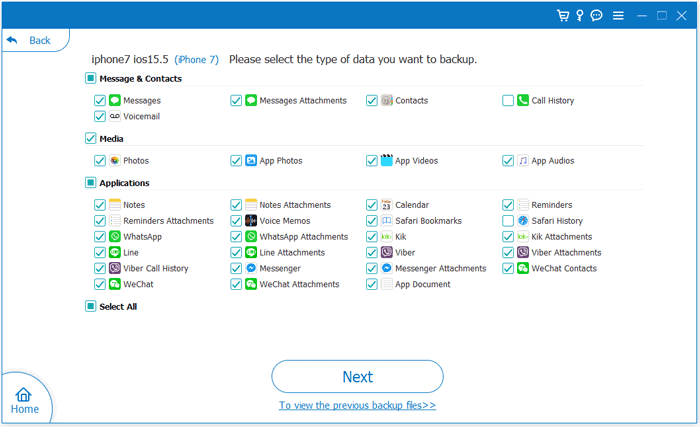
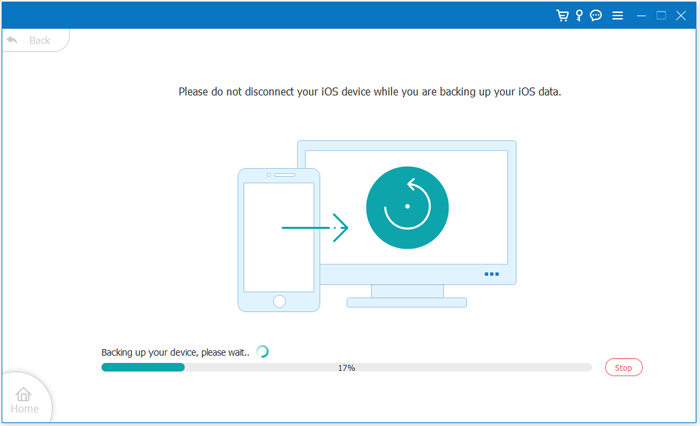
03Click "Next", choose a destination folder on your computer, and the software will securely back up your selected WeChat data.
Using WeChat's Backup and Restore feature, you will back up and save all WeChat data from iPhone to computer. Using WeChat's File Transfer feature, you can selectively transfer WeChat messages from iPhone to computer one by one. If you want to save only a part of WeChat chat history, this way is suitable for you.
Here is how to export WeChat messages from iPhone to computer with WeChat File Transfer:
Step 1. Connect to the same Wi-Fi network on your iPhone and computer. Please make sure both your iPhone and computer are connected to the same Wi-Fi network. On your iPhone, simply swipe up from the bottom on the Home screen to open Control Center, tap the icon of Wi-Fi, choose an available Wi-Fi network to connect with the right password.
Step 2. Launch the WeChat app on iPhone and tap the "File Transfer" option on the chat window. If you can't see the "File Transfer" option on your WeChat app, please make sure your WeChat is the latest version and then search it using the Search Box.
Step 3. Now please return to the conversation window that contains the messages you want to transfer from iPhone to computer, then long-press the WeChat message to copy.
Step 4. Then please enter the chat window of File Transfer, paste the copied WeChat messages, and send them to the computer via File Transfer. After that, you can check and save the WeChat messages on the computer from iPhone.

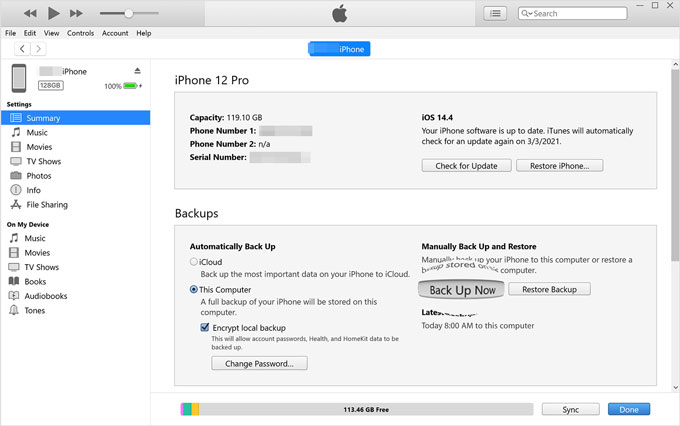
iTunes is Apple's official data management tool and can also be used to back up WeChat data. However, it is important to note that iTunes cannot back up WeChat chat history separately. Instead, it creates a backup of the entire iPhone, including WeChat data and all other device content.
Here is how to back up WeChat chat history from iPhone to computer using iTunes:
Step 1. Launch iTunes on your computer and connect your iPhone to your computer with a USB cable.
Step 2. Click your iPhone icon on the iTunes window when iTunes detects it automatically, then click the "Summary" option on the left panel.
Step 3. On the right panel, please click the "Back Up Now" option to create a backup for your iPhone. The backup file will contain the WeChat messages on your iPhone. (iTunes Back Up Now greyed?)
These are the four most common ways to save WeChat chat history from your iPhone to a computer. If you simply want to back up your WeChat conversations, WeChat's built-in "Backup & Restore" feature is sufficient for basic backup needs. However, if you need to selectively export chat history, preview backup contents, save WeChat attachments, and restore data more flexibly, iOS Data Backup and Restore is a recommended solution.
Related Articles:
[4 Methods] How to Save WeChat Voice Messages on iPhone?
How to Make WeChat Backup to PC? Successfully Solved in 4 Easy Ways







 Free Download for PC
  Free Download for Mac


