Thinking about leaving WhatsApp and not sure where to start? Many users search for how to delete WhatsApp account when they want to protect their privacy, switch to a new number, or simply stop using the app.
However, deleting your WhatsApp account isn't just a simple action, it permanently removes your chats, media files, and account data. That's why it's important to understand what will happen before you proceed and make sure your data is safely backed up. In this guide, we'll walk you through everything you need to know, from what account deletion really means to step-by-step instructions for both Android and iPhone.

Before you start the deletion process, it's vital to know exactly what this permanent action does. Deleting your WhatsApp account is irreversible, and here's the full breakdown of changes:
Before deleting your account, you should back up all important chats and attachments to avoid permanent data loss. Below are two effective methods you can choose from.
Cloud backup is the official method provided by WhatsApp. It's quick and easy, making it a convenient option for most users who want a simple way to save their data.
For Android (Google Drive)
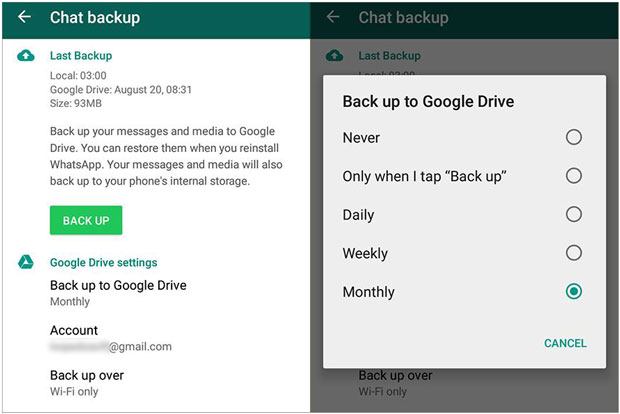
To back up WhatsApp data to Google Drive, follow these steps:
Step 1. Open WhatsApp, tap the three-dot menu, and go to "Settings".
Step 2. Tap "Chats" > "Chat backup" to access backup options.
Step 3. Tap "Back Up" and wait for the process to complete.
For iPhone (iCloud)
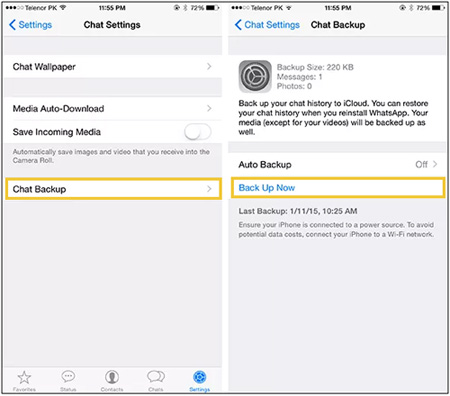
iPhone users can back up WhatsApp data to iCloud by following these steps:
Step 1. Open WhatsApp and tap "Settings" at the bottom.
Step 2. Go to "Chats" > "Chat Backup".
Step 3. Tap "Back Up Now" and wait until the backup finishes.
While cloud backup is the official method provided by WhatsApp, it's important to note that backups linked to your account may also be removed after account deletion. Therefore, if you want a more secure and permanent backup, consider saving your WhatsApp data to a computer.
For Android users, Coolmuster Android WhatsApp Recovery is a powerful tool that allows you to back up and manage WhatsApp data with ease. (iPhone users can use Coolmuster iPhone WhatsApp Recovery in a similar way.)
Key features of Android WhatsApp Recovery:
How to back up WhatsApp to your computer?
01Download and install Android WhatsApp Recovery on your computer, then open the program to see the main interface.
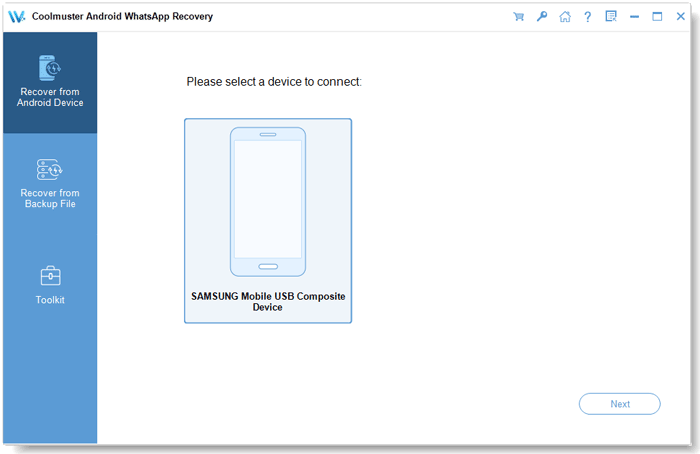
02Connect your Android phone or tablet to the computer with a USB cable. Once the device is detected, select it from the list and click "Next".
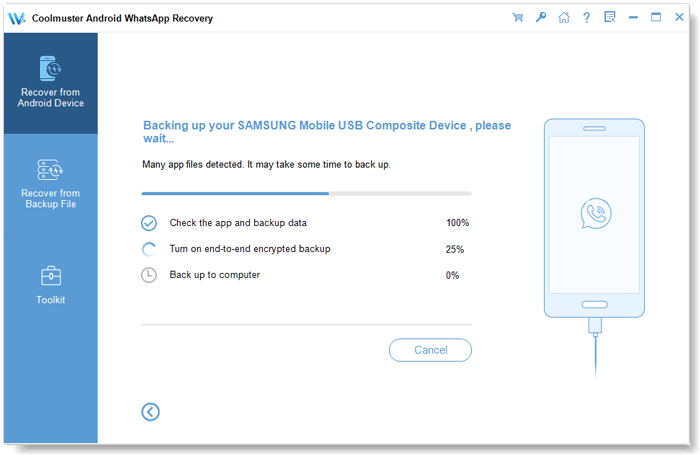
03The software will begin scanning your WhatsApp data automatically. If prompted, enable the end-to-end encrypted backup on your phone according to the instructions provided.
04When the scan finishes, all your WhatsApp data will appear organized into categories such as "WhatsApp" and "WhatsApp Attachments". Choose the items you want to save, click "Recover to Computer", and pick a folder on your PC to store the backup.
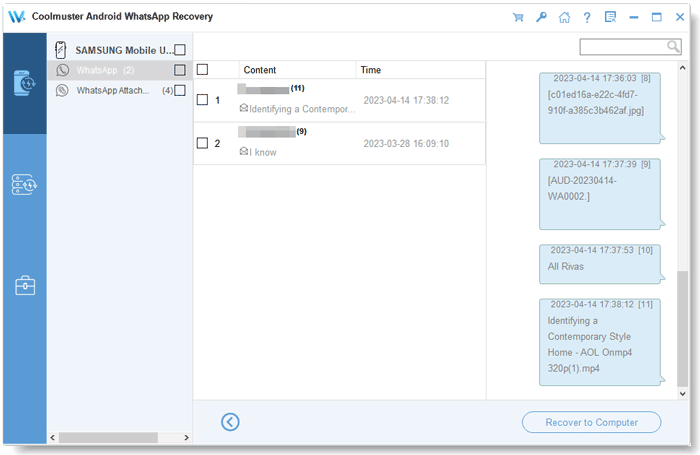
For a visual walkthrough, you can refer to the software's video tutorial for guidance.
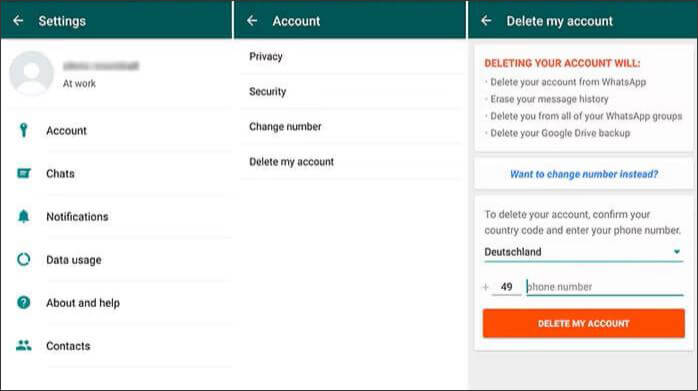
After you've backed up your data, you're ready to permanently delete your WhatsApp account. Follow these step-by-step instructions to delete your WhatsApp account on an Android device:
Step 1. Open the WhatsApp app on your Android phone and make sure you're logged into the account you want to delete.
Step 2. Tap the three vertical dots in the top-right corner to open the menu, then select "Settings".
Step 3. From the Settings menu, tap "Account", which manages all account-related actions.
Step 4. Scroll down and select "Delete my account".
Step 5. Enter your phone number in full international format (include your country code, e.g., +1 for US, +44 for UK).
Step 6. Select a reason for deleting your account from the dropdown menu.
Step 7. Tap "Delete my account" again to confirm, read the final warning, and tap "Delete Account" to finalize the process.
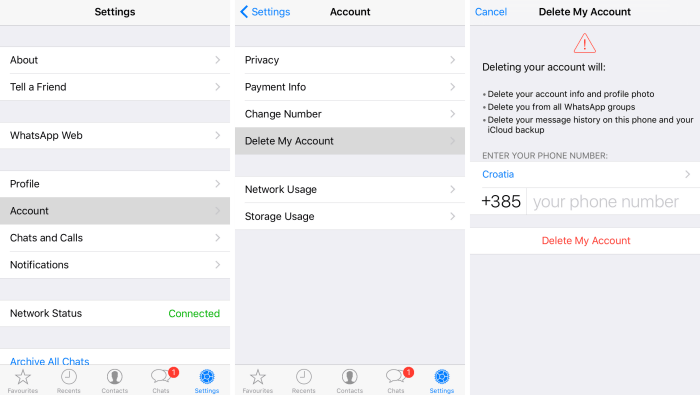
Deleting a WhatsApp account on iPhone is slightly different, but just as straightforward.
Step 1. Launch WhatsApp on your iPhone and verify you're signed into the target account.
Step 2. Tap the "Settings" icon in the bottom-right corner of the screen.
Step 3. Select "Account" from the Settings menu.
Step 4. Tap "Delete My Account" at the bottom of the Account menu.
Step 5. Input your phone number with the correct country code in the provided field.
Step 6. Pick a reason for account deletion if prompted.
Step 7. Tap "Delete My Account" to confirm, acknowledge the permanent data loss warning, and complete the deletion.
1. What is the difference between deleting WhatsApp account and uninstalling WhatsApp?
Deleting your WhatsApp account permanently removes all your chats, media, backups, and account information from WhatsApp servers. Uninstalling WhatsApp only removes it from your device, while your account and cloud backups remain intact. You can reinstall WhatsApp and restore your data if the account is still active.
2. Can people still see me if I delete my WhatsApp account?
No. Once your account is deleted, your profile, status, and last seen will no longer be visible to your contacts. However, messages you previously sent to others will still appear in their chat history.
3. Can I recover a deleted WhatsApp account?
No, a deleted WhatsApp account cannot be restored. You can register a new account using the same phone number, but none of your previous chats or media will be recovered unless you have a backup stored on your computer or cloud before deletion.
4. Can I use the same number again after deletion?
Yes, you can create a new WhatsApp account with the same phone number after deletion. However, the new account will be treated as completely separate, and your old chats and media will not be restored automatically.
5. Can I delete my WhatsApp account from WhatsApp Web?
No, you cannot delete your account directly from WhatsApp Web. To permanently remove your account, you need to use the mobile app on Android or iPhone. However, you can log out of WhatsApp Web to stop using it on any browser.
That's all about how to disable WhatsApp account. Deleting your account will erase all chats, media, and backups from WhatsApp servers, so it's important to back up your data first - either to the cloud or, for a safer and permanent solution, to your computer using Coolmuster Android WhatsApp Recovery or Coolmuster iPhone WhatsApp Recovery.
With your backup secured, you can follow the steps outlined above to delete your account confidently, ensuring your important messages and files remain accessible even after the account is gone.
Related Articles:
[Stepwise Guide] How to Manage WhatsApp Account on Android Devices?
How to Recover WhatsApp Account Easily? Most Common Solutions
How to Recover Deleted Messages on WhatsApp on Android with/without Backup
How to Recover Audio Files from WhatsApp on Android & iPhone






 Free Download for PC


