Snapchat's Snap Map feature lets your friends see your real-time location, which can be convenient, but not always ideal. Whether you want more privacy, avoid being tracked, or simply "disappear" for a while, knowing how to pause your Snapchat location is essential.
In this guide, we'll walk you through several proven methods to pause location sharing on Snapchat, from built-in settings like Ghost Mode to alternative tricks that keep your movements private.
Ghost Mode is Snapchat's official and most recommended way to pause or hide your location. It allows you to stop sharing your real-time location with all or selected friends while still letting you view their locations on Snap Map. Once enabled, your Bitmoji disappears from the map, making it an ideal choice for maintaining privacy without completely disabling location features.
This method works the same on both iOS and Android devices, and you can choose how long Ghost Mode stays active.
Step 1. Open the Snapchat app on your phone and make sure you are logged into your account, then tap the "Map" icon in the bottom-left corner to access "Snap Map".
Step 2. Once the map opens, tap the "Settings" icon in the top-right corner of the screen.
Step 3. Locate the "Ghost Mode" option and toggle it ON.
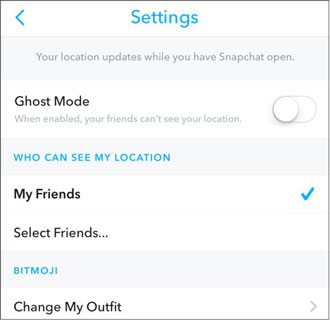
Step 4. A pop-up will appear asking you to choose how long you want to enable Ghost Mode. You can select from the following options:
Step 5. After selecting your preferred duration, Ghost Mode will be activated immediately, and your location will no longer be visible on Snap Map.
If you don't want to hide your location from everyone, go to "Snap Map Settings" > "Who Can See My Location" > select "Custom" and exclude specific friends. This allows you to pause location sharing for certain people without enabling Ghost Mode for all.
If you want a more permanent and thorough way to pause your Snapchat location, you can disable location services for Snapchat at the system level. Compared to Ghost Mode, this method completely prevents the app from accessing your device's GPS, meaning it cannot update or share your location at all.
Keep in mind that your last known location may still appear on Snap Map for up to 24 hours, but it will not refresh after location access is turned off.
The steps vary slightly depending on your device:
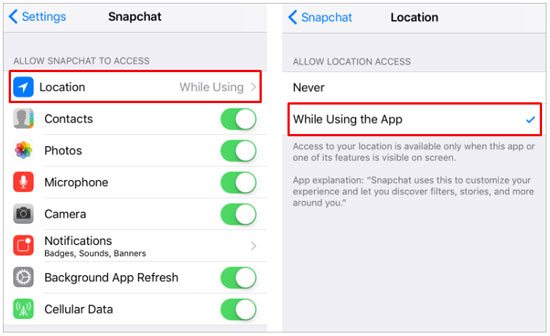
Step 1. Exit the Snapchat app and open Settings on your device, then scroll down and tap "Privacy & Security".
Step 2. Tap "Location Services", which is usually near the top of the menu.
Step 3. Scroll through the list of apps and select "Snapchat".
Step 4. Choose "Never to completely disable location access" for Snapchat.
Step 5. If you prefer partial control, you can select "While Using the App", which allows Snapchat to access your location only when the app is open and prevents updates in the background.
Step 1. Exit Snapchat, then long-press the Snapchat app icon on your home screen or in the app drawer.
Step 2. Tap App info (or "Info" on some devices) from the pop-up menu.
Step 3. In the App info screen, select "Permissions".
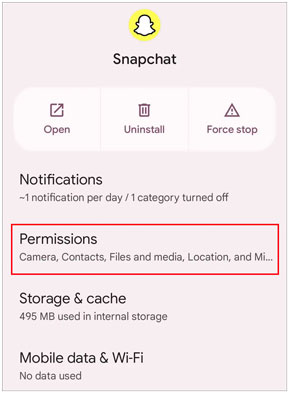
Step 4. Tap "Location" (sometimes labeled "Location access").
Step 5. Choose "Deny", "Don't allow", or "Ask every time" depending on your device settings to stop Snapchat from accessing your location.
If you need a quick and temporary way to freeze your location on Snapchat without changing any settings, activating Airplane Mode is a simple and effective workaround. Once enabled, your device disconnects from the internet, preventing Snapchat from updating your real-time location. As a result, your location will remain fixed at the last recorded position until you reconnect.
This method is ideal for short-term privacy, such as during a meeting, a quick errand, or anytime you want to avoid location updates for a short period.
Step 1. Open Snapchat first and allow it to load your current location on Snap Map.
Step 2. Exit the app, then swipe down from the top of your screen to access the Control Center (iOS) or Quick Settings panel (Android).
Step 3. Tap the "Airplane Mode" icon to turn it on. Your device will disconnect from Wi-Fi and mobile data.
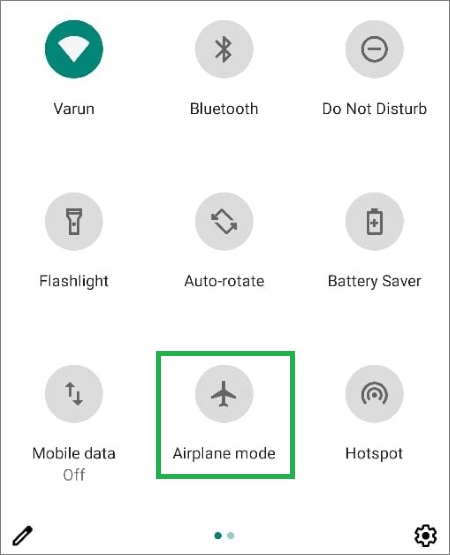
Step 4. Once Airplane Mode is enabled, Snapchat will no longer be able to update your location, and your last known position will remain visible on Snap Map.
When you're ready to resume location sharing, simply turn off Airplane Mode, and Snapchat will update your location the next time it connects to the internet.
If you don't want to completely disable location services or enable Ghost Mode, another smart solution is to use a location spoofer. This allows you to keep location sharing turned on while showing a different or fixed location, effectively "pausing" your real location on Snapchat without others noticing.
Location Changer is a powerful GPS location changer that lets you control what location apps see. Instead of turning off your location, you can set a virtual location or simulate movement, making it appear as if you are somewhere else while keeping your real location hidden.
What can Location Changer do for you?
Here's a quick overview of how to use it to pause your real Snapchat location:
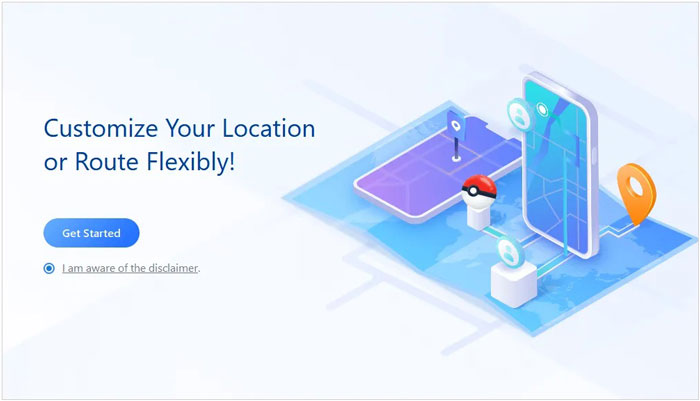
01Download and install Location Changer on your computer, then launch the program and click "Get Started" on the main interface.
02Connect your phone to the computer using a USB cable. On Android, enable USB debugging when prompted; on iPhone, tap "Trust This Computer" to allow the connection.
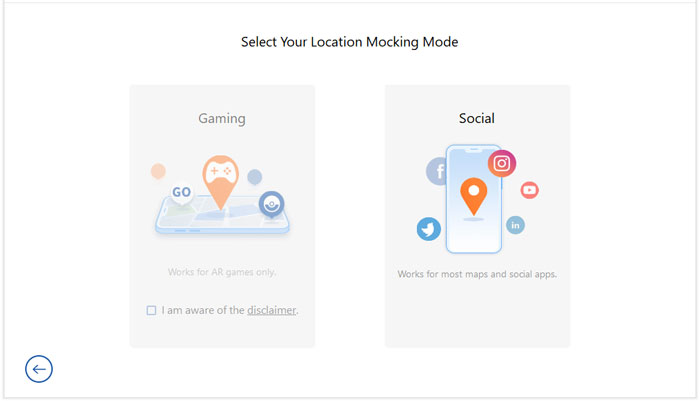
03After the device is recognized, choose a mode based on your needs. For example, you can select "Social" to better control how your Snapchat location appears.
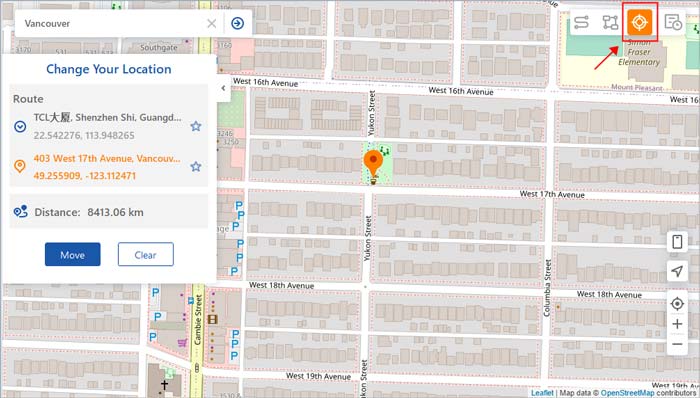
04Enter the location you want to display, then click "Move" to instantly change your GPS position. After that, open Snapchat and your location will show the new (virtual) place instead of your real one.
1. What's the difference between freezing location and Ghost Mode?
Ghost Mode completely hides your location from others on Snap Map, meaning no one can see where you are.
Freezing your location, on the other hand, usually means your last known location remains visible but stops updating. This can happen when using Airplane Mode or turning off internet access.
2. How long can you pause location on Snapchat?
If you use Ghost Mode, you can choose to pause your location for 3 hours, 24 hours, or indefinitely until you manually turn it off.
Other methods like disabling location services or using Airplane Mode will pause your location for as long as those settings remain active.
That's all about how to pause your location on Snapchat. Whether you prefer a quick privacy fix or a more controlled solution, there's a method that fits your needs. Ghost Mode is the easiest and most official option, disabling location services offers a more permanent solution, and Airplane Mode works well for short-term situations when you need a quick freeze.
If you want to keep location sharing on while hiding your real whereabouts, using a tool like Location Changer gives you the most flexibility. It allows you to control what others see without completely turning off location features.
Choose the method that best matches your situation, and you'll be able to manage your Snapchat location with confidence and ease.
Related Articles:
How to Change Your Location on Snapchat for iPhone & Android
How to Stop Sharing Location Without Them Knowing
Repair It When Snapchat Location Is Wrong! [Functional Guide]
How to Fake Location on Snapchat Map [Explore the World from Home]




 Free Download for PC
  Free Download for Mac


