TL;DR:
WhatsApp Delete for Everyone lets you remove mistakenly sent messages from a chat, but it comes with a limited time window.
Have you ever sent a WhatsApp message to the wrong person or regretted sending a message moments later? The Delete for Everyone feature allows you to remove sent messages from both your chat and the recipient's conversation. However, many users are still confused about how this feature works, how long they can delete a message, and what to do when the option is unavailable.
In this guide, we will explain everything about WhatsApp Delete for Everyone, including its time limit, how to delete messages on different devices, and how to recover important WhatsApp data if messages are accidentally deleted.
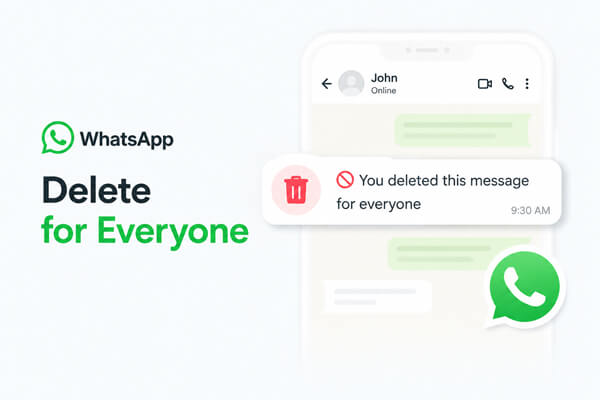
WhatsApp Delete for Everyone is a built-in feature that allows users to remove sent messages from a chat after they have been delivered. When you use this option, the selected message will be deleted from both your device and the recipient's chat window.
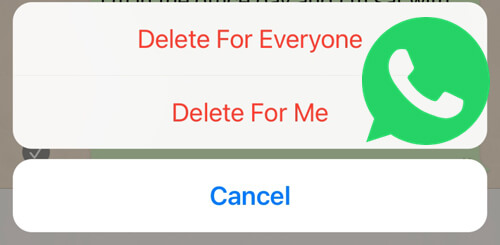
This feature is useful when you:
After a message is deleted successfully, WhatsApp replaces the original content with a notification: "This message was deleted".
However, Delete for Everyone does not guarantee that the recipient has never seen the message. For example, they may have already read it, viewed it from notification previews, or saved the attached media before you deleted it.
Delete for Everyone vs Delete for Me
Although both options remove messages from your WhatsApp chat, they work differently.
| Feature | Delete for Everyone | Delete for Me |
| Remove message from your device | Yes | Yes |
| Remove message from recipient's chat | Yes | No |
| Works in individual chats | Yes | Yes |
| Works in group chats | Yes | Yes |
| Requires a time limit | Yes | No |
In short, choose Delete for Everyone when you want to remove a message from both sides. Use Delete for Me only when you want to clean up your own chat history.
One of the most common questions about WhatsApp Delete for Everyone is: "How long can I delete a WhatsApp message for everyone?"
Currently, WhatsApp allows users to delete messages for everyone within around 2 days and 12 hours (60 hours) after sending them. Once this period expires, the Delete for Everyone option will no longer be available, and you can only remove the message from your own device.
The countdown starts from the moment the message is sent, not from when the recipient reads it. This means:
After confirming that the message is still within WhatsApp's allowed deletion period, you can use the Delete for Everyone option to remove it from both sides of a conversation. The steps are slightly different depending on the device you use. (How to permanently delete WhatsApp messages on Android & iPhone?)
Follow these steps to delete WhatsApp messages for everyone on an Android phone:
Step 1. Open WhatsApp and go to the conversation containing the message you want to remove.
Step 2. Tap and hold the message you want to delete.
Step 3. Select one or multiple messages if needed.
Step 4. Tap the "Delete" icon at the top of the screen.
Step 5. Choose "Delete for Everyone". Once completed, the original message will be replaced with "This message was deleted" in the chat.
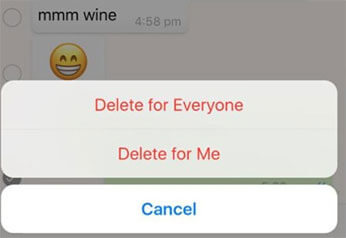
You can use this option for different types of WhatsApp content, including text messages, photos, videos, voice messages, and documents, as long as they are still within the deletion time limit.
The process of deleting WhatsApp messages for everyone on an iPhone is also straightforward:
Step 1. Launch WhatsApp and open the chat where the message is located.
Step 2. Press and hold the message you want to remove.
Step 3. Tap "Delete" from the pop-up menu.
Step 4. Select the messages you want to delete.
Step 5. Tap the "trash" icon and choose "Delete for Everyone".
After deletion, both you and the recipient will no longer see the original message content. Instead, WhatsApp will display a notification indicating that the message has been removed.
If you mainly use WhatsApp on a computer, you can also delete messages for everyone through WhatsApp Web or the desktop app.
Here is how:
Step 1. Open WhatsApp Web or the WhatsApp desktop application and enter the chat.
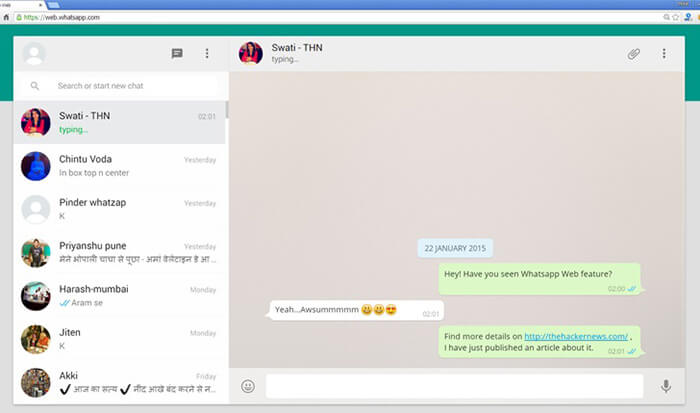
Step 2. Find the message you want to remove.
Step 3. Click the arrow next to the message or right-click it.
Step 4. Select "Delete".
Step 5. Choose "Delete for Everyone" and confirm the action. The deleted message will then disappear from the conversation on connected devices.
Note: The Delete for Everyone feature only works when the message is still within WhatsApp's allowed time window. If the option does not appear, the message may have exceeded the deletion limit or there may be other account or connection-related issues.
Although WhatsApp Delete for Everyone helps remove unwanted messages, accidental deletion can sometimes cause the loss of important conversations, photos, videos, or other attachments. In many cases, WhatsApp itself does not provide a direct way to restore deleted data, especially when the latest backup does not contain the missing messages.
For situations like this, a WhatsApp recovery tool such as WhatsApp File Recovery can help scan and recover lost WhatsApp data from supported devices and backups.
Key features of WhatsApp File Recovery:
Follow the steps below to retrieve deleted WhatsApp messages and attachments with WhatsApp File Recovery:
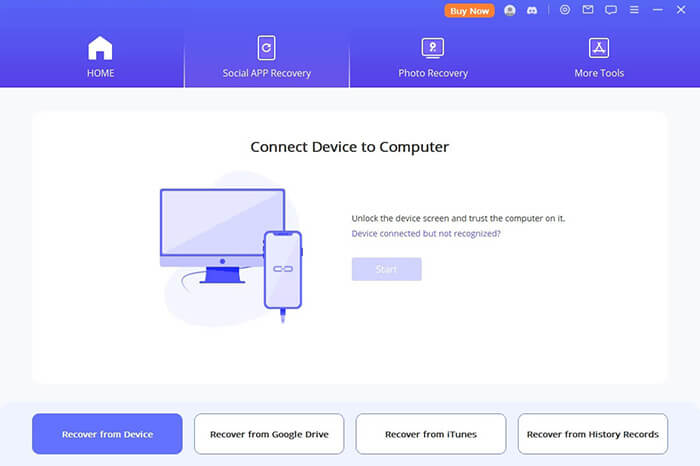
01Open WhatsApp File Recovery on your computer and connect your iPhone or Android device using a USB cable. From the main interface, select "Recover from Device" to start the recovery process.
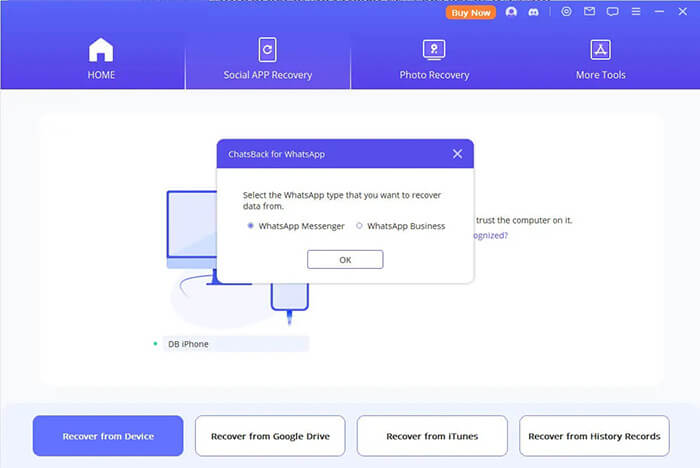
02For Android users: Click "Start" to begin scanning your device. After the scan finishes, enter your phone number and the verification code received via SMS to confirm your account.
For iPhone users: Select "WhatsApp Messenger" and click "Start" to scan your iPhone for available WhatsApp data.
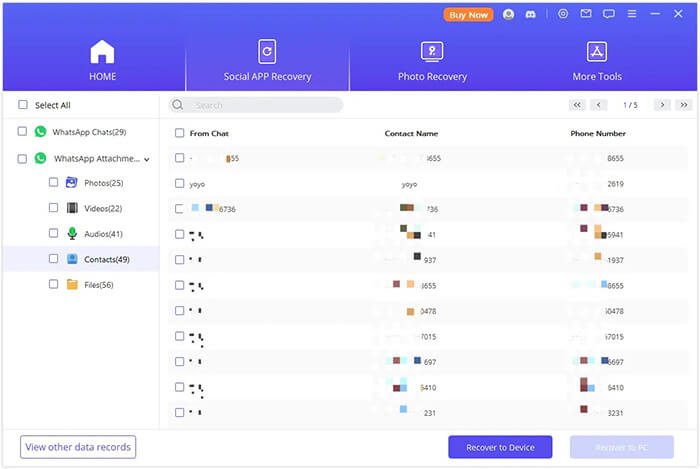
03After the scanning process is complete, the program will display the recoverable WhatsApp content, including chats, images, videos, voice messages, and documents. You can check the results in advance and select the specific data you want to restore. Once you have selected the required files, click "Recover to Device" to bring the WhatsApp data back to your phone.
WhatsApp Delete for Everyone is a convenient way to remove mistakenly sent messages, but it cannot prevent all situations where important WhatsApp data is lost. Understanding the deletion time limit and the correct steps can help you manage your chats more effectively.
If you accidentally delete valuable WhatsApp conversations, photos, or attachments, WhatsApp File Recovery provides a simple way to scan and recover lost WhatsApp data from devices or backups. With its preview feature and selective recovery options, you can restore the files you need without recovering unnecessary content.
Related Articles:
How to Delete WhatsApp Voice Messages on iPhone [Updated]
How to Delete a Photo from WhatsApp with 6 Ways [Android & iPhone]
[Easy Guide] How to Recover Disappearing Messages on WhatsApp?
How to Recover Deleted WhatsApp Videos from Android or iPhone







 Free Download for PC


