TL;DR:
When your Android phone suddenly stops accepting the correct password, it can be caused by system glitches, touchscreen problems, third-party apps, or temporary security restrictions. This guide explains why Android devices reject the correct PIN, pattern, or password and provides several solutions, including force restarting the phone, checking external factors, entering Safe Mode, and using a professional unlocking tool to regain access.
"My friend's Android is not accepting her password randomly. Nothing was done to change it. I don't know if it's a bug in the system. I'm desperate and looking for any advice."
- From Reddit
It can be extremely frustrating when your Android phone suddenly refuses to accept the correct password. You are sure the PIN, pattern, or password is right, yet the device keeps showing an "Incorrect password" message. This problem can happen after a software update, a system glitch, touchscreen issues, or even because of third-party apps.
The good news is that this issue is often fixable. In this guide, we will explain why your Android phone is not accepting the correct password and walk you through several practical solutions to regain access to your device.
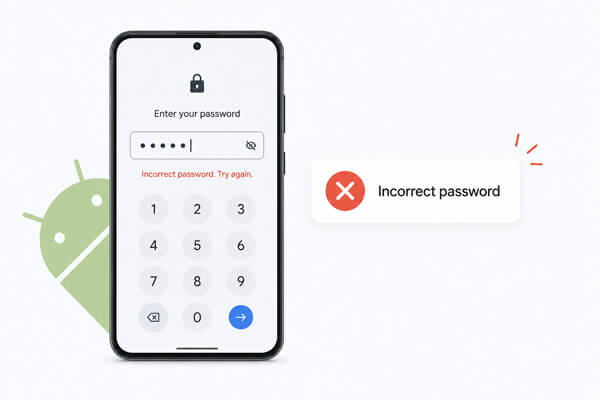
Before solving the password recognition failure issue, it is essential to figure out the underlying causes. The common reasons why an Android phone rejects a correct password are summarized as follows:
Based on the above causes, here are 5 effective and user-friendly solutions. You can try them one by one, from simple to complex, to fix the password recognition issue.
A temporary system glitch is one of the most common reasons an Android phone may reject the correct password. Performing a force restart can refresh the operating system and fix minor lock screen issues.
Different Android brands use different button combinations, but the general steps are similar.
Step 1. Press and hold the "Power" button for about 10 to 20 seconds.
Step 2. On some devices, you may need to press and hold the "Power" + "Volume Down" buttons together.
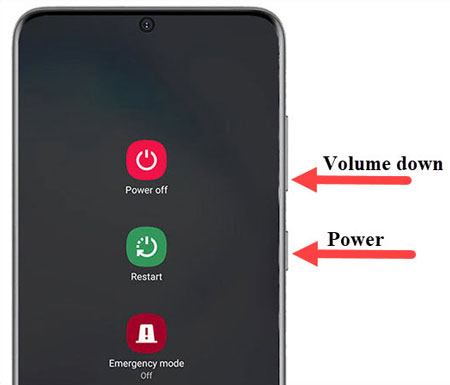
Step 3. Wait for the phone to restart automatically.
Step 4. After the reboot, enter the correct password again and check whether the issue is resolved. This method will not erase your data.
Sometimes the problem is caused by external conditions rather than the Android system itself. You should carefully check the following situations:
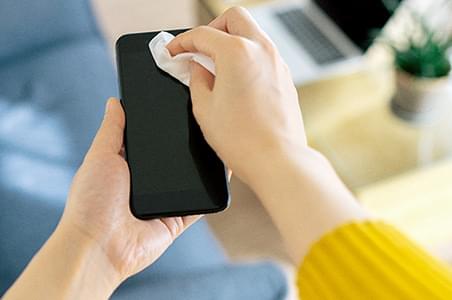
If your screen has ghost touch issues or unresponsive areas, the password may be entered incorrectly even when you tap the correct keys.
You can also try rotating the phone or using it without a case to see whether the touch response improves.
After multiple failed password attempts, Android devices may temporarily block additional login attempts for security reasons. In some cases, the system may also experience delayed verification.
Instead of repeatedly entering the password, stop trying for several minutes.
Step 1. Leave the phone untouched for 5 to 30 minutes.
Step 2. Make sure the device has sufficient battery power.
Step 3. Try entering the correct password again slowly and carefully.
This simple method works surprisingly well for many users, especially after repeated failed unlock attempts.
Third-party apps, especially lock screen apps, launchers, or security tools, may interfere with Android's default lock screen.
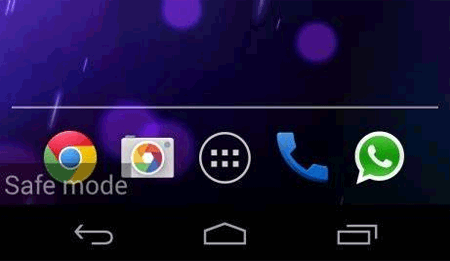
Booting into Safe Mode disables third-party apps temporarily and helps determine whether an installed app is causing the problem.
Step 1. Press and hold the "Power" button until the power menu appears.
Step 2. Touch and hold the "Power Off" option until you see the Safe Mode prompt.
Step 3. Tap "OK" to reboot into Safe Mode.
Step 4. Once the device enters Safe Mode, try unlocking the phone again.
If the password works in Safe Mode, a third-party app is likely responsible. You can then uninstall recently installed security apps, lock screen apps, or launchers after regaining access.
When the above manual methods fail to solve the problem, using a professional Android unlocking tool may be the most effective solution. These tools are designed to bypass lock screen issues caused by system glitches or password verification errors without requiring advanced technical skills.
Among the many Android unlocking tools available, Android Unlocker is a popular option due to its high success rate and beginner-friendly operation. Android Unlocker is designed to handle various Android lock screen problems, including phones not accepting the correct password, forgotten PINs, pattern locks, and disabled devices. It supports many Android brands, including Samsung, Xiaomi, Huawei, Motorola, and Google Pixel.
Key features of Android Unlocker:
Here is how to use it to remove the screen lock for an Android phone not accepting the correct password:
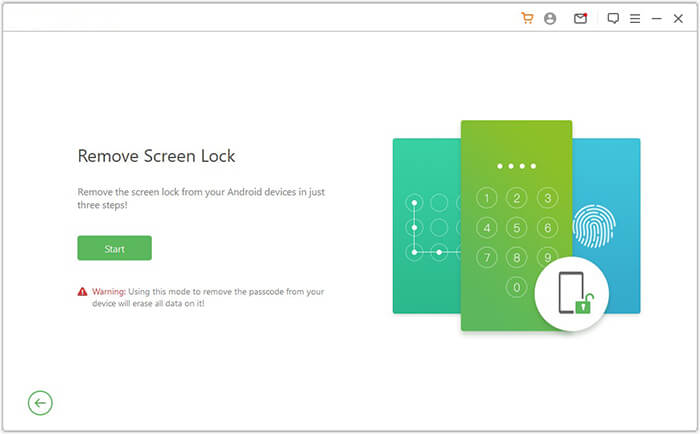
01Download and install Android Unlocker on your computer. Open the program and select the "Remove Screen Lock" mode from the main interface.
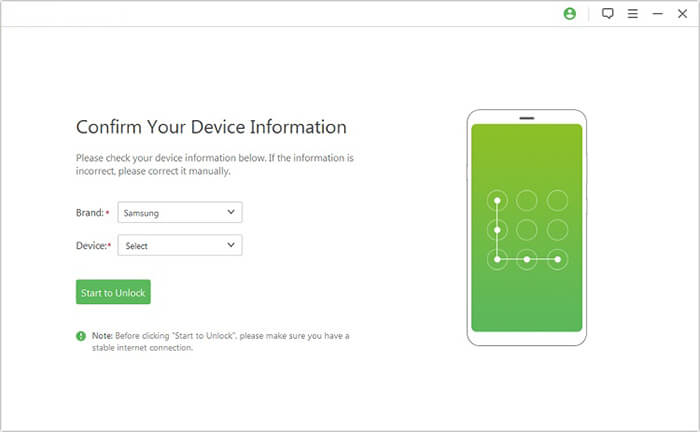
02Connect your Android phone to the computer with a USB cable. Once the software detects your device automatically, verify the displayed device information and proceed to the next step.
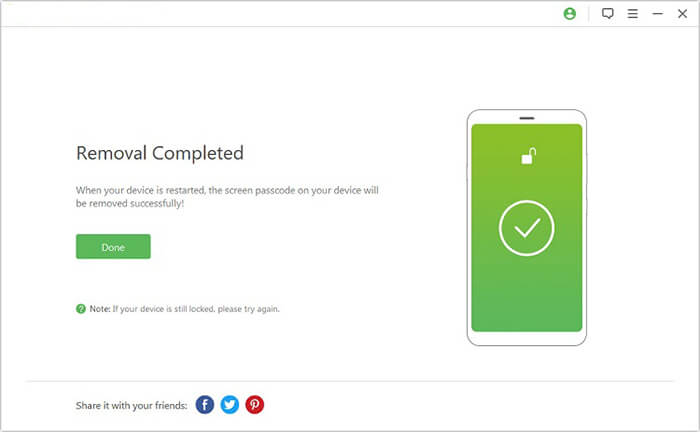
03Follow the on-screen instructions to put your Android phone into the required mode, such as Recovery Mode or Download Mode. Then click the "Remove Now" button to start removing the screen lock. Wait until the unlocking process is completed.
If your Android phone is not accepting the correct password, the issue is usually caused by system glitches, touchscreen problems, or app conflicts rather than the password itself. In many cases, simple methods like force restarting the device, waiting a few minutes, or entering Safe Mode can solve the problem quickly.
However, if you are still locked out, using a professional unlocking tool such as Android Unlocker may be the fastest solution. Before performing advanced operations, it is always recommended to back up your important data whenever possible.
Related Articles:
Android Enter PIN to Unlock Not Working - Troubleshooting Guide
How to Get Free Unlock Code to Unlock Your iPhone & Android Phones?
How to Get Into a Locked Phone with or without a Password
What If You Locked Out of Android Phone? 6 Easy Ways May Help




 Free Download for PC


