TL;DR:
If Samsung face recognition is not working, you can try these solutions:
Samsung face recognition is one of the most convenient biometric features available on Galaxy devices. It enables users to unlock their phones quickly, verify payments securely, and access private apps with just a glance. However, many Samsung users encounter issues where face recognition fails to detect their face, gets stuck while scanning, repeatedly rejects the correct face, or even displays a "Face recognition unavailable" error.
If you are experiencing the Samsung face recognition not working issue, there is no need to panic. In this guide, we will explain the common causes behind the problem and introduce 7 effective solutions to fix it step by step. Additionally, we will show you alternative ways to unlock your Samsung phone when face unlock completely stops working.
There are several possible reasons why Samsung face unlock may stop functioning properly. Understanding the cause can help you choose the right solution more quickly.
Now that you know the possible causes, let's move on to the fixes.
Based on the above reasons, we have sorted 7 practical fixes from simple to advanced. You can follow the sequence to troubleshoot, which can solve over 95% of Samsung face recognition not working issues.
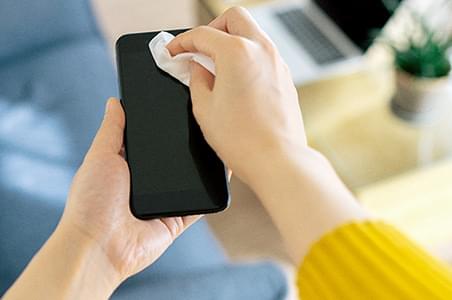
A dirty or blocked front camera can prevent the phone from scanning your face correctly. Fingerprints, dust, or even small smudges may reduce recognition accuracy. Use a soft microfiber cloth to gently clean the front camera area. If your phone has a thick screen protector or privacy film covering the camera, try removing it temporarily and test the face recognition feature again.
After cleaning the camera, lock your phone and try unlocking it using face unlock.
Samsung face recognition mainly relies on the front camera, so poor lighting can easily affect detection. Move to a brighter environment and hold the phone directly in front of your face. Avoid strong backlighting or shadows covering your face. If you are wearing sunglasses, hats, or masks, remove them before trying again.
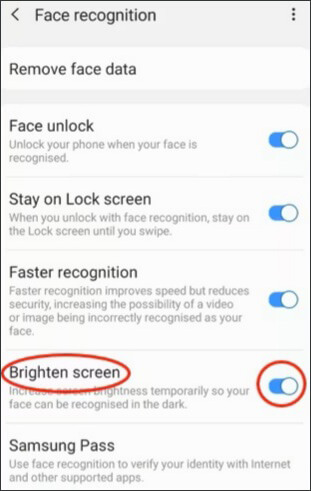
Some Samsung devices also include a "Brighten screen" feature that increases screen brightness during face recognition. You can enable it by going to: "Settings" > "Security and privacy" > "Biometrics" > "Face recognition" > turn on "Brighten screen".
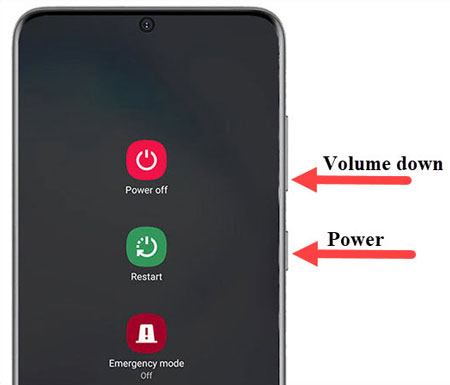
Temporary system glitches may cause Samsung face unlock to stop responding properly. Restarting the device can refresh background services and fix minor software problems. Press and hold the "Power" button and tap "Restart". Once the phone reboots, try using face recognition again.
If a normal restart does not help, you can also perform a force restart by pressing and holding the "Volume Down" + "Power" buttons simultaneously for about 10 seconds until the Samsung logo appears.
Sometimes the face recognition feature itself may malfunction due to temporary biometric service issues. Disabling and enabling the feature again can refresh the settings.
Follow these steps:
Step 1. Open "Settings" on your Samsung phone.
Step 2. Go to "Security and privacy" > "Biometrics" > "Face recognition".
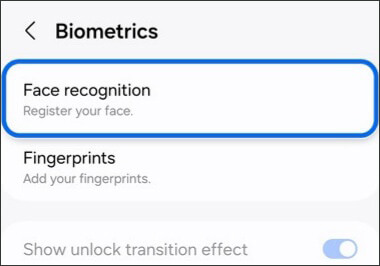
Step 3. Enter your PIN, password, or pattern.
Step 4. Turn off face unlock.
Step 5. Restart the phone.
Step 6. Return to the same page and enable Face Unlock again.
After enabling it again, check whether the issue has been resolved.
If the stored face data becomes corrupted or outdated, Samsung may fail to recognize your face properly. Re-registering your face is often one of the most effective solutions.
Here is how to do it:
Step 1. Open "Settings".
Step 2. Navigate to "Security and privacy" > "Biometrics" > "Face recognition".
Step 3. Verify your lock screen credentials.
Step 4. Tap "Remove face data".
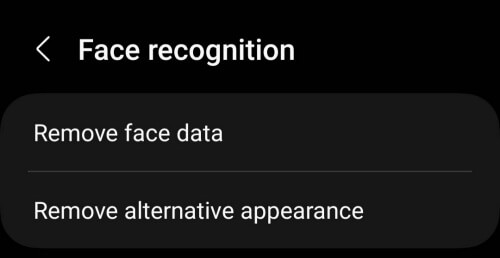
Step 5. Restart your Samsung device.
Step 6. Go back to the Face recognition settings and tap "Register face".
Step 7. Follow the on-screen instructions to scan your face again in a well-lit environment.
During registration, hold the phone at eye level and keep your face naturally visible for better accuracy.
Software bugs in older system versions may cause Samsung face recognition to stop working. Updating the device can fix known issues and improve biometric performance.
To check for updates:
Step 1. Open "Settings".
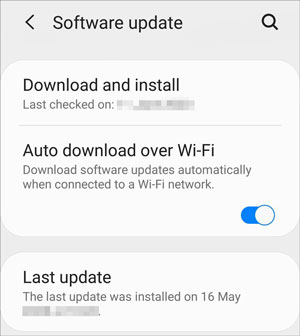
Step 2. Tap "Software update".
Step 3. Select "Download and install". If an update is available, install it and restart the phone.
After updating, test the face recognition feature again.
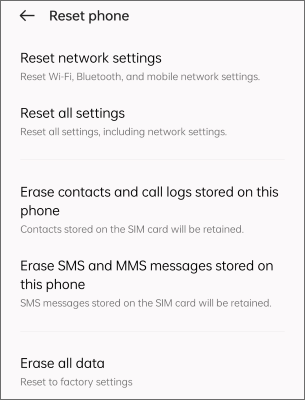
If none of the previous methods work, resetting all phone settings may help eliminate configuration conflicts affecting biometric functions. This process will not erase your personal files, photos, or apps, but it will reset settings such as Wi-Fi, permissions, and system preferences.
Follow these steps:
Step 1. Open "Settings".
Step 2. Go to "General management".
Step 3. Tap "Reset".
Step 4. Select "Reset all settings". Confirm the action and wait for the device to restart.
If the solutions above still do not resolve the problem and you can no longer unlock your Samsung phone because face unlock keeps failing, a professional Android unlocking tool may help. Android Unlock is a useful tool that can remove different types of Android screen locks, including facial recognition locks.
So, if Samsung face recognition is not working and you are locked out of your device, you can use this tool to regain access to your phone more easily.
Why choose Android Unlock?
How to unlock Samsung phone when face recognition is not working?
01Download and install Android Unlock on your computer. Once installed, open the software and get started.
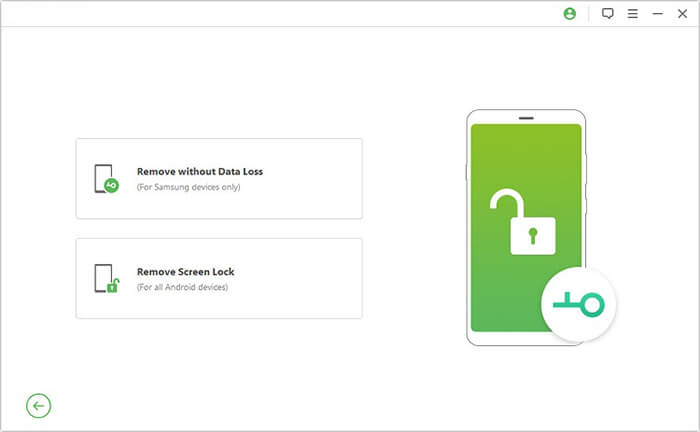
02On the main interface, click "Remove Screen Lock" and then choose the "Remove without Data Loss" option to continue.
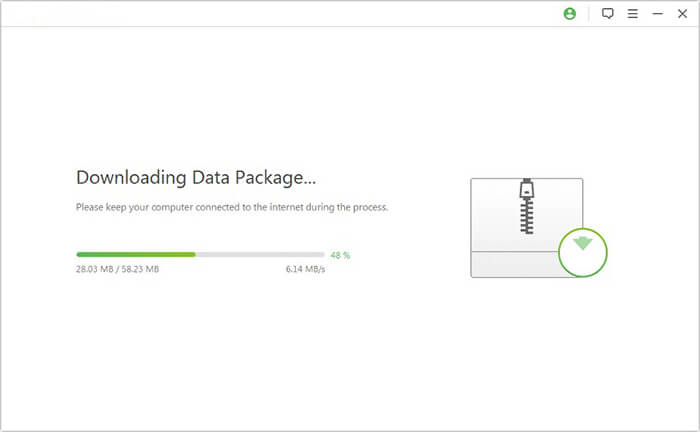
03Use a USB cable to connect your Samsung phone to the computer. After the device is detected, choose the correct device information shown on the screen and download the matching firmware package.
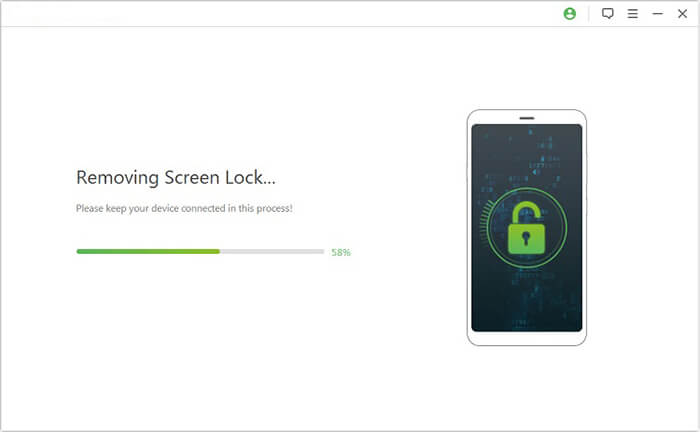
04After everything is prepared, the software will begin unlocking your Samsung phone automatically. Wait for the process to finish, and your device will restart with the screen lock removed successfully.
Samsung face recognition not working can be frustrating, especially when you rely on Face Unlock for quick and convenient access to your device. Fortunately, in most cases, the issue can be resolved with simple fixes like cleaning the front camera, improving lighting conditions, restarting the phone, or re-registering your face data.
If basic troubleshooting does not work, updating your Samsung device or resetting all phone settings may help eliminate deeper system issues. And when you are completely locked out because face unlock fails repeatedly, tools like Android Unlock can provide an effective way to regain access to your Samsung phone.
Hopefully, the solutions in this guide have helped you fix the Samsung face recognition issue and get your device working normally again.
Related Articles:
How to Bypass Face Recognition on Android? [Step-by-Step Guide]
How to Check If Samsung Phone Is Unlocked Without SIM [Solved]




 Free Download for PC


