TL;DR:
Want to check whether your Samsung phone is unlocked without a SIM card? You can verify the lock status through 4 practical methods, including built-in settings, IMEI checks, dialing codes, and carrier support. This guide also covers what to do if your Samsung phone is still locked and how to regain access when needed.
If you recently bought a second-hand Samsung phone, plan to change carriers, or want to use your device while traveling abroad, one important question often comes up: how to check if a Samsung phone is unlocked without a SIM. This situation is more common than you might think, especially when you don't have a compatible SIM card on hand.
Fortunately, you don't need to insert a SIM card to determine whether your Samsung phone is carrier unlocked. There are several reliable ways to check the network lock status directly from the device or by using its IMEI number. In this guide, we'll show you practical and proven methods to check if your Samsung phone is unlocked without a SIM card, and explain what you can do if the phone turns out to be locked.
There are multiple ways to determine whether a Samsung phone is unlocked, even if no SIM card is available. Below are the most effective methods, starting from the simplest checks on your phone to more reliable verification options.
Checking the Settings menu is often the quickest way to find clues about your Samsung phone's network lock status. Many Samsung models provide basic carrier or network information directly in the system settings.
Steps to check if Samsung phone is unlocked without SIM from Samsung settings:
Step 1. Open Settings on your Samsung phone.
Step 2. Go to "Connections" > "Mobile Networks".
Step 3. Tap "Network operators" or look for any option related to network or carrier status.
You can also go to "Settings" > "About device" > "Status" to view network details.
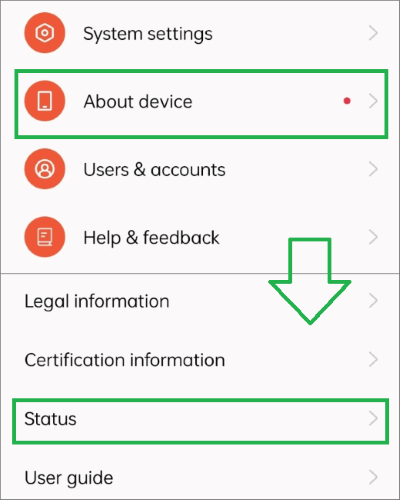
How to interpret the result:
Note: Not all Samsung phones clearly display lock status in Settings, especially newer models or customized carrier firmware. If the information is unclear, try another method below.
An IMEI check is one of the most reliable ways to verify whether a Samsung phone is unlocked without inserting a SIM card. Every phone has a unique IMEI number that stores carrier and lock information.
Here are the steps to tell if Samsung is unlocked without a SIM:
Step 1. Go to "Settings" > "About phone" and copy the IMEI number.
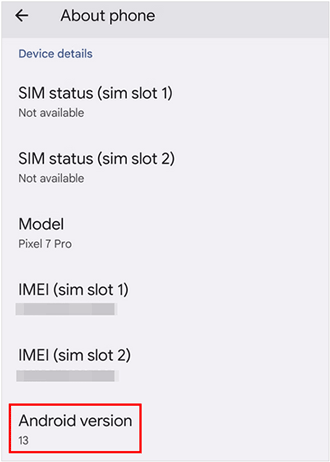
Step 2. Open a trusted IMEI checking service online.
Step 3. Enter the IMEI number and submit it for checking.
Result explanation:
Samsung phones support hidden diagnostic menus that can display network lock information. This method is useful for users who are comfortable navigating technical screens. Here is how it works:
Step 1. Open the Phone app.
Step 2. Dial *#0011# to enter Service Mode.
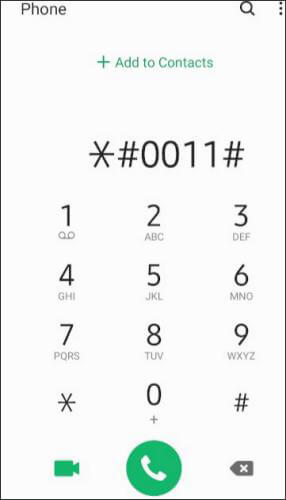
Step 3. Look for fields labeled SIM Lock, Network Lock, or Carrier Lock.
What to look for:
Note: This method may not work on all Samsung models or Android versions, and the menu layout can vary by region.
When other methods don't provide a clear answer, contacting the original carrier is the most accurate way to confirm unlock status.
What you need to prepare:
Most carriers can check whether a Samsung phone is unlocked using the IMEI alone, even if you no longer have the SIM card. This method is especially useful for second-hand or refurbished devices.
After checking the status, you may find that your Samsung phone is locked. Before taking action, it's important to understand what kind of lock you're dealing with, as the solutions are different.
Understand the Type of Lock
If your Samsung phone is network locked, the safest and most reliable option is to contact the original carrier and request an official unlock using the IMEI number. If the phone is not SIM locked but you are locked out of the screen, then a screen unlock tool can help you regain access. Android Unlock offers a straightforward solution. It is designed specifically to remove various types of screen locks on Samsung devices without requiring the original password.
Key Features of Android Unlock:
If you are locked out of your Samsung phone and want to regain access without data loss, you can follow the steps below:
01Download, install, and launch Android Unlock on your computer.
02On the main screen, choose "Remove Screen Lock", then select the "Remove without Losing Data" mode.
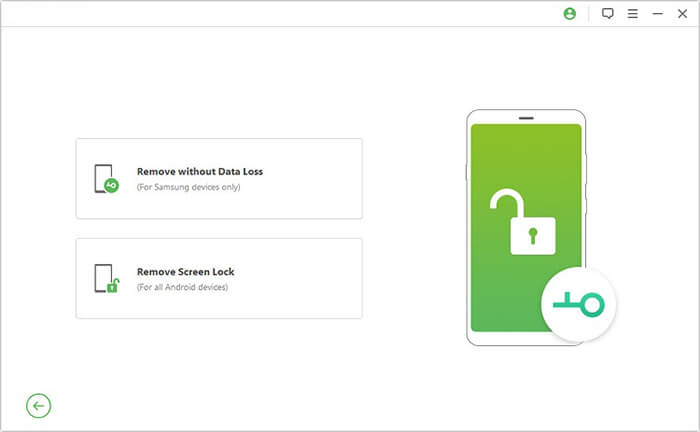
03Connect your Samsung phone to the computer using a USB cable. Select the correct device information and download the required data package when prompted.
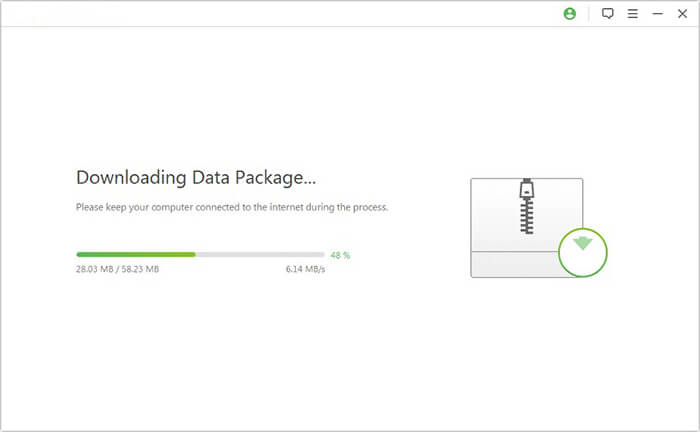
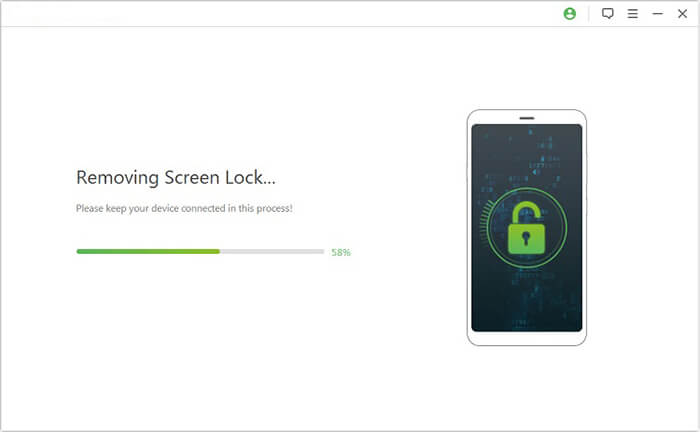
04Once the preparation is complete, the software will automatically begin unlocking your device. After a short wait, your Samsung phone will restart, and the screen lock will be removed.
Knowing whether your Samsung phone is unlocked is essential before switching carriers, using a local SIM abroad, or buying a second-hand device. Even without a SIM card, you can still check the network lock status through the phone's settings, an IMEI checker, diagnostic codes, or by contacting the original carrier for confirmation.
If your device turns out to be carrier-locked, requesting an official unlock from the carrier remains the safest solution. And if the phone itself is accessible only after removing a forgotten screen lock, tools like Android Unlock can help you regain access without losing data. By understanding both the phone's unlock status and the type of lock involved, you can avoid unnecessary issues and make better decisions when using your Samsung device.
Related Articles:
Everything You Need to Know About Network Unlock Code for Samsung
How to Check if iPhone Is Unlocked without SIM Card [Proven Guide]
Android SIM Unlock - How to Unlock SIM Card on Android with Ease?
Unlock a Network Locked Phone Easily | Full Step-by-Step Guide




 Free Download for PC


