TL;DR:
The Samsung MCK code is an important code used to remove SIM network locks after too many incorrect unlock attempts. This guide explains what a Samsung MCK code is, how to obtain it, and what you can do if your device is locked and the code does not work.
If your Samsung phone is locked to a specific carrier and you've entered the wrong unlock code too many times, you may see a message asking for an MCK code. This can be confusing, especially if you've never heard of it before.
In this guide, we'll explain what the Samsung MCK code is, when you need it, how to get it, and how to use it correctly to unlock your device.
The MCK code, short for Master Control Key, is a special unlock code designed for Samsung devices to resolve a "locked" or "blocked" state. This usually happens after you enter the wrong Network Control Key (NCK) multiple times.
The NCK code is the code used to unlock your Samsung phone from its original carrier. However, after too many incorrect attempts, the device will stop accepting further entries and display messages like "SIM network PIN blocked" or "Enter MCK code". At this point, the MCK code is required to reset the lock and allow you to try again.
There are also a few important things you should know about the Samsung MCK code. It is unique to each device and is generated based on your phone's IMEI number, which means one code cannot be used on another device. In addition, the number of attempts to enter the MCK code is limited, and repeated incorrect entries may result in a permanent lock. For this reason, it is strongly recommended to avoid using random online "MCK code generators", as they are often unreliable or unsafe. Instead, you should always obtain your code from official or trusted sources.
MCK Code vs NCK Code: What's the Difference?
Many users confuse MCK and NCK codes, but they serve completely different purposes:
Before getting an MCK code, it's important to understand when you actually need it.
You will typically need an MCK code when your Samsung device becomes locked after multiple incorrect NCK attempts. In this situation, your phone may display messages such as "SIM network PIN blocked", "Enter MCK code", or "Network lock unsuccessful".
Once you see these prompts, it means the device has stopped accepting further unlock attempts, and you must use the MCK code to reset the lock before trying again.
The most reliable and often free way to get your Samsung MCK code is through your original carrier. In many cases, carriers will provide the code within a few business days. However, availability depends on their policy.
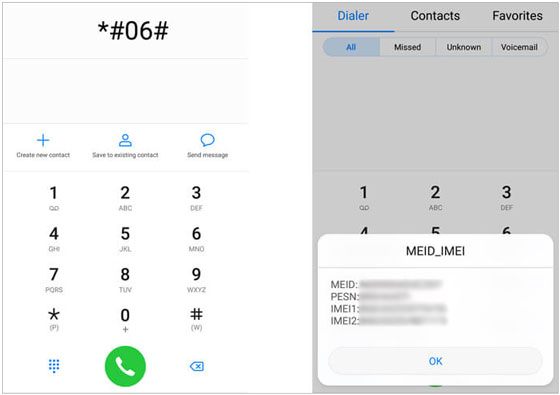
Step 1. Find your IMEI number by dialing *#06# or checking it in "About Phone".
Step 2. Contact your carrier via phone, live chat, or a retail store.
Step 3. Provide your IMEI number, device model, and proof of ownership.
Step 4. Request the MCK code and explain that your device is locked due to incorrect unlock attempts.
If your carrier cannot help, you can try contacting Samsung support. Samsung may provide the code or guide you to the appropriate solution. In some cases, they may still refer you back to your carrier.
Step 1. Visit the official Samsung support page and choose your region.
Step 2. Go to the "Contact Us" section and select a contact method.
Step 3. Provide your IMEI number, device model, and proof of ownership.
Step 4. Explain that your device is locked and request the MCK code.
If official methods are unavailable, a third-party unlock service can be an alternative. Make sure the service supports your specific Samsung model and offers a refund policy. Avoid platforms that request unnecessary personal information.
Step 1. Choose a reputable service with good reviews.
Step 2. Enter your device model and IMEI number.
Step 3. Complete the payment and submit your request.
Step 4. Receive your MCK code via email (usually within 1 - 24 hours).
Using the Samsung MCK code is straightforward, but you need to follow each step carefully. Before you begin, make sure you have both the MCK code and the NCK code, as you will need the NCK code to complete the unlock process.
Step 1. Power off your Samsung device, then insert a SIM card from a different carrier.
Step 2. Turn the device back on. You should see a message such as "SIM network PIN blocked" or "Enter MCK code".
Step 3. Enter the MCK code carefully. Double-check each digit to avoid using up your limited attempts.
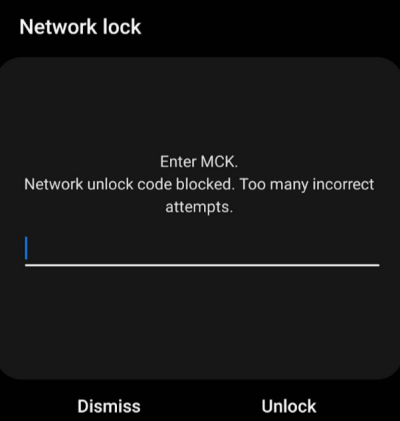
Step 4. Once accepted, the device will reset the lock and prompt you to enter the NCK code.
Step 5. Enter the NCK code to complete the unlock. Your Samsung device should now work with the new SIM card.
1. Who provides the MCK code?
In most cases, the MCK code is provided by your original mobile carrier, as they have access to your device's IMEI and unlock information. If the carrier cannot help, you can also try contacting Samsung support or using a trusted third-party unlocking service.
2. Is a MCK code the same as a PUK code?
No, these two codes are completely different and are used for different purposes.
A PUK code is used to unlock a SIM card after entering the wrong PIN multiple times, while the MCK code is used to reset the network unlock attempts on a Samsung device after too many incorrect NCK entries.
3. How long is the MCK code?
The length of an MCK code can vary depending on the device and carrier, but it is typically between 8 and 16 digits. You should always enter the code exactly as provided to avoid errors.
4. What happens if I enter the wrong MCK code?
If you enter the wrong MCK code too many times, your device may become permanently locked, making it much more difficult to unlock. In some cases, you may need professional repair services to fix the issue.
To avoid this, always double-check the code before entering it and make sure you obtained it from a reliable source.
If your Samsung phone is locked due to a forgotten screen password (rather than a network lock), the MCK code won't help. In this case, you'll need a professional Samsung unlocking tool like Android Unlock.
This tool is designed to remove various types of screen locks quickly and safely, making it a practical solution when you're locked out of your device.
Key features of Android Unlock:
How to unlock a Samsung phone without losing data?
01Download, install, and launch the software on your computer.
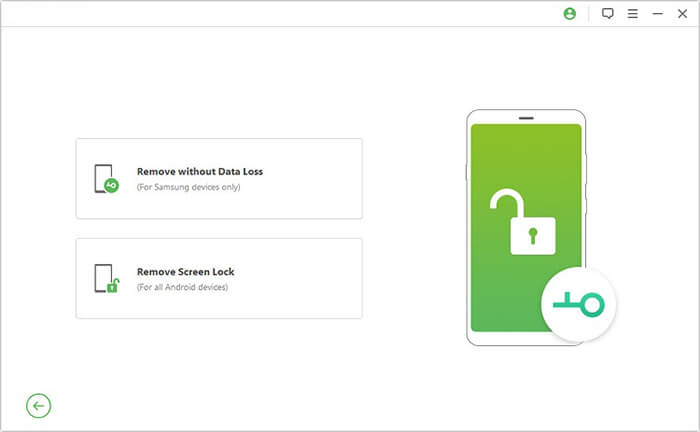
02Open the program and select "Remove Screen Lock", then choose "Remove without Data Loss".
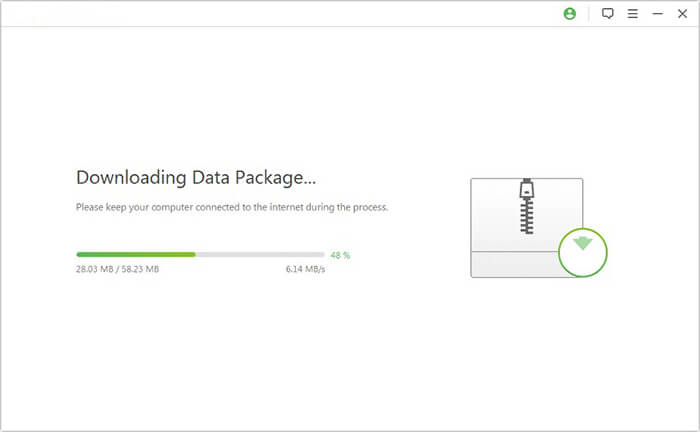
03Connect your Samsung phone to the computer using a USB cable. Confirm that your device information is correct, then download the required data package.
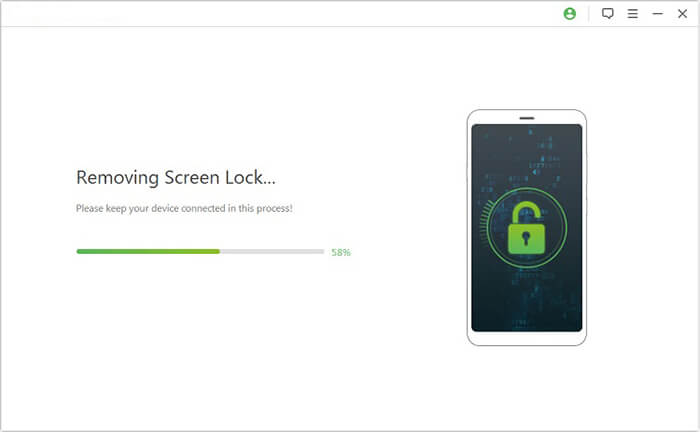
04The software will automatically start unlocking your device. After a short process, your phone will reboot, and the screen lock will be removed.
The Samsung MCK code is an essential tool for fixing the "phone freeze" issue caused by too many incorrect NCK attempts. Once you understand what it is and how it works, you can use it to safely restore access to your device.
To avoid unnecessary risks, always obtain your MCK code from trusted sources such as your carrier, Samsung support, or reputable third-party services. Never rely on random online generators, as they may lead to incorrect codes or permanent lock issues.
If your problem is related to a screen lock instead of a network lock, you can also use Android Unlock as a reliable solution to unlock your Samsung device without a password. With this guide, you'll be able to handle any MCK Code-related issues with confidence.
Related Articles:
Everything You Need to Know About Network Unlock Code for Samsung
All About Samsung Pattern Unlock Master Code | A Comprehensive Guide
How to Check If Samsung Phone Is Unlocked Without SIM [Solved]
[Ultra Guide] How to Unlock Samsung Phone Forgot Password Without Losing Data




 Free Download for PC


