TL;DR:
If your Samsung phone is not accepting the correct password, this is usually caused by system glitches, touchscreen issues, or temporary security lockouts. In most cases, the problem can be resolved without losing your data.
In this guide, you will learn several effective solutions to unlock your Samsung device, including double-checking the password, restarting your phone, checking the touchscreen, waiting for the lockout period, using SmartThings Find, entering Safe Mode, using a professional Android unlocking tool (Android Unlocker), and performing a factory reset.
Samsung phone not accepting correct password? This is a common issue that can prevent users from accessing their devices even when they are sure the password is right. The problem may occur due to software glitches, input errors, or security lockout mechanisms designed to protect your data.
In this article, we will explain the possible causes and provide step-by-step solutions to help you unlock your Samsung phone quickly and safely.
Before trying any fixes, it's helpful to understand what may be causing the problem. Here are the most common reasons why a Samsung phone may reject the correct password.
1. The Password Is Being Entered Incorrectly
Even if you're confident that you're entering the right password, small mistakes can happen. A changed keyboard layout, accidental capitalization, or confusion between similar characters such as "0" and "O" can cause the password to be rejected.
2. The Touchscreen Is Not Responding Properly
If part of the touchscreen is malfunctioning, some taps may not register correctly. This can result in incorrect password input even when you are typing the right characters.
3. Temporary Software Glitches
Like any electronic device, Samsung phones can occasionally experience system glitches. A temporary bug may interfere with the lock screen and prevent the device from recognizing the correct password.
4. Multiple Failed Attempts Triggered a Lockout
For security reasons, Samsung devices may temporarily disable password entry after several incorrect attempts. During this lockout period, even the correct password may not work until the waiting time expires.
5. Corrupted Cache or System Files
Damaged cache files or corrupted system components can sometimes affect the lock screen's functionality, leading to authentication problems.
6. Recent Software Update Issues
In some cases, a newly installed software update may introduce unexpected bugs that affect screen lock verification. While uncommon, this can cause the device to reject valid credentials.
If your Samsung phone won't accept the correct password, try the following solutions in order. Start with the simplest fixes before moving on to more advanced methods.
Before attempting any complex troubleshooting, make sure the password is entered correctly.
If the issue persists, proceed to the next solution.
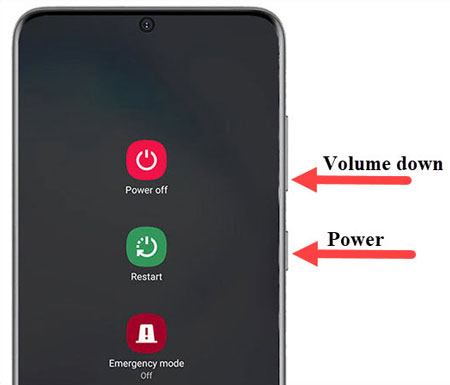
A force restart can eliminate temporary software glitches that may be preventing your Samsung phone from recognizing the correct password.
Press and hold the "Power" button and "Volume Down" button simultaneously for about 10 to 20 seconds. Continue holding the buttons until the Samsung logo appears on the screen. Once the device restarts, try entering your password again to see whether the issue has been resolved.
A faulty touchscreen can cause password entry errors without you realizing it. Try tapping different areas of the screen and observe whether all touches register correctly. If your phone has an emergency dialer available on the lock screen, open it and test multiple keys.
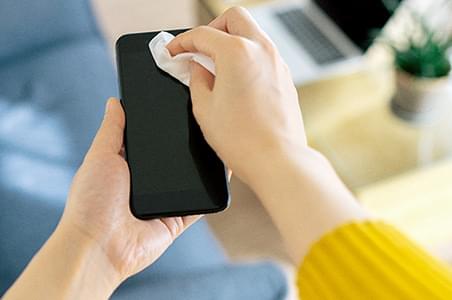
You can also remove any screen protector, wipe the screen clean, and ensure there is no moisture or debris affecting touch sensitivity. If certain areas of the screen do not respond, the problem may be hardware-related rather than password-related.
If you've entered the wrong password multiple times, Samsung may temporarily lock the device to protect your data. Check the lock screen for a countdown timer. Wait until the lockout period expires, then carefully enter your password again. Avoid repeatedly guessing passwords, as this may increase the waiting time or trigger additional security restrictions.
If the above manual methods still fail and your Samsung phone continues to reject the correct password, the issue may be related to deeper system errors or lock screen verification failures. In such cases, traditional troubleshooting methods are often not enough to restore access.
Using a professional Samsung unlocking tool can be an effective solution for this problem. Among the available options, Android Unlocker is widely used due to its high success rate and user-friendly interface. It is designed to remove all screen locks. No matter what type of lock is preventing access to your phone, Android Unlocker can help you remove the screen lock and regain full control of your device.
Key features of Android Unlocker:
How to fix a Samsung phone not accepting the correct password by unlocking a Samsung phone?
01Download, install, and open the program on your computer.
02Choose "Remove Screen Lock", then select the "Remove without Data Loss" option.
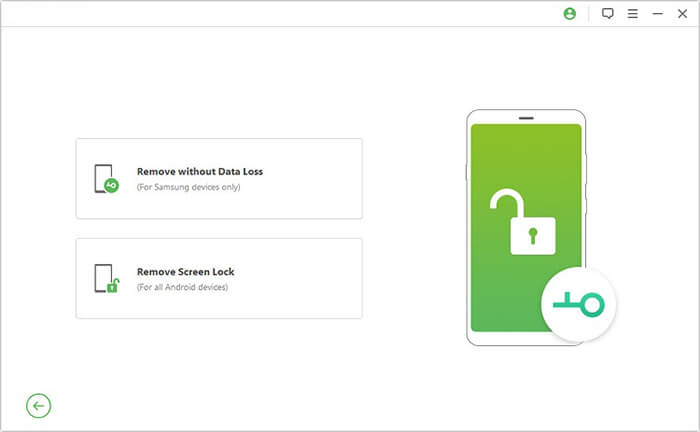
03Connect your Samsung device to the computer via a USB cable, then confirm your device details and download the required firmware package.
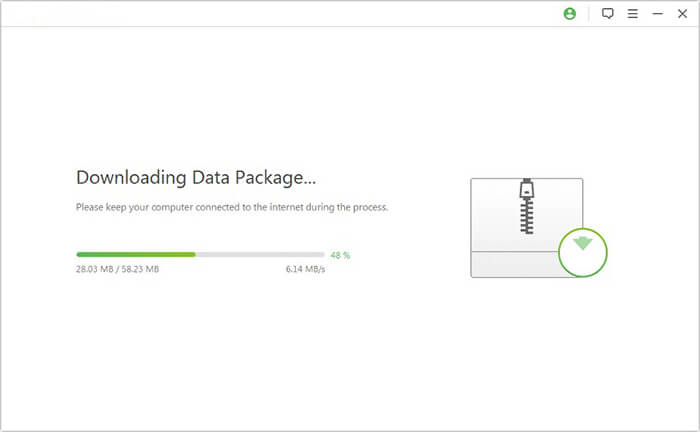
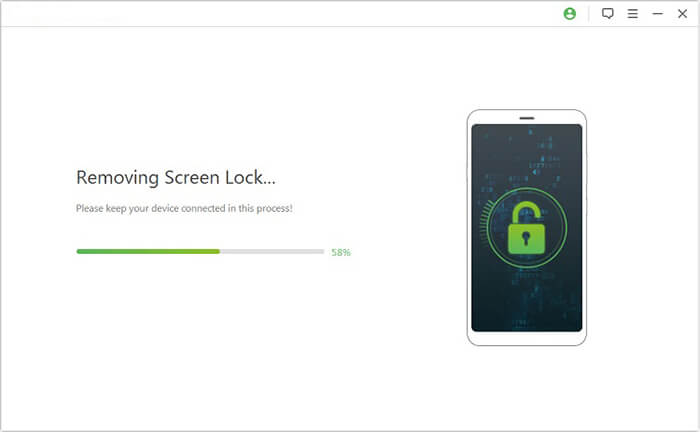
04Once everything is ready, the tool will automatically start removing the screen lock. Wait for the process to complete, and your phone will reboot with the lock removed.
If you previously signed in to your Samsung account and enabled remote management features, SmartThings Find may help you regain access to your device. SmartThings Find (formerly Find My Mobile) is the most secure official way to unlock a device without data loss. This function is applicable when your Samsung phone is linked to a Samsung account and has enabled remote control functions in advance.
Step 1. Open the SmartThings Find official website on a computer or other mobile device, and log in with the Samsung account bound to your locked phone.
Step 2. Select your target device in the device list, click the "Unlock" option, and verify your account identity.
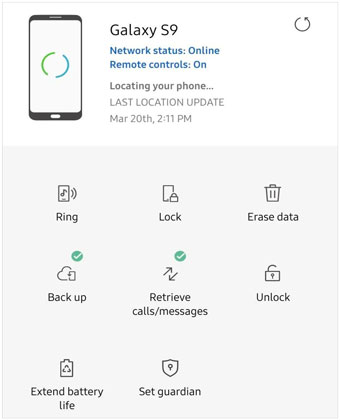
Step 3. After the verification is successful, the system will remotely clear the screen lock of the Samsung phone. After unlocking, you can reset a new password normally.
Safe Mode disables third-party apps and can help determine whether a recently installed application is interfering with the lock screen.
Step 1. Long press the "power" button until the power menu pops up.
Step 2. Long press the "Power Off" option on the screen until the "Safe Mode" prompt appears, then click to enter. After entering Safe Mode, all third-party lock screen tools and keyboard apps will be disabled.
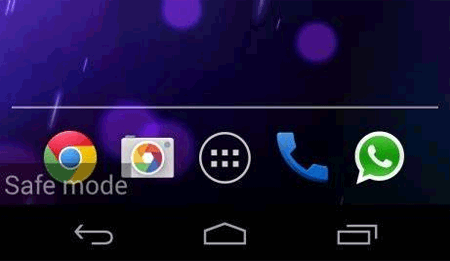
At this time, enter your correct password again to test. If the password can be verified successfully in Safe Mode, it proves that a recently installed third-party app caused the failure. You can uninstall the problematic app and restart the device to return to normal mode.
If all the above methods fail to fix the problem, there may be severe system file corruption. Factory reset is the final solution to completely repair system errors. It should be noted that this method will erase all data, settings, photos, and files on the phone, so it is recommended to back up your phone before factory reset.
Step 1. Turn off the device first.
Step 2. Press and hold the "Volume Up" button + "Power" button at the same time to enter the Recovery Mode.
Step 3. Use the volume keys to select the "wipe data/factory reset" option, press the power button to confirm, then select "Yes" to start the reset.
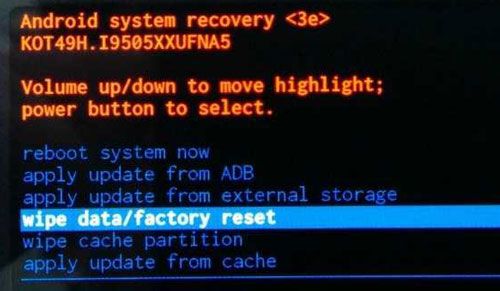
Step 4. After the reset is completed, select "Reboot System Now" to restart the phone. The system will be restored to the factory state, and the password recognition failure problem will be completely resolved.
When a Samsung phone is not accepting the correct password, it is often due to temporary system errors, touchscreen issues, or security lockouts rather than an incorrect password.
While basic fixes like restarting the device or waiting for the lockout period may solve the issue, they do not always work in every situation. In such cases, using a professional Android unlocking tool like Android Unlocker can be the most effective way to quickly regain access to your device and remove the screen lock.
Related Articles:
Android Phone Not Accepting Correct Password | Causes & Full Fixes
Samsung MCK Code: A Complete Guide for Beginners in 2026
Everything You Need to Know About Network Unlock Code for Samsung




 Free Download for PC


