TL;DR:
Samsung secret codes provide a convenient way to access hidden menus, check device information, and run hardware tests on Galaxy phones. This guide introduces the most useful Samsung codes for checking battery status, network details, software information, and other system functions. It also explains what to do if you forget your Samsung phone password, as secret codes cannot directly remove screen locks.
Samsung Galaxy devices are known for their powerful hardware, deep customization options, and hidden features that go far beyond the standard user interface. Many of these hidden functions can be accessed through Samsung secret codes, special USSD, and diagnostic codes built into the system for hardware testing, software troubleshooting, and advanced system checks.
Whether you're using the latest Galaxy S26 Ultra, Z Fold7, a budget-friendly Galaxy A series phone, or a Galaxy Tab, these updated 2026 Samsung secret codes can help you test components, diagnose issues, access hidden menus, and better understand how your device works. In this guide, you'll learn what Samsung secret codes are, explore the most useful codes for 2026 models, discover how to use them safely, and find a bonus solution for unlocking a Samsung device without a password.
Samsung secret codes are short numeric or alphanumeric sequences that can be entered directly into the phone's dialer to access hidden system menus, diagnostic tools, and advanced functions. These codes are built into Samsung's firmware and are commonly used for hardware testing, software diagnostics, and system checks.
Unlike many third-party tools, most Samsung secret codes work on unrooted devices, making them accessible to everyday users as well as advanced users. While many codes are safe and read-only, some advanced options can modify system settings or erase data, so it's always recommended to proceed with caution and back up important data beforehand.
Below is a curated list of Samsung secret codes for 2026, organized by use case. These codes may vary depending on device model, One UI version, Android version, region, and carrier restrictions. Some codes may not work on newer Galaxy devices or carrier-locked phones.
These codes allow you to test physical components and sensors on Samsung Galaxy devices. They are commonly used to diagnose hardware-related issues.
These codes display essential device and firmware details.
Useful for checking signal strength, network status, and carrier-related settings.
These codes help you check battery health and charging status.
These codes are designed for debugging, diagnostics, and engineering purposes. Incorrect changes in these menus may affect system stability. So, these are for advanced users only.
These codes may trigger system refresh or service-level restarts. Availability depends on the device and firmware. Not all modern Samsung Galaxy devices support restart-related secret codes.
These codes will erase data permanently. Please always back up your data before using factory reset codes.
These codes allow you to view security and lock-related information, not bypass it. These codes are informational and do not remove locks or passwords.
Using Samsung secret codes is straightforward and doesn't require technical expertise for basic codes. Follow these steps to safely access hidden menus:
Step 1. Open the Dialer App
Launch the default Phone app on your Samsung device (third-party dialers may not support secret codes).
Step 2. Enter the Secret Code
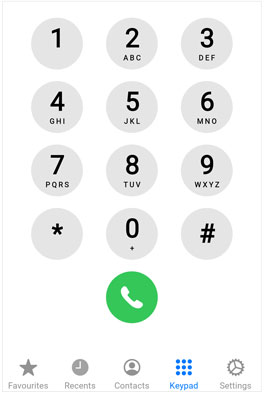
Type the full code (including asterisks and hashes) into the dial pad. Do not press the call button unless required. Some codes activate automatically after entry, while others may require pressing the call button.
Step 3. Access the Hidden Menu
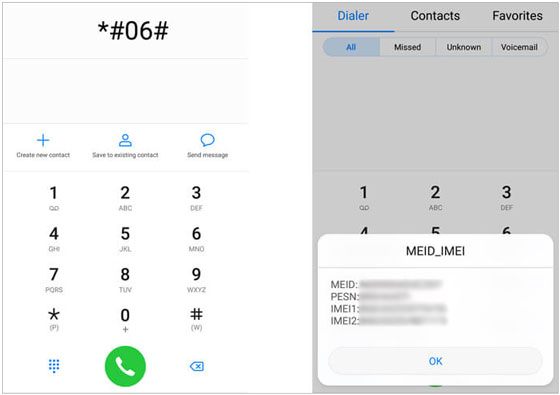
If the code is compatible with your device, a hidden menu will open immediately. For example, entering *#06# will display your IMEI, while *#0*# opens the hardware test menu.
Step 4. Navigate the Menu
Use the on-screen buttons or volume keys to navigate through the menu (some menus support touch navigation). Follow the on-screen instructions for testing or adjusting settings.
Step 5. Exit Safely
To exit a hidden menu, press the Back or Home button. Avoid force-closing the menu, as it may cause temporary glitches or slowdowns.
If you've forgotten your Samsung device's password or PIN and can't access it, Samsung secret codes won't help with unlocking your screen. In such cases, a reliable tool like Android Unlock can make a big difference. It allows you to unlock your Samsung device without losing any data, even when you forget your password, pattern, or PIN.
Why choose Android Unlock?
How to unlock a Samsung phone without losing data?
01Click the button below to download, install, and launch the software on your computer.
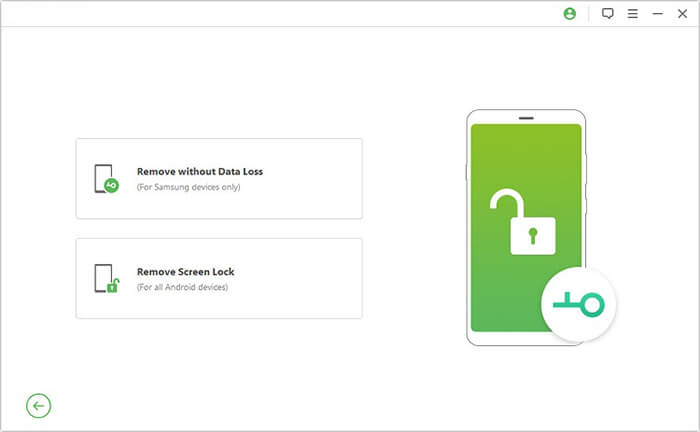
02Open the software and choose the "Remove Screen Lock" option, then select the "Remove without Data Loss" mode.
03Use a USB cable to connect your Samsung phone to the computer. Ensure the device information is correctly displayed on the interface, then download the appropriate data package.
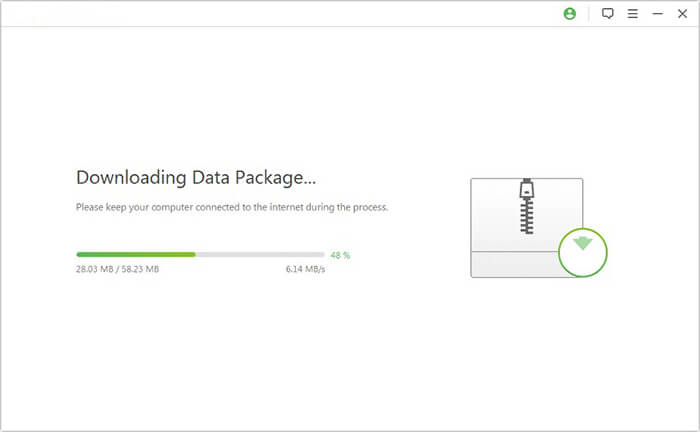
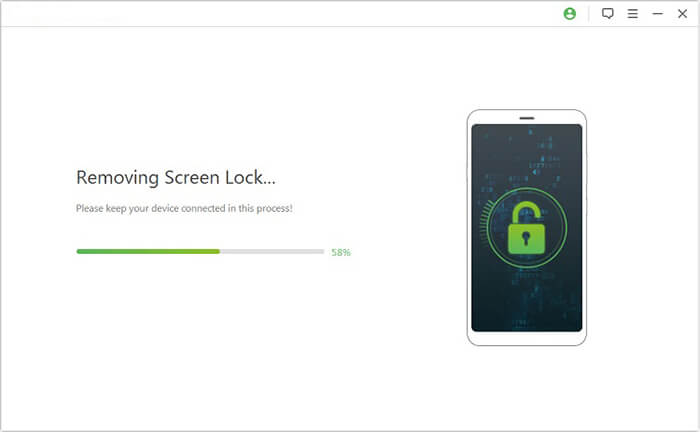
04The software will begin the unlocking process automatically. After a few seconds, your device will reboot, and the screen lock will be removed.
Samsung secret codes provide an easy and efficient way to access hidden menus and perform system diagnostics on your device. Whether you're testing hardware, checking system information, or tweaking settings, these codes offer a convenient shortcut for advanced users and tech enthusiasts.
However, if you encounter a locked screen or forget your device's password, secret codes won't help. In these cases, Android Unlock is an excellent solution to quickly remove screen locks and regain access to your Samsung phone without losing any data. With its wide compatibility and simple process, it's the perfect tool for users who need to unlock their devices safely and efficiently.
No matter your device issue, remember to proceed with caution when using Samsung secret codes and always back up your data before attempting any major changes. Stay informed and make the most of your Samsung Galaxy device.
Related Articles:
Everything You Need to Know About Network Unlock Code for Samsung
How to Unlock Samsung Phone Pattern in 8 Simple Methods
Too Many Incorrect Unlock Attempts on Samsung? Here's How to Fix It
All About Samsung Pattern Unlock Master Code | A Comprehensive Guide




 Free Download for PC


