TL;DR:
If your iPhone says "Sign Out Is Not Available Due to Restrictions", you can usually fix it by adjusting Screen Time settings, allowing account changes, or checking device management restrictions. If the problem persists, restarting or updating your iPhone may help. If you've forgotten your Screen Time passcode, you can also consider using a specialized tool to remove it.
"I got a new iPhone 15 Pro and when I completed the setup, I could not sign out of my main Apple ID due to restrictions. Any help appreciated."
- from Apple Community
If you are like the user above and have bought a new iPhone but want to sign out of your Apple ID on your old device, you may find that the Sign Out option is unavailable due to restrictions. This can be confusing and inconvenient, especially when you need to switch accounts or prepare your old iPhone for someone else.
Why does your iPhone say "Sign Out Is Not Available Due to Restrictions," and how can you fix it? In this article, we'll explore the common causes of this issue and walk you through several practical solutions to help you restore access to the Sign Out option and successfully sign out of your Apple ID.
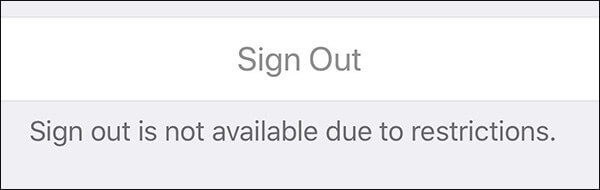
As the saying goes, "diagnosing the problem correctly is the key to solving it". If your Apple ID sign out is not available due to restrictions, the following are some possible reasons:
After we know the possible reasons for the iCloud sign out is not available due to restrictions, how do I sign out of an iPhone with restrictions? Here are some effective fixes you can try.
As mentioned earlier, the Apple sign out is not available due to restrictions message typically appears due to Screen Time restrictions. Therefore, the simplest way to sign out of your Apple ID is by disabling Screen Time.
If you set up Screen Time yourself and know both your Screen Time and passwords, the process is very straightforward. Here's a step-by-step guide to disable Screen Time:
Step 1. Open the "Settings" app on your iPhone and find and tap on "Screen Time".
Step 2. Scroll down to the bottom of the screen and tap "Turn Off Screen Time". Then, enter your Screen Time passcode to proceed.
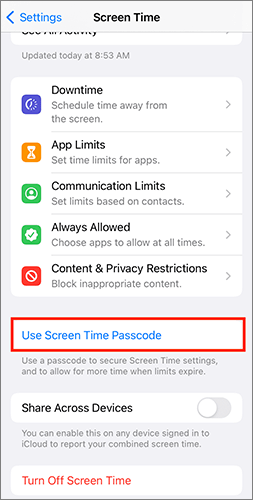
If you've forgotten your Screen Time passcode, you can turn it off using your Apple ID password. Here's how:
Step 1. Go to Settings > "Screen Time" > "Change Screen Time Passcode" > "Turn Off Screen Time Passcode".
Step 2. Tap "Forgot Passcode" and enter your Apple ID and password to remove the Screen Time passcode.
Step 3. Return to the main Settings page and tap on your profile.
Step 4. Scroll down and tap "Sign Out", then enter your Apple ID password.
Step 5. Confirm your action by tapping "Sign Out" again.
The Content & Privacy Restrictions feature controls certain actions that can be performed on the device, including signing out of Apple ID. If the account change function is restricted, the sign-out option will be greyed out, and this setting needs to be adjusted. To do this, follow the steps below:
Step 1. Go to "Settings" and tap on "Screen Time".
Step 2. Select "Content & Privacy Restrictions".
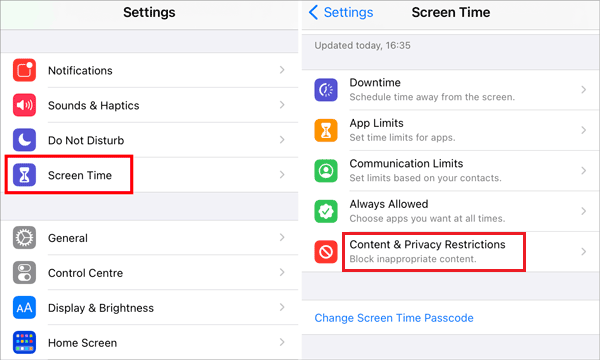
Step 3. Ensure the restriction toggle is turned on (green). If not, you won't be able to adjust the settings.
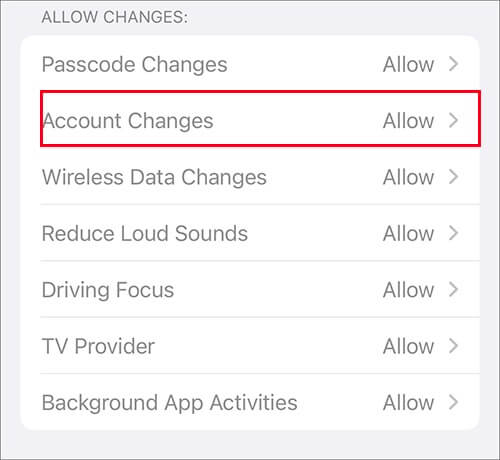
Step 4. Scroll down and tap "Account Changes". If it's disabled, change it to "Allow" to resolve the Apple ID sign-out issue.
If the device is managed by a school or company, its profile may restrict signing out of the Apple ID. These profiles enforce certain restrictions through MDM (Mobile Device Management) settings. Removing these profiles may resolve the issue.
Here is how to do it:
Step 1. Open "Settings" and go to "General".
Step 2. Tap on "VPN & Device Management".
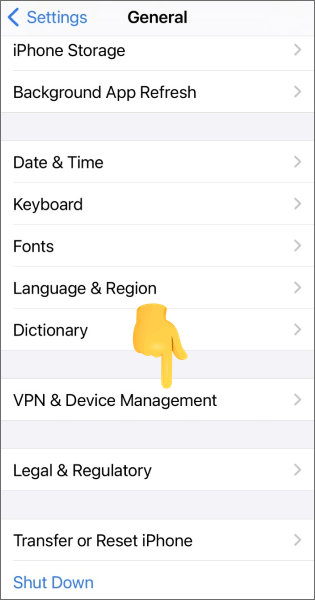
Step 3. If an MDM profile is listed, tap on it and select "Remove Profile".
Step 4. Once the MDM profile is removed, the Apple ID sign-out issue will be resolved.
During operation, the device may experience functionality issues due to system cache problems. A simple restart can refresh the system and clear any temporary issues, including signout is not available due to restrictions.
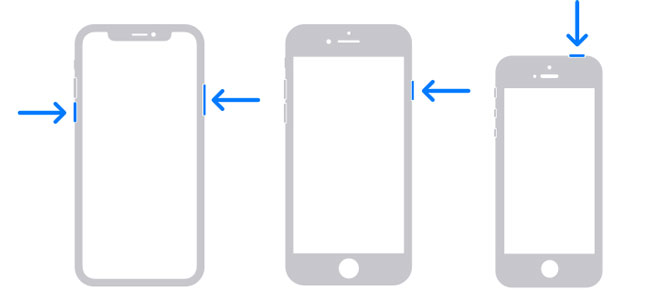
To restart your iPhone, follow the steps below:
For iPhone X, 11, 12, 13, or later:
For iPhone 6, 7, 8, or SE (2nd or 3rd generation):
For iPhone SE (1st generation), iPhone 5, or earlier:
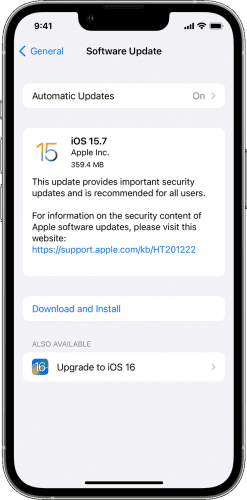
If you still face the sign out is not available due to restrictions issue, updating the system to the latest version may fix these potential issues.
Here's how it works:
Step 1. Open "Settings" > "General" > "Software Update". (iPhone software update failed?)
Step 2. The system will automatically check for available updates.
Step 3. If an update is available, tap "Download and Install".
If you don't remember either your Screen Time passcode or your Apple ID password, you may want to consider using a professional iOS unlocker tool, such as iPhone Unlocker, to remove the Screen Time restrictions without losing any data.
Key features of iPhone Unlocker:
Here is how to use iPhone Unlocker to remove the Screen Time restrictions:
01Launch the iPhone Unlocker on your computer and select the "Unlock Screen Time Passcode" mode.
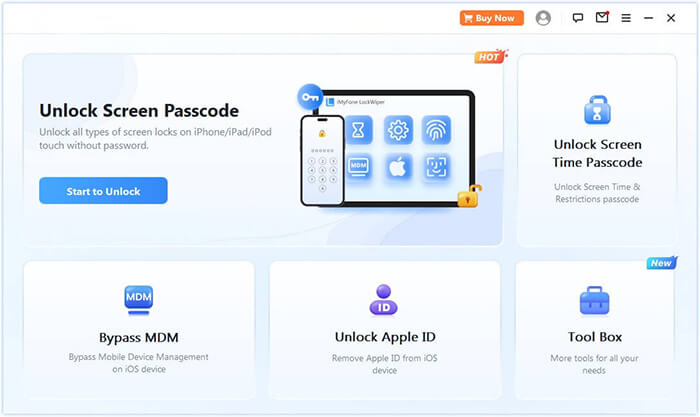
02Connect your iPhone to the computer using a USB cable. Then, click the "Start" button to begin.
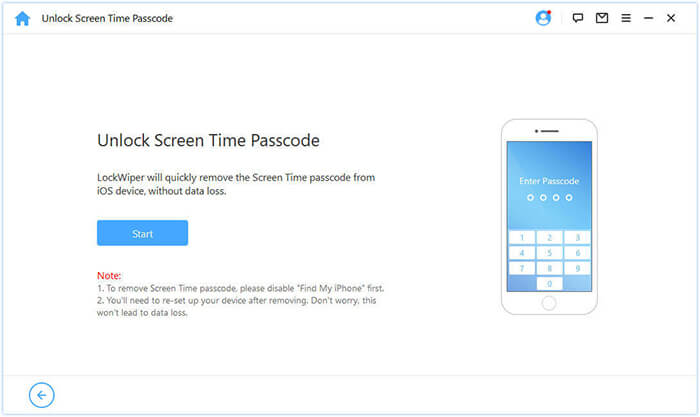
03If Find My iPhone is turned off, the software will begin removing the Screen Time passcode automatically. If it is enabled, follow the on-screen instructions to disable it, then click "Continue" to proceed.
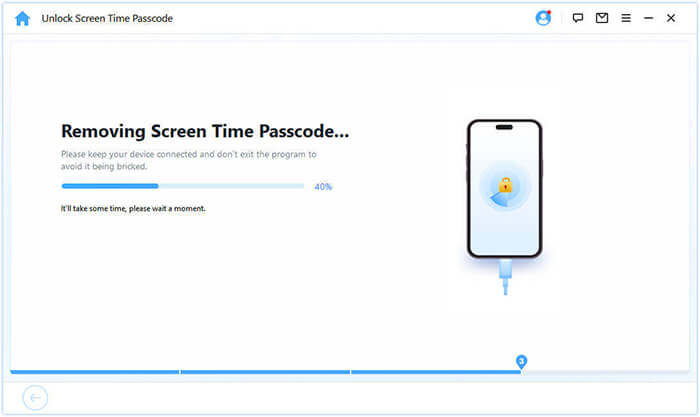
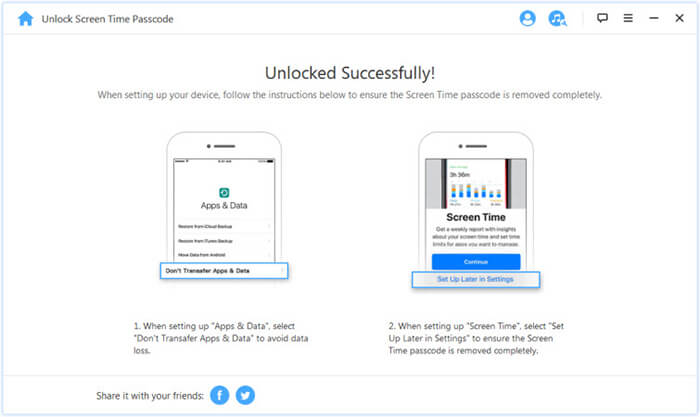
04After the Screen Time passcode is removed, follow the on-screen instructions to set up your iPhone again and regain access to the Screen Time settings.
After reading this article, you will have a clear understanding of how to fix the "Sign out is not available due to restrictions" issue, which is primarily caused by the Screen Time feature on your device. You can follow the above methods to troubleshoot and resolve the issue step by step. If you're unable to retrieve your Screen Time passcode and Apple ID passcode, we recommend using iPhone Unlocker to remove Screen Time restrictions with one click; simple and efficient.
Related Articles:
What Happens If I Sign Out of My Apple ID? Find the Answer Here!
How to Sign Out of Apple ID Without Password? [4 Effective Ways]
[Simple Guide] How to Delete Apple ID without Password on iPhone?
How to Change Apple ID without Losing Data [Proven Tutorial]




 Free Download for PC
  Free Download for Mac


