3uTools is a popular tool for changing your iPhone's GPS location, but many users report that the virtual location feature suddenly stops working. You may encounter issues like failed to modify virtual location, map not loading, or location not changing at all.
If you are facing the same problem, don't worry. This guide explains why 3uTools Virtual Location is not working and provides practical fixes, from basic troubleshooting to targeted solutions. If nothing works, we'll also show you a reliable alternative.
There are several reasons why 3uTools fails to change your iPhone location:
These universal, low-effort fixes resolve most generic 3uTools Virtual Location issues without targeting specific errors. Complete these steps first before moving to advanced repairs, they work for all error types and iOS versions.
1. Check Physical & Network Connection
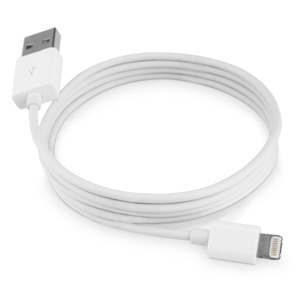
Use an original Apple Lightning cable, plug into a rear PC USB port (avoid hubs/extensions), disconnect VPN/proxies, and restart your router for stable Wi-Fi.
2. Trust the Computer & Enable Location Services
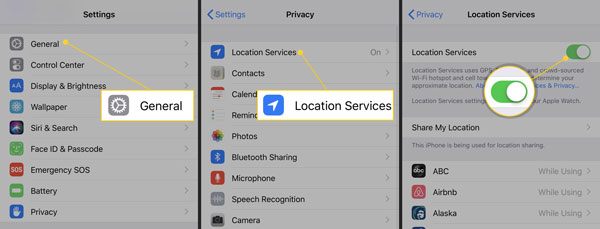
Reconnect your iPhone to PC, tap "Trust This Computer" on your device, and go to "Settings" > "Privacy & Security" > "Location Services" to turn the feature ON.
3. Reboot Both Devices
Close 3uTools completely, restart your Windows/Mac computer, power cycle your iPhone, then reconnect and retry virtual location.
4. Update 3uTools to the Latest Version
Launch 3uTools, go to "Settings" > "Check for Updates", and install the newest build to patch bugs and improve compatibility.
5. Temporarily Disable Security Tools
Turn off antivirus, firewall, and Windows Defender temporarily to rule out false-positive blocking (re-enable after testing).
6. Close Conflicting Background Apps
Exit iTunes, other iOS managers, or location-spoofing tools running in the background to avoid software conflicts.
If the basic troubleshooting steps didn't resolve your issue, it's time to identify the exact error and apply targeted fixes below.
This error (often paired with codes -10/-16) is the most common, meaning 3uTools can't sync the fake location to your iPhone. Fix it with these targeted steps:
- Repair Apple Mobile Device Service: Press "Win" + "R", type "services.msc", find "Apple Mobile Device Service", right-click and select "Restart"; set startup type to "Automatic".
- Reinstall iTunes & Apple Drivers: Uninstall 3uTools and iTunes completely, restart PC, then download the latest iTunes (without Microsoft Store) and 3uTools from official sources.
- Disable Find My iPhone: Go to "Settings" > [Your Name] > "Find My" > "Find My iPhone" and toggle it OFF (re-enable after location modification).
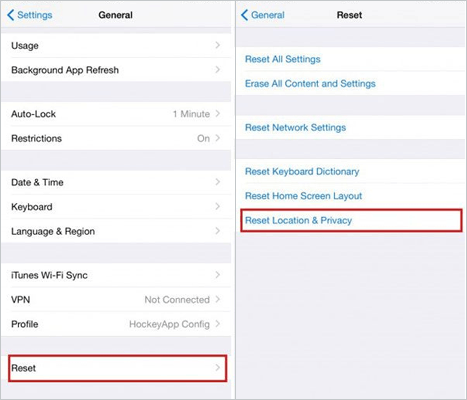
- Reset iPhone Location & Privacy: Navigate to "Settings" > "General" > "Transfer or Reset iPhone" > "Reset" > "Reset Location & Privacy" (this won't delete data).
A blank, frozen, or slow-loading map usually stems from faulty default map servers. Fix this in 30 seconds with these tweaks:
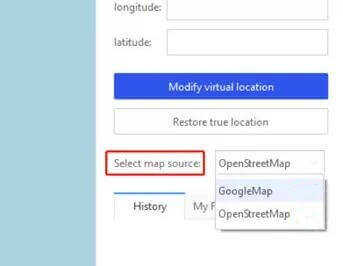
- Switch Map Provider: Open 3uTools Virtual Location, click the "Map" icon in the bottom-right corner, and switch from OpenStreetMap to Google Maps or Mapbox.
- Flush DNS Cache: On Windows, open Command Prompt as admin and run ipconfig /flushdns; on Mac, use Terminal to clear DNS to resolve map loading failures.
- Check Regional Network Restrictions: If Google Maps is blocked in your region, use a reliable map proxy or switch to a different map source supported by 3uTools.
New iOS 18/26 updates enhance security, breaking 3uTools' location spoofing capabilities. Use these iOS-specific fixes:
- Install the Beta 3uTools Build: Official 3uTools often releases beta versions to support new iOS updates, download and install the latest beta from the 3uTools forum.
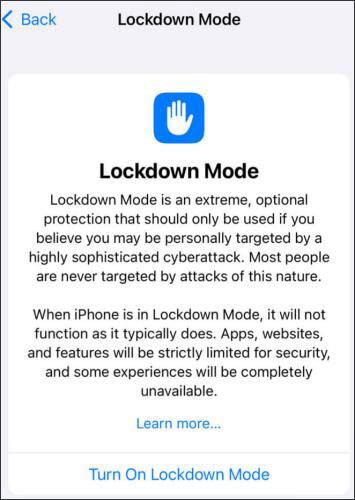
- Disable iOS Security Restrictions: Turn off Lockdown Mode, Developer Mode (if enabled), and pending iOS updates that block third-party tools.
- Avoid Overusing Virtual Location: iOS 18/26 detects frequent location spoofing; limit use and wait for official 3uTools full compatibility updates.
Your iPhone shows the original location even after 3uTools confirms modification, this is a sync or app-specific issue. Fix it here:
- Force Close Location-Based Apps: Close apps like Maps, Pokémon GO, or social media completely, then reopen them to load the new virtual location.
- Use Exact Coordinates Instead of Address: Manually enter latitude/longitude in 3uTools (instead of typing a location name) to avoid geocoding errors.
- Prevent Location Drift: Keep your iPhone unlocked during location modification, disable background app refresh for location apps, and avoid moving too far virtually.
- Reconnect & Remodify Location: Disconnect the iPhone, restart 3uTools, set the virtual location again, and wait 10-15 seconds for full sync.
If you've tried all the fixes above and 3uTools still fails to change your location, the issue is likely caused by compatibility limitations or system restrictions, especially on newer iOS versions.
In this situation, switching to a more stable tool like Location Spoofer is often the most practical solution. Compared to 3uTools, it offers a smoother experience, fewer errors, and better support for the latest systems.
Key features of Location Spoofer:
How to change iPhone location using this tool?
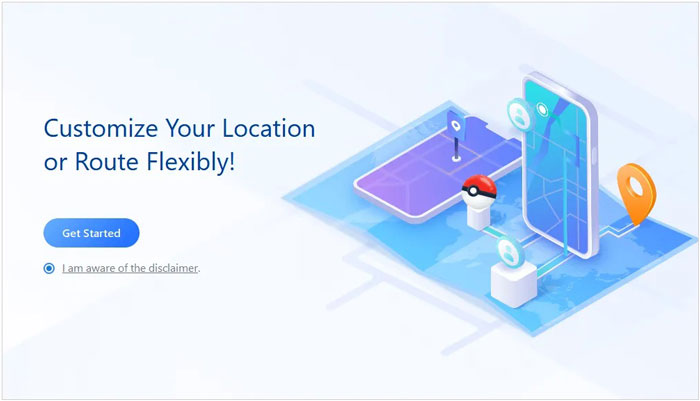
01Download and install the location changer on your computer, then open the program and click the "Get Started" button to enter the main interface.
02Connect your iPhone device to the computer using a USB cable. Unlock your iPhone and tap "Trust This Computer" when prompted.
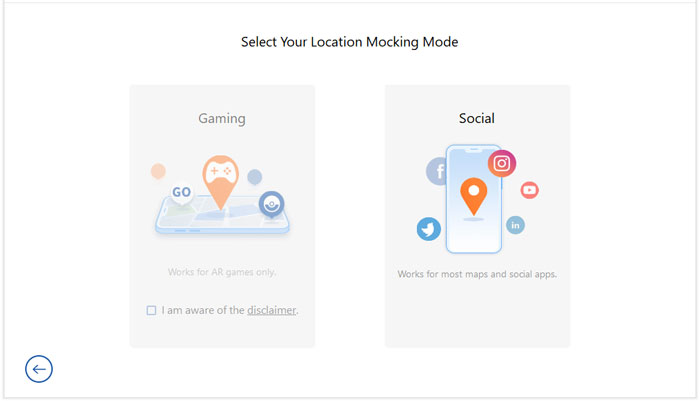
03Once your device is recognized, choose a mode that suits your needs, such as a gaming mode for AR games or a social mode for general location changes.
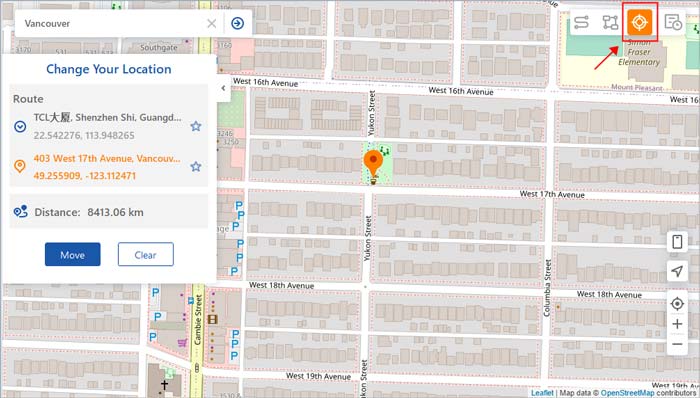
04Enter the destination you want in the search bar or select it directly on the map, then click "Move" to instantly update your GPS location.
1. Is 3uTools Virtual Location safe to use?
3uTools Virtual Location is generally safe for non-commercial use, but it carries risks: it may violate app terms of service (e.g., Pokémon GO bans), trigger iOS security alerts, or expose your device to malware if downloaded from untrusted sites. Always download 3uTools from the official website, avoid overusing spoofing, and re-enable security tools after use.
2. How long does 3uTools Virtual Location last?
3uTools Virtual Location stays active until you restart your iPhone, reconnect the device, or disable the virtual location feature. Some apps may revert to real location after background refresh, so remodify the location if needed.
3. Does 3uTools work on the latest iOS versions?
Not always. New iOS updates may limit the functionality of 3uTools, which can cause virtual location features to stop working until the software is updated.
3uTools Virtual Location not working is a common issue, often caused by connection problems, system restrictions, or limited compatibility with newer iOS versions. In many cases, basic troubleshooting or targeted fixes can help restore the feature.
However, if you keep encountering problems like failed to modify, map not loading, or location not changing, it may indicate that 3uTools is no longer the most reliable option for your device. In such cases, switching to a more stable tool like Location Spoofer can provide a smoother and more consistent location-changing experience.
Ultimately, the best solution depends on your needs, but if you want fewer errors and better compatibility, using a dedicated location changer is often the more dependable choice.
Related Articles:
6 Feasible Ways to Spoof GPS Location on iPhone
How to Share Location on iPhone Easily? [Comprehensive Guide]
How to Check iPhone Location History and Protect You from Being Traced




 Free Download for PC
  Free Download for Mac


