Android's Safe Mode is a feature designed for troubleshooting and diagnosing issues. When your device experiences app crashes or system malfunctions, Safe Mode allows only the system apps to run, helping you identify the root cause of the problem. However, sometimes a device can get stuck in Safe Mode, preventing it from functioning normally. This article will explain the reasons behind Android stuck in Safe Mode and provide practical, step-by-step solutions to fix it, helping you easily restore your device to its normal state.

Before diving into fixes, it's important to understand the root causes of your Android being stuck in safe mode. This knowledge can help you avoid the issue in the future and choose the most effective solution. Here are the most common reasons:
We've organized the fixes from the simplest to the most advanced, so start with the first one and work your way down until the issue is resolved. Most users will fix the problem with the first few simple steps.
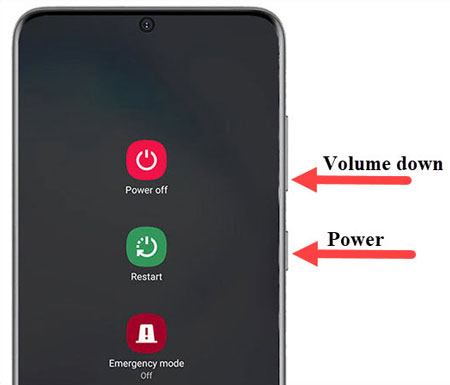
As mentioned earlier, stuck or faulty buttons are a common cause of Android being stuck in safe mode. Follow these steps to check and fix button issues:
Step 1. Inspect the Buttons
Check the Volume Down key and Power key for any physical obstructions (e.g., dirt, dust, or a tight phone case). Remove the phone case first, as it may be pressing the buttons unintentionally.
Step 2. Test the Buttons
Press each button (Volume Up, Volume Down, Power) several times to ensure they are responsive and pop back into place. If a button feels stuck or unresponsive, gently clean around it with a soft cloth or a small brush to remove any debris.
Some Android devices display a notification when they are in safe mode, and this notification may include an option to exit safe mode directly. Here's how to check notifications to remove safe mode on Android:
Step 1. Swipe down from the top of your screen to open the Notification Shade.
Step 2. Look for a notification labeled "Safe Mode" (the wording may vary slightly by device, e.g., "Your device is in safe mode").
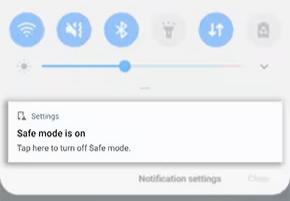
Step 3. Tap on the notification, and you should see an option to "Exit Safe Mode" or "Restart to Exit Safe Mode". Tap this option, and your device will restart and exit safe mode.
Note: Not all Android devices have this notification feature, so if you don't see it, move on to the next fix.
Restarting your device is the simplest and most effective fix for most minor glitches, including being stuck in safe mode. There are two types of restarts you can try:
Option 1. Normal Restart
Step 1. Press and hold the "Power" button until the power menu appears (this usually takes 2-3 seconds).
Step 2. Tap "Restart" (or "Reboot") from the menu.
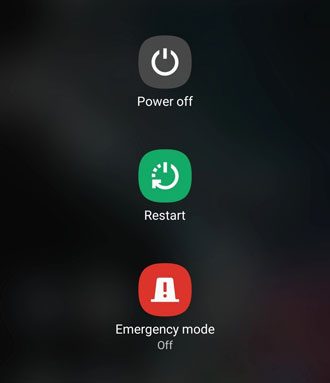
Step 3. Wait for your device to turn off and back on. If the issue was a minor glitch, it should exit safe mode automatically after restarting.
Option 2. Forced Restart
If a normal restart doesn't work (e.g., your device is unresponsive or still boots into safe mode), try a forced restart. The steps vary slightly by device brand, but the general method is:
Step 1. Press and hold the "Power" button and "Volume Down" button simultaneously for 10-15 seconds.
Step 2. Release both buttons once the device's logo appears (do not release earlier, even if the screen goes black).
Step 3. Wait for the device to restart completely. A forced restart can resolve more persistent glitches by completely resetting the device's current state.
If a third-party app is causing your device to get stuck in safe mode, removing the most recently installed apps can resolve the issue. Since safe mode disables third-party apps, you can still access your device's settings to uninstall them:
Step 1. Open the "Settings" app on your device (this is a system app, so it will work in safe mode).
Step 2. Scroll down and tap "Apps" (or "Application Manager", depending on your device).
Step 3. Sort the apps by "Install Date" to find the most recently installed ones (look for apps installed just before the issue started).
Step 4. Tap on the first recent app, then tap "Uninstall" and confirm.
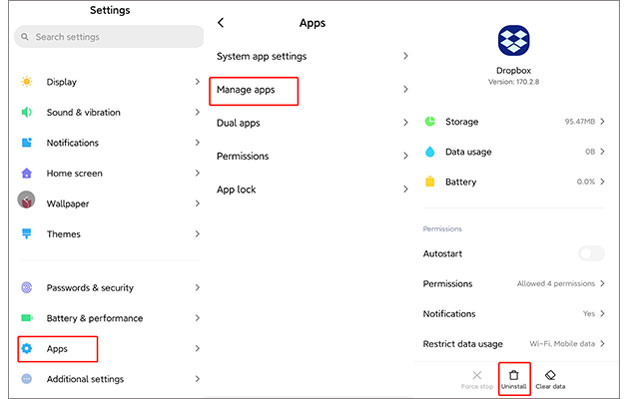
Step 5. Restart your device and check if it exits safe mode. If not, repeat the process with the next most recent app until the issue is fixed.
If you're unsure which app is causing the problem, you can also uninstall all recently installed apps (within the last 1-2 weeks) and then reinstall them one by one later.
Corrupted cache files can cause boot issues, including being stuck in safe mode. Wiping the cache partition clears these temporary files without deleting your personal data (photos, apps, contacts, etc.). Here's how to do it:
Step 1. Turn off your device completely (press and hold the "Power" button, then tap "Power Off").
Step 2. Enter Recovery Mode: The steps vary by device, but the most common method is to press and hold the "Power" button + "Volume Up" button simultaneously until the recovery menu appears. For some devices, you may need to use "Power" + "Volume Down" or a combination with the "Bixby" button (Samsung).
Step 3. Use the "Volume Up" and "Volume Down" buttons to navigate the recovery menu (the Power button is used to select options).
Step 4. Select "Wipe Cache Partition" from the menu (do not select "Wipe Data/Factory Reset", this will delete your data).
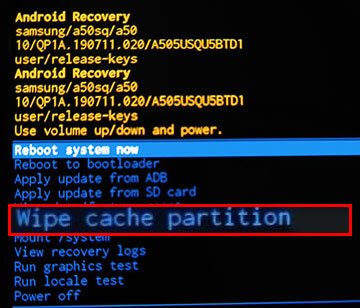
Step 5. Confirm the action, and wait for the process to complete (this usually takes 1-2 minutes).
Step 6. Once done, select "Reboot System Now" from the recovery menu. Your device will restart, and the cache partition will be cleared. Check if it exits safe mode.
If the above fixes don't work, the issue may be caused by deeper system problems such as corrupted system files or system crashes. In this case, using a professional Android system repair tool can be an effective solution.
A tool like Android Repair is designed to fix various Android system issues without requiring advanced technical knowledge. It can automatically repair system errors and restore your device to normal operation.
Key features of Android Repair:
Steps to get Android out of safe mode using Android Repair:
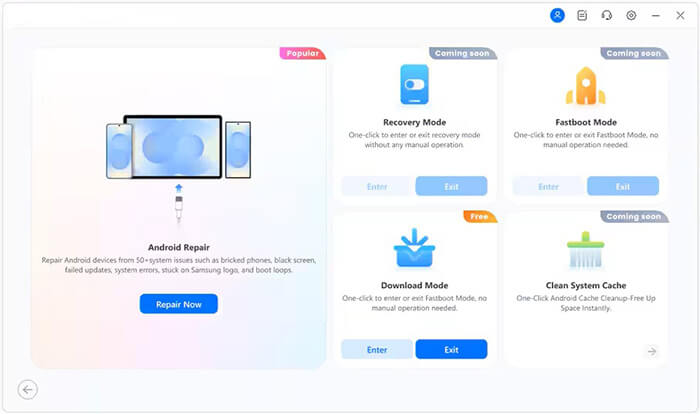
01Launch the Android Repair software on your computer. From the main interface, select "System Repair" and then choose "Android Repair" to enter the repair module.
02Connect your Android phone to the computer using a USB cable. Once the device is detected, click "Repair Now" to proceed.
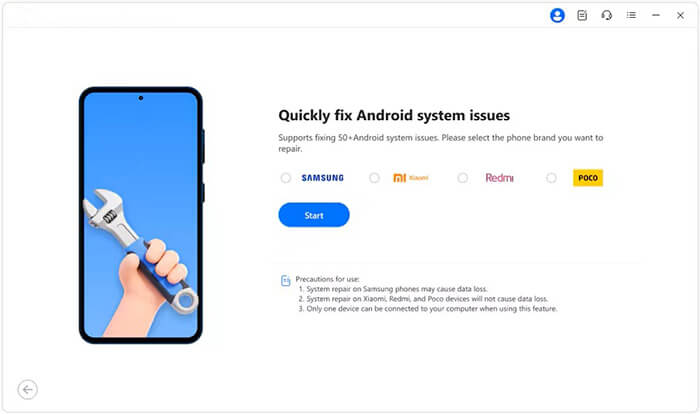
03Select your device information, including the brand, model, country, and carrier if required, then click "Start".
04Follow the on-screen instructions to put your phone into Download Mode (also called Odin Mode on some devices).
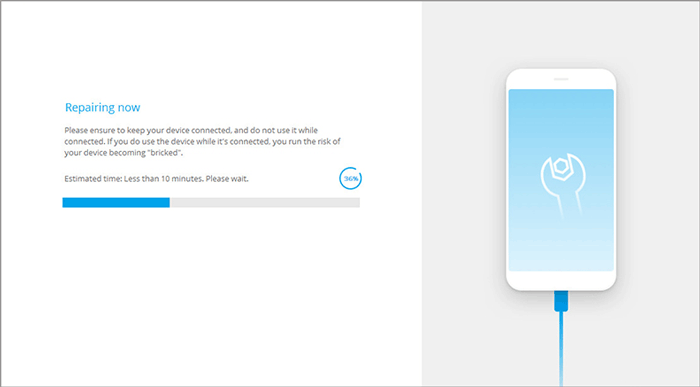
05The software will automatically download the appropriate firmware and begin repairing the system. After the repair is complete, your phone will restart and should exit safe mode.
A factory reset is a last-resort fix for persistent issues, as it will erase all your personal data (photos, apps, contacts, messages, etc.) and restore your device to its original factory settings. Only use this fix if all other methods have failed, and make sure to back up your data first (if possible).
Step 1. Open "Settings" > "System" > "Reset" (or "Backup & Reset", depending on your device).
Step 2. Tap "Factory Data Reset" (or "Erase All Data").
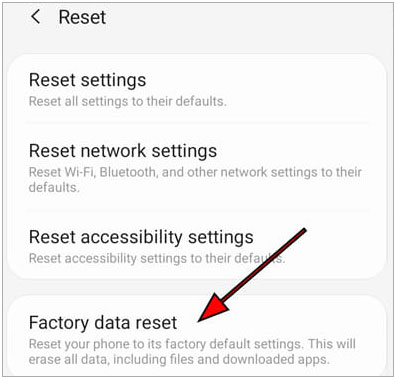
Step 3. Read the warning message, then confirm the action by entering your PIN, password, or pattern (if prompted).
Step 4. Wait for the factory reset to complete (this may take 5-10 minutes). Your device will restart automatically, and it will be restored to its factory settings. It should no longer be stuck in safe mode, but you'll need to set up your device again (log in to your Google account, reinstall apps, etc.).
If none of the above fixes work, your device likely has a hardware issue (e.g., faulty buttons, damaged motherboard, or storage problems) or severe system corruption that cannot be fixed with home remedies. In this case, contact your device's official customer service or visit an authorized service center.
Getting your Android stuck in safe mode can be frustrating, but in most cases it can be resolved with a few simple troubleshooting steps. Checking the device buttons, restarting the phone, uninstalling problematic apps, or clearing the cache partition can often fix the issue quickly.
However, if the problem is caused by deeper system errors, a professional tool like Android Repair can provide a reliable and user-friendly solution to restore your device without complicated procedures.
By following the fixes outlined in this guide, you should be able to remove safe mode and get your Android phone back to normal operation. If none of these solutions work, contacting official support may be the best option to ensure your device receives proper diagnosis and repair.
Related Articles:
Is Android Stuck on Boot Screen? Repair It via Effective Tricks
How to Fix Android Boot Loop with Top 8 Solutions [Updated in 2026]
Android Phone Recovery Mode Not Working? 6 Effective Solutions
Android Crash? 10 Tricks to Fix Android System Crash to Normal




 Free Download for PC


