SD cards are commonly used in HONOR phones to store photos, videos, documents, and other important files. However, data stored on an SD card can sometimes be lost due to accidental deletion, formatting, system crashes, virus attacks, or improper removal of the card. When this happens, many users worry that their data is permanently gone.
Fortunately, in many cases, deleted files are not immediately erased from the storage space. As long as the data has not been overwritten, it may still be recoverable using the right methods. In this guide, we will introduce several effective ways to perform HONOR SD card recovery, including checking the Recently Deleted folder, using professional recovery software, and restoring files from cloud services.
Before using professional recovery tools, the first thing you should do is check whether the deleted files are still stored in the Recently Deleted or Trash folder. Many gallery and file manager apps on HONOR phones temporarily keep deleted items for a period of time, allowing users to restore them easily.
Step 1. Open the Gallery or Files app on your HONOR phone and navigate to the "Recently Deleted" or "Trash" section.
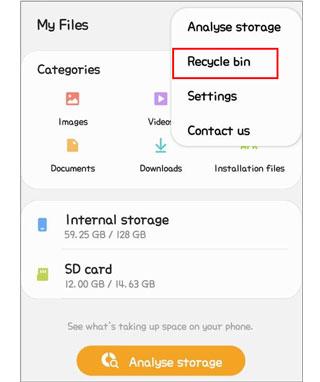
Step 2. This folder stores files that have been deleted recently. If you find the photos, videos, or documents you want to recover, select them and tap "Restore" to return them to their original location.
If the deleted files are no longer available in the Recently Deleted folder, using professional recovery software is often the most effective solution. Coolmuster Data Recovery is a powerful tool designed to recover lost files from SD cards and many other storage devices.
Compared with many basic recovery tools, this program not only supports HONOR SD card recovery, but also works with various external storage devices such as USB flash drives, digital cameras, memory cards, iPods, and MP3/MP4 media players. With its deep scanning capability and user-friendly interface, users can easily locate and restore lost data with greater control over the recovery process.
Why choose Data Recovery?
How to perform HONOR SD card recovery using Data Recovery?
01Remove the SD card from your HONOR phone and insert it into your computer using a card reader, then launch Data Recovery on your Windows or Mac computer.
02Connect the target storage device to the computer. Once the SD card is recognized, the program will display it among the available drives.
03In the left panel, select the "Deleted Recovery" mode, choose the SD card you want to scan, and click "Start Scan" to begin analyzing the storage space.
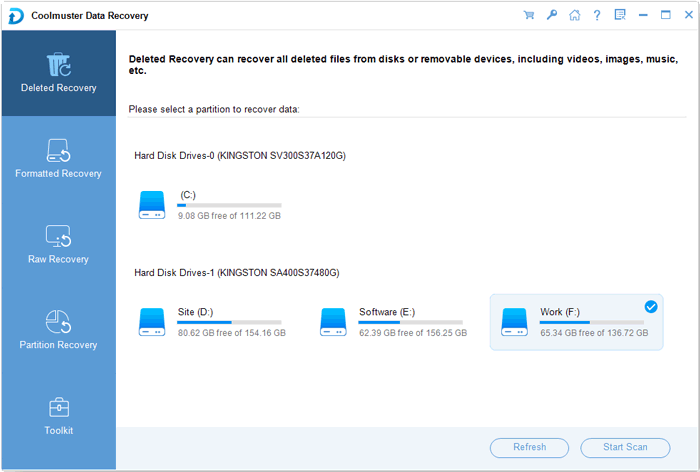
04After the scanning process finishes, all recoverable files will be listed. You can filter them by file type or file location to quickly find the data you want to restore.
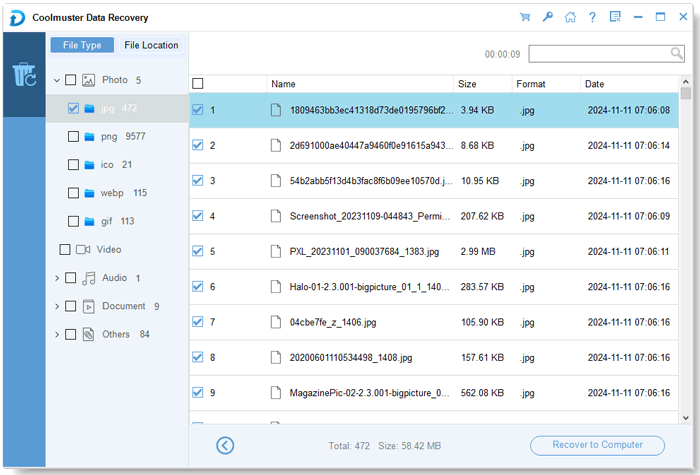
05Select the files you wish to recover and click "Recover to Computer". When the dialog box appears, choose a location on your computer to save the recovered files (avoid saving them back to the same SD card).
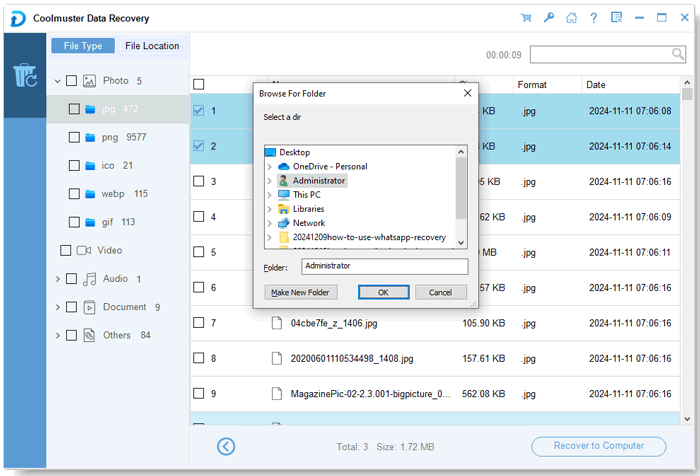
If you prefer a visual guide, the following video tutorial demonstrates the entire HONOR SD card recovery process step by step.
Another powerful tool for HONOR SD card recovery is Coolmuster Lab.Fone for Android, which is specifically designed for Android devices like HONOR phones. Unlike Coolmuster Data Recovery (which focuses on storage devices like SD cards), this software can recover from Android devices and SD cards.
Coolmuster Lab.Fone for Android supports recovering various file types, including photos, videos, contacts, messages, call logs, and documents from SD cards. It also offers two scanning modes (Quick Scan and Deep Scan) to ensure you find all recoverable data.
Here's the step-by-step guide:
01Download and install Coolmuster Lab.Fone for Android on your computer, then launch the program to access the main interface.
02From the top menu, select the "SD Card Recovery" mode. Then, remove the SD card from your HONOR phone and connect it to the computer using an SD card reader so the software can detect it.
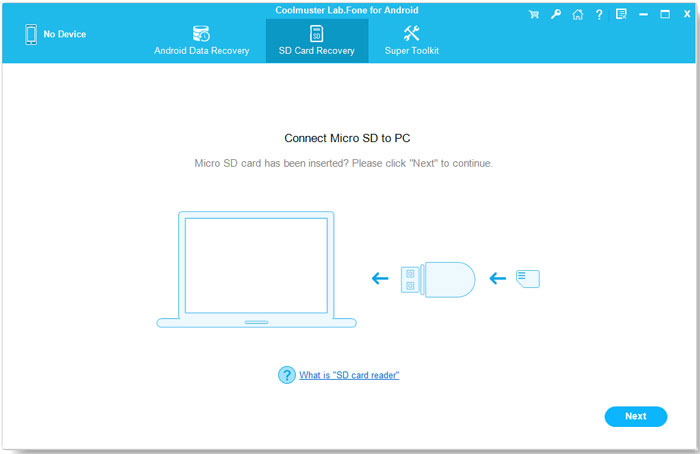
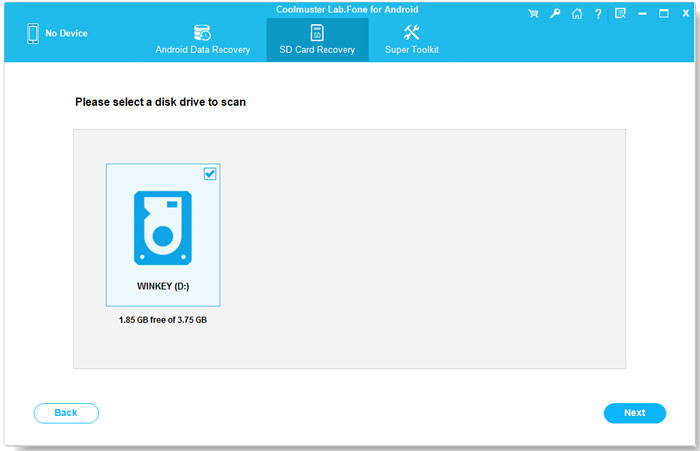
03Click "Next", and the program will display all SD cards currently connected to the computer. Select the disk drive corresponding to your HONOR SD card and click "Next" again to start scanning.
04Once the scan is finished, all recoverable files will appear in categorized folders. You can preview the results, choose the files you want to restore, and then click "Recover" to save them to your computer.
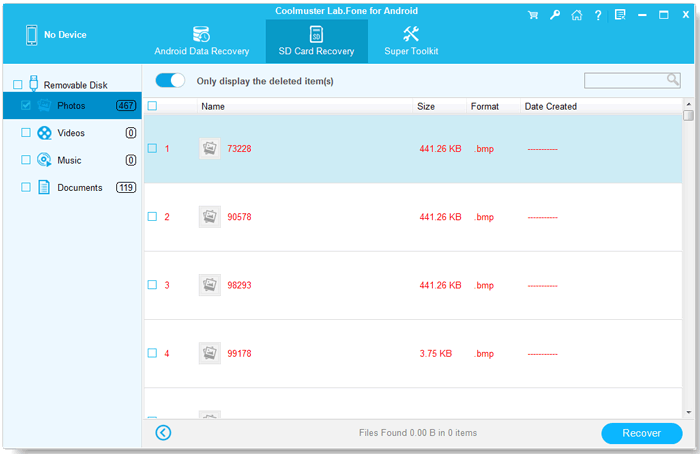
If you want to see the recovery process more clearly, the following video tutorial walks through the entire HONOR SD card recovery procedure step by step.
If you previously backed up files stored on your HONOR SD card to a cloud service, recovering lost data becomes much easier. Instead of relying on recovery software, you can simply restore files from the cloud backup. Many HONOR users sync their photos, documents, and other files with services like HONOR Cloud, Huawei Cloud, or Google Drive. If your SD card data was included in the backup, you can retrieve it quickly by logging into the corresponding cloud account.
Step 1. Unlock your HONOR phone and open the Settings app. Tap "HONOR Account" or "Huawei Account" at the top of the screen.
Step 2. Sign in using the account that you used for cloud backup, then select "Cloud" or "Cloud Space" to access your stored data.
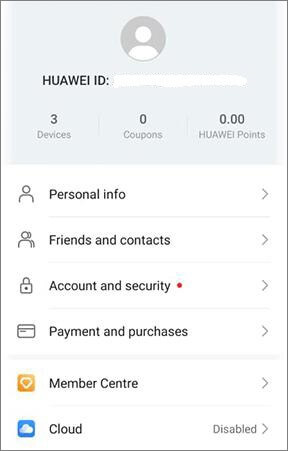
Step 3. Tap "Cloud Backup" to view the available backup records. Choose a backup created before the data loss occurred.
Step 4. Select the file categories you want to restore, such as photos, videos, or documents, and tap "Restore" to begin recovering the files to your device.
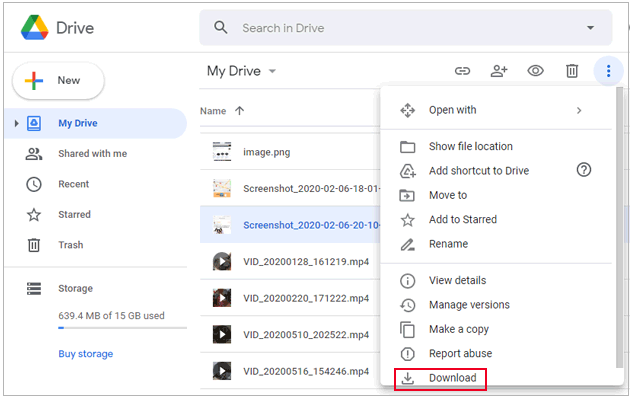
Step 1. Open the Google Drive app on your HONOR phone and log in with the Google account used for backup.
Step 2. Tap "Files" or "Storage" to browse all saved items in your cloud storage.
Step 3. Locate the photos, videos, or documents that were originally stored on your SD card.
Step 4. Tap the file and choose "Download" to save it back to your phone. If you are using a computer, you can log in to the Google Drive website, download the files, and then transfer them to your HONOR SD card via USB.
That's all about HONOR SD card recovery. If the deleted files are still available in the Recently Deleted folder or backed up to cloud services, you can restore them quickly without using additional tools. However, if the data has been permanently deleted or the SD card has been formatted, using professional recovery software is usually the most effective solution.
Among the methods introduced above, Coolmuster Data Recovery is a reliable option for directly scanning SD cards and recovering lost files from external storage devices, while Coolmuster Lab.Fone for Android provides a dedicated SD card recovery mode designed for Android users. Both tools are easy to use and offer a higher recovery success rate, making them highly recommended if you want to restore lost data from an HONOR SD card efficiently.
Related Articles:
How to Recover Deleted Files from HONOR [6 Effective Methods]
How to Recover Deleted Photos from SD Card on Android Phone? [Fixed]







 Free Download for PC
  Free Download for Mac


