TL;DR:
HUAWEI Cloud Backup may fail due to issues like unstable networks, insufficient storage, or account problems. This article covers effective fixes to resolve the error and introduces a reliable backup alternative to help you protect your HUAWEI data when cloud backup is unavailable.
HUAWEI Cloud Backup is a built-in feature that allows users to securely back up important data such as contacts, photos, messages, and app data to the cloud. It provides a convenient way to protect your data and restore it whenever needed, especially when switching devices or after a factory reset.
However, many users encounter the frustrating issue of HUAWEI Cloud Backup failed, which can prevent important data from being saved properly. If you're facing this problem, don't worry; this guide will walk you through the possible causes and practical solutions to fix it.
HUAWEI Cloud Backup may fail due to several common reasons. An unstable or weak network connection can interrupt the backup process, while insufficient cloud storage will prevent new data from being saved. In some cases, issues with your HUAWEI account, such as not being properly logged in or sync errors, can also lead to backup failure.
Additionally, if the Cloud Backup feature is not enabled or certain data types are turned off, the backup may not work as expected. Battery optimization settings may restrict background activities, causing the process to stop. An outdated system version or temporary server issues on HUAWEI's side can also contribute to the problem, especially when backing up large amounts of data.
If you are facing the "HUAWEI Cloud Backup failed" error, don't worry. Below are practical solutions you can follow. Start with the basic steps, as they resolve most issues quickly.
A stable and fast internet connection is the foundation of HUAWEI Cloud Backup. If your Wi-Fi is weak, unstable, or frequently disconnects, the backup process may fail, pause, or never start. Therefore, it's important to make sure your network is reliable before trying other fixes.

HUAWEI Cloud Backup requires enough available storage space to save your data. If your cloud storage is full or nearly full, new backups cannot be completed. Regularly checking and managing your storage can help prevent backup failures.
Step 1. Go to "Settings" > "HUAWEI Account" > "Cloud Space" > "Storage Space" to check available storage.
Step 2. Delete old or unnecessary backups from "Cloud Backup" > "Manage Backups".
Step 3. Reduce backup items by disabling apps or data you don't need.
Step 4. Upgrade your cloud storage if necessary.
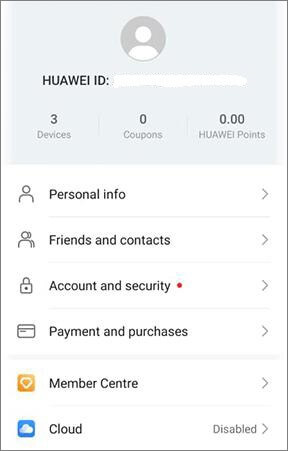
HUAWEI Cloud Backup is closely tied to your HUAWEI account. If your account is not properly signed in, not verified, or experiencing sync issues, the backup process may fail. Ensuring your account status is normal is an essential step.
Using an outdated version of the HUAWEI Cloud app may lead to compatibility issues or bugs that affect the backup process. Keeping the app up to date ensures better performance and stability.
Step 1. Open HUAWEI AppGallery and search for HUAWEI Cloud.
Step 2. Update the app if available.
Step 3. Restart the app and try the backup again.
HUAWEI devices often limit background activities to save power. When battery saving mode is enabled, it may prevent HUAWEI Cloud Backup from running properly in the background, causing interruptions or failures.
Step 1. Go to "Settings" > "Battery" and turn off "Battery Saving Mode".
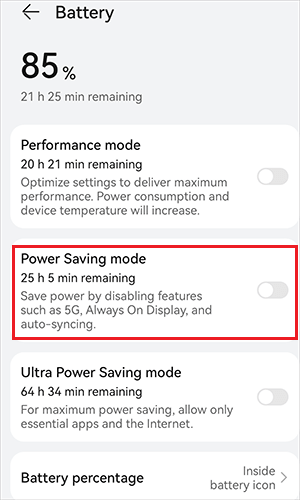
Step 2. If needed, set HUAWEI Cloud to No Restrictions under app battery settings.
HUAWEI Cloud Backup needs permission to access your data, such as photos, contacts, and storage. If these permissions are disabled or restricted, the backup process may not work correctly.
Step 1. Go to "Settings" > "Apps" > "HUAWEI Cloud".
Step 2. Tap "Permissions" and enable access to storage, contacts, photos, and other required data.
Step 3. If permissions are already enabled, try turning them off and on again.
Temporary system glitches or background conflicts can sometimes interfere with HUAWEI Cloud Backup. Restarting your device helps clear these issues and refresh the system environment.
Step 1. Press and hold the "power" button, then tap "Restart".
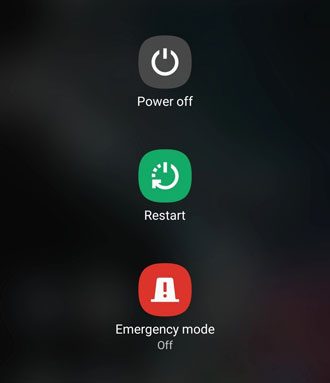
Step 2. After rebooting, open HUAWEI Cloud and try the backup again.
If automatic backup fails due to scheduling or trigger issues, performing a manual backup can help you bypass these problems and complete the process successfully.
Step 1. Go to "Settings" > "HUAWEI Account" > "Cloud Space" > "Cloud Backup".
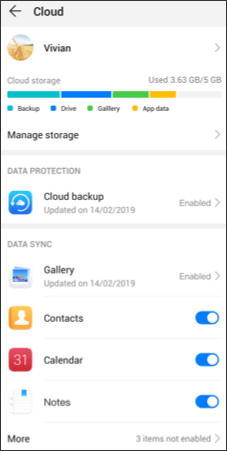
Step 2. Tap "Back Up Now" to start the process.
Step 3. Keep your device connected to Wi-Fi and power during the backup.
Step 4. If the backup is too large, try backing up data in smaller batches.
If you've tried all the above solutions and still encounter "HUAWEI Cloud Backup failed", it may be due to deeper software issues, device incompatibility, or persistent server problems. In this case, using an alternative backup tool is a reliable way to protect your data. One of the best alternatives for Android devices (including HUAWEI) is Coolmuster Android Backup Manager.
Android Backup Manager is a powerful and user-friendly tool designed to back up Android device data to a computer, bypassing cloud-related issues. It offers a one-click backup solution, supports multiple data types, and ensures your data is secure and accessible.
Why use Android Backup Manager?
How to use the HUAWEI Cloud alternative to back up your HUAWEI?
01After installing Android Backup Manager, open it on your computer. Make sure the software is up to date to ensure it recognizes your HUAWEI device.
02Connect your HUAWEI phone to the PC using a USB cable or Wi-Fi. Unlock your device and enable USB debugging if prompted. Wait until the software detects your phone.
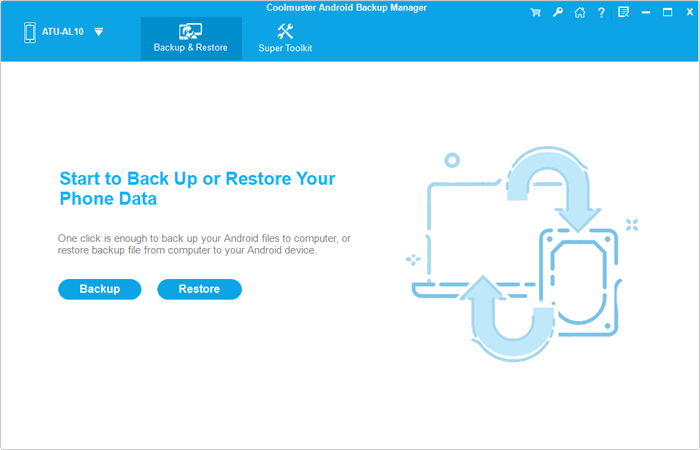
03Go to the "Backup" section, select the data types you want to save, such as Contacts, Messages, Photos, Videos, and Apps. Make sure to select all items you need.
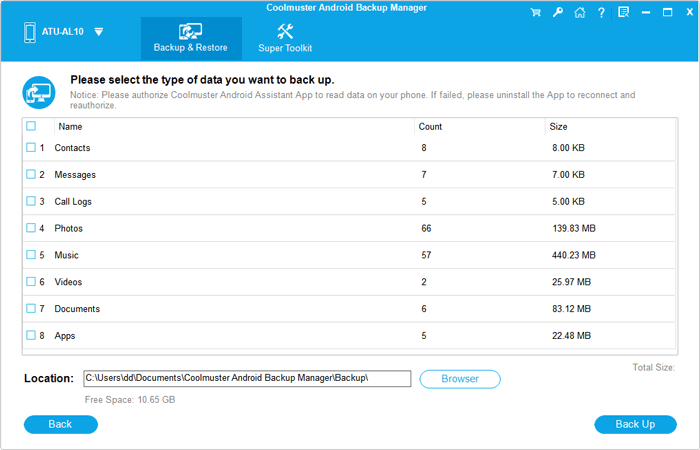
04Click the "Back Up" button to begin the process. Keep the device connected until the backup completes. Large files may take a few minutes, so make sure your phone and PC stay powered on during this time.
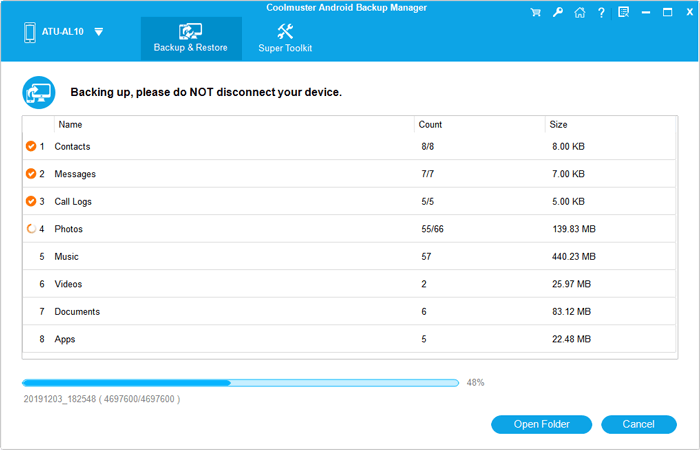
For a clear visual guide and step-by-step demonstration, you can watch the video tutorial below.
HUAWEI Cloud Backup is a convenient tool for protecting your data, but the "HUAWEI Cloud Backup failed" error can often be resolved with simple troubleshooting. By checking your network connection, cloud storage, HUAWEI account status, app version, battery settings, and permissions, you can fix most backup failures. If problems persist, restarting your device or performing a manual backup usually works.
For persistent issues, Coolmuster Android Backup Manager offers a reliable alternative, allowing you to back up your data locally and keep it safe without relying on cloud services. Regular backups are essential to protect your valuable information. If you encounter specific error codes or unique issues, contacting HUAWEI customer support can provide additional guidance.
Related Articles:
HUAWEI Cloud Restore: A Complete Guide to Recover Your Data with Ease
7 Methods to Back Up Huawei Phone on Mac (99% People Don't Know)
Google Backup Not Working? A Complete Troubleshooting Guide
A Full Guide to Huawei Data Transfer: 7 Useful Huawei Transfer Tools






 Free Download for PC
  Free Download for Mac


