"I have a Samsung Galaxy, and on Saturday, it crashed twice and hasn't been able to turn on since. How can I recover data from a phone that won't turn on?"
- From Reddit
When a Samsung phone won't turn on, many users assume their data is lost forever. In reality, a device that fails to boot does not necessarily mean the internal data is erased. In many cases, photos, contacts, messages, and other important files are still stored on the phone's memory and can be recovered using the right method.
Based on different scenarios, this guide introduces four practical and proven ways to recover data from a Samsung phone that won't turn on, ranging from professional data extraction tools to cloud-based backups.
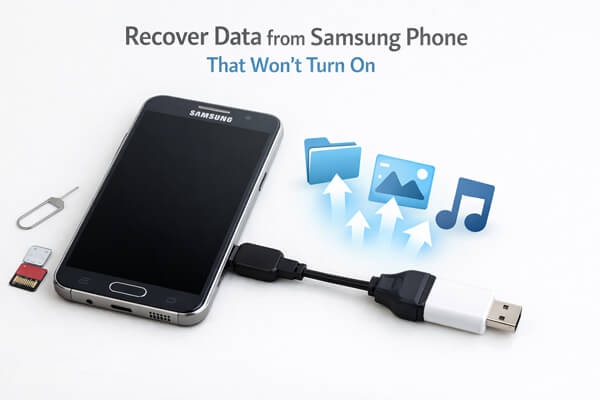
If your Samsung phone won't turn on due to system corruption, screen damage, or minor hardware glitches, third-party broken Android data extraction software is a reliable choice. Among the available options, tool like Broken Android Data Extraction is widely recognized for its stability and compatibility with Samsung devices. It can bypass the normal boot process, enter the phone's Download mode, and extract data directly from the internal storage.
Key features of Broken Android Data Extraction:
Steps to recover data from a Samsung phone that won't turn on:
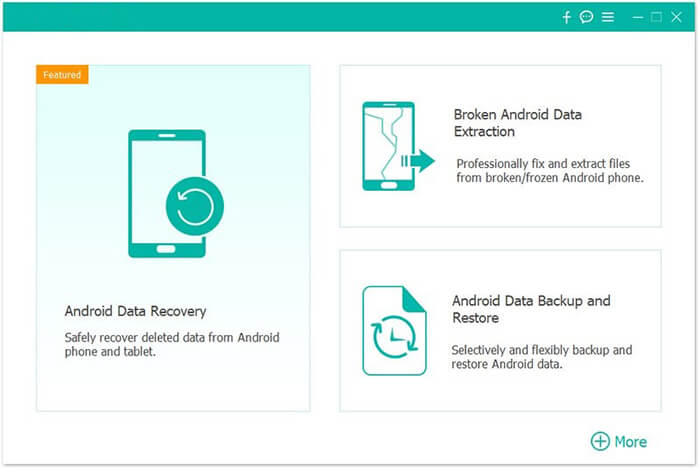
01Connect the Samsung phone to your computer with a USB cable and launch the recovery software. Select the "Broken Android Phone Data Extraction" mode, then click "Start" to access the phone's memory.
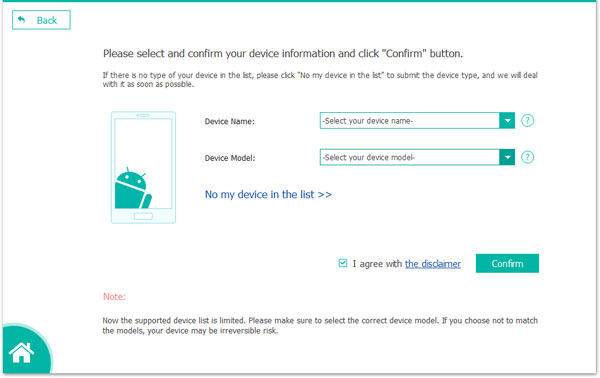
02Choose the appropriate repair option and click "Start". Enter your phone's exact model and name, or use the built-in identification tool if you are unsure of the model, and then click "Confirm".
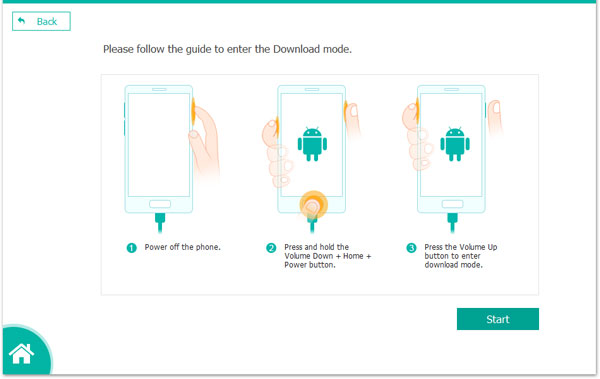
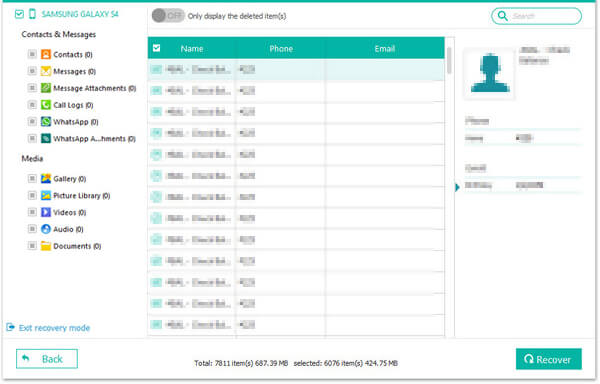
03Follow the on-screen instructions to put your Samsung device into Download Mode. Once the phone is detected, the software will scan the internal storage and prepare the data for recovery.
04Finally, preview the files and select the items you want to retrieve. Click "Recover" to save all chosen data safely to your computer from the non-functional Samsung phone.
If you have previously enabled Samsung Cloud backup on your Samsung phone, you can easily recover data without operating the faulty device. Samsung Cloud automatically backs up various data types, including contacts, messages, app data, system settings, photos, and videos, as long as the phone is connected to Wi-Fi and the backup feature is activated.
Steps to recover data via Samsung Cloud:
Step 1. On a computer or another Samsung device, open a browser and visit the Samsung Account official website.
Step 2. Log in with the same Samsung account that was linked to your non-booting phone. Ensure you enter the correct account credentials, including two-factor authentication if enabled.
Step 3. After logging in, navigate to the "Samsung Cloud" section. Here, you can view all backup files associated with your account, including the backup history of the non-booting device.
Step 4. Select the backup file corresponding to your non-booting phone (you can identify it by the device name and backup date). Choose the data categories you want to restore, such as photos, contacts, or messages.
Step 5. Click "Restore" to save the selected data to your computer or transfer it directly to another Samsung device. If restoring to a new Samsung phone, you can also complete the process during the initial setup of the new device by selecting "Restore from Samsung Cloud".
Most Samsung phones run on Android OS, which is deeply integrated with Google services. If you logged into your Google account on the non-booting phone and enabled Google Drive backup, you can recover key data through Google's official platforms. This method is particularly useful for retrieving contacts, photos, calendar events, and documents.
Step 1. Open a browser on your computer and go to Google Photos.
Step 2. Log in with the Google account linked to your Samsung phone. If you enabled "Back up & sync" in Google Photos on your phone, all photos and videos would have been synced to the cloud.
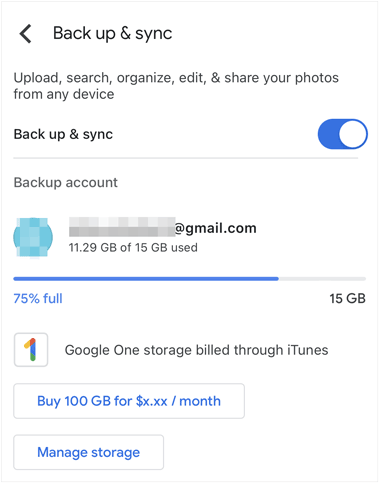
Step 3. Browse and select the photos/videos you need to recover. Click the "Download" button to save them to your computer in bulk or individually.
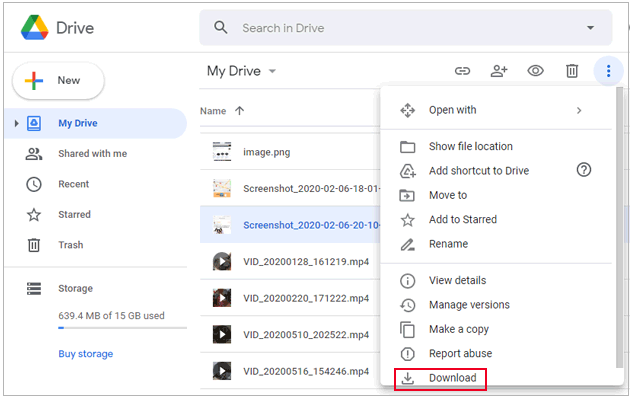
Step 1. Visit Google Drive and log in with your Google account.
Step 2. Now, you can restore your backed-up data:
If your Samsung phone has an expandable SD card slot and you stored data (such as photos, videos, music, and documents) on the SD card instead of internal storage, this is the simplest and fastest method to recover data. Since the SD card is a physical storage medium independent of the phone's main system, you can access it directly without powering on the phone. Here is how it works:
Step 1. Ensure the phone is completely powered off (if it was in a loop or partially on, wait for the battery to drain first to avoid data corruption).
Step 2. Locate the SD card slot on your Samsung phone (usually on the side or back of the device, requiring a SIM card ejector tool to open the tray).
Step 3. Carefully remove the SD card from the slot. Avoid touching the metal contacts of the SD card to prevent damage.
Step 4. Insert the SD card into a card reader, then connect the card reader to your computer via a USB port.
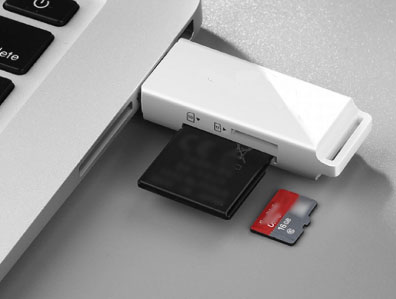
Step 5. Your computer will recognize the SD card as an external storage device. Open "My Computer" (Windows) or "Finder" (Mac) to access the SD card.
Step 6. Browse the folders on the SD card, select the data you need to recover, and copy them to your computer's local storage.
Recovering data from a Samsung phone that won't turn on is possible in many situations. Among the four methods introduced, Broken Android Data Extraction stands out as the most reliable and comprehensive solution. It allows you to access the internal memory directly, recover a wide range of files, including contacts, messages, photos, videos, and music, and works even when the phone cannot boot at all. Depending on your situation, the other three methods - Samsung Cloud, Google account, or SD card recovery - can also be used to retrieve data when applicable.
Related Articles:
Techniques to Recover Data from Phone That Won't Turn On
Samsung Data Recovery with Black Screen (8 Practical Solutions)
[Full Guide] How to Recover Data from Bricked Android Phone?
Broken Android Data Recovery: Recover Data from Broken Android







 Free Download for PC

 Download for Mac

