Accidentally deleting call history on a realme phone can be frustrating, especially when those records contain important contact details or business information. The good news is that deleted call logs are not always permanently gone. Depending on whether you have a backup or not, there are several effective ways to retrieve them.
In this guide, we'll walk you through proven solutions to recover deleted call logs from realme devices, including both backup-based and backup-free methods.
If you don't have any backups available or are unsure whether you've backed up your realme phone, using a professional Android data recovery tool is your best option. One of the most reliable tools is Coolmuster Lab.Fone for Android, which can deeply scan your device and retrieve deleted call history.
Why choose Coolmuster Lab.Fone for Android?
Follow these steps to recover realme deleted call logs without a backup:
01Download and install Coolmuster Lab.Fone for Android on your computer, then launch the program and connect your realme phone using a USB cable.
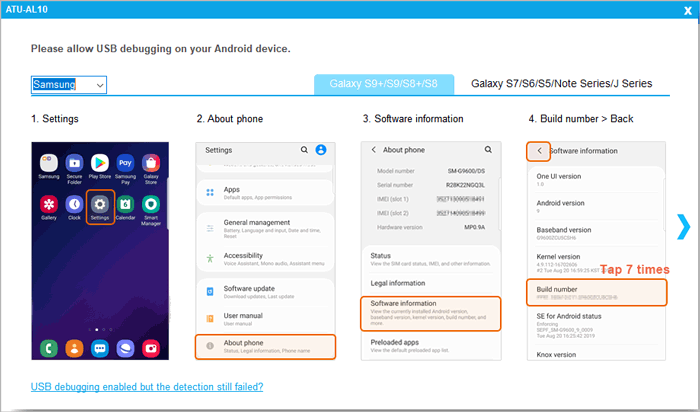
02Enable USB debugging on your phone by going to "Settings" > "About Phone", tapping "Build Number" several times, then returning to Developer Options to turn on USB debugging so the software can detect your device properly.
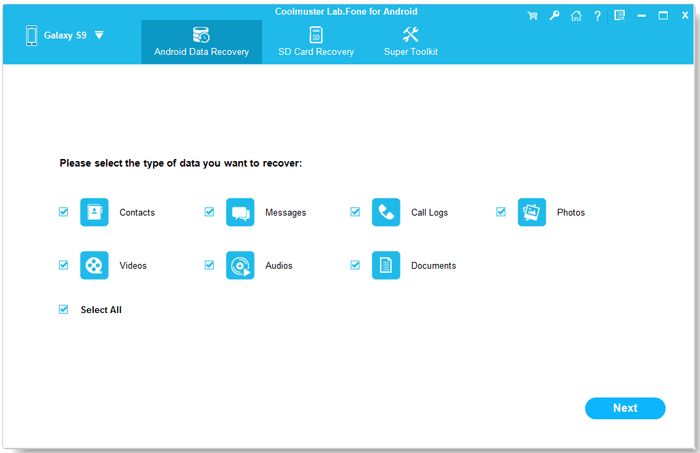
03Once your device is recognized, select "Call Logs" as the data type you want to recover, then click "Next" to proceed.
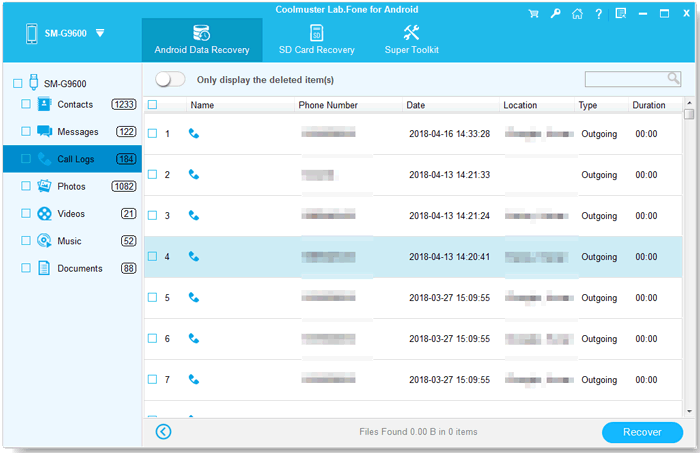
04After scanning, preview the deleted call logs displayed on the interface and select the ones you want to recover. Then, click the "Recover" button to export the selected call logs to your computer safely.
Still not sure how it works? This video tutorial will walk you through the steps:
If you have backed up your realme call logs before deletion, restoring them is much simpler and risk-free. Below are three common ways.
HeyTap Cloud is realme's built-in cloud service that allows you to back up and restore data, including call logs, contacts, messages, photos, and more. It provides 5GB of free cloud storage, and you can upgrade to larger storage plans if needed. If you have enabled HeyTap Cloud backup for call logs, you can easily restore deleted call logs in a few steps:
Step 1. Open Settings on your phone, tap your account profile, and enter Heytap Cloud, then sign in with your realme account if required.
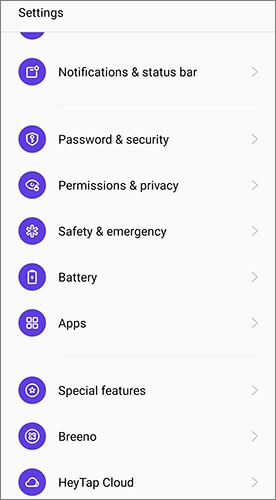
Step 2. Once logged in, check the backup details to confirm whether call logs are included in the stored data.
Step 3. Locate the most recent backup that contains your call history and tap the "Restore" option to proceed.
Step 4. Follow the on-screen instructions to complete the restoration process, and your deleted call logs will be recovered to your device once the process finishes.
If your realme phone is linked to a Google account, you may be able to restore deleted call logs from a previous backup. Google automatically syncs call logs, contacts, and other data when backup is enabled. However, restoring call logs requires a factory reset due to Google's system limitations, so be sure to back up your current data before proceeding:
Step 1. Open Settings on your phone, navigate to "Google" > "Manage Backup", and check whether "Call Logs" is included in the backup data; if it is enabled, your call history has already been saved to Google Drive.
Step 2. Go to "Settings" > "System" > "Reset" > "Factory Data Reset" and follow the on-screen instructions to reset your phone, noting that this process will erase all existing data on the device.
Step 3. After the reset, restart your phone and begin the setup process, connect to a stable Wi-Fi network, then sign in with the same Google account used for the backup when prompted.
Step 4. When you see the "Restore from Google Backup" option, select the appropriate backup file based on the date, choose "Call Logs" from the list of recoverable data, and complete the setup process to restore your deleted call history.
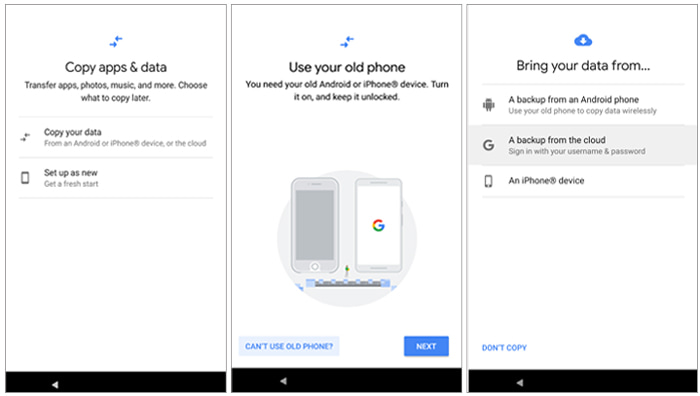
The realme phone comes with a built-in local backup feature that allows users to save important data, including call logs, to internal storage. If you have enabled this feature before data loss, you can restore deleted call history directly from a local backup without relying on cloud services.
Step 1. Open Settings on your phone, scroll down to "Additional Settings", then tap on "Backup & Restore" to access the backup management interface.
Step 2. Select "Back up & migrate" followed by "Local backup", where you can view all available backup files stored on your device.
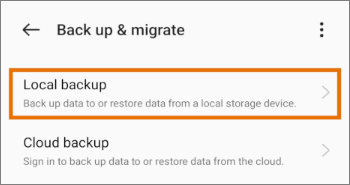
Step 3. Choose a backup file that contains your call logs based on the date, then tap "Start" to begin the restoration process.
Step 4. Wait for the process to complete, after which your deleted call logs will be restored to your phone.
That's all about how to recover deleted call logs from a realme phone. Whether you have a backup or not, there is always a suitable solution. If no backup is available, using a professional tool like Coolmuster Lab.Fone for Android gives you the best chance to retrieve lost call history directly from your device. On the other hand, if you've enabled backup features in advance, restoring your call logs through Heytap Cloud, a Google account, or local backup can be much quicker and easier.
Choose the method that best fits your situation, and act quickly to improve your chances of successful recovery.
Related Articles:
realme Data Recovery: A Comprehensive Guide with 5 Solutions
How to Restore Deleted Contacts on realme [3 Simple Ways]
How to Retrieve Deleted Text Messages on realme [3 Easy Ways]
How to Delete Calls on Android Phone? Use These Methods to Make It







 Free Download for PC
  Free Download for Mac


