Music is an indispensable part of many people's daily lives, and OnePlus phones are often used as a portable music player for their excellent sound quality and smooth performance. However, it's not uncommon to accidentally delete precious music files. The good news is that deleted music files from OnePlus phones are not always gone permanently. Depending on your situation (e.g., whether you have backups, how long ago the files were deleted), there are several effective methods to retrieve them.
In this comprehensive guide, we'll walk you through 4 proven ways to recover deleted music files from OnePlus phones. From the most efficient professional tool to built-in Recycle Bin and various backup options, you can choose the method that best fits your needs.

If you want an efficient and reliable way to recover deleted music files from your OnePlus phone, Coolmuster Lab.Fone for Android is one of the best tools available. This software is specifically designed for Android devices and supports the recovery of various file types, including music, photos, contacts, and messages, even without a backup.
Key features of Coolmuster Lab.Fone for Android:
01Begin by downloading and installing Coolmuster Lab.Fone for Android on your computer (compatible with both Windows and Mac).
02Use a USB cable to connect your OnePlus phone to the computer. Make sure to enable USB Debugging on your phone to allow the software to detect it.
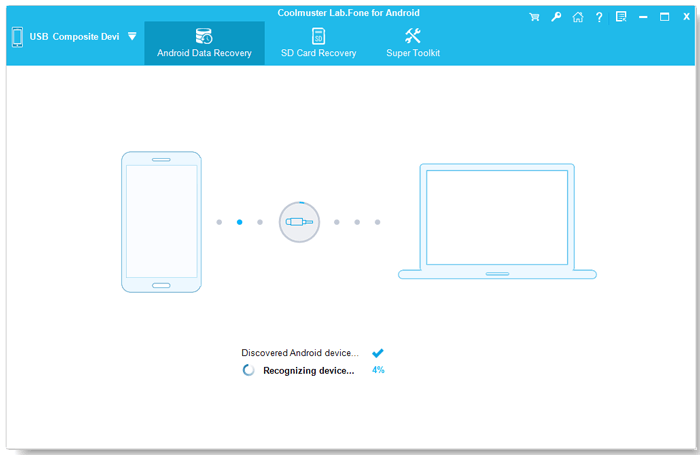
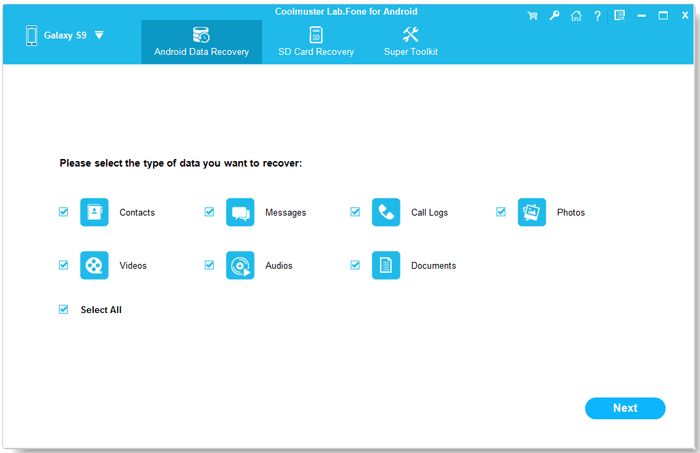
03Once your device is recognized, choose the "Audio" option in the software to focus the scan specifically on music files.
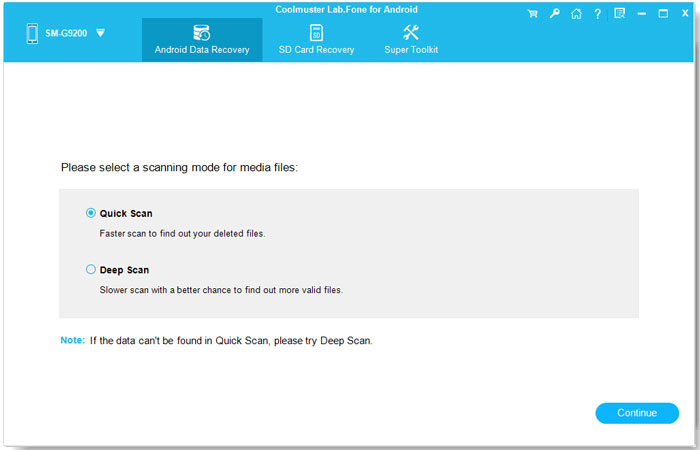
04You can opt for a "Quick Scan" for faster recovery or a "Deep Scan" for a more detailed search of deleted music files. Click "Continue" to begin scanning the internal storage of your OnePlus phone.
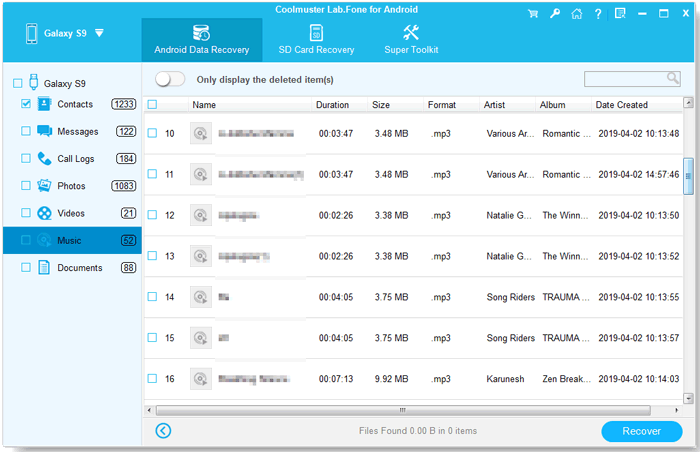
05After the scan finishes, the software will display all found music files. You can preview them to verify the content. Select the music files you want to recover and click "Recover" to restore them to your computer.
Video Guide
If your music files were stored on an SD card, follow these steps to recover them:
01Eject the SD card from your OnePlus phone and insert it into your computer using a card reader.
02Open the software and select the "SD Card Recovery" option from the main interface.
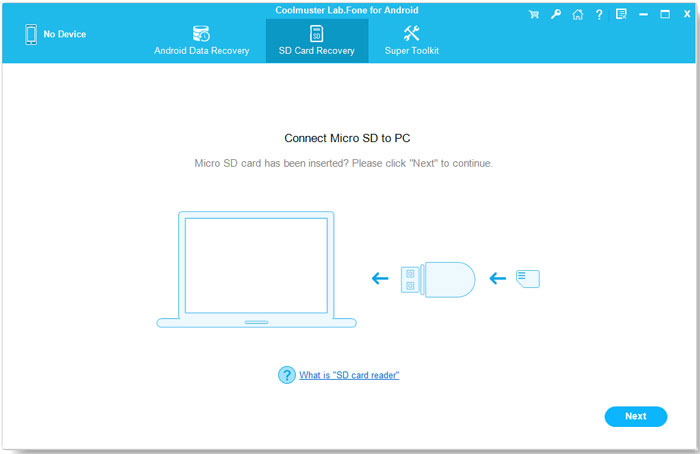
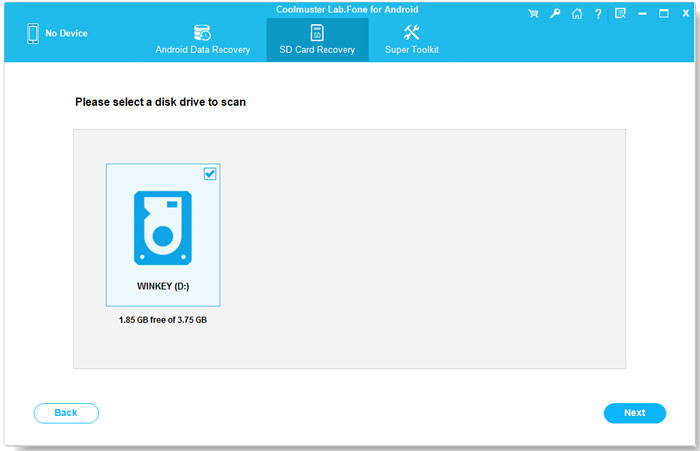
03Click "Next" and let the software detect the connected SD card. Once detected, select the SD card drive and click "Next" to start scanning for deleted music files.
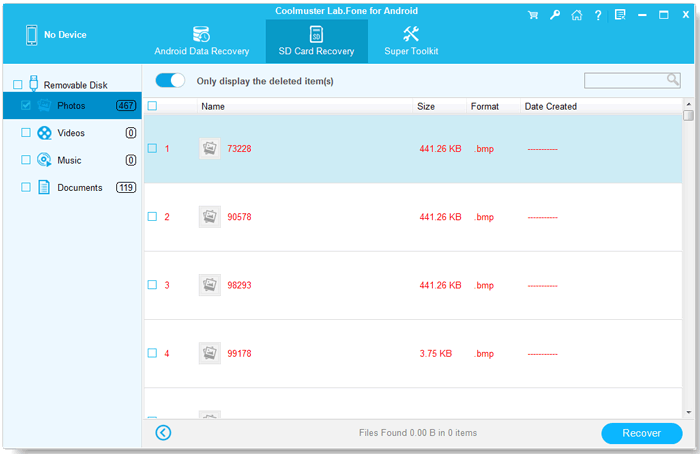
04After scanning, the software will show all recoverable music files. Preview the files to check their content, select the ones you wish to recover, and click "Recover" to save them to your computer.
Video Guide
OnePlus devices, like many other Android phones, have a Recycle Bin feature in their File Manager app. This acts as a temporary storage for deleted files, including music. Here are these steps:
Step 1. Open the "File Manager" app on your OnePlus phone (pre-installed by OnePlus).
Step 2. Tap the "Menu" icon in the upper-right corner and select "Recycle Bin".
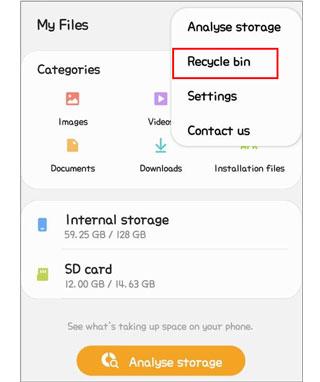
Step 3. In the Recycle Bin, find the "Music" folder or directly locate the deleted music files (you can use the search bar to find specific files by name).
Step 4. Long-press the target music files, then tap "Restore" to recover them to their original location (e.g., Internal Storage > Music).
Note: If the deleted music files are not in the Recycle Bin (e.g., deleted more than 30 days ago), this method won't work. You'll need to use other methods like the professional tool or backups.
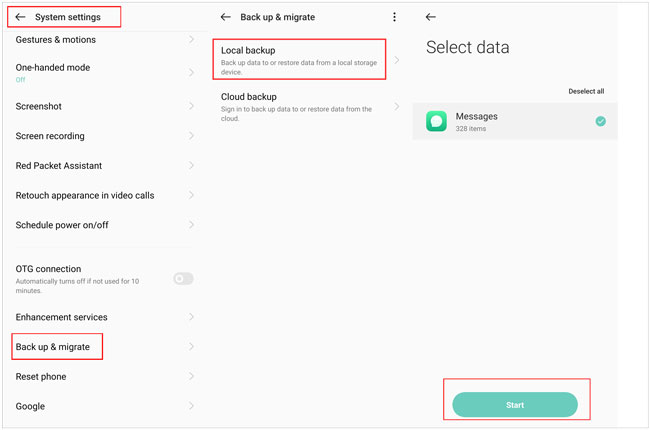
If you have been regularly backing up your OnePlus phone using the local backup feature, you can easily recover your deleted music files from the backup.
How to restore deleted music files from local backup?
Step 1. On your OnePlus phone, open the Settings app, then go to "System settings" > "Back up & migration".
Step 2. Choose the "Local backup" option. You'll be presented with a list of available backup files on your phone.
Step 3. Select the backup file that contains the deleted music files. Tap the "Start" icon at the bottom of the screen to begin restoring the backup data to your OnePlus phone.
If you've backed up your OnePlus phone's data using cloud storage services, you can easily recover deleted music files from these backups. Popular cloud services like OnePlus Cloud, Google Drive, and Dropbox can be used for this purpose. Here's how to recover deleted music files from each service:
OnePlus provides a built-in cloud service called OnePlus Cloud, which allows you to back up and sync your data. If you have enabled cloud backup for your music files, follow these steps:
Step 1. Open the Settings app on your OnePlus phone.
Step 2. Tap on OnePlus Cloud (you may need to log in to your OnePlus account first).
Step 3. Select "Backup & Restore" > "Restore data".
Step 4. Choose the backup that contains the deleted music files and select the "Music" option.
Step 5. Tap "Restore" to recover the music files to your phone.
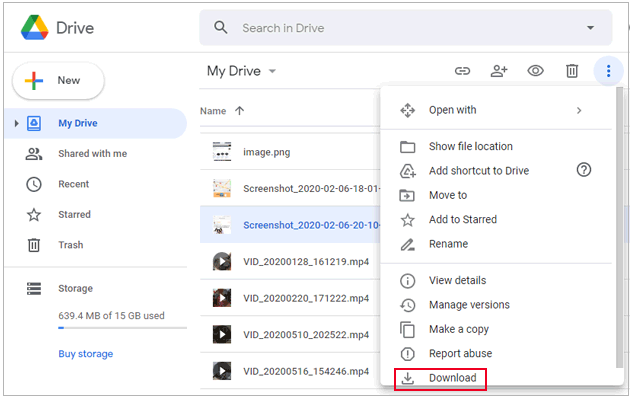
If you've been using Google Drive for backup (which is pre-installed on most OnePlus phones), you can recover your music files as follows:
Open the Google Drive app on your OnePlus phone or visit the Google Drive website (drive.google.com) on a computer.
Step 1. Log in to your Google account where you backed up the music files.
Step 2. Recover deleted OnePlus music files:
On the app
Tap the "Menu" icon > "Backups" to view device backups. Select your OnePlus phone's backup and check if music is included. You can restore the entire backup (note: this may overwrite existing data) or manually download music files from the "Music" folder in Google Drive.
On the website
Go to the Music folder (or the folder where you stored your music backup) in Google Drive. Select the deleted music files, right-click, and choose "Download" to save them to your computer. Then, transfer them to your OnePlus phone via USB cable.
Recovering deleted music files from your OnePlus phone doesn't have to be a stressful task. Whether you choose a professional tool like Coolmuster Lab.Fone for Android, take advantage of the built-in Recycle Bin, rely on local backups, or restore from cloud backups, there are plenty of options available. Always remember to back up your important files regularly to prevent data loss in the future.
If you're looking for a hassle-free and reliable solution, Coolmuster Lab.Fone for Android is the best option, offering comprehensive recovery features that can bring your music files back with ease.
Related Articles:
How to Make OnePlus Data Recovery via 5 Methods [New Tutorial]
OnePlus Backup and Restore: 4 Simple Ways to Keep Your Data Safe
How to Recover Deleted Photos from OnePlus
Where Is My Music Library on Android? | Recover & Manage Android Music







 Free Download for PC
  Free Download for Mac


