Losing precious music files from your Samsung phone can be a frustrating experience, whether it's due to accidental deletion, system glitches, or device malfunctions. The good news is that there are multiple effective ways to retrieve these files, depending on whether you have a backup available.
In this comprehensive guide, we'll walk you through every feasible method to recover deleted music files from your Samsung phone, ensuring you can get back your favorite tracks with ease.
If you've taken the precaution of backing up your music files beforehand, recovering them is straightforward. Below are the most common backup-based recovery methods for Samsung phones.
Samsung Cloud is the official cloud storage service for Samsung devices, offering automatic or manual backup options for various data types, including music files. If you've enabled music backup to Samsung Cloud, follow these steps to recover:
Step 1. Open the Settings app on your Samsung phone. Tap on your Samsung account name at the top of the screen. This will take you to your account dashboard.
Step 2. Scroll down and select "Samsung Cloud" from the list of services. If prompted, enter your account password to verify your identity.
Step 3. Within Samsung Cloud, look for the "Restore data" option (usually located under the "Backup and restore" section) and tap on it.
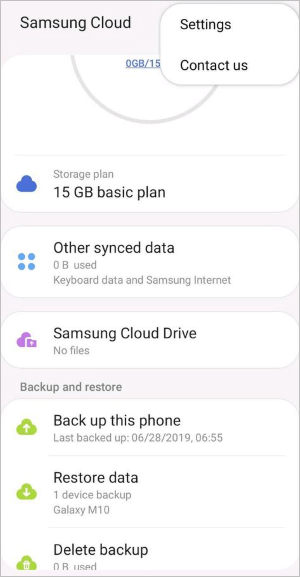
Step 4. You'll see a list of backup instances linked to your device. Select the most recent backup that contains the deleted music files, and ensure the backup date is before the files were deleted.
Step 5. On the next screen, you'll be able to choose which data types to restore. Locate and check the "Music" or "Audio" option (the label may vary slightly by device model).
Step 6. Tap "Restore Now" to start the process. Wait for the restoration to complete. This may take a few minutes, depending on the size of the music files and your internet speed. Once done, your deleted music will be back in your phone's music library.
Note: Samsung Cloud offers a limited amount of free storage (usually 5GB). If your music library is large, ensure you have enough storage to back up the files before deletion.
Many Samsung users rely on Google services for backup, and Google Drive or Google One can store music files either manually uploaded or synced automatically. Here's how to recover deleted music from Google Backup:
Step 1. Open the Google Drive app on your Samsung phone.
Step 2. In the app, tap the Search bar or browse through your folders to locate the backup that contains your deleted music files.
Step 3. If you can't find your music files immediately, try searching by the file name or by the music type (e.g., ".mp3" or ".wav").
Step 4. Once you've located your music files, tap on the file you want to restore.
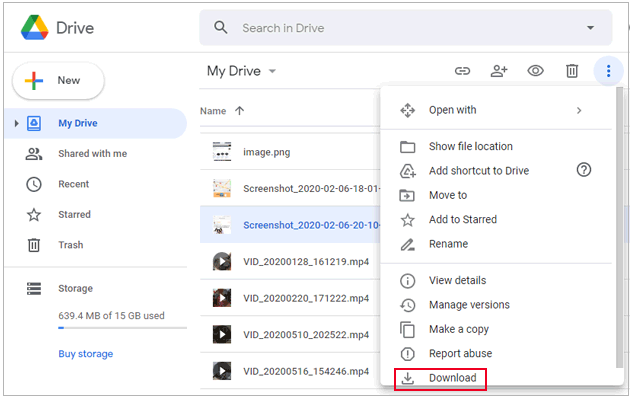
Step 5. To download the file to your phone, tap the three-dot menu next to the file and select "Download". This will save the music to your device.
Step 6. After the download is complete, you can find your recovered music files in your phone's Music or Downloads folder, depending on where your files are stored.
If you use third-party music apps like Spotify, Apple Music, or other music download apps, they often offer backup or cache recovery features. For example, Spotify automatically saves offline music, and Apple Music stores songs in iCloud. You can log in to your account and re-download the music files. Here's how to do it:
Step 1. Open your preferred music app.
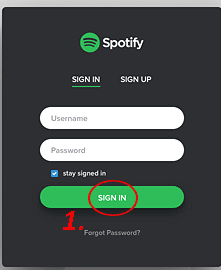
Step 2. Log in to your account and check if there is any download history or backup available.
Step 3. Select the music files you want to restore and re-download them.
If you didn't back up your music files before deletion, don't panic. There are still ways to recover them, especially if the files haven't been overwritten by new data.
Samsung's One UI (version 6.0 and above) includes a built-in Recycle Bin (also called Trash) in core apps like My Files, which temporarily stores deleted files for 30 days. This is the fastest and easiest way to recover recently deleted music without a backup. Here is how it works:
Step 1. Open the My Files app on your Samsung phone. This app is pre-installed on most Samsung devices (if you can't find it, search for "My Files" in the app drawer).
Step 2. In the My Files app, look for the Recycle Bin option. On newer One UI versions, you can often pull down the screen to reveal the Recycle Bin directly; on older versions, it may be under the "More" menu (three vertical dots in the upper-right corner).
Step 3. Tap on "Recycle Bin" to view all deleted files stored there. The files are sorted by deletion date, so you can filter by "Audio" or "Music" to narrow down the results (look for a "Filter" icon or tap "Categories" and select "Audio").
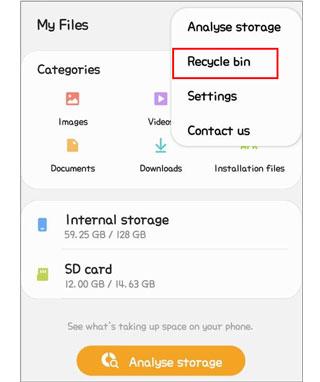
Step 4. Long-press the music file(s) you want to recover to select them. Then, tap the "Recover" button (usually at the bottom of the screen, labeled "Recover" or with a restore icon). The files will be restored to their original location (e.g., the "Music" folder in My Files).
If the music files are not in the Recycle Bin and you have no backup, Coolmuster Lab.Fone for Android is a reliable professional data recovery tool. It can perform a deep scan of your Samsung phone's internal storage and SD card to retrieve deleted music files that haven't been overwritten.
Main Features of Coolmuster Lab.Fone for Android:
As mentioned earlier, Coolmuster Lab.Fone for Android can help you recover deleted music from both your Android phone and SD card. Let's go over the steps for each method:
How to Recover Deleted Music Files on an Android Phone:
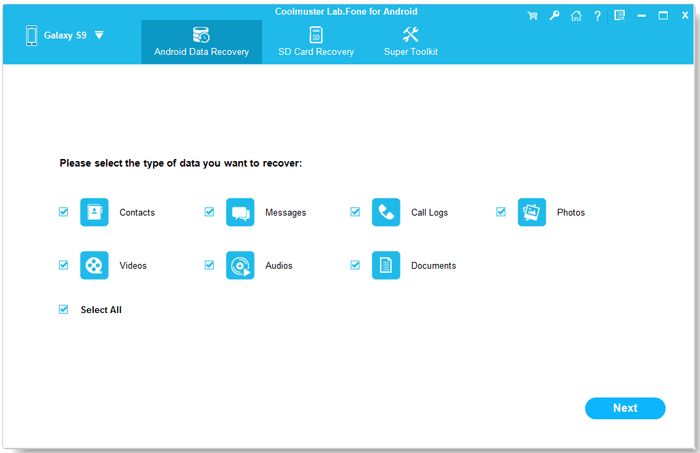
01Run the software on your computer and connect your Android phone via a USB cable. Follow the on-screen instructions to get your phone detected. Once connected, you will see the interface below. Select "Audios" and click "Next" to proceed.
02Choose either "Quick Scan" or "Deep Scan" to scan for deleted music files. Then, click "Continue" to start the scanning process.
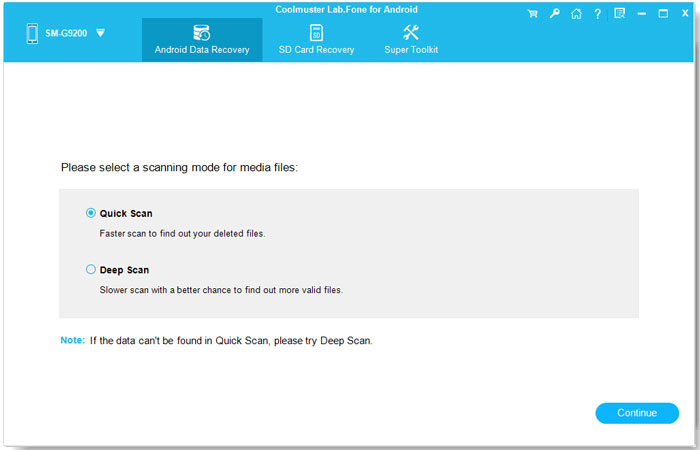
Note: If the deleted music files don't show up after scanning, they may be stored in the internal memory of your phone. In this case, you'll need to root your device and try scanning again.
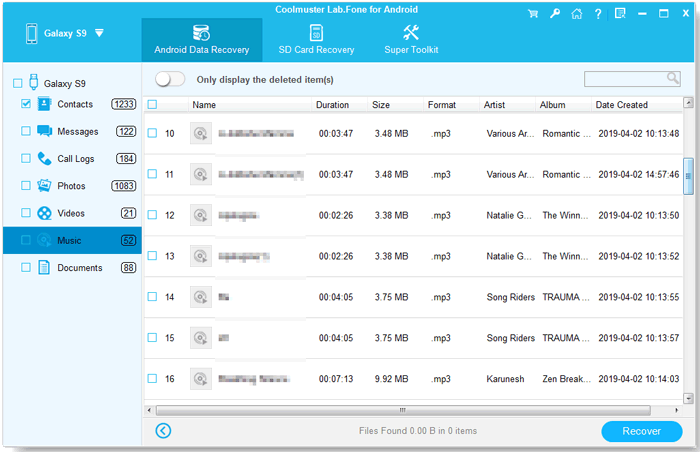
03After scanning, select "Music" from the left window. Check the items you want to recover from the right window and click "Recover" to restore the deleted music to your computer for backup.
For a more visual guide, check out the video tutorial.
How to Recover Deleted Music Files from an SD Card:
01Launch the software and select the "SD Card Recovery" mode from the top menu. Insert the SD card into your computer using an SD card reader.
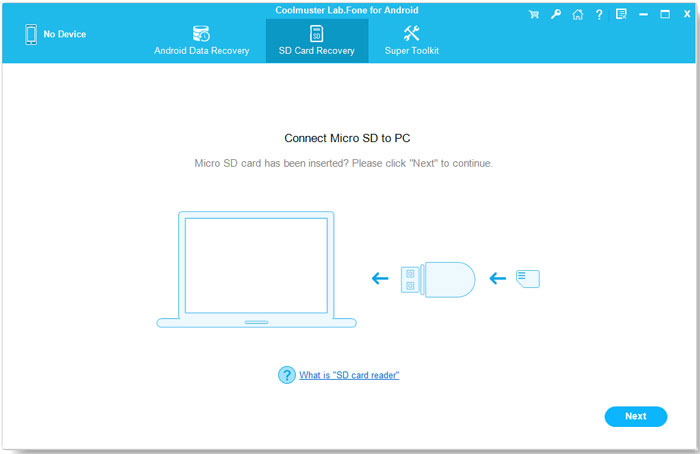
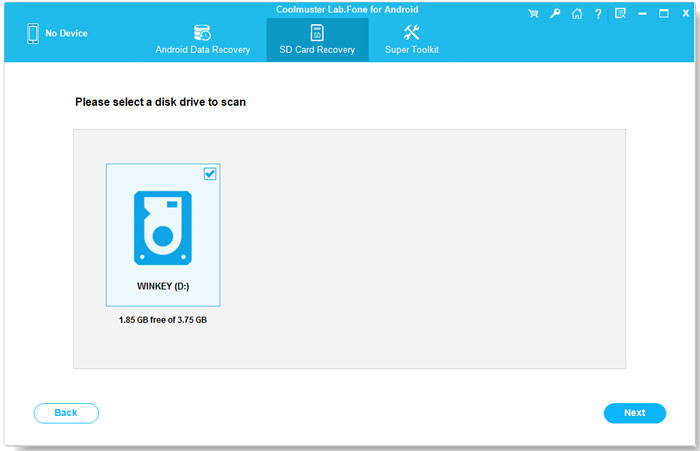
02Click "Next", and the program will detect all inserted SD cards. Select the drive that corresponds to your SD card, then click "Next" to begin scanning.
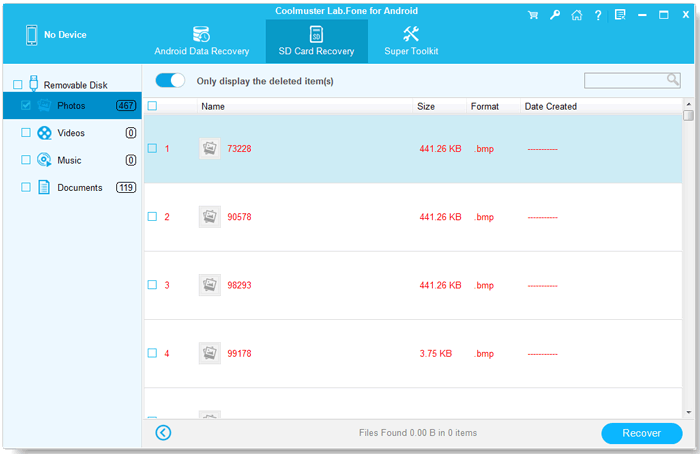
03Once the scan is complete, all recoverable files, including photos, videos, audio, and documents, will be displayed. You can preview the files, select the ones you wish to recover, and then click "Recover" to safely save them onto your computer.
For a more detailed demonstration, refer to the video tutorial.
Recovering deleted music files from a Samsung phone is possible, whether you have a backup or not.
Related Articles:
How to Recover Deleted Audio Files from Android Phone [4 Ways]
How to Add Music to Samsung Phone with 5 Practical Ways
Comprehensive Review of the Best Samsung Music Manager Software







 Free Download for PC
  Free Download for Mac


