TL;DR:
"Is anyone experiencing yellow screen/discoloration issues on their Samsung mobile phone? Since last year, I have been experiencing the above-mentioned issues on my mobile phone. I have tried some fixes provided by other users but to no avail. I was wondering whether other Mauritians are experiencing this issue and whether they have been able to solve it."
- From Reddit
Have you noticed your Samsung phone screen suddenly turning yellow or displaying an unusually warm tint? Whether the yellow color appeared after a software update, changing display settings, or seemingly out of nowhere, it can make your screen look dull and inaccurate, affecting everything from browsing and gaming to watching videos.
Fortunately, a yellow screen doesn't always mean your display is permanently damaged. In many cases, the problem is caused by features like Eye Comfort Shield, incorrect display settings, temporary system glitches, or third-party apps. However, if the issue appears after your phone has been dropped or exposed to water, it could indicate a hardware problem that requires professional repair.
In this guide, we'll explain what a Samsung yellow screen means, explore the most common causes behind the issue, and walk you through nine proven solutions to restore your display to normal.
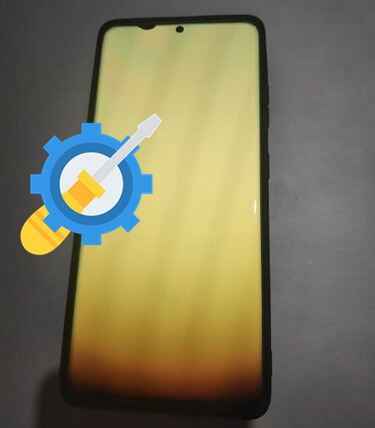
A Samsung yellow screen refers to a display issue where the screen develops an unusual yellow or warm tint, making whites appear cream-colored and other colors look less accurate. The discoloration may affect the entire display or become noticeable only under certain conditions, such as after a software update or when using specific display settings.
Although a yellow screen can be alarming, it doesn't always mean your phone's display is damaged. In many cases, the issue is caused by display settings or temporary software glitches that can be resolved without professional repair. However, if the yellow tint appears after your phone has been dropped or exposed to water, it may indicate a hardware problem. In the following sections, we'll explain the possible causes and show you how to fix the Samsung yellow screen step by step.
Samsung screen yellowing is usually caused by either software-related issues or hardware problems. Below are the most common reasons behind the issue.
1. Misconfigured Display Settings
Eye Comfort Shield, Screen Mode, white balance, and accessibility color filters are the most common causes of a yellow-tinted display.
2. Software Glitches or System Updates
A buggy One UI update, corrupted system files, or temporary software conflicts may affect display color rendering and cause the screen to appear yellow.
3. Third-Party Apps
Some screen filter, display enhancement, or battery optimization apps may interfere with Samsung's display settings, resulting in an unexpected yellow tint.
4. Physical Hardware Damage
If the yellow screen appears after your phone is dropped, exposed to water, or physically damaged, the display hardware may be faulty and require professional repair.
After identifying the possible causes, you can start troubleshooting the Samsung yellow screen issue. Follow the methods below in order, beginning with the quickest checks before moving on to more advanced solutions.
Before changing any settings, make sure the yellow screen isn't caused by physical damage. If your phone has recently been dropped, exposed to water, or subjected to excessive pressure, the display itself may be damaged.
Here are a few signs that indicate a hardware issue:
If you notice any of these symptoms, software troubleshooting is unlikely to solve the problem. Instead, contact Samsung Support or visit an authorized repair center for a professional diagnosis. If there are no obvious signs of hardware damage, continue with the following fixes.
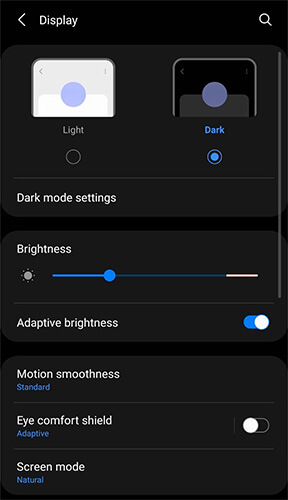
Eye Comfort Shield is one of the most common reasons a Samsung phone screen appears yellow. This built-in feature reduces blue light by applying a warmer color temperature, making the display more comfortable to view, especially at night. If it's left enabled or scheduled to turn on automatically, your screen may continue to look yellow during normal use.
Here's how to turn it off:
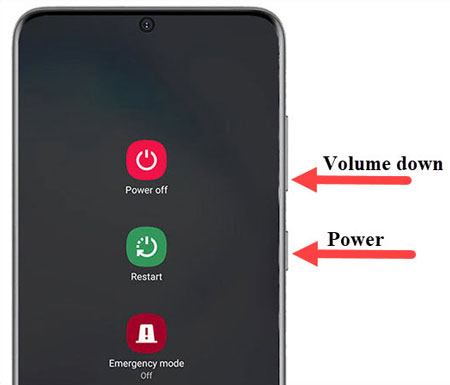
Sometimes a temporary software glitch can affect the way colors are displayed on your screen. Restarting your phone refreshes system processes and may resolve minor display issues without changing any settings.
Follow these steps:
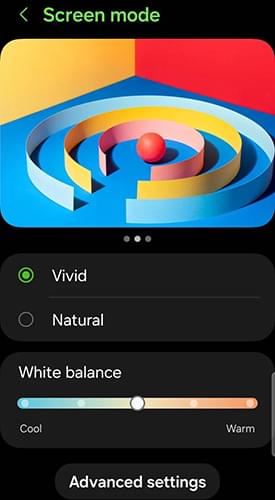
Samsung phones offer different display modes and color settings to suit individual preferences. If the screen appears warmer than expected, adjusting these settings may help improve color accuracy.
To change the display settings:
Avoid making extreme adjustments, as this may cause the screen to appear overly cool or unnatural.
Samsung includes accessibility features that help users with color vision deficiencies. If a color filter or color adjustment feature is enabled accidentally, it can change the screen's overall color balance and make the display appear yellow.
To disable color filters:
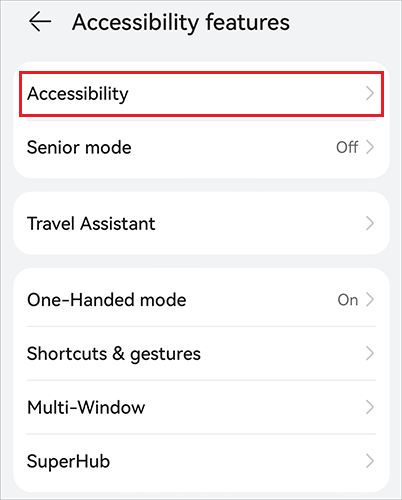
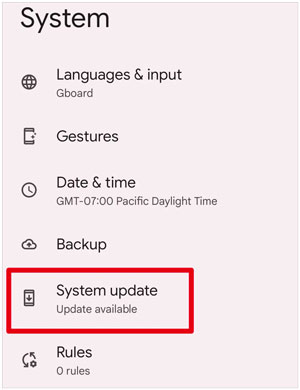
If the yellow screen appeared after a software issue or you're using an outdated version of One UI, installing the latest system update may help resolve display-related bugs and improve overall stability.
To check for updates:
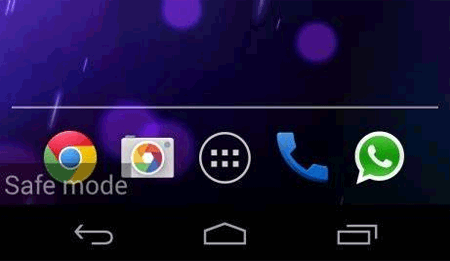
Some third-party apps, especially screen filter, display enhancement, or battery-saving apps, can interfere with your phone's display settings. Booting into Safe Mode temporarily disables all downloaded apps, making it easier to identify whether one of them is causing the problem. (Android Stuck in Safe Mode?)
To enter Safe Mode:
If the display returns to normal in Safe Mode, a third-party app is likely responsible. Restart your phone normally, then uninstall any recently installed apps that may be affecting the display.
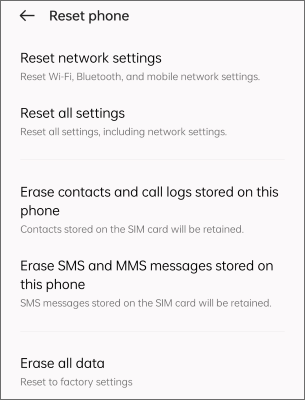
If none of the methods above work, resetting all settings can help eliminate problems caused by incorrect system or display configurations. This process does not erase your personal data, but it will restore settings such as Wi-Fi, Bluetooth, accessibility, and display preferences to their default values.
Here's how to reset all settings:
If you've tried all the troubleshooting methods above and your Samsung phone screen is still yellow, the problem may be related to corrupted system files or a failed software update. In this case, a professional Android system repair tool like Android Repair can help repair software-related issues without requiring complex manual troubleshooting.
Android Repair is designed to fix a wide range of Android system problems, including devices stuck on the Samsung logo, boot loops, yellow/black screens, app crashes, and other software issues that may affect normal device operation. The repair process is straightforward and doesn't require any technical expertise.
Key features of Android Repair
How to repair your Samsung phone with Android Repair?
01Download and install Android Repair on your computer. Launch the program, select "System Repair" from the main interface, and then choose "Android Repair".
02Connect your Samsung phone to the computer using a USB cable. Once the device is detected, click "Repair Now" to continue.
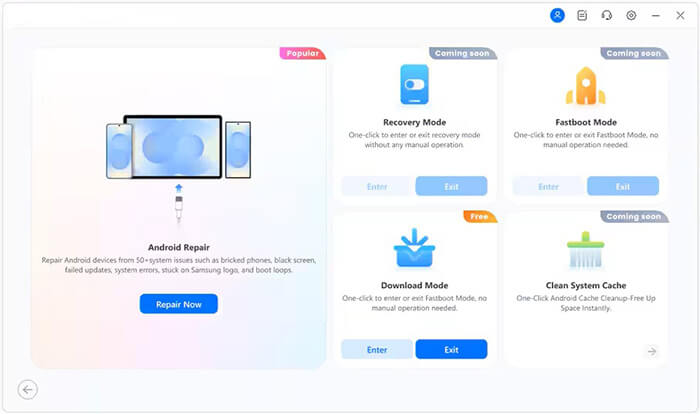
03Select the correct device information, including the brand, model, region, and carrier (if required), then click "Start".
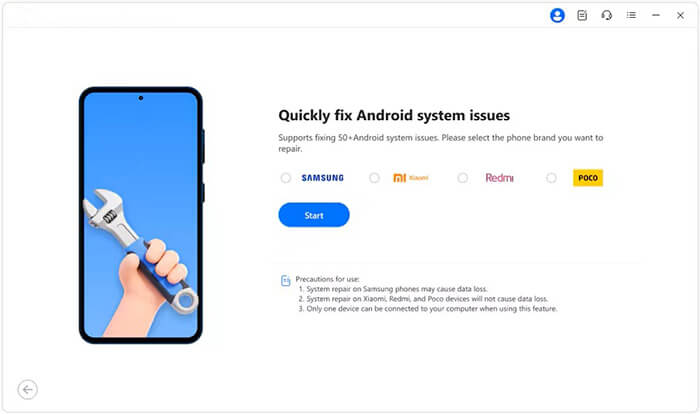
04Follow the on-screen instructions to put your Samsung phone into Download Mode (also known as Odin Mode on Samsung devices).
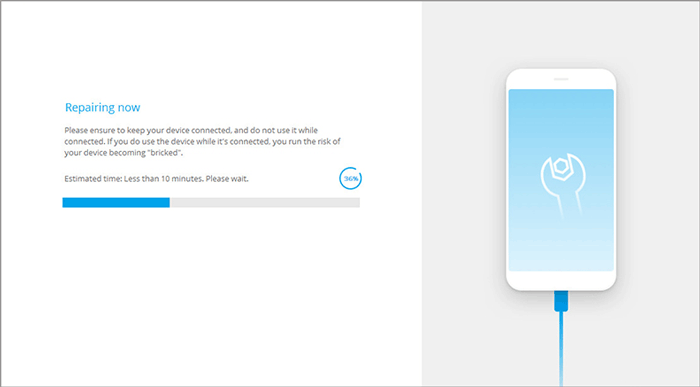
05Android Repair will automatically download the matching firmware package and begin repairing the Android system. Wait for the repair process to finish. Once complete, your phone will restart automatically.
A yellow screen on your Samsung phone doesn't always mean the display is permanently damaged. In many cases, it's simply the result of a display setting, a temporary software glitch, or a problematic system update. By following the troubleshooting methods in this guide, from checking for hardware damage and adjusting display settings to updating your software, you can resolve the issue in most situations.
If the yellow tint persists and you've ruled out physical screen damage, repairing the Android system with Android Repair is worth trying. However, if the problem remains after software repair or is accompanied by symptoms such as screen flickering, colored lines, or touch issues, it's best to contact Samsung Support or visit an authorized repair center for a professional diagnosis. Early troubleshooting can save you time and help prevent the problem from getting worse.
Related Articles:
Samsung Black Screen of Death: Reasons and 7 Solutions
Touch Screen Not Working on Samsung: 8 Reliable Solutions




 Free Download for PC


