TL;DR: Need to fix a corrupted SD card? This guide shows you how to format a corrupted SD card on Windows and Mac with 5 simple methods. Whether your SD card is unreadable, damaged, or asking to be formatted, you'll find the right solution here.
A corrupted SD card can be a real headache, especially when you suddenly can't open your photos, videos, or important files. Whether your SD card shows errors, becomes unreadable, or keeps asking you to format it, the good news is that you can often fix the problem by formatting it.
Can you format a corrupted SD card? Of course. In this guide, we'll show you how to format a corrupted SD card on Windows and Mac. Let's get your SD card back to working condition step by step.
If you're using a Windows PC, the following methods can help you format a corrupted SD card and restore it to normal.
File Explorer is the simplest way to format an SD card on Windows. It is suitable for SD cards with minor corruption or those that can still be recognized by the system. If the SD card appears under "This PC", you can format it directly through the right-click menu.
Here is how to format a corrupted SD card in a laptop using File Explorer:
Step 1. Insert the corrupted SD card into your laptop using an SD card slot or card reader, then open File Explorer by pressing "Windows" + "E".
Step 2. Click "This PC" from the left sidebar and locate your SD card under the "Devices and drives" section.
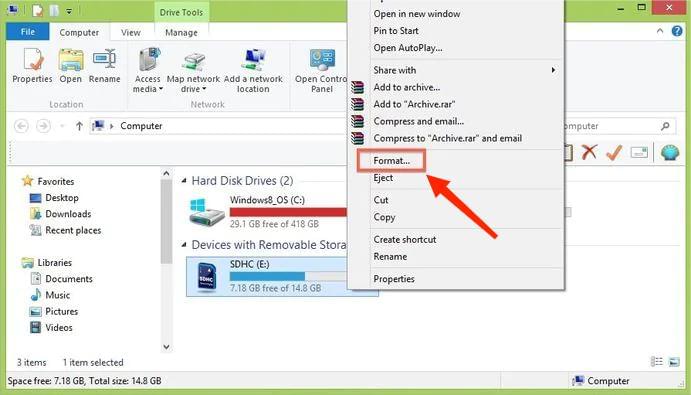
Step 3. Right-click the SD card, select "Format", and follow the on-screen instructions to complete the formatting process.
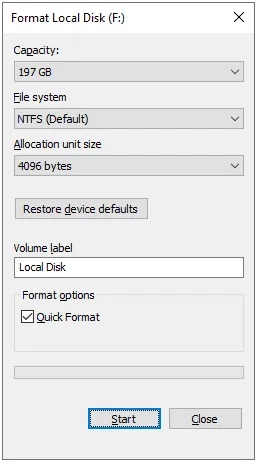
Step 4. Select the desired file system (FAT32, exFAT, or NTFS), and adjust the allocation unit size if needed.
Step 5. Uncheck the "Quick Format" option to perform a more thorough format.
Step 6. Click "Start" to begin formatting the corrupted SD card.
If File Explorer fails to format the SD card, you can try using Windows' built-in Disk Management tool instead. Here is how to format a corrupted SD card using Disk Management:
Step 1. Press "Windows" + "X", then select "Disk Management".
Step 2. Locate the SD card you want to format, right-click it, and select the "Format" option.
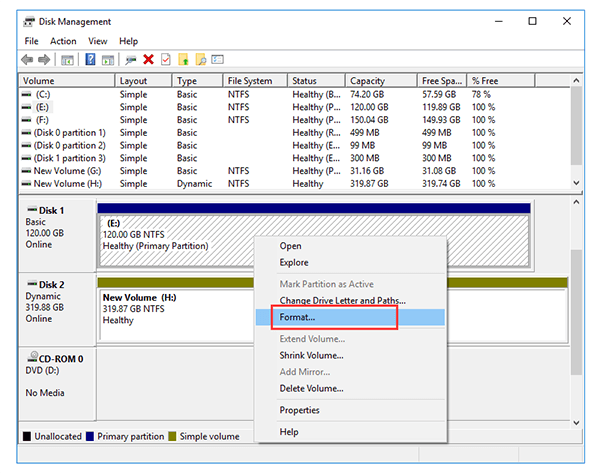
Step 3. Choose the desired file system, enable the "Perform a Quick Format" option, and click "OK" to start the process.
When an SD card cannot be formatted using regular methods, you can use the DiskPart tool instead. However, this method requires caution. Selecting the wrong disk number may cause data on other drives to be erased.
Here is how to format a corrupted SD card in CMD:
Step 1. Press "Windows" + "R" to open the Run dialog box, type "cmd", and click "OK" to launch Command Prompt.
Step 2. Type "Diskpart" and press "Enter". Then enter "list disk" to display all available disks on your computer.
Step 3. Identify your corrupted SD card, type "select disk (X)", and press "Enter" to select the target disk.
Step 4. Enter the "clean" command and press "Enter" to remove all data and partitions from the SD card.
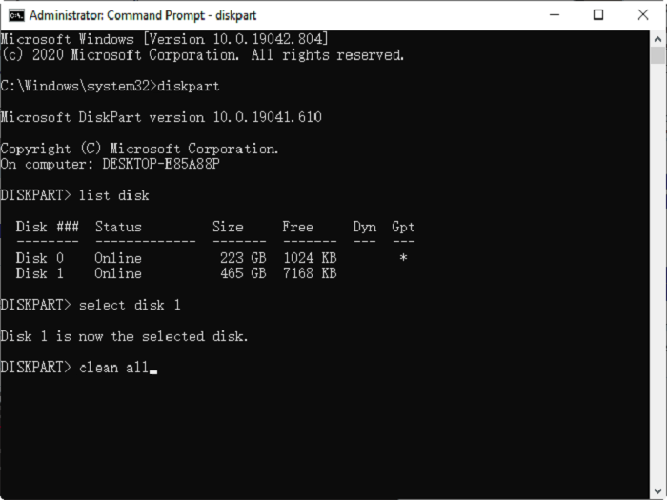
Step 5. Type "create partition primary" to create a new partition, then enter "fs=fat32" to format the SD card with the FAT32 file system.
Step 6. Type "assign letter (X)" and press "Enter" to assign a drive letter, allowing Windows to access the formatted SD card.
If the SD card is severely corrupted, or you want to completely erase all data and reuse it, a professional data erasure tool is a safer and more efficient choice. Coolmuster Data Erasure can help users permanently delete data from an SD card and clean the storage space through deep erasure. Compared with regular formatting, it can remove old data traces more thoroughly and is suitable for scenarios where you need to sell, transfer, or reuse the SD card.
Main features of Coolmuster Data Erasure:
Here is how to format a corrupted SD card using Coolmuster Data Erasure:
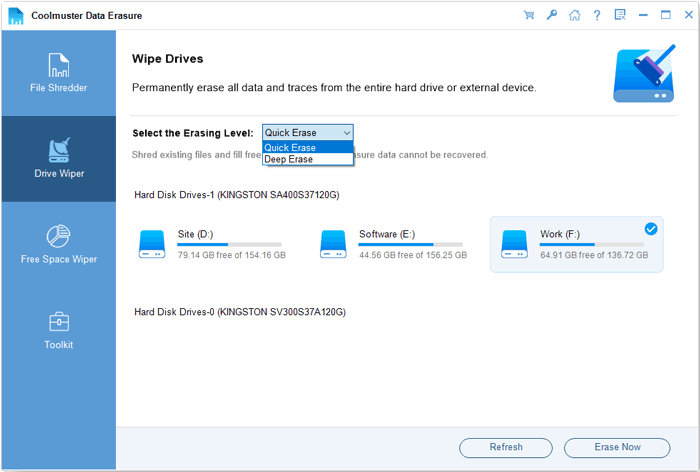
01Download and install Coolmuster Data Erasure on your Windows PC, then launch the program. Select "Drive Wiper" from the left panel and choose your SD card.
02Select the "Deep Erase" mode to thoroughly remove existing data and prevent deleted files from being recovered.
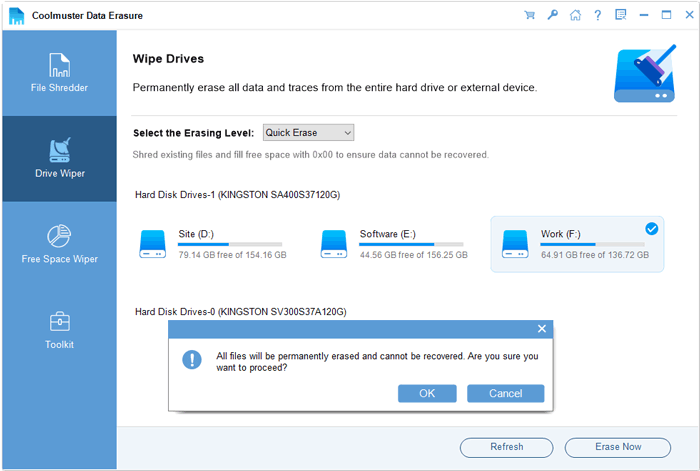
03Click "Erase Now" and confirm the operation by selecting "OK" in the pop-up window to start erasing your SD card.
Video Tutorial:
If you are a Mac user, you can use the built-in Disk Utility tool to format an SD card without installing any third-party software. Here is how to format a corrupted SD card on Mac via Disk Utility:
Step 1. Insert the corrupted SD card into your Mac using an SD card slot or card reader.
Step 2. Open "Disk Utility" by going to "Applications" > "Utilities" > "Disk Utility".
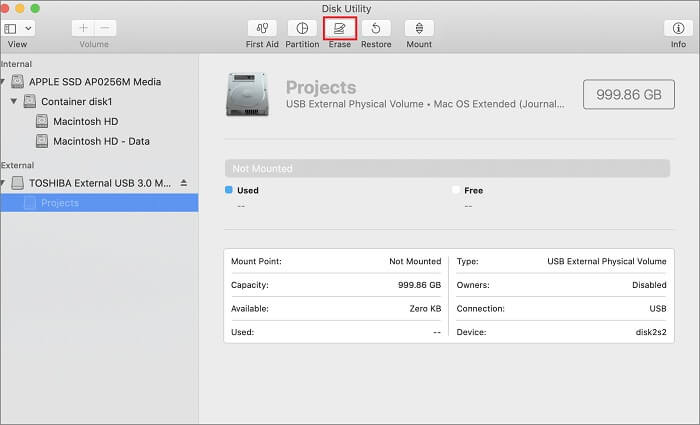
Step 3. Select your SD card from the left sidebar, then click the "Erase" button at the top of the window.
Step 4. Choose a suitable file system format, such as MS-DOS (FAT) for FAT32 or ExFAT for larger storage devices, and enter a name for the SD card if needed.
Step 5. Click "Erase" to start formatting the corrupted SD card. Wait until the process is complete, then click "Done".
Formatting a corrupted SD card can help fix common issues such as file system errors, read failures, and write protection problems. Windows users can try File Explorer, Disk Management, or CMD first, while Mac users can use Disk Utility to complete the formatting process.
If you need to completely erase data from your SD card or regular formatting fails to resolve the issue, Coolmuster Data Erasure is a more professional solution. It can securely wipe SD card data and reduce problems caused by remaining data traces, allowing the SD card to be reused safely.
Related Articles:
6 SD Card Format Tools for Windows & Mac: Step-by-Step Guide
Micro SD Card Recovery: How to Recover Deleted Files from Micro SD Card (Full Guide)






 Free Download for PC


