TL;DR:
Deleting PDF files on a computer doesn't always mean they're gone forever—remnants can often still be recovered with data recovery tools. This guide explains four methods to permanently delete PDF files on Windows:
For casual deletion, built-in methods are enough, but for sensitive files, dedicated data erasure software is the most reliable way to ensure PDFs are truly unrecoverable.
Many people believe that once a PDF file is deleted and the Recycle Bin is emptied, the file is gone forever. In reality, that is not the case. Even after a file is deleted from a computer, traces of its data may still remain on the hard drive and can potentially be recovered using professional data recovery software. If the PDF contains contracts, financial statements, scanned ID documents, customer information, or other sensitive data, simply deleting the file is not enough to protect your privacy.
So, how to permanently delete PDF files on a computer and make them unrecoverable? In this article, we will introduce four effective methods to permanently erase PDF files on a Windows computer, ensuring that your data remains secure and cannot be recovered.
When you want to quickly delete a PDF file, one of the most commonly used methods is the Shift + Delete keyboard shortcut. Unlike the standard Delete command, which first moves the file to the Recycle Bin, Shift + Delete bypasses the Recycle Bin and removes the file directly from the file system.
However, it is important to understand that although this method makes the file disappear immediately, it only removes the file's index information and does not actually erase the original data stored on the hard drive. As a result, until the data is overwritten by new files, there is still a possibility that the deleted PDF can be recovered using professional data recovery software.
Here is how to delete PDF files on a laptop via Shift + Delete:
Step 1. Find the PDF file you want to remove and click it to select it.
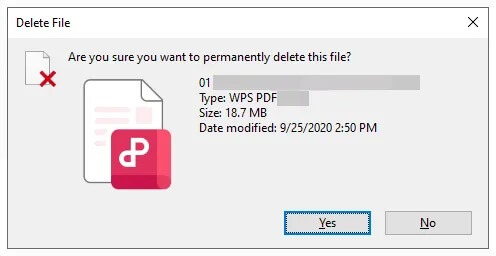
Step 2. Press "Shift" + "Delete" on your keyboard. When the confirmation prompt appears, click "Yes" to proceed.
Step 3. The PDF file will be deleted immediately and will not be sent to the Recycle Bin.
If you want to ensure that your PDF files cannot be recovered by any data recovery software, it is recommended to use a professional data erasure tool such as Coolmuster Data Erasure. The software employs advanced data overwriting technology to permanently erase file remnants by overwriting the original storage sectors multiple times. Once the process is completed, the deleted data becomes unrecoverable, even with professional recovery tools.
Its dedicated and user-friendly interface makes the data erasure process simple and efficient, while also allowing you to select specific files for secure deletion before the wiping process begins.
The highlights of Coolmuster Data Erasure:
Here is how to permanently delete PDF files on a computer using Coolmuster Data Erasure:
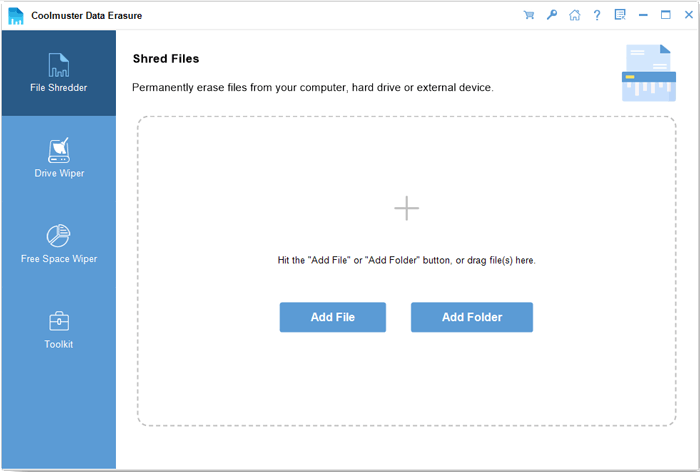
01Download, install, and launch Coolmuster Data Erasure on your computer. From the main interface, select the "File Shredder" option.
02Click "Add File" and browse your computer to import the PDF files you want to permanently delete. The selected files will then appear in the file list.
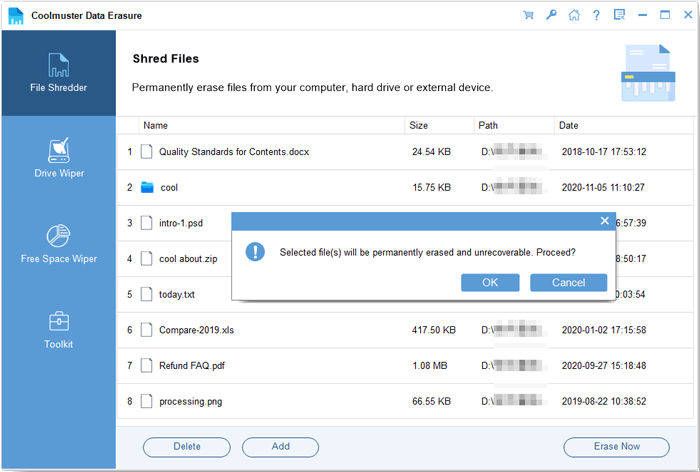
03Once you have confirmed the files, click "Erase Now". When prompted, select "OK" to begin the shredding process. The software will securely erase the PDF files, making them inaccessible and difficult to recover.
Video Tutorial:
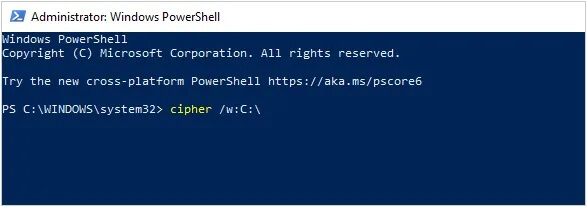
Windows includes a built-in command-line utility called Cipher, which can securely overwrite free disk space and make previously deleted PDF files far more difficult to recover. By writing random data to unallocated storage areas, Cipher effectively removes traces of files that were deleted earlier.
Follow these steps:
Step 1. Delete the PDF file using either the standard "Delete" option or the "Shift" + "Delete" shortcut.
Step 2. Press "Win" + "R" to open the Run dialog, type "cmd", and press "Enter".
Step 3. In the Command Prompt window, enter "cipher /w:C:" and press "Enter". Replace "C:" with the drive letter where the PDF file was originally stored.
Step 4. Wait for the process to complete. Cipher will overwrite all available free space on the selected drive, helping eliminate recoverable traces of deleted files.
Step 5. Once the operation finishes, close the Command Prompt window. The deleted PDF data will be significantly more difficult—if not impossible—to recover using conventional recovery tools.
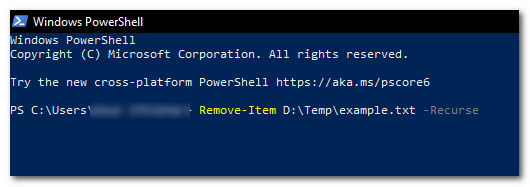
The Remove-Item command in PowerShell provides an effective way to permanently delete PDF files from your system. It allows you to remove files quickly and precisely using command-line instructions.
Follow these steps to safely delete PDF files using PowerShell:
Step 1. First, press the Windows key, type "PowerShell" in the search bar, and open "Windows PowerShell". Alternatively, you can right-click the "Start" button and select "Windows PowerShell" from the menu.
Step 2. Next, use the "cd" command to navigate to the folder where the PDF files you want to delete are stored.
Step 3. Then, run the Remove-Item command. In PowerShell, type "Remove-Item *.pdf" and press "Enter". This will delete all PDF files in the current directory.
Step 4. If you want to remove PDF files in all subfolders as well, add the "-Recurse" option to the command, like this: "Remove-Item *.pdf -Recurse".
Now you know how to permanently delete PDF files on a computer using several different methods. If you simply want to remove unwanted PDF documents, Shift + Delete or Remove-Item can get the job done quickly. For added security, Cipher can help overwrite free disk space and reduce the chances of file recovery.
However, if your PDF files contain sensitive information and you want to ensure they can never be recovered, a professional data erasure tool- Coolmuster Data Erasure is the best choice, making it an excellent option for protecting your privacy and safeguarding confidential data.
Related Articles:
How to Delete All Data from HP Laptop? Solved in 3 Safe Ways
How to Remove Pages from PDF Documents on Windows/Mac/Online
How to Force Delete a File on Windows and Mac: Complete Guide
3 Effective Ways to Permanently Erase Data After Reinstalling Windows OS






 Free Download for PC


