Reinstalling Windows OS is a common solution to fix slow performance, malware infections, or system crashes. However, many users assume that reinstalling the operating system will completely remove all data from the computer. In reality, reinstalling Windows does not guarantee that your files are permanently gone. Sensitive data can often be recovered using specialized recovery software. This article will guide you on how to permanently erase data after reinstalling Windows OS, ensuring your privacy and preventing data leaks.
The short answer is no. There are generally two ways to reinstall the Windows operating system: Keep my files and Remove everything.
Simply reinstalling Windows does not guarantee that data will be permanently gone. To thoroughly prevent data leakage, dedicated wiping tools or commands must be used to overwrite the data.
To solve the problem of residual recoverable data after Windows reinstallation, we have sorted out three practical and effective methods.
Coolmuster Data Erasure is a professional, user-friendly data wiping tool tailored for Windows devices. Unlike Windows built-in tools with limited erasure capabilities, this software adopts military-grade data overwriting algorithms, which can completely erase all residual data on hard drives, SSDs, and external storage devices after Windows reinstallation. It supports one-click full disk wiping, partition-specific erasure, and targeted file shredding, ensuring zero possibility of data recovery. It is the most recommended method for users pursuing absolute data security and simple operation.
Why should you choose Coolmuster Data Erasure?
* Securely erase files and folders from HDDs, SSDs, or external drives to prevent data recovery.
* Wipe entire disks—including system and non-system drives—using Quick Erase or DoD 5220.22-M(E) standards for complete, unrecoverable destruction.
* Remove residual data from free space without affecting existing files, with options for fast or DoD-certified deep wiping.
* Erase USB drives, partitions, external hard drives, and system drives (C:), all without needing bootable media.
* Comply with government-grade security standards, ensuring irreversible deletion of sensitive data.
* Fully compatible with Windows 7, 8, 10, and 11.
How do I completely wipe my PC and reinstall Windows? Follow the steps below:
01Install this drive wiper on your Windows PC and launch the program.
02Select "Drive Wiper" from the main menu, and then choose the desired erase level and select the hard drive you want to wipe.
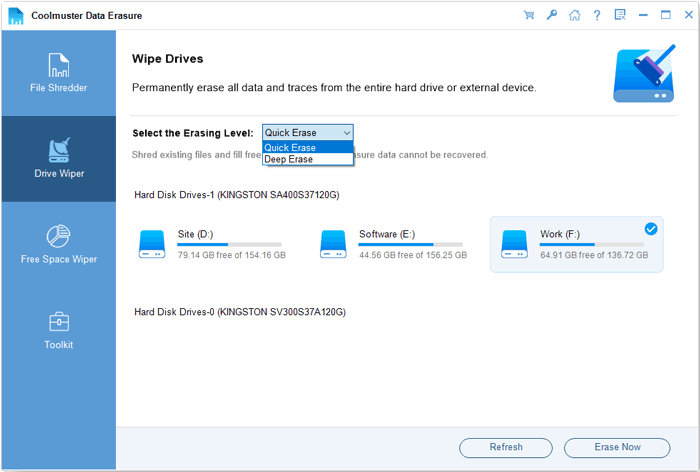
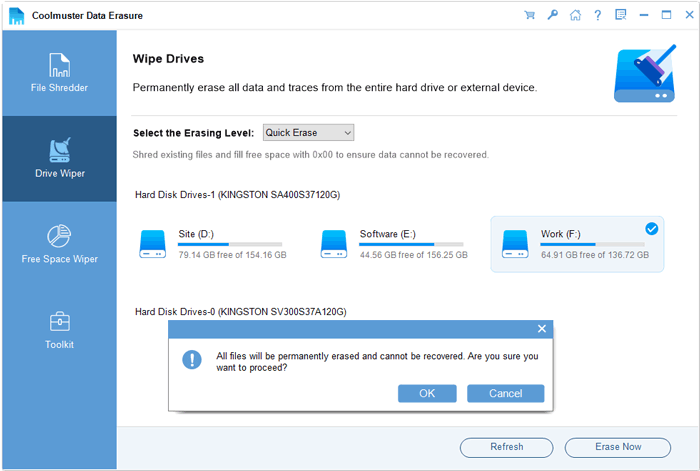
03Click "Erase Now". A confirmation prompt will appear—click "OK" to proceed. The program will securely erase all data on the selected drive. Once finished, you can repeat the process for other drives.
Video Tutorial:
Windows 11 provides a built-in Reset This PC feature, which allows you to reinstall Windows and remove files. By choosing the "Fully clean the drive" option, you can significantly reduce the chance of data recovery.
Here is how to delete all the data after reinstalling Windows OS:
Step 1. Open "Settings" > "System" > "Recovery" > "Reset This PC".
Step 2. Select "Remove everything".
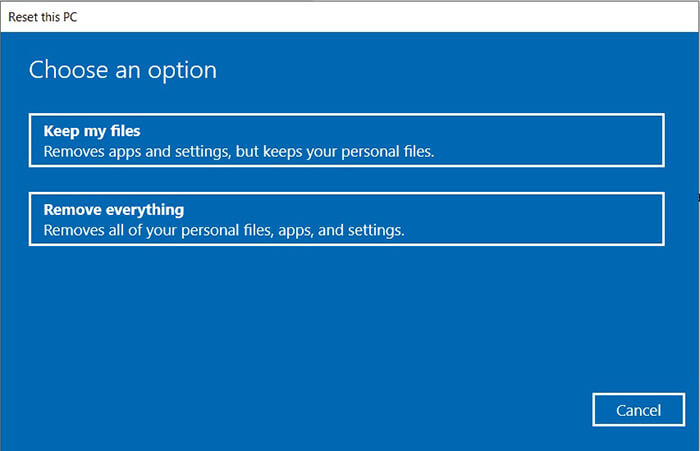
Step 3. Choose "Fully clean the drive" to overwrite disk sectors.
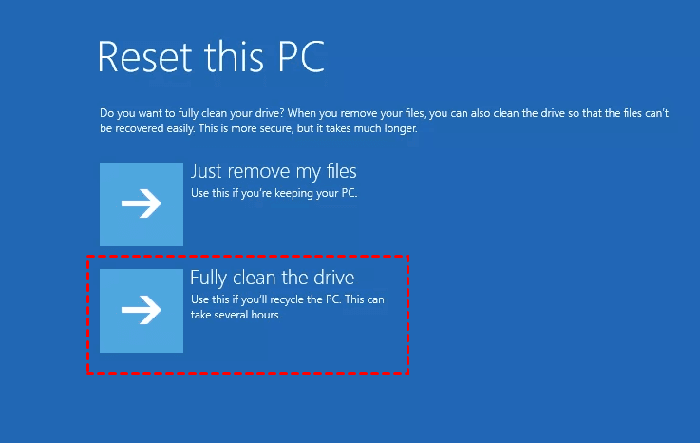
Step 4. Click "Reset" and wait for Windows to automatically reinstall the OS.
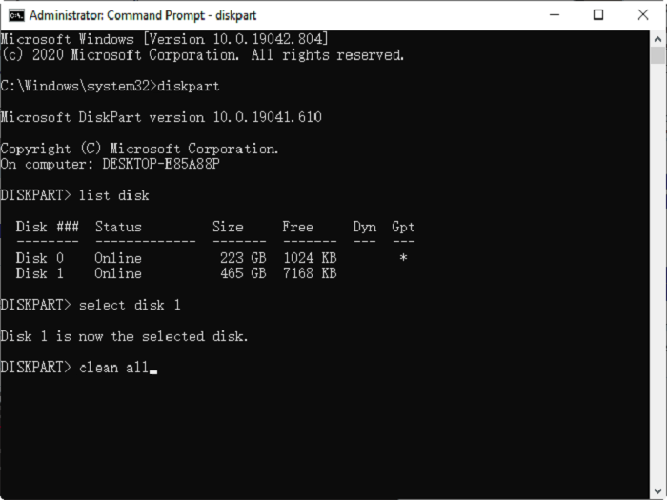
DiskPart is a built-in command-line tool in Windows that can perform thorough disk cleaning, including system drives. Using the clean all command will overwrite every sector on the disk, achieving permanent data erasure. This method is intended for advanced users and should be used with caution to avoid accidentally deleting important drives.
How to 100% wipe your PC? Here are the steps:
Step 1. Press "Win" + "R" keys, input "cmd" in the run box, right-click Command Prompt, and select "Run as administrator" to open the command window.
Step 2. Input the command "diskpart" and press "Enter" to launch the DiskPart tool.
Step 3. Input "list disk" and press "Enter". The system will display all disks connected to the computer. Identify the target disk number (usually Disk 0 is the system disk).
Step 4. Input "select disk X" (replace X with your target disk number) and press "Enter" to select the disk that needs data erasure.
Step 5. Input "attributes disk clear readonly" and press "Enter" to remove disk read-only restrictions, ensuring smooth erasure.
Step 6. Input "clean all" and press "Enter". This core command will thoroughly scan the entire disk, overwrite all data sectors, and permanently erase all residual partition data and files. The "all" parameter ensures deep full-disk cleaning (far more thorough than the basic "clean" command).
Step 7. Wait for the command execution to complete. After finishing, input "exit" twice to close DiskPart and Command Prompt.
Step 8. Restart your computer. All data on the target disk after Windows reinstallation will be permanently erased.
That's all about how to permanently erase data after reinstalling Windows OS. To fully protect your privacy, you need a secure data wiping method that overwrites the disk completely. Coolmuster Data Erasure stands out as the most reliable and user-friendly solution. It allows you to securely wipe system drives and permanently destroy sensitive files, ensuring your personal information cannot be recovered by any data recovery software. Please give it a try.
Related Articles:
[Solved] How to Fix Windows Was Unable to Complete the Format?
[Solved] How to Factory Reset Windows XP with or without a CD?
Step-by-Step Guide to Delete Everything But OS on Windows & Mac
How to Force Delete a File on Windows and Mac: Complete Guide






 Free Download for PC


