Many iPhone users encounter this issue: photos are saved in HEIC format, but they can't be opened or uploaded properly on Windows computers, certain websites, or social media platforms. In such cases, converting HEIC to JPG online becomes the most convenient solution. Compared to installing software, online conversion tools require no downloads—you can complete the process directly in your browser, making them ideal for quick conversions or for users who don't want to take up device storage.
In this article, we'll introduce five common methods to convert HEIC to JPG online, along with their pros and cons, to help you choose the best option.
HEIC (High Efficiency Image Format) is the default image format used by Apple since iOS 11. Its advantages include:
However, it also has some clear drawbacks:
Therefore, converting HEIC to JPG, the most widely supported image format, becomes highly necessary.
How to convert a HEIC file to JPG online? Below are five of the most popular online HEIC to JPG converters on Google—you can choose the one that best suits your preferences.
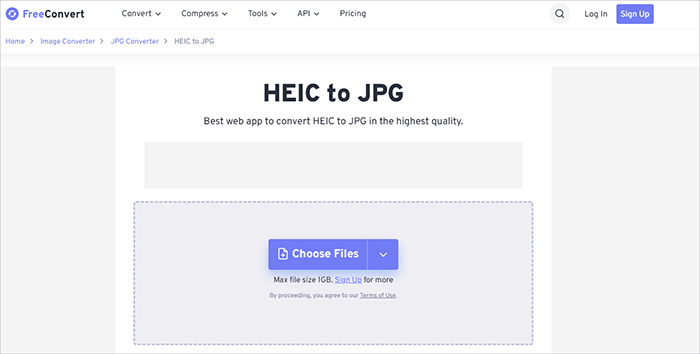
FreeConvert is a versatile HEIC to JPG online converter that supports over 500 file formats. It's especially popular because it allows users to customize output settings like image quality, compression level, and resolution. This makes it ideal for users who want more control when converting HEIC or HEIF files to JPG online.
Another advantage is its flexibility—you can upload files from your device, cloud storage, or even via URL. However, the free version does come with file size limits, which may affect users trying to convert HEIC to JPG online in bulk.
Steps to convert HEIC to JPG online using FreeConvert:
Step 1. Go to the FreeConvert HEIC to JPG website.
Step 2. Click "Choose Files" to upload your HEIC images.
Step 3. Select "JPG" as the output format.
Step 4. (Optional) Adjust advanced settings like quality or size.
Step 5. Click "Convert" to start the process.
Step 6. Download your JPG files once completed.
Pros:
* Support customizable parameters.
* Output quality is controllable.
* Support cloud import (Google Drive / Dropbox).
Cons:
* The free version has file size limits.
* Upload speed for large files depends on network conditions.
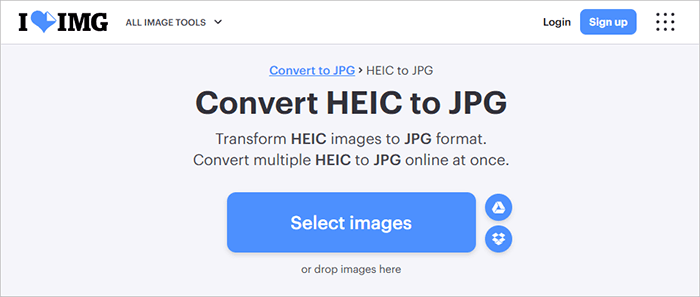
iLoveIMG is an online toolkit focused on image processing, offering a variety of features such as compression, cropping, and format conversion. Its HEIC-to-JPG tool is very intuitive and requires almost no learning curve, making it ideal for beginners. The platform supports batch uploads and one-click conversion, with a smooth and fast overall process. In addition, the interface is clean and free of distracting ads, providing a great user experience.
However, it offers limited options for image quality control, making it more suitable for quick conversions rather than detailed editing.
Steps to convert HEIC to JPG online in batch using iLoveIMG:
Step 1. Visit the iLoveIMG Convert HEIC to JPG website.
Step 2. Click the "Select images" button and upload your HEIC files from your device. You can also import files from cloud storage like Google Drive or Dropbox.
Step 3. If needed, upload multiple images to convert them in bulk.
Step 4. Click the "Convert to JPG" button. The tool will automatically process your images.
Step 5. Once the conversion is complete, download your JPG files to your device or save them back to cloud storage.
Pros:
* Simple to use, no registration required.
* Support batch processing.
* Support drag-and-drop uploads, no registration required.
Cons:
* The free version has limited features.
* Image compression rate may be relatively high.
* Processing large files can be slow.
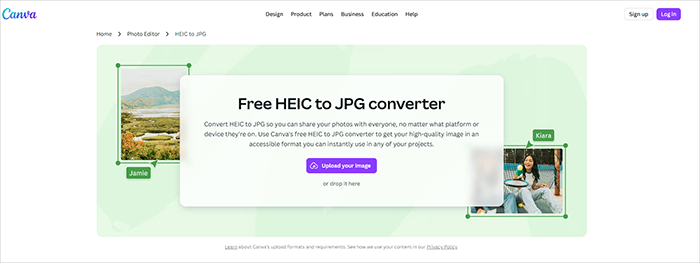
Canva is a well-known online design platform. Although it is primarily used for creating posters, social media graphics, and other visual content, it also supports importing HEIC images and exporting them as JPG. This approach is more suitable for users who are already using Canva for design work.
Unlike traditional conversion tools, Canva's advantage lies in allowing you to edit images before converting them—for example, cropping, adding text, or applying filters. However, it requires you to log in to an account, and the conversion process involves an extra step.
Steps to convert HEIC to JPG online for free using Canva:
Step 1. Go to the Canva HEIC to JPG converter website. Then log in to your account or sign up for free if you don't have one.
Step 2. Click the "Upload your image" button and upload your HEIC files from your device.
Step 3. Once uploaded, click the image to place it onto your design canvas.
Step 4. You can crop, resize, add text, apply filters, or make other edits before converting.
Step 5. Click the "Share" or "Download" button on the top right, choose "JPG" as the file format, and then click "Download".
Pros:
* User-friendly interface, ideal for design-oriented users.
* Support exporting to JPG after editing.
* No complex operations required.
Cons:
* Conversion features are relatively basic.
* Require account login.
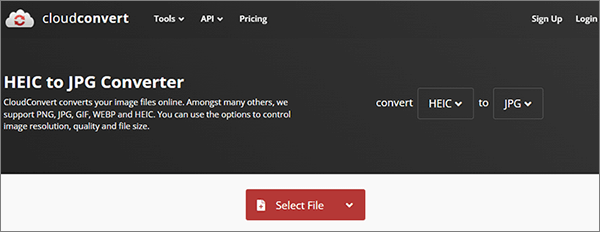
CloudConvert is a professional-grade tool for users who need high-quality output. It’s one of the best choices if you want to convert HEIF to JPG online with precise control over settings such as resolution, compression, and metadata retention.
It also supports cloud integrations like Google Drive and Dropbox, making it convenient for remote workflows. However, free users are limited by conversion credits.
Steps to convert HEIC to JPG online in bulk using CloudConvert:
Step 1. Open your browser and go to the CloudConvert HEIC to JPG Convert website.
Step 2. Click the "Select File" button to upload your HEIC images from your device. You can also import files from cloud storage services like Google Drive, Dropbox, or via a URL.
Step 3. Click the settings (wrench icon) to customize options such as image quality, resolution, or file size.
Step 4. Click the "Convert" button to begin converting your HEIC files to JPG.
Step 5. Once the conversion is complete, click "Download" to save the JPG files to your device.
Pros:
* Support adjusting resolution and quality.
* High conversion accuracy.
* Support cloud import (Google Drive, Dropbox).
Cons:
* The free version has file size limits.
* Conversion speed depends on network conditions.
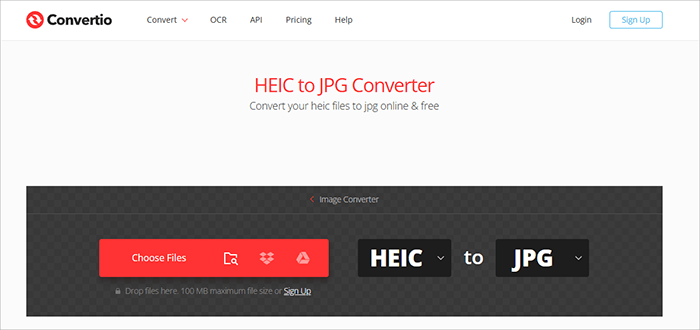
Convertio is another popular free online HEIC to JPG tool that supports over 300 file formats. It stands out for its flexibility—you can upload files from your computer, Google Drive, Dropbox, or even a URL.
It's a great choice for quick conversions, but like many online tools, it has restrictions on file size and the number of conversions per day.
Steps to convert HEIC to JPG online using Convertio:
Step 1. Visit the Convertio HEIC to JPG website.
Step 2. Click the "Choose Files" button to upload HEIC images from your device. You can also import files from Google Drive or Dropbox, or paste a file URL.
Step 3. Make sure the output format is set to "JPG".
Step 4. Click the "Convert" button to begin converting your files.
Step 5. Once the process is complete, click "Download" to save the converted JPG images to your device.
Pros:
* Support importing from local device, URL, and cloud storage.
* Fast conversion speed.
* Intuitive interface.
Cons:
* Free version has strict file size limits.
* Require a stable internet connection.
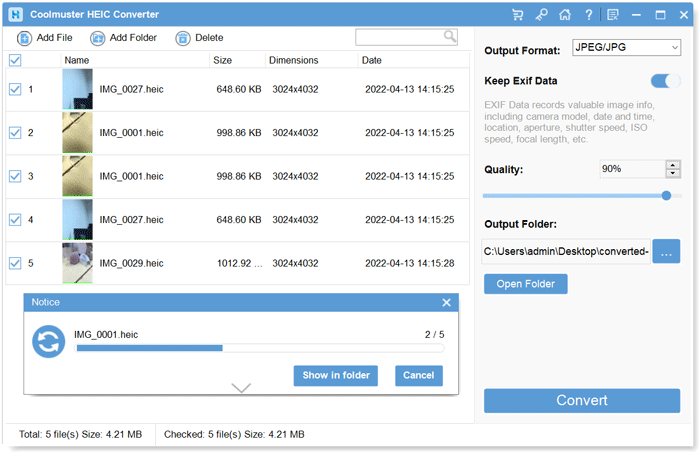
If you need to convert dozens or even hundreds of HEIC images, online tools can be slow and easily limited. In this case, it's better to use professional software: Coolmuster HEIC Converter. It is a desktop tool specifically designed for converting HEIC files to JPG, JPEG, or PNG, suitable for both Windows and Mac users.
Compared to online tools, its biggest advantages are strong batch-processing capabilities, stable conversion, and no reliance on the internet. Additionally, it supports preserving the photos' EXIF information (such as capture time and device details), which is very useful for photography enthusiasts.
Key features of Coolmuster HEIC Converter:
Here is how to convert HEIC to JPG on Windows/Mac offline using Coolmuster HEIC Converter:
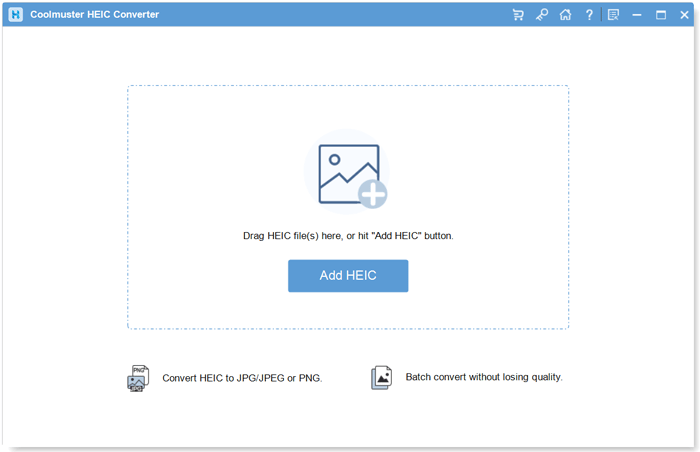
01Open the software on your computer. Add HEIC photos by either clicking the "Add HEIC" button or dragging them into the dotted-frame area.
02Select the HEIC images you want to convert. Pick "JPEG/JPG" or "PNG" as the output format. Enable "Keep Exif Data" to preserve original info and adjust the Quality setting. Choose a folder on your computer to save the converted files.
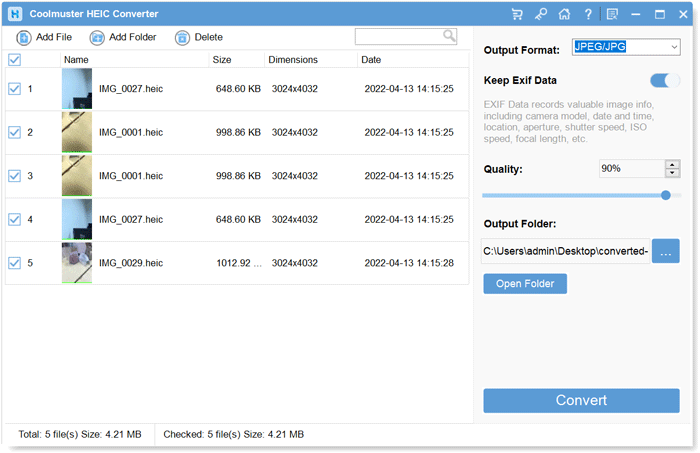
03Click the "Convert" button to start converting your HEIC images to JPG or PNG.
Video Tutorial:
When deciding whether to convert HEIC to JPG online or use an offline tool, the best choice depends on your needs—especially file size, privacy, and batch processing.
To make it easier, here's a clear comparison:
| Feature | Online HEIC to JPG Converter | Offline HEIC to JPG Software |
|---|---|---|
| Ease of Use | Very easy, no installation needed | Requires download & setup |
| Speed | Depends on the internet | Faster for large files |
| Batch Conversion | Limited (size/count restrictions) | Unlimited bulk conversion |
| Privacy | Files uploaded to servers | 100% local, more secure |
| File Size Limit | Usually restricted | No limits |
| Advanced Settings | Basic or limited | More control (quality, EXIF) |
If you only need to convert a few images occasionally, online tools are convenient enough. But if you frequently work with HEIC files—especially for batch conversions or preserving image quality—it's recommended to use Coolmuster HEIC Converter directly.
Related Articles:
How to Convert HEIC to JPG on Android? 3 Apps & Online Tools
How to Convert HEIC to JPG on Google Drive - 4 Effective Ways
How to Convert HEIC to JPG on Mac: 5 Easy & Fast Methods
[Easy Guide] How to Open HEIC Files in Photoshop on Windows/Mac?





 Free Download for PC
  Free Download for Mac


