TL;DR: Looking for a reliable HEIC converter? This FonePaw HEIC Converter review covers its features, price, pros, cons, and usage. While it offers simple HEIC-to-JPG/PNG conversion, Coolmuster HEIC Converter provides a more powerful and efficient alternative for batch conversion with better overall performance.
With the increasing popularity of iPhones and iPads, HEIC has become a widely used image format among Apple users. Compared with traditional JPG files, HEIC images offer better image quality while taking up less storage space. However, compatibility issues often occur when users try to open or edit HEIC photos on Windows computers, Android devices, or non-Apple applications. Therefore, having a reliable HEIC converter has become essential. FonePaw HEIC Converter is one such tool designed to solve these compatibility problems. But is it really worth using?
In this FonePaw HEIC Converter review, we will explore its features, pricing, pros and cons, and help you determine whether it is the right choice for your needs.

FonePaw HEIC Converter is a HEIC image conversion software developed by FonePaw, primarily designed to solve HEIC file compatibility issues. It allows users to quickly convert Apple's HEIC image files to PNG/JPG formats while maintaining the original image quality.
In this part of the FonePaw HEIC Converter review, we will take a closer look at its key features, pricing details, as well as its pros and cons.
The following are the main features of FonePaw HEIC Converter:
Pricing is another important factor when choosing the best HEIC converter. FonePaw HEIC Converter is completely free to use, making it an attractive option for users who want a reliable way to convert HEIC files to JPEG/PNG formats without spending any money.
After analyzing the features and performance of FonePaw HEIC Converter, it is clear that the software has both advantages and limitations. Understanding these pros and cons can help users decide whether it meets their specific needs.
Pros:
* Simple interface that is easy for beginners to use.
* Support batch HEIC conversion.
* Fast conversion speed.
* Maintain good image quality.
* Process files locally without uploading photos.
* Compatible with both Windows and Mac systems.
Cons:
* Limited functionality, mainly focused on HEIC conversion only.
* Lack photo management and editing features.
* Large batch conversions may take longer depending on system performance.
After learning about the main features of FonePaw HEIC Converter, the next step is to understand how to use it. One of the biggest advantages of this software is its simple and straightforward workflow. Even users without technical experience can complete HEIC conversion in just a few clicks. Follow the steps below to convert HEIC images with FonePaw HEIC Converter:
Step 1. Download and Install FonePaw HEIC Converter
Visit the official website to download FonePaw HEIC Converter Free. Choose the correct version for your operating system and follow the on-screen instructions to complete the installation process.
Step 2. Add HEIC Images to the Converter
Launch FonePaw HEIC Converter on your computer, then click to add HEIC/HEIF images or simply drag and drop the files into the program. You can import one or multiple photos for conversion.

Step 3. Choose Output Format and Quality Settings
Once the HEIC files are added, customize the conversion settings according to your needs. You can select the output format (JPG/JPEG or PNG), adjust image quality, and choose a destination folder for the converted files.

Step 4. Convert HEIC/HEIF Files to JPG/PNG
Click the "Convert" button to start converting your HEIC/HEIF images. When the process is complete, click "Open Folder" to quickly find and view the converted JPG or PNG files.

If you are looking for a more professional and stable HEIC conversion tool than FonePaw HEIC Converter, Coolmuster HEIC Converter is a worthy option to consider. Designed specifically to solve HEIC compatibility issues, Coolmuster HEIC Converter can quickly convert HEIC photos taken by iPhones or iPads into JPG/JPEG/PNG formats while preserving the original image quality. Compared with FonePaw, Coolmuster HEIC Converter stands out with better performance in batch processing, large-scale photo conversion, and overall user experience.
Key highlights of Coolmuster HEIC Converter:
Here is how to convert HEIC Images to PNG/JPG with Coolmuster HEIC Converter:
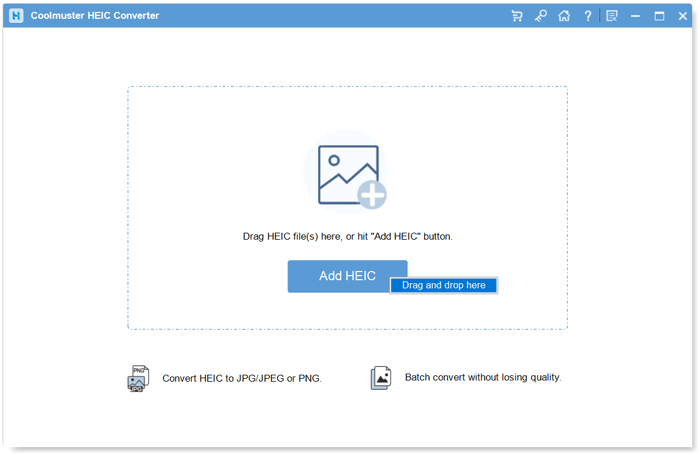
01Open the software and click the "Add HEIC" button to import your HEIC photos. Alternatively, you can drag and drop your images directly into the designated area and select the "Drag and drop here" option to add them.
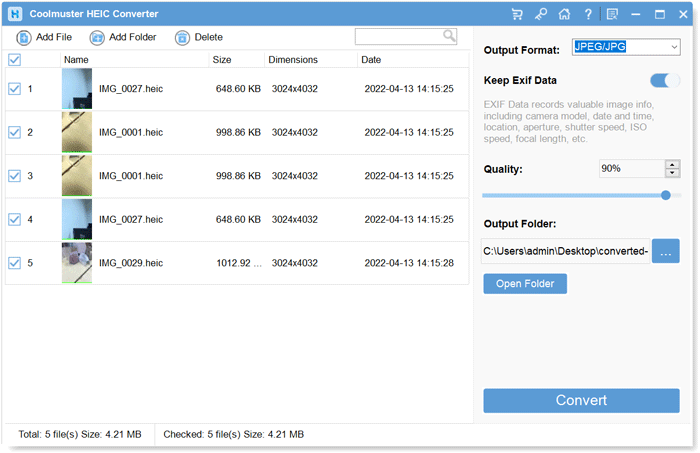
02Choose the HEIC files you want to convert, then select "JPG/JPEG" or "PNG" as the output format. Enable the "Keep Exif Data" option and adjust the image quality if needed.
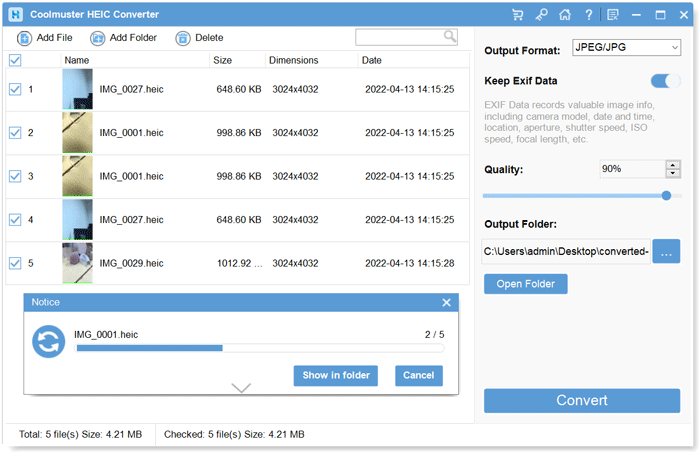
03Choose a destination folder for the converted images and click the "Convert" button to start the conversion process. Once completed, you can access the converted JPG or PNG files in the selected folder.
Video Tutorial:
Q1. Does FonePaw HEIC Converter support batch conversion?
Yes. FonePaw HEIC Converter supports batch conversion, allowing users to convert multiple HEIC images at once instead of processing files individually.
Q2. Will FonePaw HEIC Converter reduce photo quality?
FonePaw attempts to preserve the original image quality during conversion. Users can also adjust output quality settings to achieve a balance between file size and image clarity.
Q3. Is FonePaw HEIC Converter safe?
Yes. FonePaw HEIC Converter processes images locally on your computer, meaning users do not need to upload private photos to online servers.
In this FonePaw HEIC Converter review, we explored its features, pricing, advantages, disadvantages, and usage process. FonePaw HEIC Converter is a convenient tool for converting HEIC images into JPG or PNG formats, especially for users who need a simple and beginner-friendly solution.
However, if you need a more dedicated HEIC conversion program with reliable performance, efficient batch processing, and a better overall experience, Coolmuster HEIC Converter is a great choice. It provides an easy way to convert iPhone HEIC photos while maintaining image quality and protecting user privacy, making it a practical alternative to FonePaw HEIC Converter.
Related Articles:
A Full iMazing HEIC Converter Review & Its 7 Alternatives
FonePaw WhatsApp Transfer Review | Key Features, Pros, Cons, and Best Alternative
FoneLab HEIC Converter Review: Features, Price, Pros & Cons
Apowersoft HEIC Converter Review: Is It Worth Using in 2026?





 Free Download for PC
  Free Download for Mac


