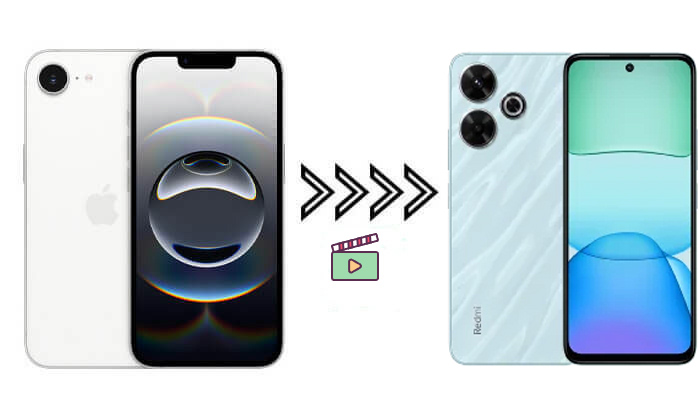
If you're an iPhone user and need to send a video to a Redmi device, you may be wondering how to do so quickly and efficiently. While iPhone and Redmi run different operating systems, there are several methods that can help you easily transfer your videos. In this article, we'll explore the best ways to send video from iPhone to Redmi, covering both wired and wireless solutions.
Coolmuster Mobile Transfer is a powerful tool designed to transfer files between different devices, including iPhones and Android phones like Redmi. This method allows for a seamless transfer of videos from iPhone to Redmi, making it ideal for users who need to move large video files or multiple videos at once.
Main features of Coolmuster Mobile Transfer:
* Send video from iPhone to Android (Redmi) in one click.
* Easily transfer contacts, text messages, music, videos, eBooks (PDFs & ePubs), and photos from iOS to Android.
* Select from four flexible transfer options: iOS to iOS, Android to iOS, iOS to Android, or Android to Android.
* Fully compatible with the latest iOS 26 and Android 16 systems.
* Enjoy fast, seamless, and secure transfers with zero data loss.
Below is a detailed guide on how to use Mobile Transfer to transfer video from iPhone to Redmi:
01First, download this tool on your computer (available for both Windows and Mac). Install the program and launch it. Connect your iPhone and Redmi phone to the computer using their respective USB cables. Make sure both devices are detected by the software.
02Once connected, your iPhone will be set as the source device, and your Redmi phone will be the target device. If not, click "Flip" to change.
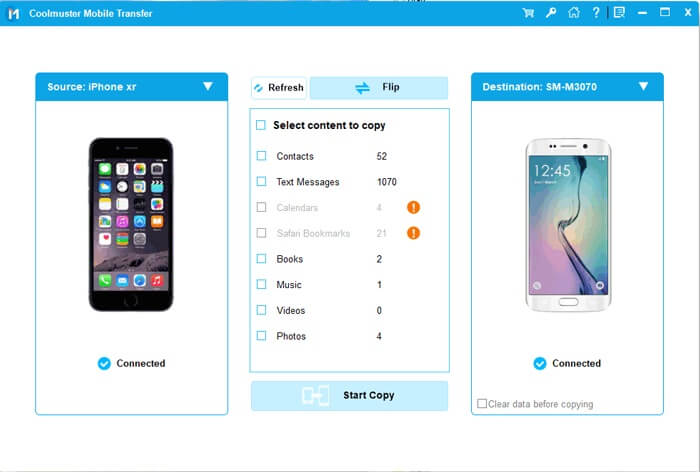
03The program will show you a list of files on your iPhone. Click on the "Videos" category. After selecting the videos, click the "Start Copy" button. It will begin transferring the videos from the iPhone to the Redmi.
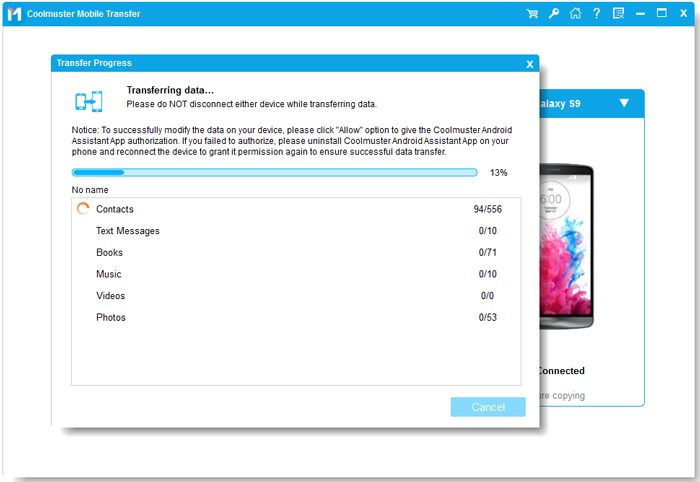
Video guide
If you prefer not to use third-party software, you can transfer videos from iPhone to Redmi using File Explorer (Windows). This method is great for users who want a simple, manual transfer process. It does not require installing any additional software and directly uses the computer's file management features.
Here is how to send videos from iPhone to Redmi using File Explorer:
Step 1. Use a USB cable to connect your iPhone to your computer. Once your iPhone is connected, open the File Explorer.
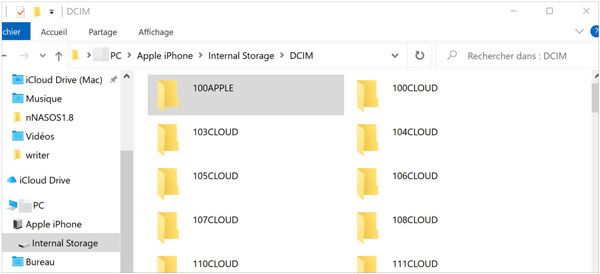
Step 2. Navigate to your iPhone's internal storage and find the "DCIM" folder, which contains your photos and videos.
Step 3. Connect your Redmi phone to your computer using a USB cable. The device should show up in File Explorer.
Step 4. Select the video files from your iPhone, copy them, and paste them into the appropriate folder on your Redmi phone.
If you prefer to transfer videos via cloud storage, Dropbox is a great option. It not only supports file transfers between different operating systems but also allows easy access anytime, anywhere.
Here is how to transfer videos from iPhone to Redmi via Dropbox:
Step 1. Install the Dropbox app on both your iPhone and Redmi device. Log in to the same Dropbox account on both devices.
Step 2. Open the Dropbox app on your iPhone. Tap the "+" icon and choose "Upload Photos or Videos". Select the videos you want to transfer and upload them to your Dropbox account.
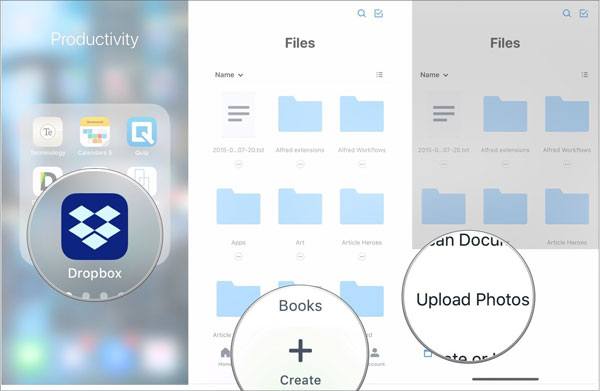
Step 3. Open the Dropbox app on your Redmi phone, log in to the same Dropbox account, and locate the videos you uploaded from your iPhone.
Step 4. Once the videos are downloaded, you can choose to save them to the local storage on your Redmi device for easy access.
Sending videos via email is a quick and easy method, though it has some limitations, such as file size restrictions. However, it's still a great option for smaller video files. Here's how to send videos from iPhone to Redmi via email:
Step 1. Open the Mail app on your iPhone and create a new email.
Step 2. Tap the "Attach" button (usually represented by a paperclip icon) and select the video files you want to send. If the file size is too large, you may need to compress the video or split it into smaller parts.
Step 3. Enter the recipient's email address (use the email address linked to your Redmi phone) and send the email.
Step 4. On your Redmi phone, open the email and download the attached video files.

There are several effective ways to send video from iPhone to Redmi, and each method offers a different advantage. If you're looking for the easiest and most efficient solution, Coolmuster Mobile Transfer is the best choice. It provides a straightforward and reliable way to transfer videos between an iPhone and a Redmi without any hassle.
Related Articles:
How to Transfer iPhone Data to Xiaomi: iPhone to Xiaomi Transfer in 5 Ways
Top 7 Mi Mover Alternatives for Seamless Data Transfer
How to Transfer Data from iPhone to Redmi: 3 Easy & Fast Methods
How to Transfer Data from Redmi to iPhone? Solved in 4 Easy Ways







 Free Download for PC
  Free Download for Mac


