Upgrading to a new iQOO phone is exciting, but moving your contacts from the old iQOO to the new one can feel stressful if you don't know the right method. Fortunately, iQOO devices offer multiple ways to transfer contacts, whether you prefer wireless transfer, cloud sync, or a one-click professional solution.
In this guide, we'll show you five effective ways to transfer contacts from iQOO to iQOO, covering both free built-in options and the most efficient all-in-one method.
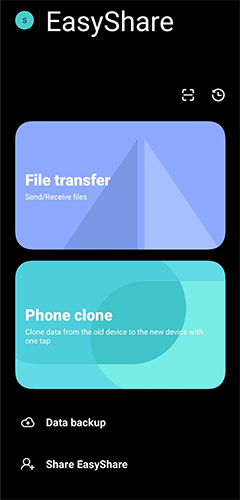
EasyShare is the official data transfer feature built into iQOO and vivo phones. It allows you to move data directly between two devices without using mobile data or a computer. Since the transfer happens locally over a secure connection, it is both fast and convenient.
This method is ideal if you're setting up a new iQOO phone for the first time and want to migrate contacts quickly with minimal configuration.
Here are these steps:
Step 1. Make sure EasyShare is installed on both iQOO phones. If it's not available, download it from the Google Play Store.
Step 2. Open EasyShare on both devices and select the "File Transfer" mode.
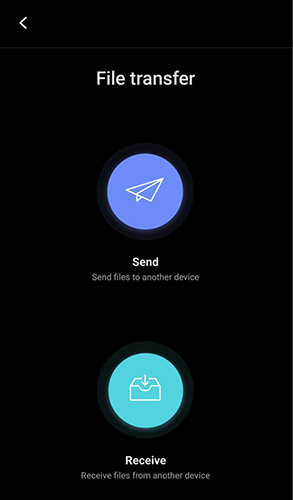
Step 3. On the source iQOO phone, tap "Send", and on the target iQOO phone, tap "Receive".
Step 4. Wait while EasyShare searches for nearby devices. When the receiving phone appears on the sender's screen, tap its name to establish a connection.
Step 5. On the sending phone, go to the "Contacts" section and select the contacts you want to transfer (or choose all contacts).
Step 6. Tap "Send" to start transferring contacts from iQOO to iQOO. Once the transfer is complete, all selected contacts will be saved directly to the Contacts app on the new iQOO phone, without affecting existing data.
Using a Google account is one of the most common and reliable ways to sync contacts between Android phones. As long as both iQOO devices are logged into the same Google account, your contacts can be automatically uploaded to the cloud and downloaded to the new phone.
This method is especially useful if you already rely on Google services and want your contacts to stay updated across multiple devices in the future. Here is how it works:
Step 1. On the old iQOO phone, go to "Settings" > "Accounts" > "Google".
Step 2. Enable "Contacts Sync" to upload contacts to your Google account.
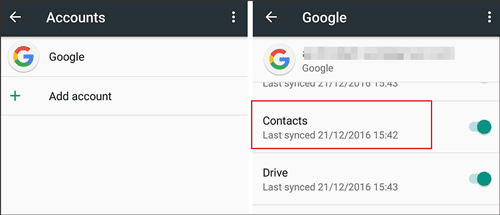
Step 3. Sign in to the same Google account on the new iQOO phone.
Step 4. Turn on contact syncing and wait for the contacts to appear.
Exporting contacts as a VCF (vCard) file gives you full control over the transfer process. Instead of syncing through an account, you manually create a contact file on the old iQOO phone and then import it on the new device.
This approach works well when you want an offline method or don't want to link your contacts to a cloud service.
Steps for transferring contacts from iQOO to iQOO using a VCF file:
Step 1. Open the Contacts app on the old iQOO phone.
Step 2. Go to "Settings" > "Export contacts" and save them as a VCF file.
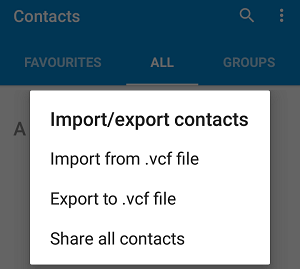
Step 3. Transfer the VCF file to the new iQOO phone using Bluetooth, USB cable, or cloud storage.
Step 4. Open the file on the new phone and confirm the import.
If your contacts are stored on your SIM card, you can move them simply by inserting the SIM into the new iQOO phone. This is one of the oldest contact transfer methods and doesn't require any apps, internet access, or technical setup.
However, SIM cards have limited storage and usually only support basic contact information, such as names and phone numbers.
Step 1. On the old iQOO phone, export contacts to the SIM card.
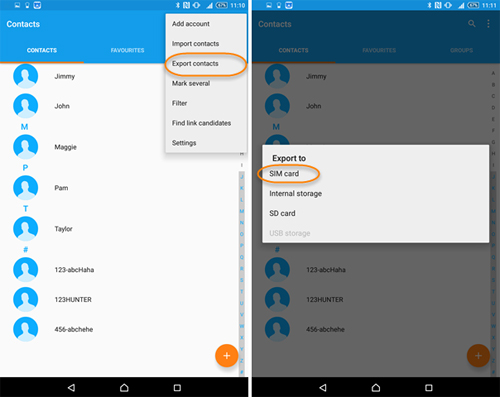
Step 2. Remove the SIM card and insert it into the new iQOO phone.
Step 3. Go to "Contacts" > "Import from SIM".
Step 4. Save the contacts to your phone storage or Google account.
For users who want the most stable and efficient solution, Coolmuster Mobile Transfer is a professional tool designed for seamless phone-to-phone data transfer. Unlike built-in or cloud-based methods, it uses a direct USB connection to ensure high security and fast transfer speed.
This method is especially recommended if you're transferring a large contact list or performing a full device upgrade.
Key features of Coolmuster Mobile Transfer:
How to transfer contacts from iQOO to iQOO with 1 click?
01Download and install Coolmuster Mobile Transfer on your computer.
02Connect both iQOO phones to the computer using USB cables, and enable USB debugging on each device when prompted.
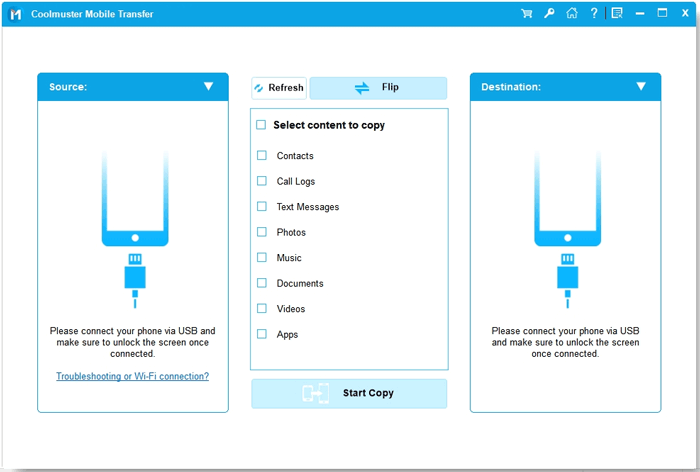
03Make sure the source iQOO phone and destination iQOO phone are correctly positioned on the screen. If needed, click "Flip" to switch them.
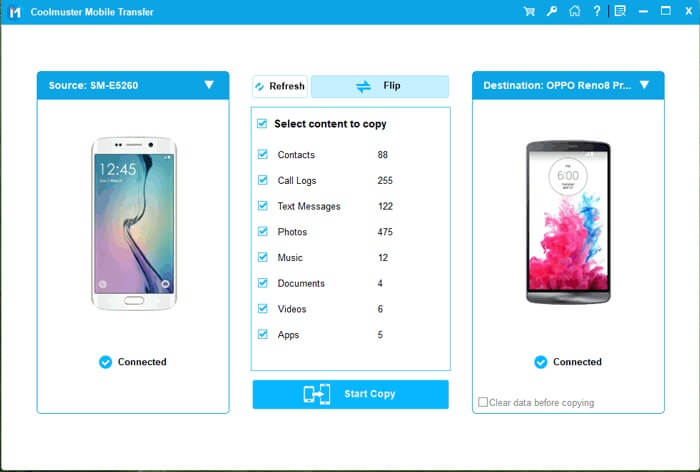
04Check the "Contacts" option from the list of transferable data and click "Start Copy" to begin the transfer. All selected contacts will be moved to the target iQOO phone automatically.
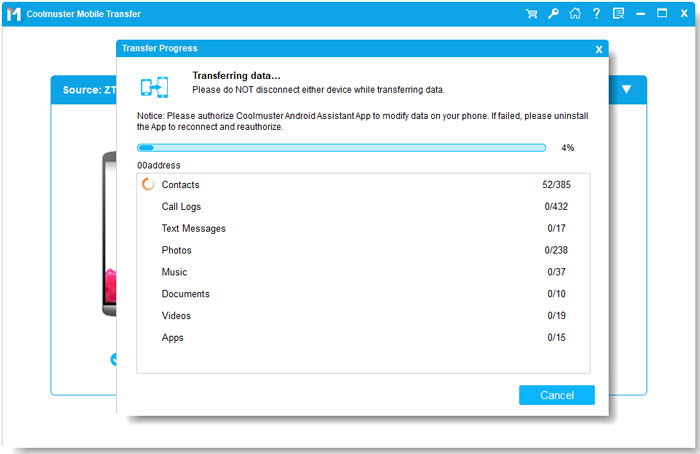
If you prefer a more visual walkthrough, you can also watch the step-by-step video tutorial to see how Coolmuster Mobile Transfer works in real time.
As you can see, there are several ways to transfer contacts from iQOO to iQOO, and each method suits different needs. EasyShare is convenient for quick, wireless transfers, while Google account syncing works well if you prefer automatic cloud backup. VCF files and SIM cards offer simple manual solutions, but they may require extra steps or have certain limitations.
If you're looking for the most reliable, efficient, and hassle-free solution, Coolmuster Mobile Transfer clearly stands out. With its one-click transfer, stable USB connection, and full preservation of contact details, it's the best choice for users who want to move contacts safely when upgrading to a new iQOO phone.
Related Articles:
How to Transfer Music from iQOO to iQOO Easily | 4 Proven Methods
How to Edit iQOO Phone Contacts on Computer [4 Easy Methods]
7 Best iQOO EasyShare Alternatives for Fast and Easy Data Transfer
How to Transfer Contacts from iQOO to iPhone in 3 Simple Ways







 Free Download for PC
  Free Download for Mac


