TL;DR:
Transferring contacts between realme phones can be done in several ways depending on your needs and available tools. This guide covers methods such as Clone Phone, Google account sync, SIM card transfer, VCF file export, and Coolmuster Mobile Transfer, helping you find a suitable way to move your contacts smoothly when changing to a new realme device.
When switching to a new realme phone, one of the first things you'll want to do is transfer your contacts. Fortunately, realme devices offer several convenient ways to move your contact list, whether you prefer wireless transfer, cloud syncing, or manual methods.
In this guide, we'll walk you through 5 proven ways to transfer contacts from realme to realme, so you can choose the one that best fits your situation.
realme's built-in Clone Phone app is the official and most convenient method for transferring contacts (and other data) between two realme devices. It does not require an internet connection, offers fast transfer speeds, and keeps all contact details intact, including names, phone numbers, emails, and even profile photos. This method works on most realme devices running realme UI 1.0 or later, although some lightweight editions like R, S, T, Go, and U may not support it.
Step-by-step guide to transfer contacts from realme to realme:
Step 1. Open the Clone Phone app on both your old and new realme phones. If you can't find it, go to "Tools" > "Clone Phone", or download it from the app store if needed.
Step 2. On the new realme phone, tap "This is the new phone", then wait for a QR code to appear on the screen.
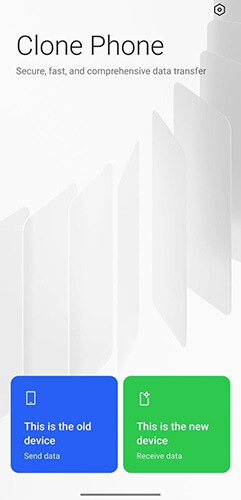
Step 3. On the old realme phone, tap "This is the old phone", and use it to scan the QR code displayed on the new device to establish a connection.
Step 4. Once connected, you'll see a list of transferable data. Select "Contacts" (you can also keep other options checked if needed).
Step 5. Tap "Start Cloning" to begin the transfer, and keep both phones close together during the process to maintain a stable connection.
Step 6. When the transfer finishes, tap "Done" on both devices, and your contacts will appear on the new realme phone.
If you prefer a wireless and automatic method, using a Google account is a great option. It allows you to back up contacts from your old realme phone and sync them directly to your new device, making it ideal for long-term contact management across multiple devices.
Step-by-step guide:
Step 1. On your old realme phone, open the Contacts app, tap the three-dot menu in the top-right corner, and go to "Contacts Management" or "Settings".
Step 2. Select "Import/Export Contacts", then choose "Export to Google Account". Sign in to your Google account if prompted, select the contacts you want to sync (or choose all), and confirm the export.
Step 3. On your new realme phone, go to "Settings" > "Accounts & Sync", tap "Add Account", and sign in with the same Google account.
Step 4. After logging in, tap your Google account, select "Sync Account", and make sure the "Contacts" option is enabled. If needed, tap "Sync Now" to start syncing immediately.
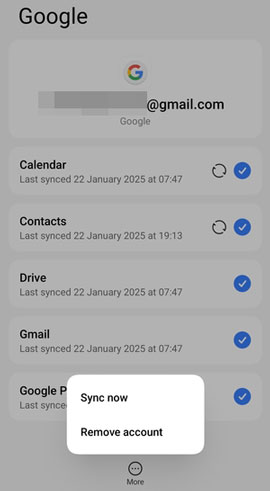
Step 5. Wait a few moments for the sync to complete, and your contacts will automatically appear in the Contacts app on your new device.
If you want an offline solution without installing apps or using cloud services, transferring contacts via a SIM card is a practical option. However, due to storage and format limitations, it works best for smaller contact lists. Here is how it works:
Step 1. Open the Contacts app on your old realme phone, tap the three-dot menu in the top-right corner, then go to "Contacts Management" or "Settings", depending on your device model.
Step 2. Select "Import/Export Contacts", then choose "Export to SIM Card". If prompted, select the contacts you want to transfer or choose "All Contacts", and confirm the export.
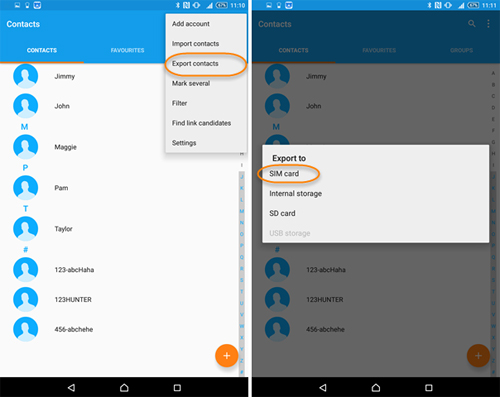
Step 3. Once the export is complete, power off your old phone, remove the SIM card, and insert it into your new realme device.
Step 4. Turn on the new phone, open the Contacts app, go to "Contacts Management" or "Settings", then select "Import/Export Contacts" and choose "Import from SIM Card".
Step 5. Select where you want to save the imported contacts (phone storage or Google account), then confirm to complete the transfer.
Exporting contacts as a VCF file is a flexible and widely compatible method. It allows you to transfer contacts manually while preserving full contact details, and it works across all realme devices regardless of system version, but it requires manual file transfer and may take longer if you have a large number of contacts.
Follow these steps to move contacts between realme:
Step 1. On your old realme phone, open the Contacts app, tap the three-dot menu, and go to "Contacts Management" > "Import/Export Contacts".
Step 2. Choose "Export to Storage Device" (or "Export to Storage"), and the system will save a VCF file to your phone's internal storage.
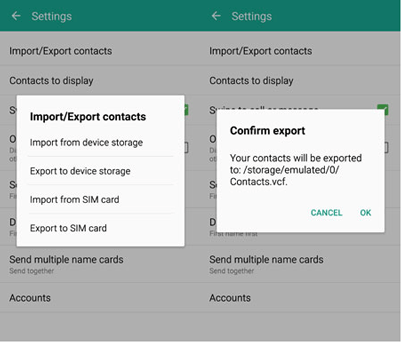
Step 3. Send the VCF file to your new realme phone using Bluetooth, realme Share, email, or any file transfer method you prefer.
Step 4. On the new phone, locate and open the VCF file, then tap "Import" when prompted and choose where to save the contacts.
Step 5. Alternatively, you can open the Contacts app, go to "Import/Export Contacts", select "From Storage Device", choose the VCF file, and import it manually.
If you're looking for a more stable and efficient way to transfer contacts, especially when dealing with a large amount of data, using a professional tool like Coolmuster Mobile Transfer can be a great choice. It allows you to transfer contacts between two realme phones in one click, without relying on network stability or account syncing.
Key features of Mobile Transfer:
How to transfer contacts from realme to realme with ease?
01Download and install Coolmuster Mobile Transfer on your computer, then launch the program.
02Connect both realme phones to the computer using USB cables and enable USB debugging when prompted so the devices can be detected properly.
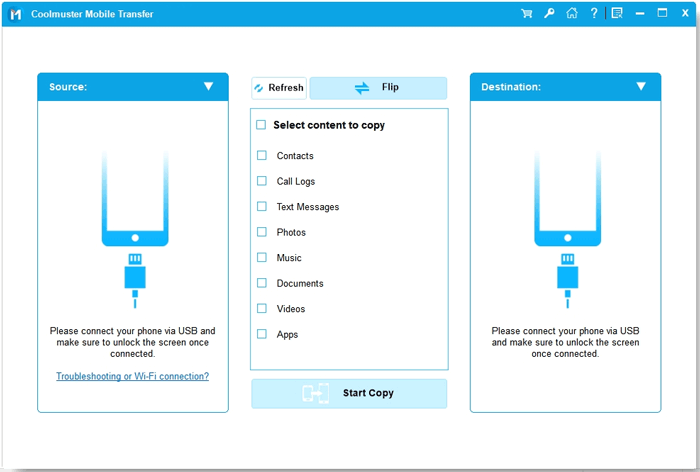
03Once recognized, make sure the old phone is set as the source and the new phone as the destination. If not, click "Flip" to switch them.
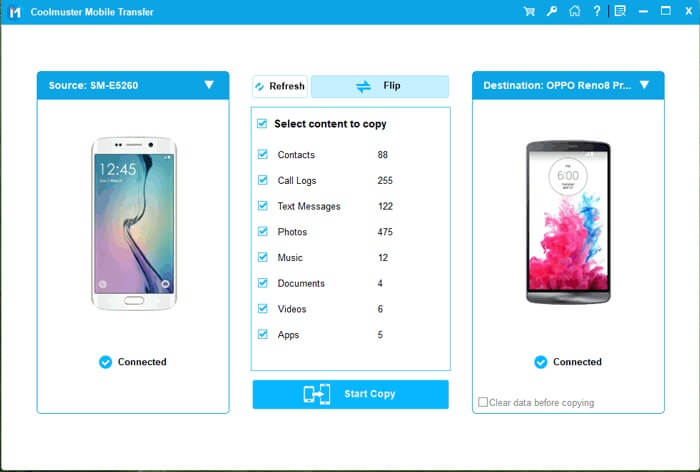
04Select "Contacts" from the list of transferable data types. Then, click "Start Copy" to begin the transfer, and wait until the process completes without disconnecting the devices.
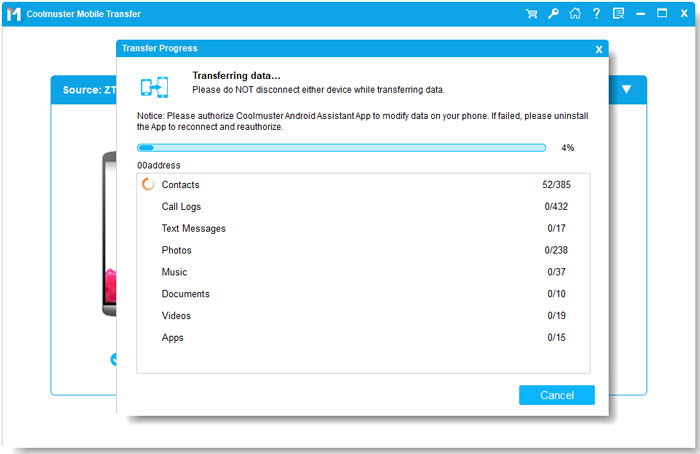
To make things even clearer, you can follow along with the video tutorial below.
Transferring contacts from realme to realme is actually pretty easy once you choose the right method for your situation. Here's a quick breakdown to help you decide what works best:
No matter which method you go with, your contacts can be safely moved to your new realme phone in just a few simple steps.
Related Articles:
4 Best Methods to Export realme Contacts to Excel [Step-by-Step Guide]
How to Edit realme Phone Contacts on Computer Easily [4 Proven Ways]
How to Transfer Data from Redmi to realme [5 Workable Methods]
How to Transfer Contacts from iPhone to realme in 4 Easy Ways?







 Free Download for PC
  Free Download for Mac


