TL;DR: Looking for the best screen recorder for Windows? This guide compares 9 popular screen recording tools for Windows 10/11, including Coolmuster Screen Recorder, OBS Studio, Bandicam, Xbox Game Bar, and more. Whether you need a beginner-friendly screen recorder for PC, a professional gameplay recorder, or free screen recording software with editing features, you'll find the right option here.
Among them, Coolmuster Screen Recorder stands out for its simple interface, stable recording performance, and built-in screenshot tools, making it a great choice for daily screen recording tasks.
Screen recording on Windows has become a common need for many users, whether it's for creating tutorial videos, recording exciting gaming moments, or saving online videos. The screen recorder for Windows tool helps you easily capture screen content and perform high-quality video recording and editing.
If you're searching for the best screen recorder for PC, you are in the right place. This guide breaks down the top screen recorders for PC. From beginner-friendly tools to professional-grade PC screen recorder software, we cover nine powerful options with the details you need to choose the right screen record program.
Coolmuster Screen Recorder is a lightweight and beginner-friendly screen recorder for Windows designed for users who want simple and stable recording without complicated settings. It supports recording the entire screen or a selected area in high quality, making it suitable for tutorials, online meetings, gameplay clips, and presentations.
Unlike many complicated screen record programs, Coolmuster Screen Recorder keeps the interface clean and intuitive, allowing users to start screen recording Windows 10/11 with just a few clicks. It also includes screenshot capabilities, making it useful for both video and image capture tasks.
Key Features:
* Record full screen or custom area, export in high-quality MP4.
* Capture system audio, microphone, or no sound.
* Take and edit screenshots with text, arrows, and shapes, save as PNG/JPG/BMP.
* Lightweight local processing with no data upload for better privacy.
* Available for Windows 11/10/8/7.
Here is how to use Coolmuster Screen Recorder to record a video on Windows 10/11:
01Launch Coolmuster Screen Recorder and select a recording mode: "Full Screen" or "Custom" area.
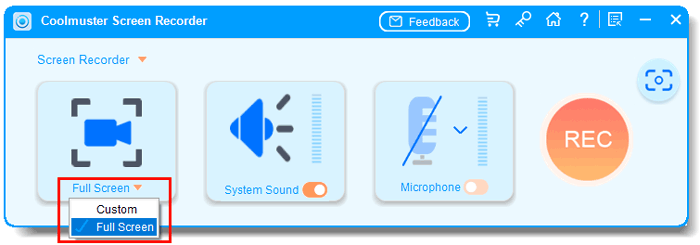
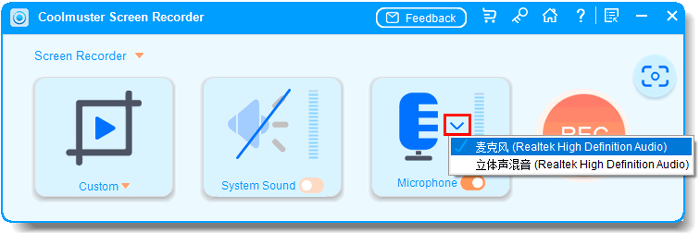
02Choose audio input by enabling "System Sound" or "Microphone", or disable both for silent recording.
03Click "REC" and start recording after the short countdown.
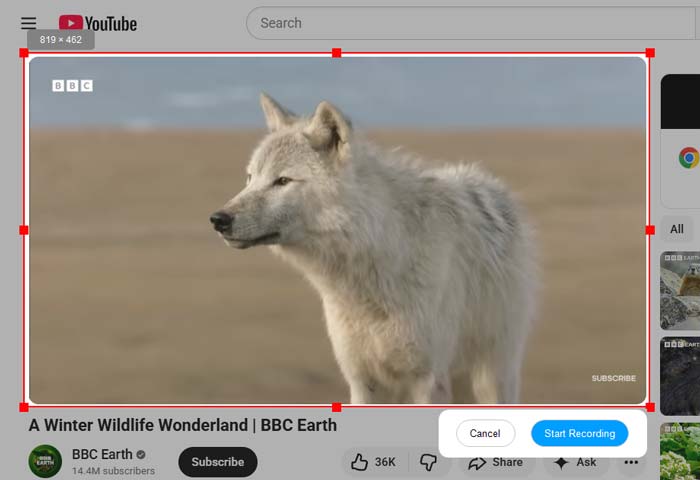
04Stop recording when done; the video is saved locally as an MP4 with a copy option for quick sharing.

Video Tutorial:
Pros:
* Simple and beginner-friendly interface.
* Lightweight with stable recording performance.
* Include screenshot functionality in addition to recording.
* Good choice for daily tutorials and presentations.
Cons:
* Cannot record system sound and microphone simultaneously.
Aiseesoft Screen Recorder is a feature-rich and user-friendly screen record software for Windows, making it ideal for beginners and users who require high-quality recordings. It supports full-screen, specific window, or custom area recording, and can simultaneously record system audio, microphone audio, or both mixed together.
During the recording process, users can also add real-time annotations such as text, arrows, and brush strokes, making it perfect for creating tutorial videos or presentation content. Additionally, Screen Recorder supports high-resolution and high frame-rate output, and after recording, basic editing functions are available, offering a smooth overall experience.
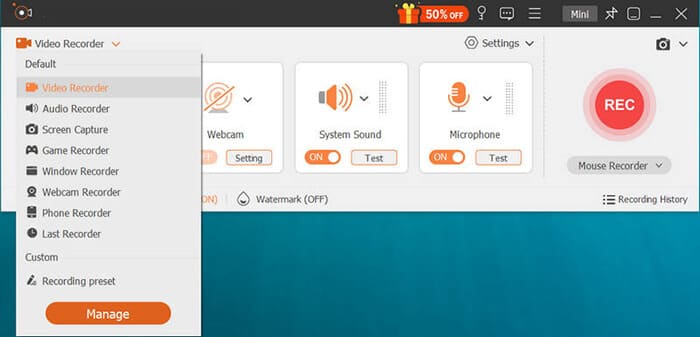
Key Features:
* Multiple recording modes (Full-screen/Region/Camera/Game, etc.).
* Support system audio + microphone recording.
* Annotation tools, allowing real-time text, arrows, etc.
* Export to popular formats: MP4, WMV, MOV, AVI, GIF, TS, etc.
* Lossless video quality.
* Built-in compressor, merger, and format converter.
Pros:
* Simple design and ease of use.
* Support high-quality output (including 4K/8K).
* Multifunctional all-in-one recording and easy editing.
Cons:
* Not free software.
The Xbox Game Bar is a built-in Windows 10 screen recorder and screen recorder for Windows 11, allowing you to quickly capture games and apps without needing to download additional software. You can easily start it using keyboard shortcuts. If you're looking for a lightweight screen recorder for Windows to meet basic needs, it's perfect.
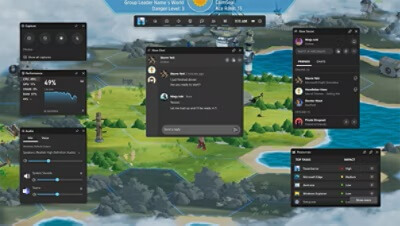
Key Features:
* Built into Windows 10 and Windows 11.
* Quick access via Win + G.
* Simple game and app recording.
* Basic audio tracking.
* Display recording time and audio status.
Pros:
* Completely free, no installation required.
* Deep integration with Windows system.
* Fast startup, ideal for quick recordings.
* No watermark.
Cons:
* Limited recording duration and features.
* Cannot record desktop or File Explorer.
* Limited advanced features and editing tools.
OBS Studio is widely regarded as one of the best screen recorder PC and streaming platforms. It is open-source and free, making it a popular choice for gamers, content creators, and professionals who need a powerful screen recorder software for PC. It supports multiple scene switching, audio mixing, and live streaming features.
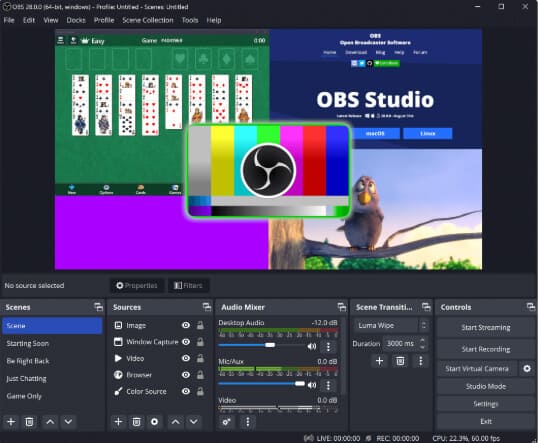
Key Features:
* Multiple scene creation and switching.
* High-performance real-time video/audio capture.
* Live streaming on Twitch, YouTube, and Facebook.
* Customizable plugins and extensions.
Pros:
* Completely free and open-source.
* Extremely powerful features, ideal for professional users.
* Support Windows, Mac, and Linux.
Cons:
* Interface and settings are complex, with a steep learning curve for beginners.
* High system resource usage with default settings.
Bandicam is a high-performance screen recording software for Windows, especially popular among gamers. It uses efficient video compression technology to effectively control file size while maintaining video quality. Bandicam supports recording 4K ultra-high-definition videos and can also record specific windows or DirectX/OpenGL game footage.
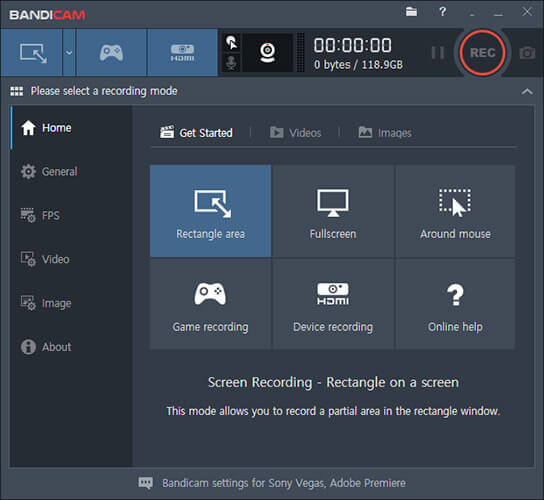
Key Features:
* Supports 4K UHD recording.
* Game mode recording (DirectX/OpenGL).
* Real-time drawing and webcam overlay.
* Mouse effects and annotation features.
Pros:
* High-quality video with low system requirements.
* Strong support for game recording.
* Simple and easy-to-use interface.
Cons:
* The free version has watermarks and recording time limitations.
* Built-in editing features are limited, requiring external tools.
ApowerSoft Screen Recorder offers both an online version and a desktop version, making it suitable for users who don't want to install complex software. It supports screen, audio, and webcam recording, and comes with basic editing features. Overall, it provides a well-rounded set of features, making it ideal for everyday recording needs.
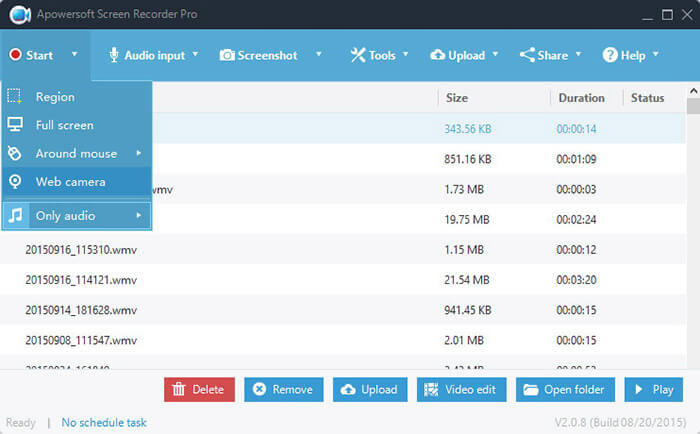
Key Features:
* Support screen, webcam, and audio recording.
* Annotation tools and real-time editing.
* Support scheduled recording (timed start/stop).
* Window lock recording mode.
* Export in multiple formats.
Pros:
* Simple user experience, easy to get started.
* Support multiple recording modes.
* Emphasize efficiency and flexibility.
* Accessible online option.
* Ideal for presentations and tutorials.
Cons:
* Some advanced features require a paid upgrade.
* Editing capabilities are not as advanced as professional software.
EaseUS RecExperts is a professional screen recorder for Windows developed by EaseUS, focusing on stability and ease of use. It supports useful features such as scheduled recording, automatic video splitting, and lossless recording. This software is particularly suitable for recording online courses, web conferences, or long-duration content, and is very beginner-friendly.
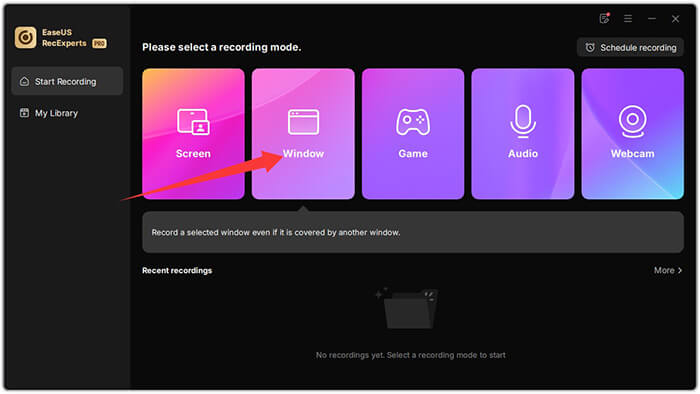
Key Features:
* Record any area of your PC screen along with audio or webcam.
* Capture all 2D/3D gameplay moments without lag or time restrictions.
* Improve your experience with the built-in video editor and media player.
* Benefit from AI-powered noise removal, video enhancement for 4K/8K, automatic recording, and audio extraction.
Pros:
* Feature-rich and easy to configure.
* Intuitive user interface.
* Support 4K and high frame-rate recording.
* Come with basic built-in editing tools.
Cons:
* Free version has time or feature limitations.
* Full features require a paid license.
ShareX is an incredibly feature-rich free tool that combines screen recording, screenshot capture, GIF creation, and file sharing. It is perfect for tech-savvy users or those seeking high customization. However, due to the vast number of options, beginners may find it a bit complex when using it for the first time.
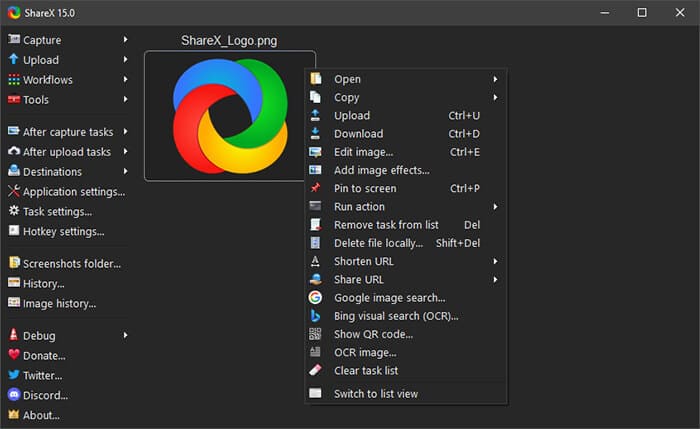
Key Features:
* Supports screen/region/scrolling recording.
* Built-in GIF recording and video compression.
* Support GIF output and various formats.
* Automated screenshot uploads and customizable hotkeys.
* Screenshot and annotation tools.
Pros:
* Free, no watermark.
* Feature-rich, supports scripting and automation.
* Lightweight.
Cons:
* Not suitable for beginners.
* Lacks built-in advanced editing features.
FlashBack Express is a user-friendly Windows screen recorder that allows unlimited recording time without watermarks. It's a great choice for beginners or anyone who wants simple yet reliable screen recording Windows 10 or screen recording Windows 11 capabilities.
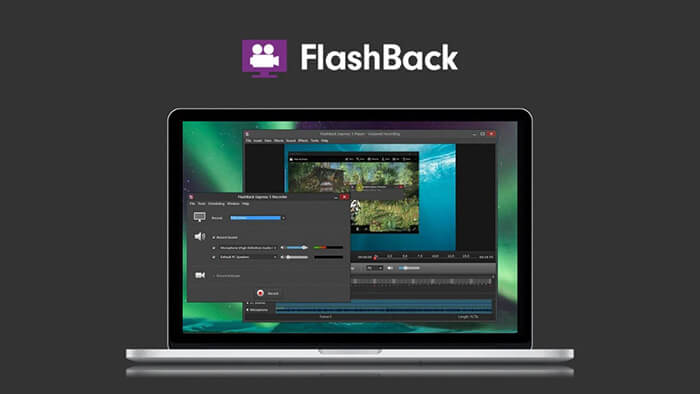
Key Features:
* Record screen, webcam, microphone, and system audio.
* Annotate while recording to highlight important details.
* Simple editing: trim, cut, and crop recordings.
* Enhance with text, shapes, transitions, and music.
Pros:
* Completely free and unlimited.
* Simple interface, ideal for basic recordings.
* No watermark.
* Support scheduled recording.
Cons:
* Limited built-in editing features.
* Some advanced features are only available in the paid version.
There is a wide variety of screen recorder software for Windows on the market, ranging from built-in system tools to professional-grade recording software, each with its own focus. For users who prefer a simple and easy-to-use PC screen recorder software, Coolmuster Screen Recorder is a solid choice. It offers stable performance, clear recording quality, and useful screenshot features, making it suitable for daily screen recording Windows 11/10 tasks.
Related Articles:
Comprehensive Review: 7 Best Screen Recorders for Android
10 Amazing MP4 Screen Recorder Options: Record MP4 Videos Easily
5 Methods: How to Screen Record on Android [Hassle-Free Guide]
Best Screen Recorder for Mac: Top 10 Screen Recording Software for macOS






 Free Download for PC
  Free Download for Mac


