TL;DR:
If you're trying to fix Chat Lock not showing in WhatsApp, the solution depends on what's causing the issue. Here's a quick overview of what you can do:
Chat Lock on WhatsApp is a privacy feature that allows users to protect specific conversations with Face ID, fingerprint, or a device passcode. Once enabled, locked chats are moved to a separate folder and can only be accessed after authentication.
However, some users may find that the Chat Lock option is missing from WhatsApp settings or cannot be found when opening a chat. If you are looking for ways to fix chat lock not showing in WhatsApp, the issue may be related to an outdated app version, disabled device security settings, hidden locked chats, or temporary app errors.
In this guide, we will explain why Chat Lock is not appearing on WhatsApp and provide practical solutions to help you restore the feature and protect your private conversations again.
Before trying to fix Chat Lock not showing in WhatsApp, it is important to understand why this feature disappears. In most cases, the problem is related to WhatsApp version compatibility, device security settings, app errors, or hidden privacy settings.
The most common causes include:
Once you know the possible causes, you can try the following solutions to restore the missing Chat Lock option. Start with the simplest fixes first, then move to more advanced methods if necessary.
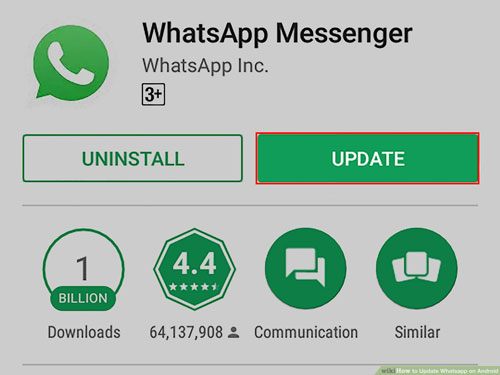
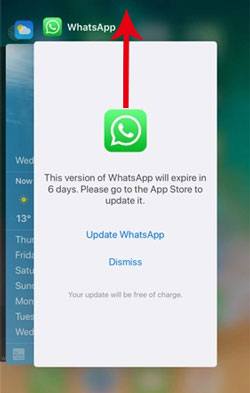
An outdated WhatsApp version is one of the most common reasons why Chat Lock does not appear. WhatsApp regularly releases updates to introduce new features, improve compatibility, and fix known bugs.
How to update WhatsApp:
For Android:
For iPhone:
After updating, completely close WhatsApp and reopen it to check whether the Chat Lock option appears.
Temporary software errors can sometimes prevent WhatsApp features from loading properly. Restarting the app and phone can refresh system processes and fix minor glitches.
Try these steps:
WhatsApp Chat Lock uses your phone's authentication system to protect private conversations. If your device does not have a supported security method enabled, the Chat Lock option may not appear.
Enable device authentication:
Android:
iPhone:
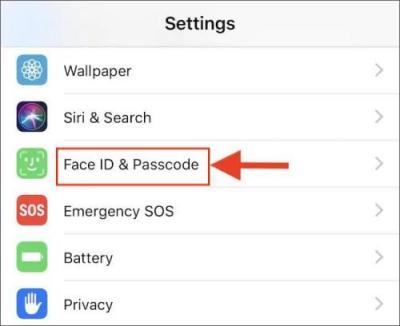
After enabling authentication, reopen WhatsApp and check the Chat Lock settings.
Unofficial WhatsApp versions may prevent certain features from working correctly. Modified apps such as WhatsApp GB, WhatsApp Plus, or FM WhatsApp may not receive official updates or support the latest privacy features.
To fix this issue:
If you use WhatsApp for a long time, accumulated cache files may become damaged and affect app performance. Clearing the cache can refresh WhatsApp without deleting your conversations. This method applies only to Android devices because iOS does not provide an option to clear app cache manually.
Steps:
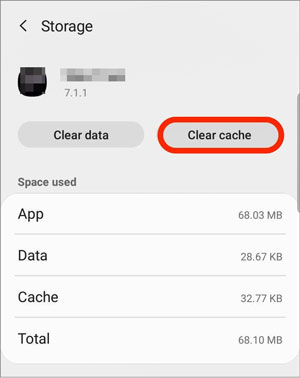
Note: Clearing the cache won't delete your chats or media. However, avoid tapping "Clear Data", as doing so may remove local WhatsApp data.
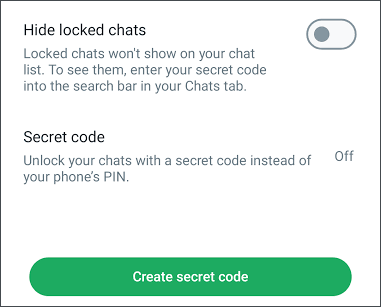
If you previously enabled Secret Code, WhatsApp may hide your locked chats from the main chat list. As a result, it may appear as though the Chat Lock feature has disappeared.
To check:
You can also go to: "WhatsApp" > "Settings" > "Privacy" > "Chat Lock", and disable "Secret Code" if you want locked chats to appear normally.
Beta builds are intended for testing and may contain unfinished features or unexpected bugs. If Chat Lock disappeared after joining Beta, switch back to the stable version.
Android:
iPhone:
Then update WhatsApp and check Chat Lock again.
If none of the previous methods work, reinstalling WhatsApp may help resolve deeper app issues, such as corrupted files or incorrect app settings that prevent the Chat Lock option from appearing.
Before reinstalling, be sure to back up your WhatsApp chats to avoid losing important messages and media. After your data is safely backed up, follow these steps:
If you want to back up your WhatsApp data to a computer before reinstalling, check out the Bonus section below for an easy backup solution.
If you've tried all the solutions above and the Chat Lock option is still missing, it's time to contact WhatsApp Support. They can help determine whether the issue is related to your account, device compatibility, or another app-specific problem.
To contact WhatsApp Support:
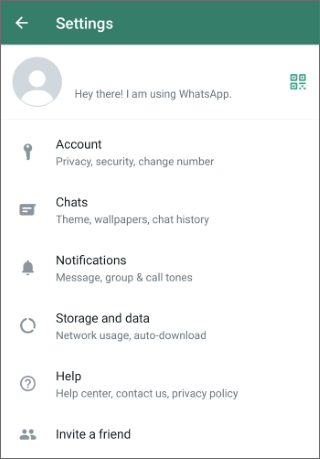
To help the support team diagnose the problem more quickly, consider including the following information:
Before reinstalling WhatsApp or performing other advanced troubleshooting, it's a good idea to back up your chats to a computer. This gives you an extra layer of protection in case anything goes wrong and helps prevent accidental data loss.
If you're using an Android phone, Coolmuster Android WhatsApp Recovery makes it easy to back up your WhatsApp messages and attachments to your computer without relying solely on cloud backups. If you're using an iPhone, Coolmuster iPhone WhatsApp Recovery also lets you back up WhatsApp chats from your iPhone to a computer before troubleshooting. Here, we show you everything about Android WhatsApp Recovery.
Why choose Android WhatsApp Recovery?
How to back up Android WhatsApp to your computer?
01Install and open Android WhatsApp Recovery on your computer, then connect your Android phone using a USB cable.
02When the program recognizes your device, select it from the device list and click "Next". The software will then start analyzing your WhatsApp data.
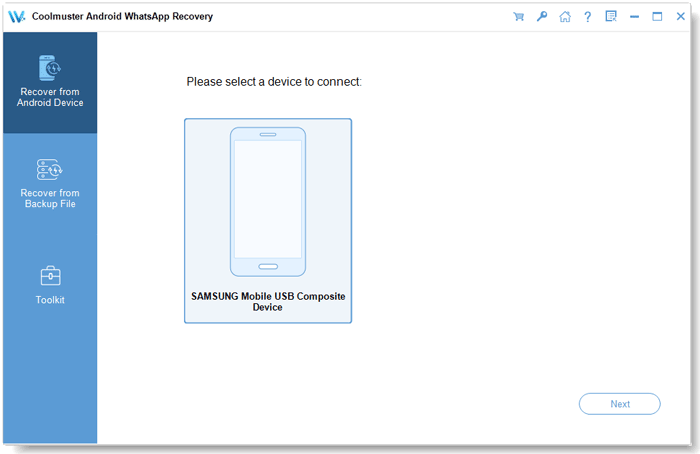
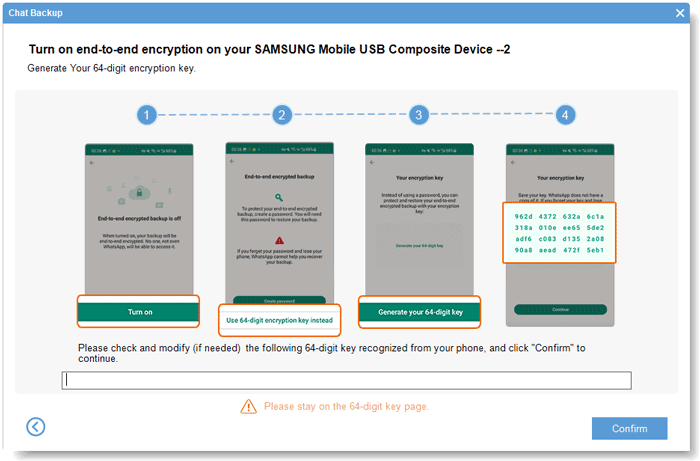
03Follow the on-screen instructions to enable end-to-end encrypted chat backup on your Android phone. After the encryption key is generated, the program will automatically detect and fill it in. Click "Confirm" to continue scanning.
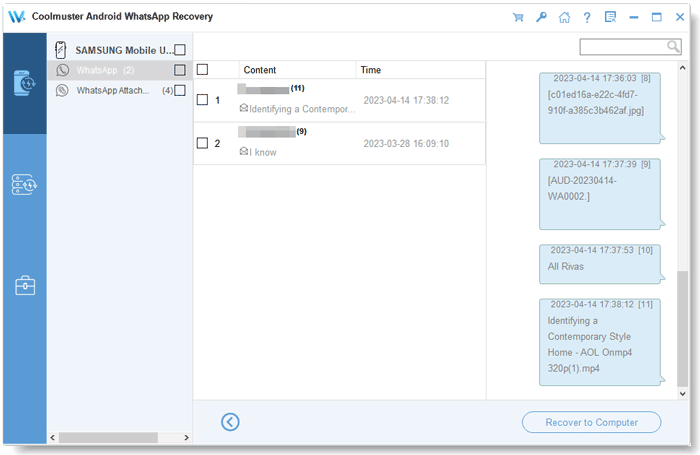
04Once the scan finishes, all detected WhatsApp conversations and attachments will be displayed. Choose the items you want to keep, then click "Recover to Computer" to export them to your PC.
If you'd like to see the entire backup process in action, watch the video tutorial below for a step-by-step demonstration of using Android WhatsApp Recovery.
If you're looking to fix Chat Lock not showing in WhatsApp, start with the simplest solutions, such as updating WhatsApp, restarting your device, and enabling Face ID, fingerprint, or a screen lock. If the issue persists, continue with more advanced fixes like clearing the app cache, leaving the Beta program, or reinstalling WhatsApp. In most cases, one of these methods should help restore the missing Chat Lock option.
Before making major changes like reinstalling WhatsApp, remember to back up your chats to avoid losing important conversations and attachments. For Android users, Coolmuster Android WhatsApp Recovery offers an easy way to back up WhatsApp data to a computer before troubleshooting, while Coolmuster iPhone WhatsApp Recovery provides a similar solution for iPhone users. With a secure backup in place, you can try any fix with greater peace of mind.
Related Articles:
Cannot Send & Receive WhatsApp Messages, How to Fix?
Fast Repair WhatsApp Restoring Media Stuck on Android and iPhone
Fixed: WhatsApp Download Failed | Fix the Issue with 8 Solutions
WhatsApp Not Working with Wi-Fi? Explore Reasons and Proven Fixes







 Free Download for PC


