"I don't receive any WhatsApp notifications when outside of the app. Neither on my phone, nor on my Apple Watch. You guys got any ideas?"
- From Reddit
WhatsApp has become an indispensable tool for global communication, connecting millions of users daily for personal chats, work discussions, and emergency contacts. However, one frustrating issue many users face is not receiving WhatsApp messages unless I open the app, meaning messages only show up after manually launching it instead of arriving instantly.
This issue can disrupt real-time communication, causing missed messages and delayed responses, especially when you depend on WhatsApp for urgent updates. Whether you're using Android or iPhone, this guide will explain the reasons behind not receiving WhatsApp messages unless opening the app and provide practical solutions to fix it quickly.
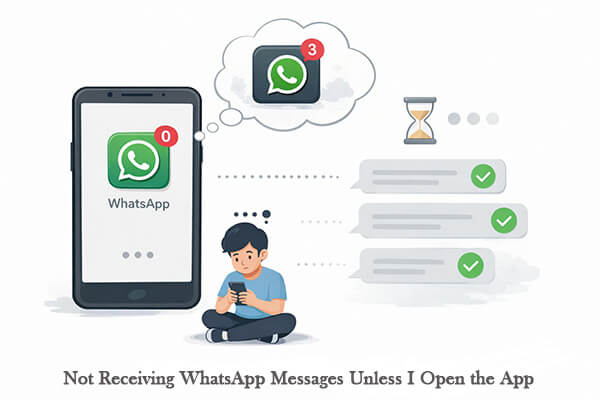
Several factors can cause WhatsApp to stop delivering messages in real time:
Once you identify the cause, you can apply the right fix below.
The fixes below are organized by common issues, with clear distinctions between Android and iPhone steps.
A stable internet connection is the foundation of WhatsApp's real-time messaging. If your network is faulty, WhatsApp can't receive messages in the background, which may lead to not receiving WhatsApp messages unless you open the app.
For Android:
Step 1. Swipe down from the top of the screen and toggle Wi-Fi or mobile data off, wait a few seconds, then turn it back on.
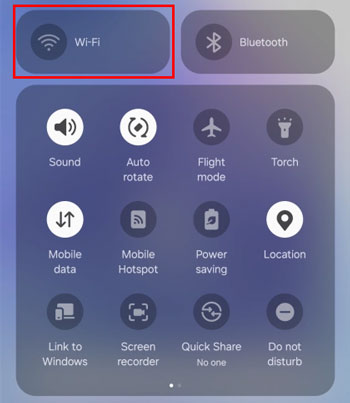
Step 2. Open a browser and try loading a webpage to check if the connection is working.
Step 3. If the network is unstable, switch to another Wi-Fi or mobile network, or restart your router.
Step 4. Go to "Settings" > "Apps" > "WhatsApp" and ensure it is allowed to use mobile data and Wi-Fi, and that Airplane Mode is turned off.
For iPhone:
Step 1. Go to "Settings" > "Wi-Fi or Cellular" and toggle the connection off and on.
Step 2. Open Safari and load a webpage to test the connection.
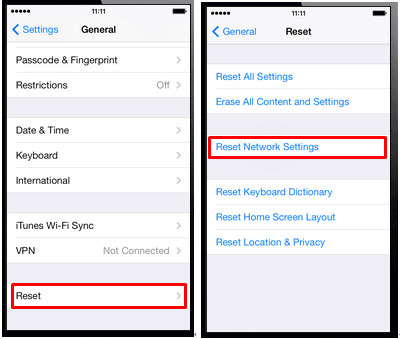
Step 3. If needed, switch networks or reset network settings via "Settings" > "General" > "Transfer or Reset iPhone" > "Reset" > "Reset Network Settings".
Temporary system glitches can prevent WhatsApp from syncing messages in real time. Restarting your device refreshes background processes and often fixes the issue.
For Android:
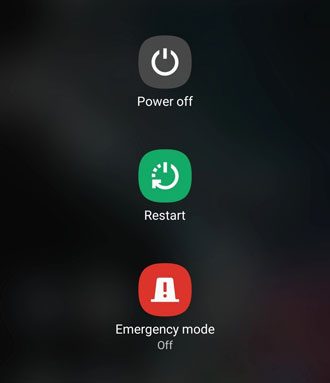
Press and hold the "Power" button, tap "Restart", and wait for the device to reboot before checking WhatsApp again.
For iPhone:
Step 1. Press and hold the "Side" button together with either "Volume" button until the power-off slider appears.
Step 2. Drag the slider to turn off your iPhone and wait a few seconds.
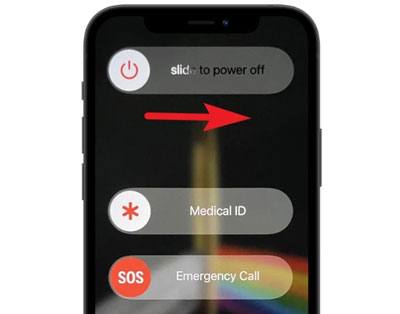
Step 3. Press and hold the "Side" button again until the Apple logo appears to turn it back on, then check if WhatsApp messages arrive normally.
If notifications are disabled either on your device or inside WhatsApp, you won't receive alerts until you open the app.
For Android:
Step 1. Go to "Settings" > "Notifications" > "WhatsApp" and make sure notifications are enabled with sound or vibration.
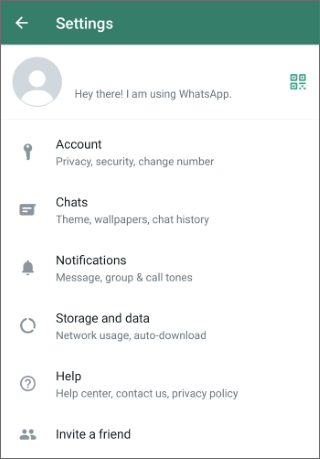
Step 2. Open "WhatsApp" > "Settings" > "Notifications" and ensure message and group notifications are turned on.
For iPhone:
Step 1. Go to "Settings" > "Notifications" > "WhatsApp" and enable "Allow Notifications".
Step 2. Open "WhatsApp" > "Settings" > "Notifications" and ensure alerts, sounds, and previews are enabled.
WhatsApp needs background access to fetch new messages. If background activity is restricted, messages may only arrive after opening the app.
For Android:
Step 1. Go to "Settings" > "Apps" > "WhatsApp" and enable background data usage.
Step 2. Enter Battery settings and set WhatsApp to "Unrestricted" or "No restrictions".
Step 3. On some devices, enable auto-start to ensure WhatsApp runs in the background.
For iPhone:
Step 1. Go to "Settings" > "General" > "Background App Refresh" and turn it on.
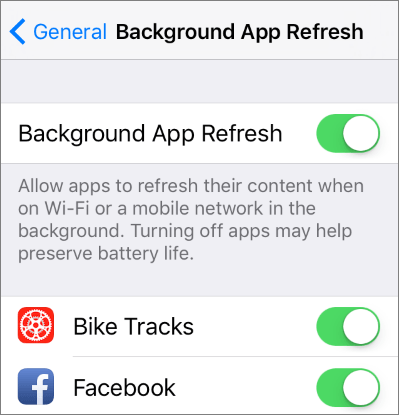
Step 2. Make sure WhatsApp is enabled in the list.
Step 3. Go to "Settings" > "Cellular" and ensure WhatsApp can use mobile data.
Battery saving features can limit background activity, which may stop WhatsApp from receiving messages in real time.
For Android:
Step 1. Open "Settings" > "Battery" and turn off "Battery Saver".
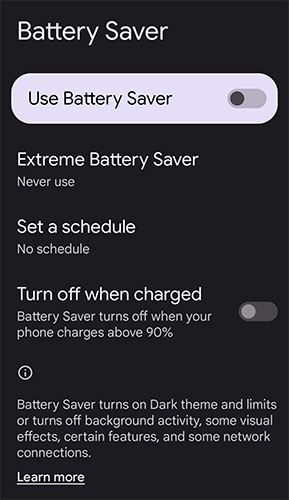
Step 2. Go to "Battery Optimization" and exclude WhatsApp from optimization if available.
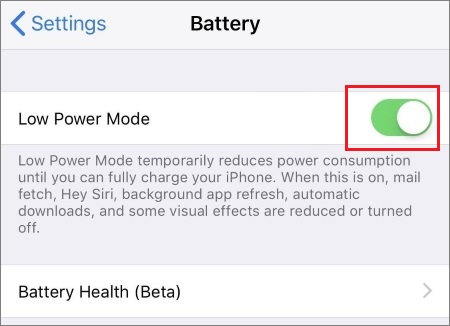
For iPhone:
Go to "Settings" > "Battery" and disable "Low Power Mode" to restore normal background activity.
If a chat or group is muted, you won't receive notifications for new messages, even though they are delivered. The operation of Android and iPhone is the same.
Open WhatsApp, locate the muted chat, and unmute it from the chat settings. If the chat is archived, go to "Archived Chats" and move it back to the main list, as archived chats may not send notifications depending on your settings.
Outdated WhatsApp versions often have bugs that disrupt push notifications. Updating the app can fix these issues; if updating doesn't work, reinstalling will reset the app to its default settings.
For Android:
Update WhatsApp: Open the Google Play Store > Search for "WhatsApp" > Tap "Update" (if available). Wait for the update to install, then restart WhatsApp.
Reinstall WhatsApp: If updating doesn't work, press and hold the WhatsApp icon > Tap "Uninstall" > Confirm. Then, open the Google Play Store, search for WhatsApp, and tap "Install". Log in with your phone number (your chats will be restored if you have a backup).
For iPhone:
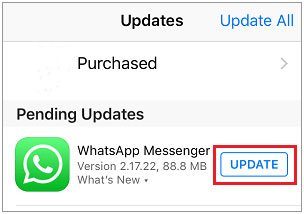
Update WhatsApp: Open the App Store > Tap your profile icon (top-right) > Scroll down to "Pending Updates" > Find WhatsApp and tap "Update" (if available). Alternatively, search for "WhatsApp" in the App Store and tap "Update".
Reinstall WhatsApp: Press and hold the WhatsApp icon on your home screen > Tap the "X" icon > Confirm "Delete App". Then, open the App Store, search for WhatsApp, and tap "Get" to install it. Log in with your phone number to restore your chats (ensure you have a backup).
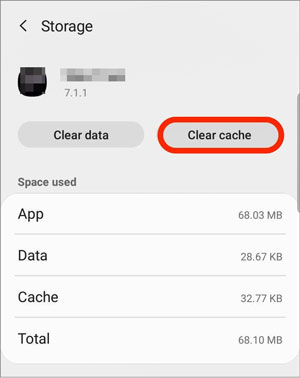
Cached data helps WhatsApp load faster, but corrupted or excessive cache can cause glitches, including failed notifications. Clearing the cache (without deleting chats) can fix this issue.
Note: This step is only available for Android, iPhones don't allow clearing app cache without reinstalling the app.
Step 1. Go to "Settings" > "Apps" > Find and tap WhatsApp > "Storage & cache".
Step 2. Tap "Clear cache" (do NOT tap "Clear storage" or "Clear data", this will delete your chats and media). Once the cache is cleared, restart WhatsApp and check for notifications.
If you've tried all the above fixes and still aren't receiving WhatsApp messages unless you open the app, the issue may be with your WhatsApp account or the app's servers. Contact WhatsApp support for further assistance.
Step 1. Open WhatsApp > Tap the three dots (top-right) > "Settings" > "Help" > "Contact Us".
Step 2. Describe your issue in detail (e.g., "I'm not receiving WhatsApp messages unless I open the app; I've tried restarting my phone and checking notifications"). Include your device model and WhatsApp version for faster support.
You can also visit the WhatsApp Help Center to search for additional troubleshooting tips or check if there's a server outage (server issues are rare but can cause message delays).
If you're dealing with issues like not receiving messages until opening the app, reinstalling or switching devices may be part of the fix. To avoid losing important chats during this process, it's essential to transfer your WhatsApp data safely.
A practical tool you can use is WhatsApp Transfer, which enables direct data transfer between phones without relying on cloud backups.
Key features of WhatsApp Transfer:
How to use WhatsApp Transfer to transfer WhatsApp between phones?
01Download and install the program on your computer, then launch it and connect both devices using USB cables. Enable USB debugging on Android and tap "Trust" on iPhone when prompted so the software can access your data.
02Once both devices are detected, enter the "Transfer" module and confirm the source and destination phones. If they are in the wrong order, click the "Flip" button to switch them.
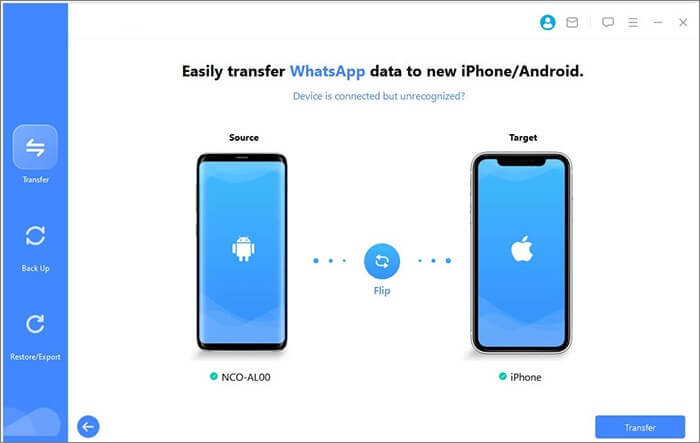
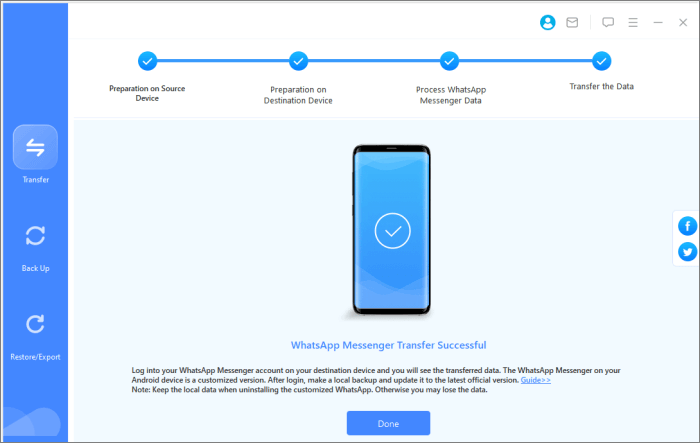
03Click the "Transfer" button to begin moving your WhatsApp data. Keep both devices connected until the process is completed and all chats and media are successfully transferred.
Experiencing the issue of not receiving WhatsApp messages unless I open the app can be frustrating, especially when you rely on real-time communication for daily conversations or work updates. This issue is usually related to device settings such as network instability, notification permissions, background restrictions, or battery-saving features.
By carefully adjusting the settings covered in this guide, you can restore normal background syncing and ensure messages arrive instantly without needing to open the app. If you are switching devices or facing more complex issues, using a reliable tool like WhatsApp Transfer can help you transfer your chats and media safely without data loss.
Related Articles:
Cannot Send & Receive WhatsApp Messages, How to Fix?
WhatsApp Chat Transfer Not Working? Fix It with Proven Solutions
How to Troubleshoot WhatsApp Contacts Not Showing Problem
WhatsApp Not Detecting Local Backup? Fix It Now with These Solutions






 Free Download for PC
  Free Download for Mac


