TL;DR:
If you want to send a WhatsApp message without saving a phone number, there are several quick and reliable methods you can use. In this guide, we cover the most practical ways:
We also introduce a simple tool, WhatsApp Transfer, which can help transfer WhatsApp chats between phones when switching devices.
"How do I send a WhatsApp message to someone without saving their number?"
- From Quora
Have you ever needed to send a quick WhatsApp message to a delivery driver, customer, seller, or new acquaintance without cluttering your contact list? Fortunately, WhatsApp offers several ways to start a conversation with someone even if their phone number is not saved on your device.
In this guide, we'll show you how to send WhatsApp message without saving number using official WhatsApp features, browser links, QR codes, Siri Shortcuts, and third-party tools. Whether you're an Android or iPhone user, you'll find a method that works for you.
WhatsApp Click to Chat is the most straightforward way to start a conversation without saving a contact. It works through an official WhatsApp link that instantly opens a chat window when accessed in a browser. This method is widely used because it doesn't require any setup, app installation, or contact syncing. You simply create a link, open it, and WhatsApp takes care of the rest.
How can I send WhatsApp message to any number without saving?
Step 1. Open any browser on your phone or computer, such as Chrome, Safari, or Firefox.
Step 2. In the address bar, enter the following format: https://wa.me/15551234567.
Step 3. Replace the number with the full international phone number (including country code). Make sure you do not include spaces, "+", or special characters.
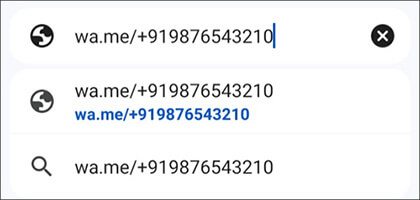
Step 4. Press "Enter", and you will be redirected to a WhatsApp page.
Step 5. Tap "Continue to Chat" to open the conversation directly in WhatsApp.
Once opened, you can immediately start sending messages, images, or documents without saving the number to your contacts.
Another simple way to start a WhatsApp chat is by using the WhatsApp API link format. Although it looks slightly different from the Click to Chat method, the result is basically the same.
This approach is useful if you prefer typing the link manually or bookmarking it for repeated use.
Steps:
Step 1. Open a web browser on your device.
Step 2. Type the following URL into the address bar: https://api.whatsapp.com/send?phone=15551234567.
Step 3. Replace the phone number with the full international format.
Step 4. Press "Enter" to load the page. WhatsApp will open a confirmation screen showing the selected number.
Step 5. Tap to proceed, and the chat window will appear.
From there, you can start a conversation immediately without adding the number to your phone contacts.
Note: Functionally, this method and the wa.me link do the same thing. The only difference is the URL structure, so you can choose whichever feels easier to use.
WhatsApp also includes a built-in "Message Yourself" feature, which many people use for notes, reminders, or file storage. However, it can also be used as a workaround to quickly open a chat with an unknown number.
This method is slightly indirect but still useful when you want to avoid using browser links.
How do I send a WhatsApp message to a number not saved?
Step 1. Open WhatsApp and go to your own chat (Message Yourself).
Step 2. In the message box, type or paste the phone number in international format.
Step 3. Send the message. WhatsApp will automatically turn the number into a clickable link.
Step 4. Tap the number, and a menu will appear with the option "Chat with [number]".
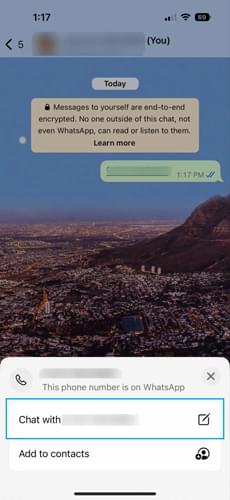
Step 5. Select it, and a new chat window will open.
At this point, you can start messaging the contact normally without saving their number.
If you don't see the "Message Yourself" chat, you can trigger it by sending a message to your own number or creating a temporary group chat and removing other participants.
WhatsApp also supports QR code messaging, which makes it even easier to start a conversation without saving phone numbers. Instead of manually typing a number or using a link, users can simply scan a QR code to open a chat instantly.
This feature is especially useful for businesses, freelancers, or anyone who wants to share their WhatsApp contact in a quick and professional way. You can either scan someone else's QR code to start chatting, or generate your own QR code so others can message you directly.
How to generate a WhatsApp QR code?
If you want others to contact you without saving your number, you can create your own WhatsApp QR code:
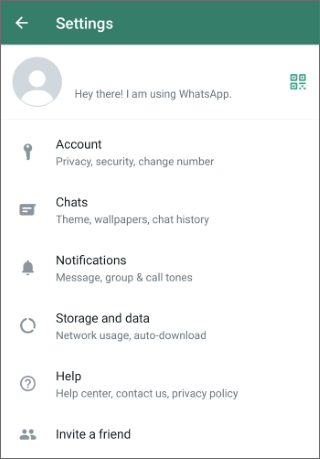
Step 1. Open WhatsApp and go to "Settings".
Step 2. Tap the "QR code" icon next to your profile name. Your personal QR code will appear automatically. You can share it directly or save it as an image.
Some users also prefer using an online QR code generator. In that case, you simply:
Step 1. Enter your WhatsApp number with country code.
Step 2. Add an optional welcome message (this will appear when someone opens the chat).
Step 3. Click generate to create your QR code.
Step 4. Download and place it on your website, business card, or social media profile.
Once someone scans it, they will be taken directly to a chat window with you.
How to scan a WhatsApp QR code?
If someone sends you their QR code, starting a chat is even easier:
Step 1. Open WhatsApp on your phone.
Step 2. Tap the QR scan icon in the top-right corner.
Step 3. Point your camera at the QR code. WhatsApp will automatically open the chat screen.
You can start messaging immediately without saving the number.
Some third-party apps can also help you send WhatsApp messages without saving numbers. One of the most commonly used tools is Truecaller, which combines caller identification with quick messaging features. This is particularly useful if you frequently deal with unknown calls or numbers.
Follow these steps to send WhatsApp message without saving number by Truecaller:
Step 1. Install Truecaller from Google Play Store or App Store.

Step 2. Complete the basic setup and permissions.
Step 3. Use the search bar to enter the phone number.
Step 4. If the number is linked to WhatsApp, you will see a WhatsApp icon.
Step 5. Tap the icon to open a direct chat in WhatsApp. Start typing your message immediately.
Note: While this method is convenient, it's still better to use only official and well-known apps to avoid unnecessary privacy risks.
For iPhone users, Siri Shortcuts can be used to create a simple automation that opens WhatsApp chats without saving contacts. Once set up, it becomes a quick, reusable tool. This is useful if you often message unknown numbers and want to skip manual link creation. (How to fix Siri not working on iPhone 17/16?)
Setup steps:
Step 1. Open the Shortcuts app on your iPhone.
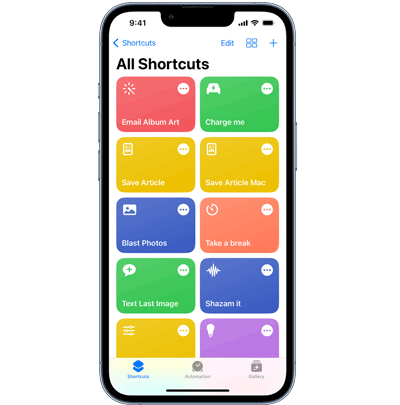
Step 2. Tap the "+" icon to create a new shortcut.
Step 3. Add the "Ask for Input" action and set it to Phone Number.
Step 4. Add a "Text" action and enter: https://wa.me/
Step 5. Combine the text with the input number so it forms a complete WhatsApp link.
Step 6. Add the "Open URL" action at the end.
Step 7. Save the shortcut and name it something like "WhatsApp Quick Chat".
How to use:
Run the shortcut, enter the phone number, and it will automatically open a WhatsApp chat window. You can also activate it using Siri voice command, which makes it even faster when you're on the go.
1. Does WhatsApp block accounts for messaging unsaved numbers?
No. WhatsApp allows users to message unsaved numbers. However, sending large numbers of unsolicited messages may trigger spam detection systems and lead to restrictions.
2. Why can't I start a chat with some phone numbers?
There are a few common reasons why a WhatsApp chat may not open:
Double-checking the international format usually solves most of these issues.
3. Is it safe to use third-party apps to send WhatsApp messages?
In general, it depends on the app you use. Well-known apps like Truecaller are considered relatively safe because they are widely used and available on official app stores.
However, you should avoid unknown or modified apps, as they may collect personal data or compromise your privacy.
Besides sending WhatsApp messages without saving contacts, many users also run into another common situation - switching to a new phone while keeping their WhatsApp chats. In this case, a tool like WhatsApp Transfer can help transfer WhatsApp data between devices without complicated manual backup steps.
It supports both Android and iPhone, allowing users to move chat history, photos, videos, and attachments in one process, which is especially useful when changing devices or upgrading your phone.
How to transfer WhatsApp chats between Android and iOS?
01Download and install WhatsApp Transfer on your computer, then launch it.
02After that, connect both your old phone and your new phone to the computer using USB cables. If you are using an Android device, you may be asked to enable USB debugging, while iPhone users just need to tap "Trust" on the device screen to allow access.
03Once both devices are recognized, open the "Transfer" module inside the software. At this point, check whether your old phone is correctly set as the source device and the new phone is set as the destination device. If they are in the wrong position, you can simply click "Flip" to switch them.
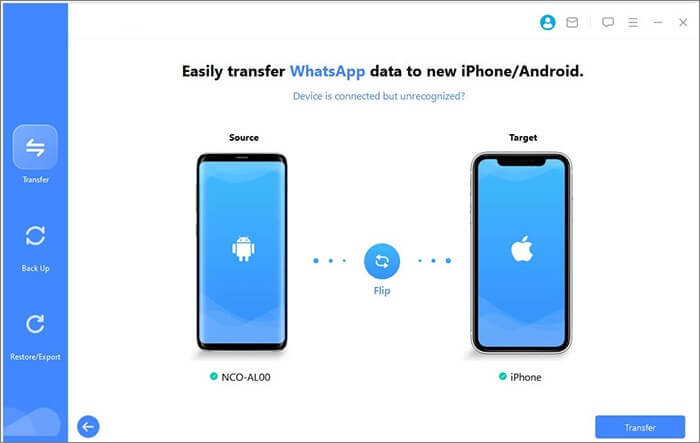
04When everything looks correct, click "Transfer" to start moving your WhatsApp data. The process will begin automatically, and you just need to keep both devices connected until it is fully completed.
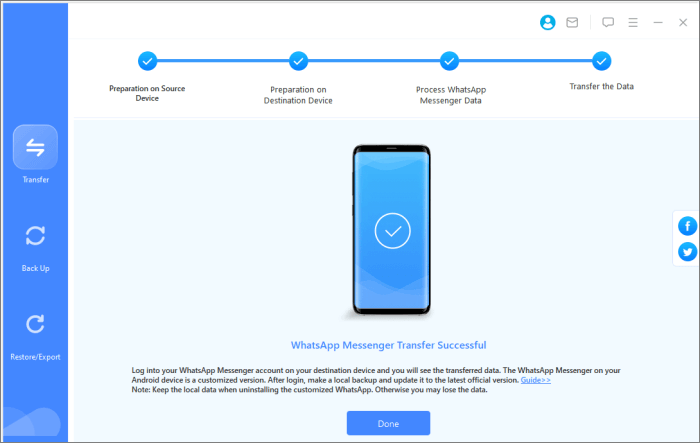
There are several simple ways to send a WhatsApp message without saving a phone number, from using Click to Chat links and browser-based API URLs to QR codes, third-party apps, and Siri Shortcuts. Most of these methods are quick to set up and work well for everyday situations where you just need to contact someone once without adding them to your address book.
On top of that, if you're also switching phones and want to keep your WhatsApp chats safe, a tool like WhatsApp Transfer can help transfer your messages, media, and attachments between devices in one go. With these methods combined, managing WhatsApp communication and data becomes much more flexible and convenient.
Related Articles:
Not Receiving WhatsApp Messages Unless I Open the App? 9 Fixes (Android & iPhone)
How to Back Up WhatsApp Without Google Drive? 4 Solutions
How to Transfer WhatsApp to New Phone with Same Number [4 Methods]
3 Ways to Transfer WhatsApp from Android to iPhone Without PC






 Free Download for PC
  Free Download for Mac


