"How can I use two WhatsApp accounts on an iPhone? Is there any solution?"
- From Quora
In today's dual-SIM era, many users wonder: how can you use two WhatsApp accounts on one iPhone? While some Android devices support app cloning natively, iPhones come with certain system limitations that make running multiple instances of the same app more challenging.
The good news is that it's still entirely possible to use two WhatsApp accounts on one iPhone by combining official solutions and practical workarounds. Whether you want to separate personal and business conversations or manage accounts from different regions, there are several effective methods you can rely on. In this guide, we'll walk you through everything you need to know. Read on to learn more about two WhatsApp accounts on one iPhone.
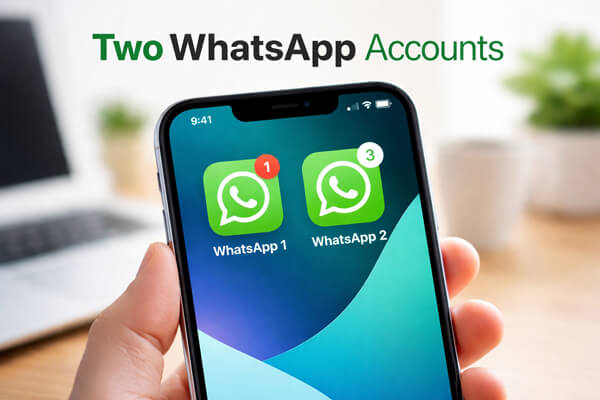
The short answer is: yes, but with some limitations.
WhatsApp Messenger only allows one account to be logged in at a time, which means you can't use two phone numbers within the same app simultaneously. However, by combining other solutions, such as WhatsApp Business, multi-device features, or web-based access, you can still manage two WhatsApp accounts on a single iPhone.
In other words, while iPhones don't support true app cloning, there are practical workarounds that let you achieve a similar result.
Below are 4 practical, safe methods to set up two WhatsApp accounts on your iPhone. We've prioritized official and reliable solutions to avoid account bans or privacy risks.
This is the most reliable and fully supported way to use two WhatsApp accounts on one iPhone. By installing both WhatsApp Messenger and WhatsApp Business, you can run two separate accounts simultaneously on the same device.
WhatsApp Business is a free standalone app originally designed for small businesses, but it works perfectly with regular phone numbers and offers almost the same core messaging features as WhatsApp Messenger, making it an ideal option for a second personal account.
Steps to set up:
Step 1. Make sure you have already installed and set up WhatsApp Messenger with your primary phone number.
Step 2. Open the App Store on your iPhone, search for WhatsApp Business, then download and install it on your device.
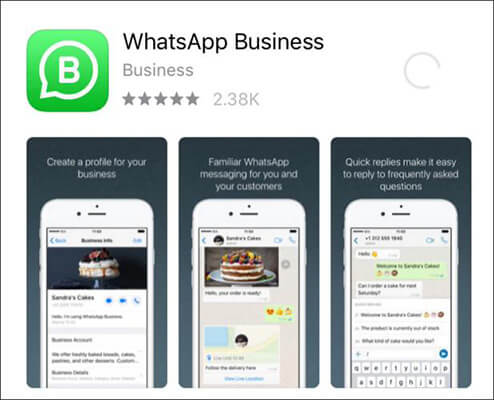
Step 3. Launch WhatsApp Business and tap "Agree & Continue" to accept the terms and proceed.
Step 4. Enter your second phone number (which is not linked to your primary WhatsApp account), then complete the verification via SMS or phone call by entering the code you receive.
Step 5. Follow the on-screen instructions to finish the setup by adding your name and profile photo. You can skip business-related settings if you're using it for personal purposes.
Once completed, you'll be able to use two WhatsApp accounts on one iPhone at the same time without any interference between them.
If your iPhone supports Dual SIM (either a physical SIM + eSIM or dual eSIM), you can use two different phone numbers on the same device. This is important because each WhatsApp account must be linked to a unique phone number.
However, it's worth noting that Dual SIM alone does not allow you to run two accounts within a single app like WhatsApp Messenger. Instead, it provides the necessary condition for setting up two separate accounts, which can then be used with apps like WhatsApp Business.
Steps to set up dual SIM on iPhone:
Step 1. Open the Settings app on your iPhone, scroll down and tap "Cellular" (or Mobile Data, depending on your region), then select "Add eSIM" or "Add Cellular Plan".
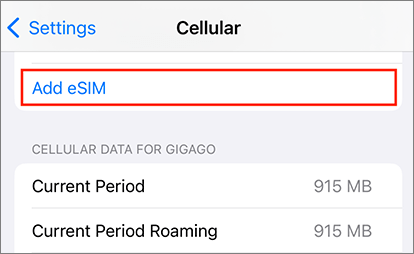
Step 2. Follow the on-screen instructions to add your second number, either by scanning a QR code provided by your carrier or entering the details manually.
Step 3. Once added, assign labels to your two numbers (such as "Personal" and "Work") so you can easily distinguish between them.
Step 4. Make sure both numbers are active and able to receive SMS or calls, as WhatsApp verification requires receiving a confirmation code.
After completing these steps, you'll have two active phone numbers on your iPhone. You can then use each number to register a different WhatsApp account, typically by combining this setup with WhatsApp Messenger and WhatsApp Business for the best experience.
Companion Mode is a feature that allows you to use one WhatsApp account across multiple devices. While it was not originally designed for running two accounts on one phone, it can still be used as a workaround to access a second account on your iPhone.
With this method, one account remains the primary account on another device, while your iPhone acts as a linked device to access that account. This means you can use one account directly on your iPhone and access the second one through Companion Mode at the same time.
Steps to use companion mode:
Step 1. On your second phone (Android or iPhone), install and set up WhatsApp Messenger with your second phone number.
Step 2. On your iPhone, open WhatsApp Messenger, go to "Settings" > "Linked Devices", then tap "Link a Device" to open the QR code scanner.
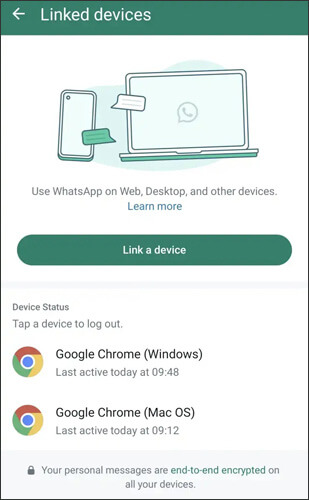
Step 3. On the second phone, open "WhatsApp", go to "Settings" or the menu, tap "Linked Devices", then choose "Link a Device" to display a QR code.
Step 4. Use your iPhone to scan the QR code shown on the second phone, and wait for the devices to sync.
Once connected, you'll be able to access the second WhatsApp account on your iPhone. However, compared to using WhatsApp Business, this method may be slightly less convenient, and some features or notifications might not work as smoothly.
Another practical way to use a second WhatsApp account on your iPhone is through WhatsApp Web. This allows you to access an additional account via a browser instead of installing another app.
Although it doesn't provide the same seamless experience as a native app, it's still a useful option if you don't want to install extra applications.
Steps to have 2 WhatsApp accounts on one iPhone using WhatsApp Web:
Step 1. Open Safari (or another browser) on your iPhone and go to the WhatsApp Web page, then switch to desktop mode so the QR code appears.
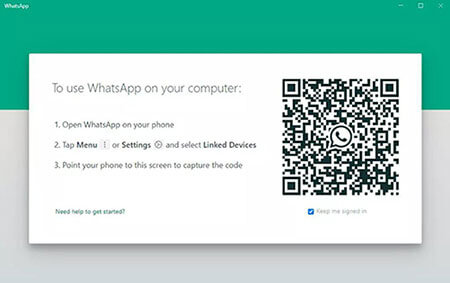
Step 2. On the phone that has your second WhatsApp account, open WhatsApp Messenger, go to "Linked Devices", and tap "Link a Device".
Step 3. Use that phone to scan the QR code displayed on your iPhone browser.
Step 4. After scanning, the second account will load in your browser, allowing you to send and receive messages directly.
For easier access, you can add the webpage to your iPhone's home screen, making it behave more like an app. Keep in mind that this method depends on an active internet connection, and notifications may not be as reliable as those from installed apps.
When managing two WhatsApp accounts on one iPhone, you may sometimes need to transfer chat history from one account to the other, for example, when switching phones or consolidating accounts. While WhatsApp itself doesn't provide a built-in way to merge accounts, you can use trusted tools to make this process simple and secure.
One of the most reliable solutions is WhatsApp Transfer. This tool allows you to transfer WhatsApp data directly between phones, without overwriting your existing data.
Key features of WhatsApp Transfer:
How to transfer WhatsApp messages between 2 phones?
01Download and install WhatsApp Transfer on your computer, then open the program and select "WhatsApp".
02Connect both devices to the computer using USB cables. On iPhone, tap "Trust this Computer" if prompted; on Android, enable USB Debugging.
03Confirm the source device (the account you want to transfer from) and the target device (the account you want to transfer to). If needed, click "Flip" to swap the devices.
Note: If the destination device is an iPhone, make sure Find My iPhone is turned off on that device and that WhatsApp is already installed.
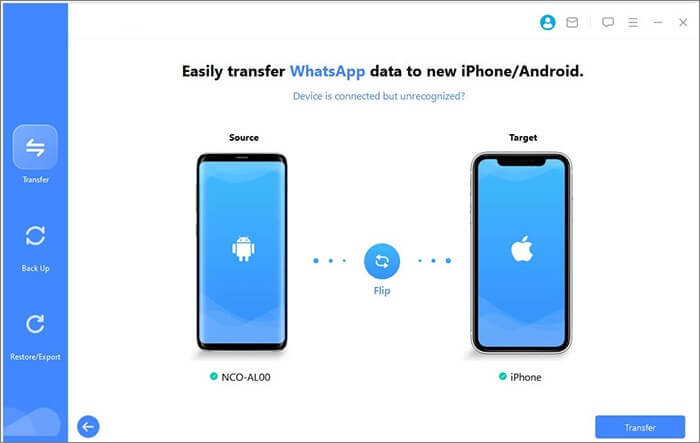
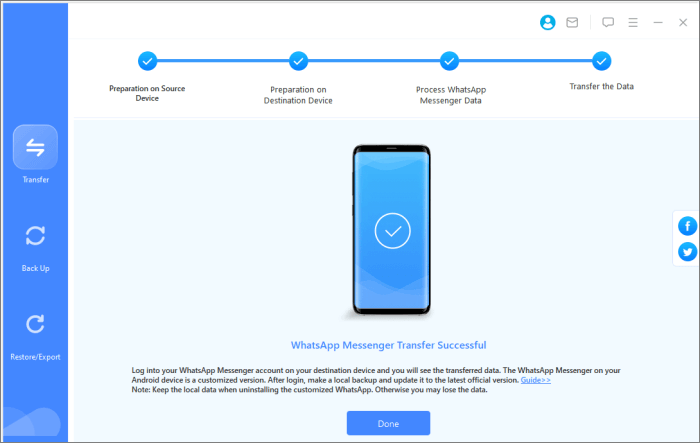
04Click "Transfer" and wait while the software securely moves your WhatsApp data. Once finished, your messages and media from the source account will be available on the target account.
1. Is it safe to use two WhatsApp accounts on one iPhone?
Yes. Using official apps like WhatsApp Messenger and WhatsApp Business is completely safe. Avoid modified or third-party apps, as they may compromise your account or data.
2. Can I merge two WhatsApp accounts into one?
WhatsApp does not provide an official way to merge two accounts. Each account is tied to a separate phone number, so it's not possible to combine two accounts into one directly. You would need to manage them separately, or manually forward important messages from one account to another.
3. Can I back up both accounts to iCloud?
Yes, both accounts can be backed up to iCloud. Keep in mind that each backup counts toward your iCloud storage, so make sure you have enough space to accommodate the data from both accounts.
Although iPhones don't natively support running two instances of the same app, it's entirely possible to manage two WhatsApp accounts on one iphone. Using WhatsApp Messenger and WhatsApp Business together is the most straightforward and reliable method, while Companion Mode and WhatsApp Web provide alternative solutions.
If you need to transfer chat history between accounts, tools like WhatsApp Transfer make the process easy and secure, ensuring that your messages, photos, and other media are preserved. With these methods, you can confidently manage personal and work WhatsApp accounts on the same iPhone without losing data or missing important messages.
Related Articles:
3 Ways to Transfer WhatsApp from Android to iPhone Without PC
How to Transfer WhatsApp to New Phone with Same Number [4 Methods]
[Easiest Way] How to Share WhatsApp Contacts on Android and iPhone?
[Stepwise Guide] How to Manage WhatsApp Account on Android Devices?







 Free Download for PC
  Free Download for Mac


