TL;DR:
Having trouble with WhatsApp microphone not working? This guide explains the possible causes and effective fixes to help you restore voice messages and calls.
"Whenever I record a voice note on WhatsApp, it is muted, and when I try to listen to it, it says 'the audio is no longer available'. My microphone settings are enabled, WhatsApp is updated, and my iOS is up to date, but the issue remains. I have tried restarting, reinstalling WhatsApp, closing all apps, and checking privacy settings. Other apps like WhatsApp Business and Telegram work normally, but this issue only happens in WhatsApp."
- From Apple Community
WhatsApp microphone problems can be frustrating, especially when you cannot record voice messages or other people cannot hear you during voice and video calls. This issue may appear suddenly due to permission restrictions, app errors, system settings, or problems with your device's microphone.
Fortunately, most WhatsApp microphone issues can be fixed without complicated operations. This guide explains why your WhatsApp microphone is not working and provides practical solutions for Android and iPhone users to restore normal audio functions.
When WhatsApp cannot use your microphone properly, the issue may come from the app, your device settings, or external accessories. Some common reasons why your WhatsApp microphone is not working include:
1. Microphone Permission Is Restricted
WhatsApp needs microphone access to record voice messages and make voice or video calls. If the permission is disabled or restricted, the app cannot capture your voice.
2. Temporary App or System Glitches
Temporary errors in WhatsApp or your phone system may interrupt microphone access. These issues can usually be fixed by refreshing the app or device.
3. Bluetooth or External Devices Interfere with Audio Input
Connected headphones, earbuds, or other Bluetooth devices may cause WhatsApp to use the wrong microphone source or fail to capture sound properly.
4. Microphone Is Blocked or Damaged
Dust, debris, phone cases, or hardware problems may affect microphone performance and make your voice unclear or completely inaudible.
5. WhatsApp or Device Compatibility Issues
An outdated WhatsApp version or system software problem may cause certain features, including microphone functions, to work incorrectly.
If you cannot record voice messages or others cannot hear you during WhatsApp calls, try the following fixes. Start with the basic settings checks first, then move to more advanced troubleshooting methods.
WhatsApp needs microphone access to record voice messages and handle voice or video calls. If the permission is disabled, WhatsApp will not be able to capture your voice.
On Android:
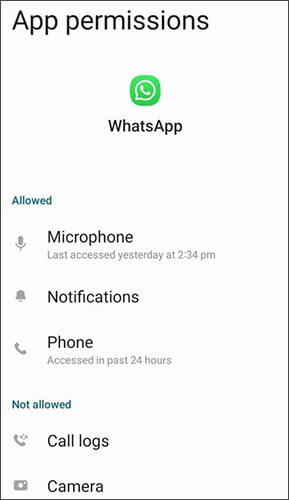
On iPhone:
Sometimes WhatsApp microphone problems are caused by temporary app errors or system glitches. Restarting WhatsApp and your phone can refresh background processes and restore normal microphone access.
To restart WhatsApp:
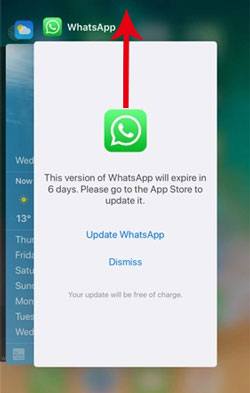
If the issue remains, restart your phone:
Before changing WhatsApp settings, check whether your phone microphone itself is working properly. This helps determine whether the problem is caused by WhatsApp or your device.
To test your microphone:
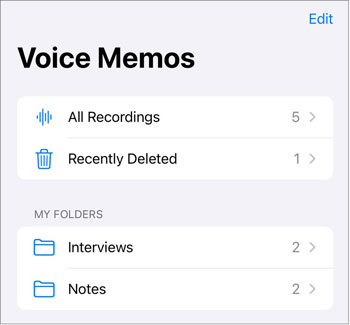
If the recording has no sound, the microphone may have a hardware problem. If the microphone works normally in other apps, continue with the WhatsApp-related fixes below.
Other applications may be using your microphone in the background, preventing WhatsApp from accessing it properly. This is especially common with video calling apps, voice recorders, cameras, and screen recording tools.
Try the following:
If WhatsApp works afterward, another app or connected device may have been interfering with microphone access.
Using an outdated WhatsApp version may cause compatibility issues or bugs that affect microphone-related features. Updating the app ensures that you have the latest fixes and improvements.
On Android:
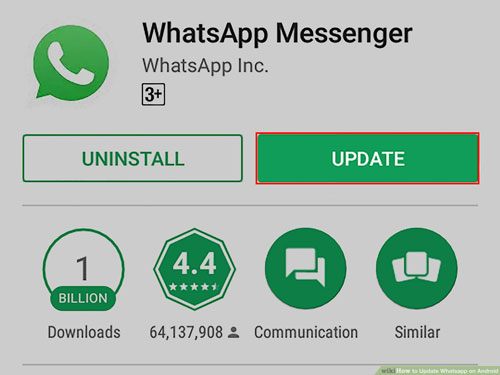
On iPhone:
Accumulated or corrupted cache files may sometimes affect WhatsApp performance and cause unexpected issues, including microphone problems. For Android users, clearing WhatsApp cache can remove temporary files without deleting your chats or account information.
iPhone does not provide a direct option to clear WhatsApp cache. If you are using an iPhone, you can try updating WhatsApp, restarting your device, or reinstalling the app instead.
Clear WhatsApp cache on Android:
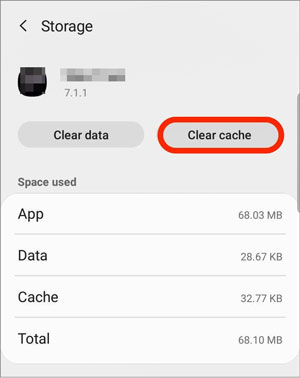
Note: Do not tap "Clear Data" unless you have backed up your WhatsApp chats, as this may remove WhatsApp data stored on your device and require you to set up the app again.
Besides WhatsApp's own permission settings, some phones have a system-level microphone control that can block all apps from accessing the microphone.
On Android:
On iPhone:
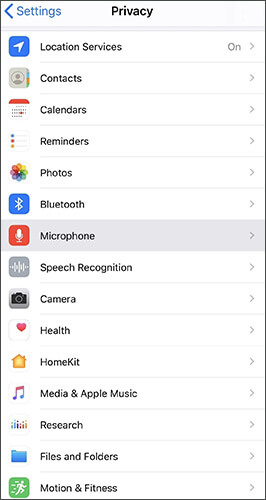
If none of the above methods solve the problem, reinstalling WhatsApp can help fix corrupted app files or unexpected software issues.
Before uninstalling WhatsApp, make sure your chats are backed up to avoid losing important messages and media files.
On Android:
On iPhone:
1. Can a faulty headset cause microphone issues in WhatsApp calls?
Yes. A damaged headset or Bluetooth device can prevent WhatsApp from using your phone's built-in microphone properly.
Try disconnecting your headset or turning off Bluetooth, then make a WhatsApp call again. If the microphone works normally afterward, the issue is likely related to the external audio device.
2. Why can't people hear me on WhatsApp calls?
If others cannot hear you during WhatsApp calls, the possible causes include:
Checking microphone permissions and testing your microphone with another app are usually the quickest ways to identify the problem.
3. Does a faulty screen protector or phone case affect the microphone?
Yes, in some cases. Although screen protectors usually do not directly cover the microphone, certain phone cases or accessories may block microphone openings and reduce sound quality.
Remove the case or accessories temporarily and test WhatsApp voice messages again. Also, clean the microphone openings carefully to remove dust or debris.
Although WhatsApp microphone issues usually do not affect your chats, some troubleshooting methods, such as reinstalling WhatsApp, may require you to restore your account data. Creating a backup before making major changes can help protect important messages, photos, and attachments.
For Android users, Coolmuster Android WhatsApp Recovery provides a convenient way to back up WhatsApp data, including messages and attachments, from an Android phone to a computer. It allows you to keep a local copy of your WhatsApp data and access it whenever needed. For iPhone users, Coolmuster iPhone WhatsApp Recovery provides a similar way to back up WhatsApp data from iOS devices to a computer.
The following steps mainly show how to back up WhatsApp data from an Android phone to a computer using Android WhatsApp Recovery.
01Install and launch Android WhatsApp Recovery on your computer, then connect your Android phone using a USB cable.
02Once the program detects your phone, select your device from the list and click "Next". The software will then begin analyzing the WhatsApp data stored on your Android device.
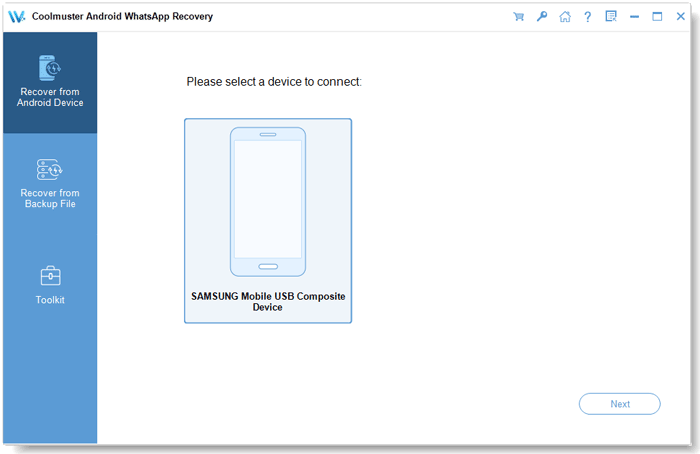
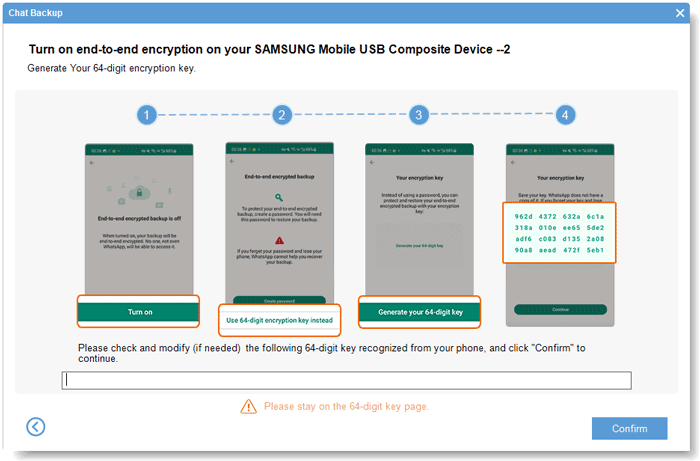
03Follow the on-screen instructions to enable end-to-end encrypted chat backup on your Android phone. After the encryption key is generated, the program will automatically detect and fill in the key. Click "Confirm" to continue scanning.
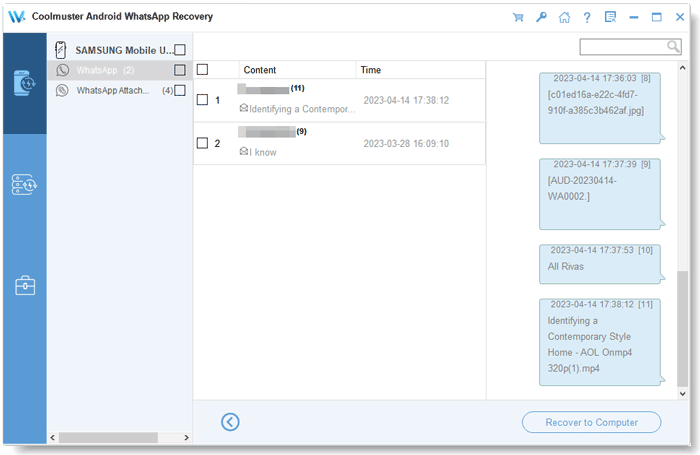
04After the scan is complete, all detected WhatsApp conversations and attachments will be displayed. Select the data you want to keep, then click "Recover to Computer" to export your WhatsApp data to your PC.
For a more detailed walkthrough, you can also watch the following video tutorial.
When your WhatsApp microphone is not working, the problem is usually related to app permissions, temporary software issues, connected devices, or phone settings. In most cases, you can fix it by checking microphone access, restarting WhatsApp, updating the app, or adjusting your device settings.
Before trying advanced solutions such as reinstalling WhatsApp, it is recommended to create a backup of your important chats and attachments. Tools like Coolmuster Android WhatsApp Recovery can help Android users save WhatsApp data to a computer, while Coolmuster iPhone WhatsApp Recovery provides a similar solution for iOS users. With a secure backup available, you can troubleshoot WhatsApp issues without worrying about losing valuable conversations.
Related Articles:
Cannot Send & Receive WhatsApp Messages, How to Fix?
Fixed: WhatsApp Download Failed | Fix the Issue with 8 Solutions
Fast Fix WhatsApp Backup Stuck with Practical Tips [Android & iPhone]
WhatsApp Not Working with Wi-Fi? Explore Reasons and Proven Fixes







 Free Download for PC


