TL;DR:
Android Mi Theme Fingerprint Lock allows Xiaomi users to customize fingerprint unlock animations and lock screen effects through MIUI or HyperOS themes. This guide explains how to enable fingerprint unlock, apply fingerprint effects, and fix common issues such as missing animations, theme errors, and unlock failures. It also covers solutions for situations where users forget their passwords or get locked out of their devices.
Xiaomi phones are well known for their highly customizable user interface. Through MIUI and the newer HyperOS, users can personalize almost every aspect of their devices, including wallpapers, icons, lock screens, and fingerprint animations. One popular customization feature is the Android Mi Theme fingerprint lock, which allows users to add stylish fingerprint unlock effects and unique lock screen themes.
Whether you want to enable fingerprint unlocking, apply eye-catching fingerprint animations, or troubleshoot issues when the feature stops working, this guide covers everything you need to know.
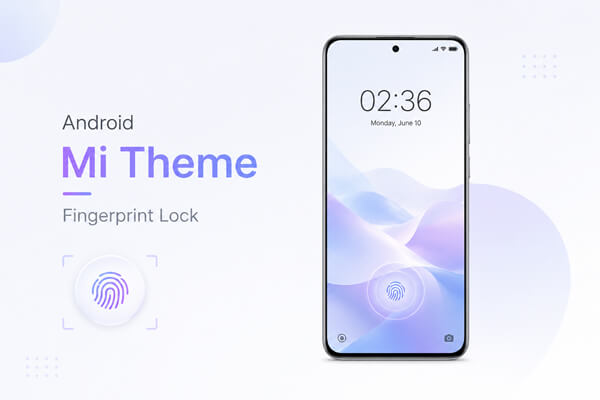
Android Mi Theme fingerprint lock refers to fingerprint-based lock screen themes and animations available on Xiaomi devices running MIUI or HyperOS.
Unlike standard fingerprint unlocking, Mi Themes can add visual effects that appear when you touch the fingerprint sensor. Depending on the theme, you may see glowing rings, futuristic animations, neon effects, or customized lock screen designs.
The main benefits of using fingerprint lock themes include:
Many themes available through the Themes app include custom fingerprint effects as part of the complete lock screen package.
Before applying fingerprint lock themes, you must first enable fingerprint unlocking on your Xiaomi phone.
Step 1. Set Up a Screen Lock
Open the Settings app on your Xiaomi device and navigate to "Passwords & Security". Select "Screen Lock" and choose a lock method such as PIN, password, or pattern.
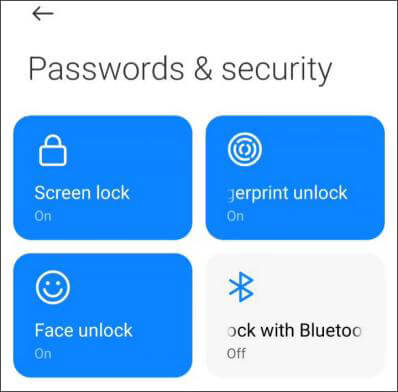
Step 2. Register Your Fingerprint
Return to "Passwords & Security" and tap "Fingerprint Unlock". Enter your screen lock credentials and follow the on-screen instructions to scan your fingerprint several times until registration is complete.
Step 3. Enable Fingerprint Unlock
Once your fingerprint is added, make sure the fingerprint unlock option is turned on. Lock your phone and test whether you can unlock it using your fingerprint.
Step 4. Verify Device Compatibility
Most modern Xiaomi, Redmi, and POCO devices support fingerprint unlocking. However, available fingerprint animations and lock screen effects may vary depending on your device model and MIUI or HyperOS version.
After enabling fingerprint unlock on your Xiaomi device, you can further personalize the experience by applying fingerprint animations and lock screen effects through Xiaomi's official Themes app. This app provides a wide range of lock screen styles, including some that support fingerprint visual effects. Follow the steps below to apply a Mi theme fingerprint lock screen effect.
Step 1. Open the Official Themes App
Launch the pre-installed Themes app on your Xiaomi phone. This is Xiaomi's official platform for downloading themes, wallpapers, fonts, and lock screen styles, including designs with fingerprint-related visual effects.

Step 2. Search for Fingerprint Lock Themes
Tap the search bar at the top of the Themes app and enter keywords such as "Fingerprint Lock", "Fingerprint Animation", or "In-Display Fingerprint". Browse the results and look for themes that mention lock screen or fingerprint effects in their descriptions.
Step 3. Preview and Download the Theme
Select a theme you like and open its detail page to preview the lock screen effect. Before downloading, check whether the theme is compatible with your device model and system version (MIUI or HyperOS). If everything looks good, tap Download and wait for the installation to complete.
Step 4. Apply the Theme
Once the download is finished, tap Apply. If customization options appear, make sure the Lock Screen component is included. In some cases, themes are applied as a whole package, including wallpaper, icons, and lock screen style.
Step 5. Check the Fingerprint Effect
After applying the theme, lock your phone and place your finger on the fingerprint sensor to test the effect. If the animation does not appear immediately, try locking and unlocking the screen again or restarting the Themes app.
For more personalization, go to "Themes" > "Profile" > "Customize Theme" > "Lock Screen Style" to mix and match different lock screen elements such as wallpapers, styles, and animations, depending on your device and system version.
Keep in mind that fingerprint animation effects may vary depending on your Xiaomi model and MIUI/HyperOS version. Some effects are only available on devices with under-display fingerprint sensors, so not all devices will support every visual effect.
While using Mi Theme fingerprint lock features, some users may experience issues such as missing fingerprint animations, the theme not applying correctly, fingerprint unlock failure, or even lock screen access problems. Below are the most common issues and practical solutions for both MIUI and HyperOS devices.
This is the most common issue where the fingerprint animation does not appear after applying a theme, and only the default system effect is shown.
Possible reasons:
How to fix it:
Step 1. Go to "Settings" > "Passwords & Security" > "Fingerprint Unlock" and make sure fingerprint animation is enabled (if available on your device).
Step 2. Reapply the theme from the Themes app and ensure the lock screen components are included.
Step 3. Restart your phone to refresh system resources.
Step 4. Try using a newer or officially updated theme that supports your system version.
Sometimes, after applying a theme, only part of it changes (for example, icons or wallpaper), while the lock screen or fingerprint effect remains unchanged.
Possible reasons:
How to fix it:
Step 1. Apply the theme in full mode instead of partial customization.
Step 2. Reset the lock screen style first via "Themes" > "Customize" > "Lock Screen Style", then apply the theme again.
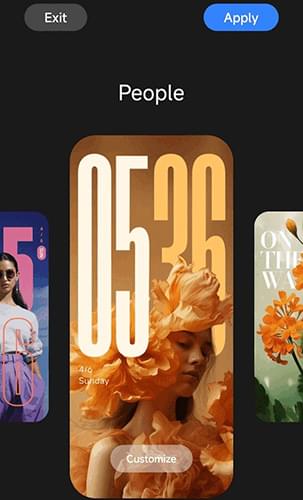
Step 3. Delete the theme and download it again using a stable network connection.
Step 4. Restart the device to refresh system settings.
In some cases, fingerprint unlocking may become slow, inaccurate, or completely unresponsive after applying a theme.
Possible reasons:
How to fix it:
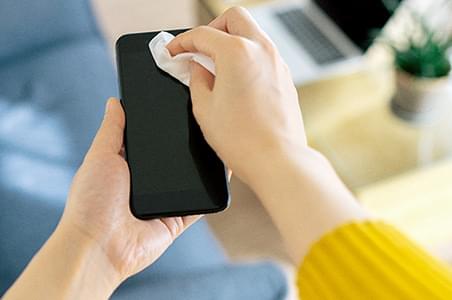
Step 1. Clean the fingerprint sensor area with a soft, dry cloth.
Step 2. Delete existing fingerprints and register them again.
Step 3. Turn off battery saver or ultra power-saving mode.
Step 4. Switch to a lighter or officially recommended theme if performance issues continue.
In some cases, users may forget their screen lock credentials (PIN, password, or pattern) after modifying security settings or changing lock screen configurations. When this happens, fingerprint unlock alone cannot bypass the system security, and the device may remain locked.
To resolve this issue, a professional unlocking tool such as Android Unlocker can be used to remove the screen lock and regain access to the device.
Key features of Android Unlocker:
How to unlock a locked Xiaomi device?
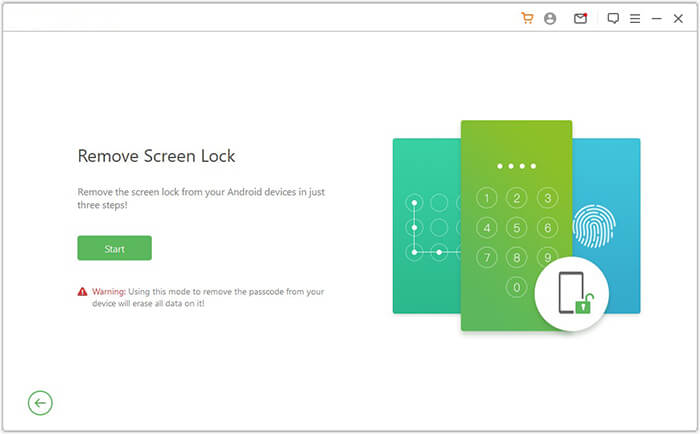
01Install and open the Android unlocking software on your computer, then choose the option labeled "Remove Screen Lock".
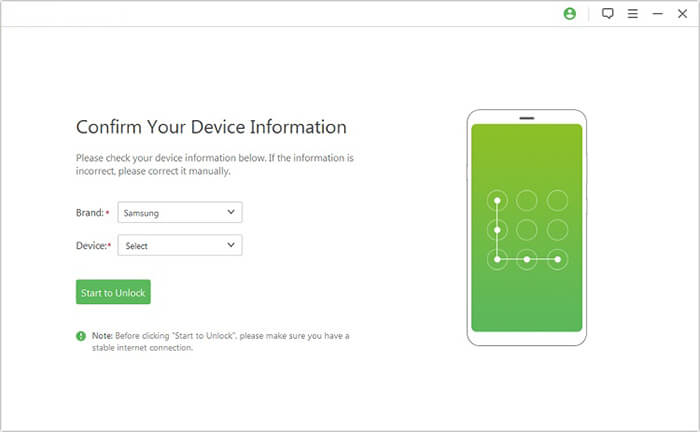
02Connect your Xiaomi phone to the computer via a USB cable. The program will automatically detect your device and display the relevant information for confirmation.
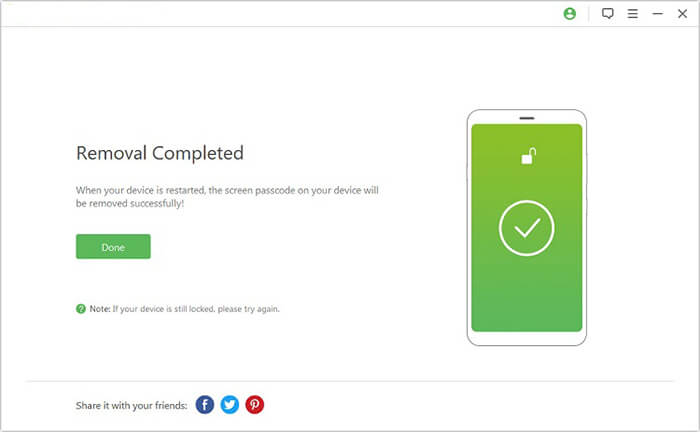
03Follow the on-screen instructions to enter Recovery Mode or Download Mode if prompted. Once ready, click the "Remove Now" button to start the unlocking process and wait until it is completed.
1. Can all Xiaomi phones use fingerprint lock screen themes?
Most Xiaomi phones with fingerprint sensors can use fingerprint lock themes. However, some animation effects may only be available on certain MIUI or HyperOS versions and supported hardware.
2. Do MIUI themes affect phone performance?
Generally, official themes from the Themes app have minimal impact on performance. However, themes with complex animations may consume slightly more battery and system resources.
3. Why is my fingerprint animation not showing on Xiaomi?
This usually happens because the theme does not include fingerprint effects, the animation is not compatible with your system version, or additional features such as Always-On Display are disabled.
4. Can I use fingerprint lock themes on HyperOS?
Yes. HyperOS continues to support lock screen customization and fingerprint effects. The exact options available may differ from those found in older MIUI versions.
Android Mi Theme fingerprint lock is a great way to personalize your Xiaomi device while maintaining secure and convenient unlocking. By enabling fingerprint unlock, applying compatible themes, and troubleshooting common issues, you can enjoy a more stylish lock screen experience. If you ever get locked out due to forgotten credentials, tools such as Android Unlocker can help restore access to your device quickly and efficiently.
Related Articles:
Forgot Pattern Lock? Here's How to Unlock Pattern Lock on Android
Unlock Android Phone from PC: 3 Proven Methods That Work
How to Transfer Data from Mi to Mi in 5 Possible Ways (Proven Tips)
4 Easy Ways to Perform Mi Backup and Restore in 2026 (Proven Tips)




 Free Download for PC


