TL;DR:
The "This device is locked" error on Xiaomi phones is usually caused by Mi account activation protection after a reset, flashing, or abnormal activation. This guide explains why this issue happens and provides practical solutions, including Mi Account recovery, Xiaomi support, and screen lock removal tools to help you regain access to your device.
Many Xiaomi users suddenly encounter the message "This device is locked" after resetting, flashing, or restarting their phones. Once this error appears, the device may become inaccessible unless the correct Mi Account credentials are entered. This can be frustrating, especially if you forgot your password or purchased a second-hand Xiaomi phone.
So, what exactly does "This device is locked" mean on Xiaomi devices? More importantly, how can you remove the lock and regain access to your phone? In this guide, we will explain the causes of the error and walk you through several practical solutions to fix it. In addition, if you are simply locked out by a screen password, we will also introduce an easier unlocking solution.
"This device is locked" is a security protection mechanism developed by Xiaomi. It is linked to the Mi Account previously associated with the device. When Xiaomi detects that the phone has been factory reset, flashed, or activated abnormally, it will require verification of the original Mi Account before allowing access.
You may see messages like:
This feature is similar to Apple's Activation Lock or Google FRP (Factory Reset Protection). Its main purpose is to prevent unauthorized access if the phone is lost or stolen.
Common reasons why the Xiaomi device locked error appears include:
If you know the original Mi Account and password, you can usually unlock the phone easily. Otherwise, you may need to try additional methods.
Here are several methods you can try to solve the "This device is locked" issue on Xiaomi phones.
As mentioned earlier, forgetting your Mi Account password is one of the most common reasons behind the "This device is locked" error on Xiaomi phones. Fortunately, Xiaomi provides an official "Forgot Password" option that allows users to reset their password and regain access to the device easily.
Step 1. Open a browser on another phone or computer and visit the official Mi Account recovery page: https://account.xiaomi.com.
Step 2. Then, click the "Forgot password" option below the sign-in page.
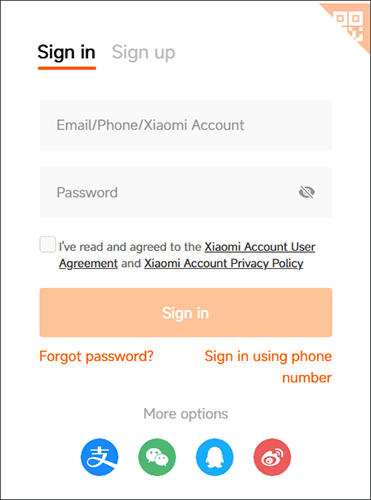
Step 3. Enter the phone number, email address, or Mi Account ID linked to your Xiaomi account.
Step 4. After that, click "Next" and complete the security verification. Xiaomi will send a verification code to your registered phone number or email.
Step 5. Enter the verification code and create a new password for your Mi Account.
Once the password has been reset successfully, return to your Xiaomi phone and sign in with the new account password to bypass the "This Device Is Locked" screen.
If you cannot recover your Mi Account password or the Xiaomi phone is still linked to another account, contacting Xiaomi customer support is one of the safest and most reliable solutions. This method is especially helpful if you purchased a second-hand device or no longer have access to the original account information.
Before contacting Xiaomi, prepare the following information to verify that you are the legitimate owner of the device:
Step 1. Visit the official Xiaomi support page: https://www.mi.com/global/support/contact/.
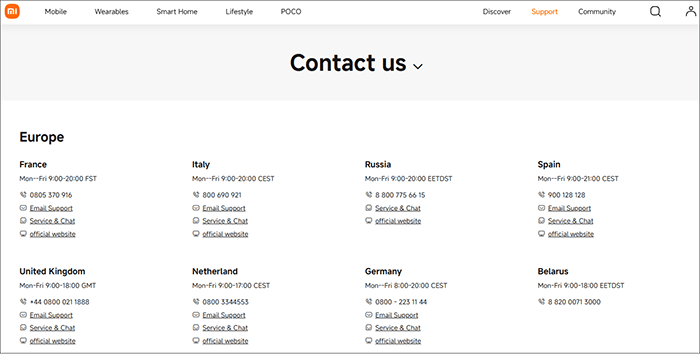
Step 2. Choose your region and contact Xiaomi through online chat, email, or customer service hotline.
Step 3. Explain that your Xiaomi phone shows the "This device is locked" message and provide the required ownership information.
Step 4. Follow the instructions provided by Xiaomi support. After verifying your identity and ownership, Xiaomi may help you remove the activation lock or recover access to your Mi Account.
Xiaomi usually will not unlock a device if ownership cannot be verified. And if you bought a used Xiaomi phone, contacting the previous owner to remove the device from their Mi Account may also solve the issue faster.
In some cases, performing another factory reset may help fix software-related issues. However, you should know that a factory reset usually does NOT remove the Mi Account activation lock if the device is still linked to an account.
Still, if the lock appears due to a temporary system glitch, resetting may help.
Here's how:
Step 1. Turn off your Xiaomi phone.
Step 2. Press and hold the "Volume Up" + "Power" buttons simultaneously until Recovery Mode appears.
Step 3. Use the volume buttons to select "Wipe Data".
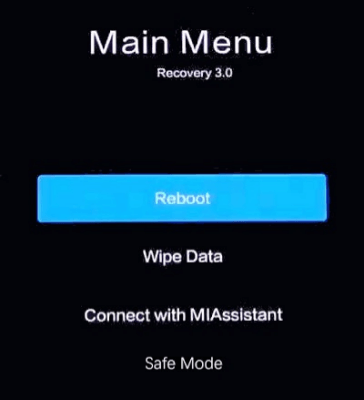
Step 4. Confirm the operation.
Step 5. Reboot the device after the reset finishes.
Note: This process erases all data on the phone, so back up your Xiaomi data before doing it. If the Mi Account remains linked, the phone will still ask for account verification during setup.
If your Xiaomi phone is locked because you forgot the screen password, PIN, pattern, fingerprint, or face lock, using a professional Android unlocking tool can save you a lot of time and effort. Compared with complicated manual methods, dedicated unlocking software is usually much easier for beginners.
One reliable tool you can try is Android Unlocker. It is designed to help users remove various Android screen locks quickly, even if they cannot remember the password.
Key features of Android Unlocker:
Here's how to unlock a Xiaomi phone using Android Unlocker.
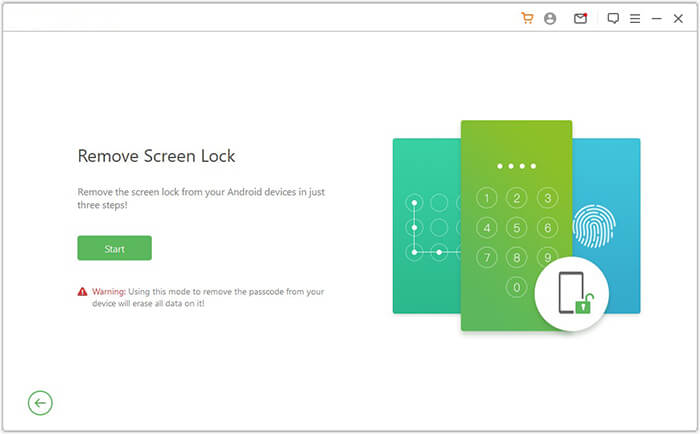
01Download and install Android Unlocker on your computer. Launch the program and select the "Remove Screen Lock" mode.
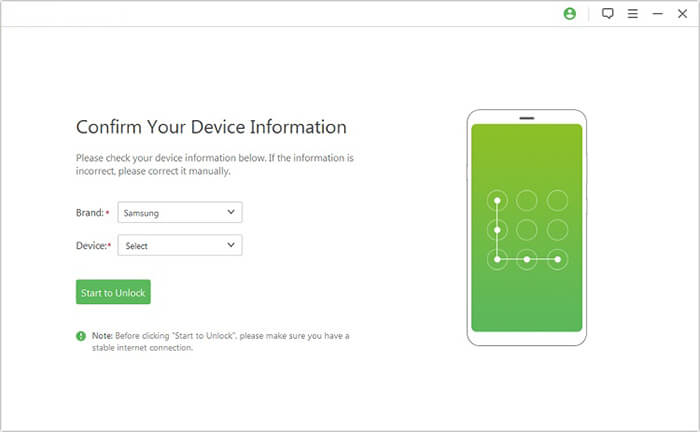
02Connect your Xiaomi phone to the computer using a USB cable. The software will automatically detect your device information. Confirm the details and continue.
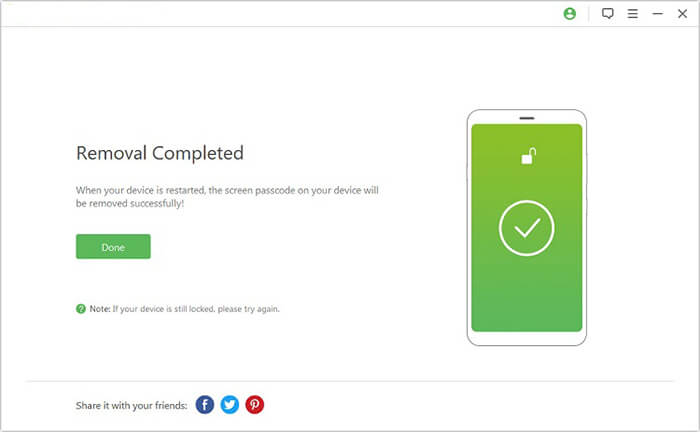
03Follow the on-screen instructions to put your Xiaomi device into Recovery Mode or Download Mode if required. Click the "Remove Now" button to begin removing the screen lock. Wait for the process to complete.
The "This device is locked" message on Xiaomi phones is mainly caused by Mi Account activation protection. In most cases, entering the correct Mi Account credentials is the safest and most effective solution. If you forgot the password, you can recover it through Xiaomi's official account recovery service or contact Xiaomi customer support for assistance.
Meanwhile, if you are dealing with a forgotten screen lock instead of an activation lock, tools like Android Unlocker can help you unlock your Xiaomi phone quickly and easily.
Related Articles:
What If You Locked Out of Android Phone? 6 Easy Ways May Help
How to Fix "Enter Password to Unlock 30/30 Attempts Remaining" Error
How to Reset Android Phone when Locked? Top 5 Reliable Ways
How to Disable Android Lock Screen | Complete Guide to Unlock Device




 Free Download for PC


