TL;DR:
Locked out of your BLU phone after a factory reset? This guide explains what BLU FRP lock is and why it appears. It also provides several ways to bypass FRP, including using a Google account, SIM card, TalkBack, and professional Android unlocking tools to help you regain access to your device.
BLU is a popular budget smartphone brand from BLU Products, widely used for its affordable Android devices. However, many users run into a frustrating issue after a factory reset, getting locked out of their phone by Google verification. This is caused by Factory Reset Protection (FRP), a built-in security feature designed to prevent unauthorized access. While useful, it can also block legitimate users who forget their Google account or purchase a second-hand device.
In this guide, we'll explain what FRP is, why it happens, and how to perform a BLU FRP bypass using practical and effective methods, so you can regain access to your device without unnecessary hassle.
FRP, short for Factory Reset Protection, is a built-in security feature introduced in Android 5.1 and later versions. Once you sign in with a Google account on your BLU phone, FRP is automatically enabled to protect your device and personal data.
After a factory reset, the system will require you to verify the previously synced Google account before you can access the phone. If you can't provide the correct credentials, you'll be stuck on the Google verification screen and unable to use the device.
While FRP is designed for security, it can also cause issues for users who forget their account details or purchase a second-hand phone that's still linked to a previous account.
There are several practical ways to bypass FRP on a BLU phone, ranging from official account recovery to using built-in system features. Below are three commonly used methods, arranged from the safest to more workaround-based options. You can try them one by one depending on your situation.
The simplest and most legitimate way to bypass FRP on a BLU phone is to use the original Google account linked to the device. This method works if you still remember the account credentials or can recover them through Google's official process. It is also the safest option, as it does not involve any system loopholes or third-party tools.
Step 1. Turn on your BLU phone and connect it to a stable Wi-Fi network, as internet access is required for verification.
Step 2. When you reach the "Google Account Verification" screen, enter the email address and password of the Google account previously synced to the device.
Step 3. If you can't remember the password, tap "Forgot password?" and follow the on-screen instructions to recover your account using your recovery email or phone number.
Step 4. After resetting your password, return to the verification screen and sign in with the updated credentials. Once verified, you can complete the setup and access your device.
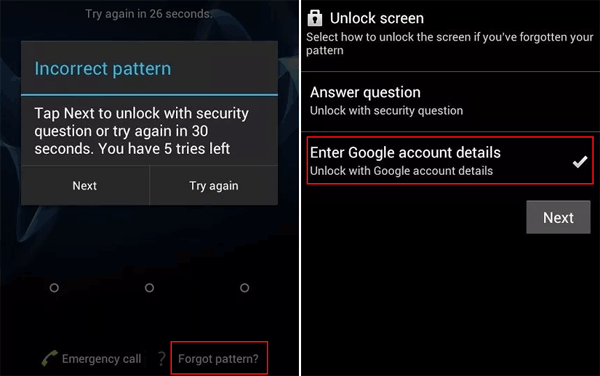
Note: This method only works if you can access or recover the original Google account. If not, try the alternative methods below.
If you no longer have access to the original account, the SIM card method can sometimes help bypass the FRP screen by accessing system settings indirectly. This approach mainly works on older BLU devices (Android 8 or earlier) and may not be effective on newer versions.
Step 1. Power off your BLU phone, insert an active SIM card, and then turn the device back on.
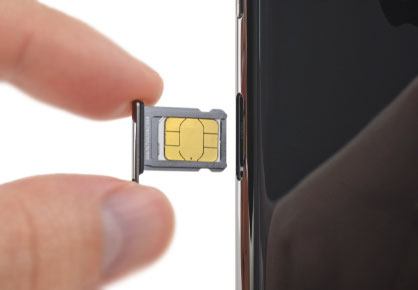
Step 2. Unlock the SIM card if prompted (enter the SIM PIN if required), and wait until the phone reaches the Google verification screen.
Step 3. From the screen, open the notification panel or SIM-related options to access SIM card settings.
Step 4. Once inside the settings interface, navigate through available options and use the back button to return to the main setup screen.
Step 5. Continue the setup process. When prompted to add a Google account, check if the "Skip" option becomes available and proceed without signing in.
TalkBack is an accessibility feature designed to assist visually impaired users, but it can also provide a pathway to access certain system areas. This method is often used on newer Android versions when other options are unavailable, though the exact steps may vary slightly by device.
Step 1. Turn on your BLU phone, connect to Wi-Fi, and stay on the welcome or verification screen.
Step 2. Tap "Accessibility" and enable TalkBack from the settings menu.
Step 3. Use TalkBack gestures (such as drawing an "L" shape) to open the global context menu, then access TalkBack settings.
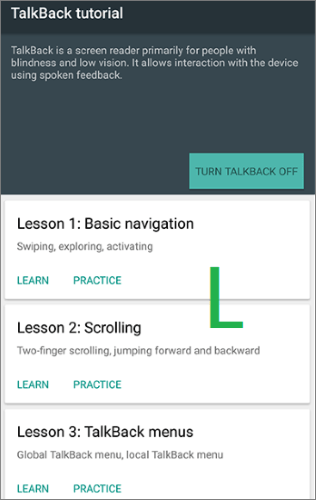
Step 4. From the settings, enter the Help & Feedback section and open a video or external link to launch a web browser.
Step 5. Once you gain browser or system access, navigate to device settings or sign in with another account if possible.
Step 6. Restart your device and continue the setup process. If successful, the Google verification screen should be bypassed.
If the methods above don't work on your device, it's likely due to system restrictions or newer Android security updates. In such cases, using a dedicated FRP removal tool can save time and reduce the complexity of manual operations.
One option you can consider is Android Unlocker. It's designed to help users remove screen locks and bypass Google account verification with a guided process, making it easier for beginners to handle.
Key features of Android Unlocker:
Note: FRP removal currently supports Samsung, Xiaomi, Redmi, and OnePlus devices, and may not work for BLU phones.
How to use Android Unlocker to remove Google FRP lock without a password?
01Download and install the software on your computer. Once the installation is complete, open the program.
02From the home screen, select "Remove Google Lock (FRP)", then connect your Android device to the computer using a USB cable.
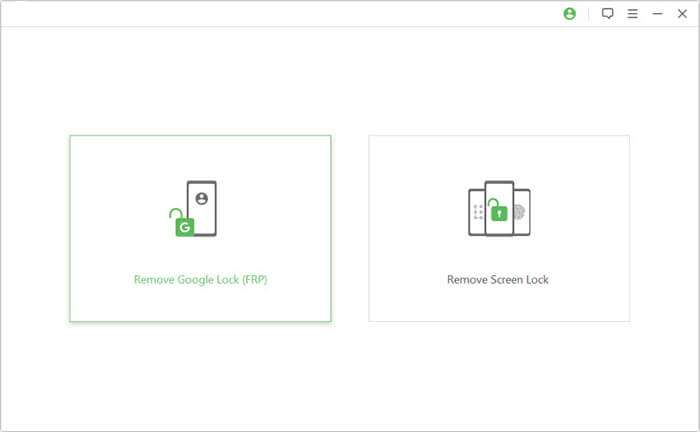
03Follow the on-screen prompts to choose your device brand and Android version. After confirming the correct information, click "Start" to move forward.
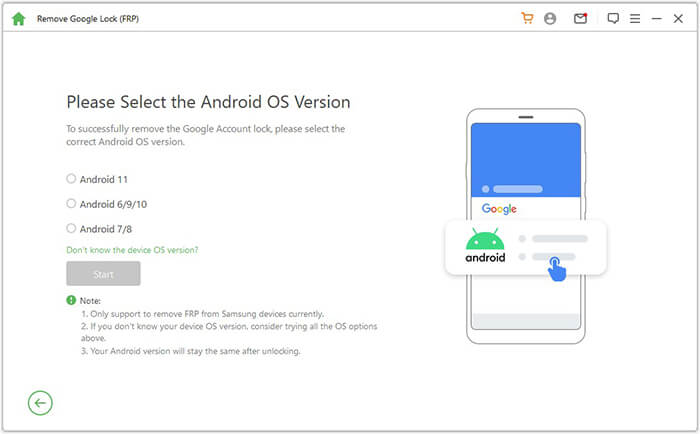
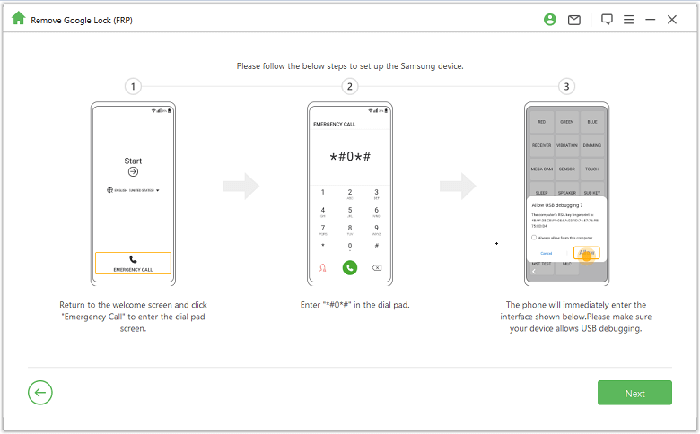
04Continue by following the instructions displayed on the screen to complete the necessary setup on your device. The exact steps may vary depending on your phone model.
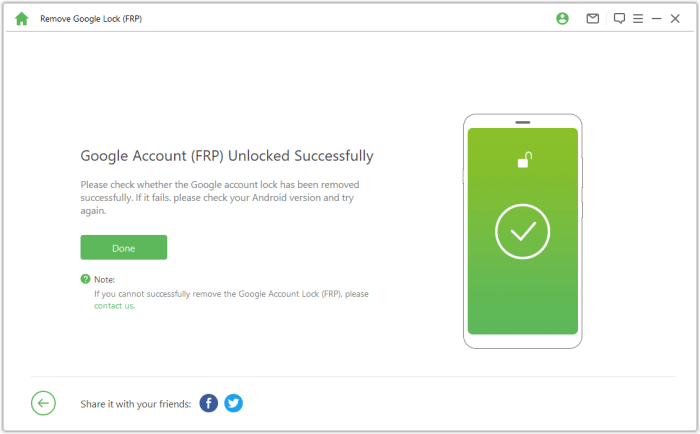
05The program will begin removing the FRP lock automatically. Keep the device connected during the process. Once finished, your phone may restart, indicating the lock has been successfully removed.
1. Does FRP bypass delete my data?
In most cases, yes. Since FRP appears after a factory reset, your data is usually already erased. Some professional tools may offer partial data-safe options for specific models, but results are not guaranteed. Therefore, please regularly back up your Android data if you do not want to lose it.
2. Will updating Android remove FRP lock?
No. Updating or downgrading the system does not remove FRP. The lock is tied to the Google account verification, not the Android version installed on the device.
3. Why does FRP bypass not work on my BLU phone?
FRP bypass methods may fail due to different reasons, such as newer Android security patches, device model differences, or outdated techniques. BLU phones with newer Android versions are especially hard to bypass using older methods.
BLU FRP bypass is mainly used to regain access to a device that is stuck on Google verification after a factory reset. This issue is caused by Factory Reset Protection, a built-in Android security feature designed to prevent unauthorized access.
In summary, you can unlock a BLU phone through different methods depending on your situation, such as Google account recovery or other workaround solutions. If these methods are not suitable, using a professional tool like Android Unlocker can also help simplify the process on supported devices and restore access more efficiently.
Related Articles:
How to Bypass FRP with ADB Commands and Other Android Unlock
How to Remove Google FRP Lock on Any Phone [3 Solutions]
6 Hot Tips to Bypass Google Account Verification after Reset [NEW]
7 Effective Samsung FRP Tools in 2026 [98% People Don't Know]




 Free Download for PC


