TL;DR:
The "Google Account Action Required" message often appears when there is an issue with your Google account verification, synchronization, or device settings. This guide explains why this notification appears and shares effective ways to fix it, including checking account settings, updating Google services, and removing or re-adding your account.
"I keep getting 'Account Action Required' on my phone for a Gmail address I've deleted. I've tried reinstating the account and deleting it again (on my PC), but nothing works".
- From Google Community
If you've ever seen the "Google Account Action Required" notification on your Android phone, you're not alone. This alert can interrupt app updates, syncing, and other essential services, making your device feel unreliable.
The good news is that this issue is usually easy to fix once you understand what's causing it. In this guide, we'll explain what the message means, why it appears, and walk you through practical solutions to resolve it quickly.
"Google Account Action Required" is a system-generated alert from Google Play Services and the Android operating system. It indicates that your device is unable to properly authenticate or sync with your linked Google account due to an underlying issue. In simple terms, the connection between your Android device and Google's servers has been interrupted, and manual action is required to restore it.
This notification is more than just a minor annoyance. It usually means that essential Google services are temporarily unavailable on your device. For example, you may not be able to download apps from the Play Store, sync contacts, calendars, or emails, use Google Pay, or access other Google features. Until the issue is resolved, your Google account may remain partially or completely unusable on that Android device.
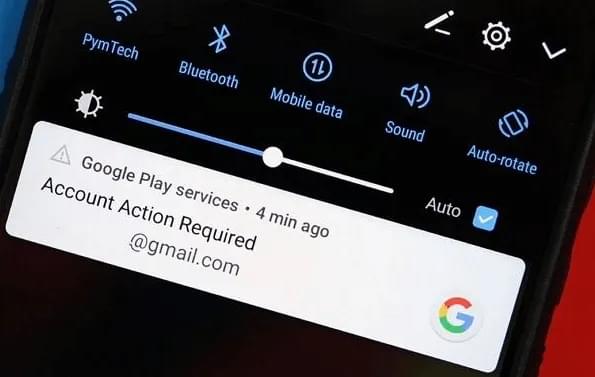
The "Google Account Action Required" notification can appear for several common reasons:
Below are effective methods to fix this issue. Follow them one by one until the problem is resolved.
Corrupted cache files in the Google Play Store can sometimes cause authentication issues. Clearing the cache is safe and won't remove your apps or personal data.
Step 1. Open the Settings app on your Android device.
Step 2. Go to "Apps & Notifications" (or Manage Apps) and tap "See All Apps".
Step 3. Scroll down and select "Google Play Store".
Step 4. Tap "Storage & Cache", then select "Clear Cache".
Step 5. Restart your device and check if the issue is fixed.
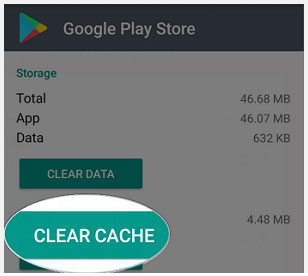
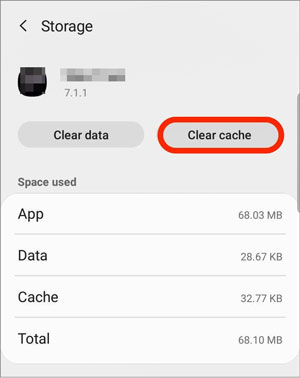
Google Play Services plays a key role in syncing your Google account. If its cache is corrupted, it may trigger the error.
Step 1. Open Settings and go to "Apps & Notifications" > "See All Apps".
Step 2. Find and tap "Google Play Services" (you may need to check "System Apps").
Step 3. Tap "Storage & Cache", then select "Clear Cache".
Step 4. Restart your phone and test if your Google account works normally.
Re-adding your Google account can refresh the connection and fix most sign-in or sync problems.
Step 1. Go to "Settings" > "Accounts" (or Passwords & Accounts).
Step 2. Select your Google account from the list.
Step 3. Tap "Remove Account" and confirm (this won't delete your account permanently).
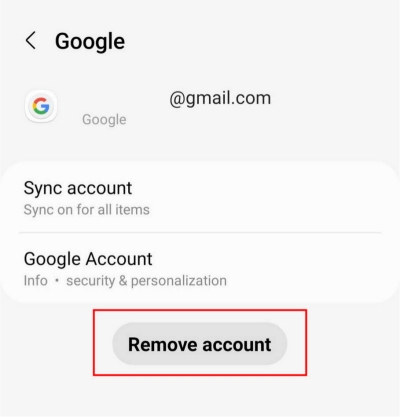
Step 4. Go back and tap "Add Account" > "Google".
Step 5. Sign in again using your correct email and password.
Sometimes the notification is just a system glitch. Resetting notifications can help remove "Google Account Action Required".
Step 1. Open "Settings" > "Apps" and select "Google Play Services".
Step 2. Tap "Notifications".
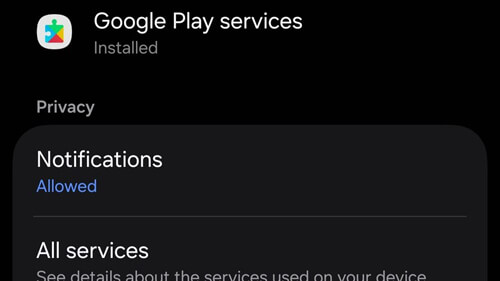
Step 3. Turn off all notifications, wait about 30 seconds, then turn them back on.
Step 4. Check if the "Action Required" notification disappears.
If your password has been changed, you need to update it on your device to restore access.
Step 1. Go to "Settings" > "Accounts" and select your Google account.
Step 2. Tap "Account Settings" (or the menu icon) and choose "Password".
Step 3. Enter your updated password and confirm. Wait a moment for the device to sync with Google servers.
A problematic Play Store update may cause compatibility issues. Reverting it can help.
Step 1. Go to "Settings" > "Apps" > "Google Play Store".
Step 2. Tap the three-dot menu in the top-right corner.
Step 3. Select "Uninstall Updates" and confirm.
Step 4. Open the Play Store again and allow it to update automatically if needed.
If none of the above methods work, a factory reset can fix deeper system issues. This should be your last option.
Step 1. Back up all important data such as photos, contacts, and files.
Step 2. Go to "Settings" > "System" > "Reset" (path may vary by device).
Step 3. Tap "Factory Data Reset" or "Erase All Data".
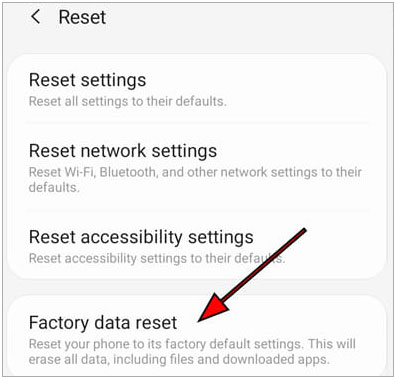
Step 4. Confirm with your PIN or password and wait for the process to complete.
Step 5. Set up your device again and sign in with your Google account.
If you're stuck with the "Google Account Action Required" error and no longer remember your password, standard methods like re-signing or syncing won't work. In this situation, using a professional FRP removal tool can be a practical solution.
One reliable option is Android Unlock, which is designed to remove Google account locks from Android devices without requiring the original credentials.
Key features of Android Unlock:
Below is how to use the tool to fix the issue using the standard removal mode:
01Download and install Android Unlock on your computer, then launch the program.
02From the main interface, select "Remove Google Lock (FRP)", and connect your Android device to the computer using a USB cable.
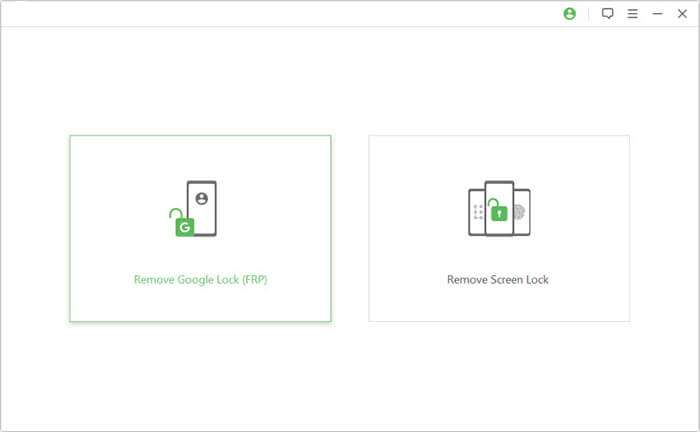
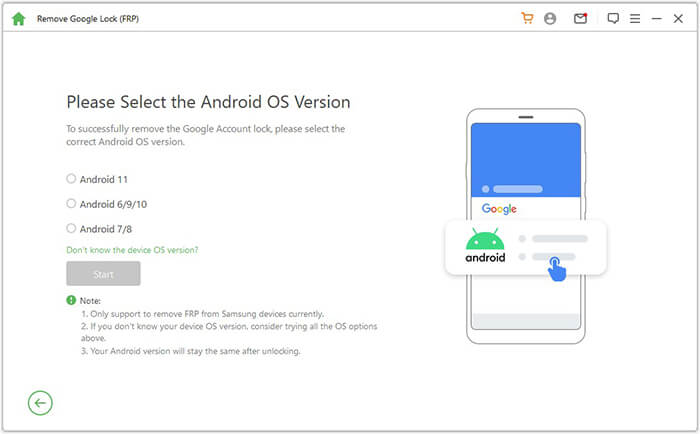
03Choose your device's Android version as prompted, then click "Start" to continue.
04Follow the on-screen instructions to configure your device. The software will guide you through the necessary setup steps.
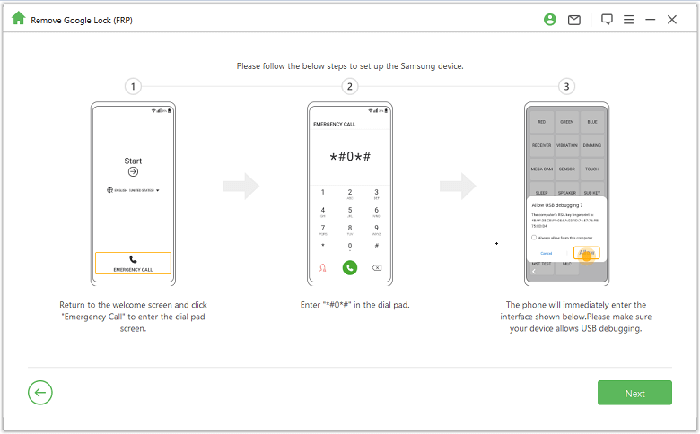
05Wait while the program removes the Google account lock. During this process, avoid disconnecting or using your phone.
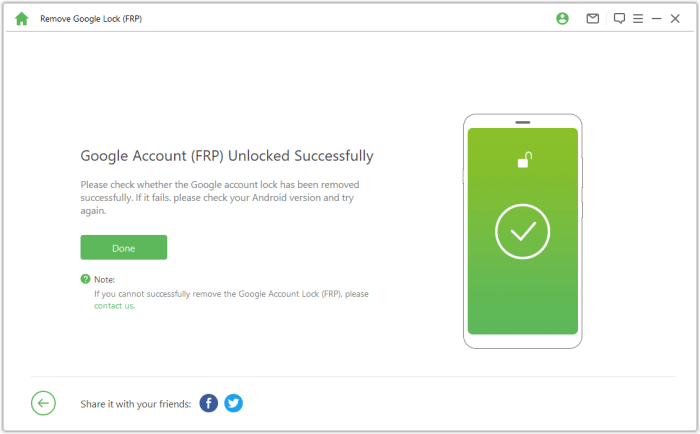
Once the process is complete, your device may briefly flash or restart. After rebooting, the Google account lock will be removed, and you can set up your device without encountering the "Action Required" issue.
The "Google Account Action Required" notification is usually caused by sync errors, outdated credentials, or security-related restrictions. In most cases, simple fixes like clearing cache, updating your password, or re-adding your account can quickly restore normal functionality.
However, if you're locked out of your account and can't remember the password, the issue becomes more difficult to resolve using standard methods. In that case, a professional tool like Android Unlock can help you remove the Google account lock and regain full access to your device.
By following the methods in this guide, you should be able to eliminate the error and get your Android device back to working smoothly.
Related Articles:
[5 Ways] How to Remove Google Account from Samsung Without Password
6 Hot Tips to Bypass Google Account Verification after Reset [NEW]
How to Bypass Google Account on Samsung? 5 Effective Ways for You
Google FRP Bypass - A Comprehensive How-to Guide with 6 Top Picks




 Free Download for PC


