TL;DR:
If your Motorola phone is stuck on the FRP verification screen after a factory reset, you can try several ways to regain access, including signing in with the linked Google account, recovering the account credentials, or using an Emergency Call method on some older models. This guide also covers how to remove a Motorola screen lock when you cannot access the device.
Factory Reset Protection (FRP), developed by Google, is a critical security feature for Android devices, including Motorola. Activated automatically when you sign in to a Google account on devices running Android 5.1 or later, FRP prevents unauthorized access by requiring the original Google account credentials after a factory reset. While this feature effectively safeguards your device from theft, it can also lock out legitimate owners who forget their account details or purchase second-hand Motorola devices without knowing the previous owner's Google credentials.
If you're stuck on the Motorola FRP verification screen, this guide will walk you through all feasible methods to achieve Motorola FRP bypass, along with a bonus section on removing screen locks. It's important to note that FRP bypass should only be performed on devices you legally own to comply with local laws and user agreements.
If you still remember the Google account credentials (email and password) associated with your Motorola device, bypassing FRP is straightforward. This method is the official and most secure way, as it leverages Google's account verification system directly. It works for all Motorola models running any Android version that supports FRP. Here is how it works:
Step 1. After performing a factory reset, turn on your Motorola device and follow the initial setup process (select language, connect to Wi-Fi, etc.) until you reach the FRP verification screen, which asks you to sign in with the Google account previously associated with the device.
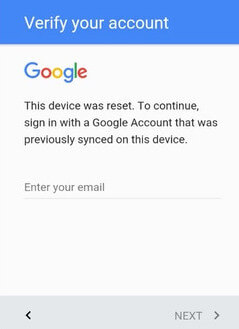
Step 2. Enter the correct Google email address linked to the phone, then tap "Next".
Step 3. Input the corresponding password for that Google account. Make sure it is typed correctly, including uppercase letters, lowercase letters, and any special characters.
Step 4. Tap "Next" to verify the account. Once the verification is successful, the FRP lock will be removed, and the setup process will continue.
Finish the remaining setup steps, such as creating a new screen lock or adding user information, to regain full access to your Motorola device.
If you encounter issues with account verification (e.g., "Account not recognized"), ensure you're using the exact Google account that was signed in before the factory reset. Avoid using alternative accounts, as FRP only accepts the original synced account.
If you can't remember the Google account email or password linked to your Motorola device, you can use Google's official account recovery system to restore access. Once the account is recovered, the FRP lock can be removed by signing in again.
This method requires a linked phone number or recovery email and works on almost all Motorola models. It is also much safer and more reliable than using third-party bypass tools.
Step-by-step instructions:
Step 1. Turn on your Motorola phone and go through the setup process until you reach the FRP verification screen.
Step 2. If you remember the email but forgot the password, enter the email address and tap "Next", then select "Forgot password?" on the password screen.
Step 3. If you forgot the email, tap "Forgot email?" below the email input box on the FRP screen.
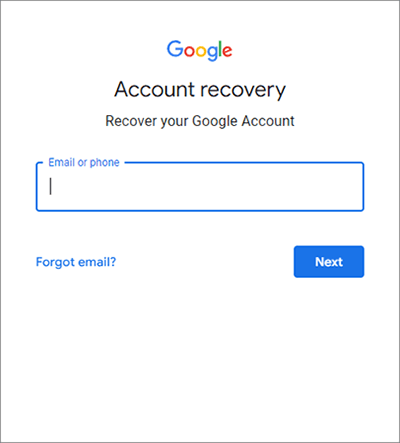
Step 4. Follow Google's account recovery instructions:
Step 5. After your identity is verified, create a new password that meets Google's security requirements.
Step 6. Return to your Motorola phone and enter the recovered email address and new password on the FRP screen. Once verified, continue the setup process to remove the FRP lock and regain full access to your device.
On some older Motorola devices running Android 6 to Android 8, it may be possible to bypass FRP using a system loophole accessed through the Emergency Call screen. This method allows you to reach system settings and add a new Google account, which can remove the FRP lock.
Here are the steps to achieve Motorola FRP bypass:
Step 1. Turn on your Motorola phone and proceed to the FRP verification screen.
Step 2. Tap "Emergency Call" at the bottom of the screen.
Step 3. Dial *#*#4636#*#* (on some models, other codes may be required). If successful, this will open a hidden system menu.
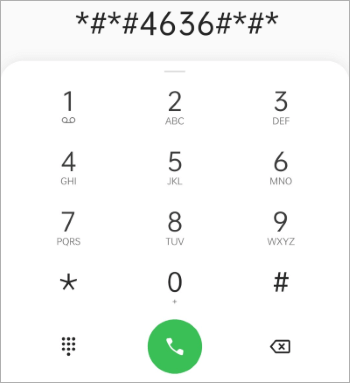
Step 4. From the menu, try to access Usage statistics, Settings, or Device information.
Step 5. Navigate to "Settings" > "Accounts" > "Add account" > "Google".
Step 6. Sign in with a new or existing Google account and restart the phone.
Step 7. After rebooting, go through the setup wizard again. The FRP screen should now be skipped, or accept the newly added Google account.
If your Motorola phone is locked by a PIN, pattern, password, fingerprint, or face lock, you can use professional Android unlocking software to regain access. One reliable option is Android Unlock, which is designed to remove different types of Android screen locks quickly and easily.
Android Unlock also supports Google FRP removal, but this feature currently works only on Samsung, Xiaomi, and Redmi devices. Motorola FRP unlocking is not supported yet, so this tool is mainly recommended for Motorola users who are locked out due to a screen lock rather than FRP.
Note: When using the screen lock removal mode, all data on the device will be erased. So, back up your Motorola before removing the lock.
How to remove the Motorola screen lock with Android Unlock?
01Download and install Android Unlock on your computer.
02Launch the program and connect your Motorola phone to the computer using a USB cable. Then, select "Remove Screen Lock", and click "Start" to begin.
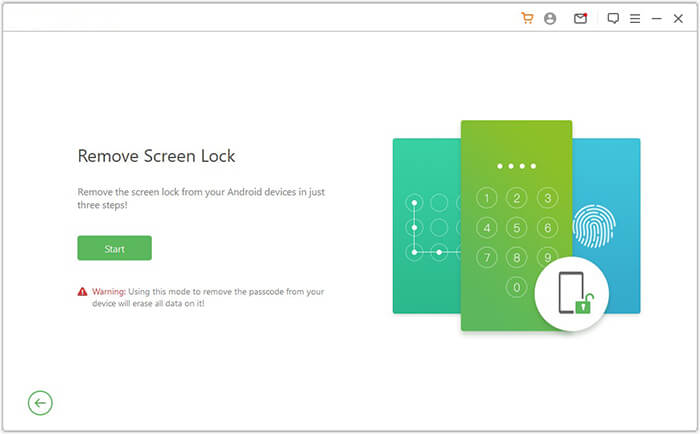
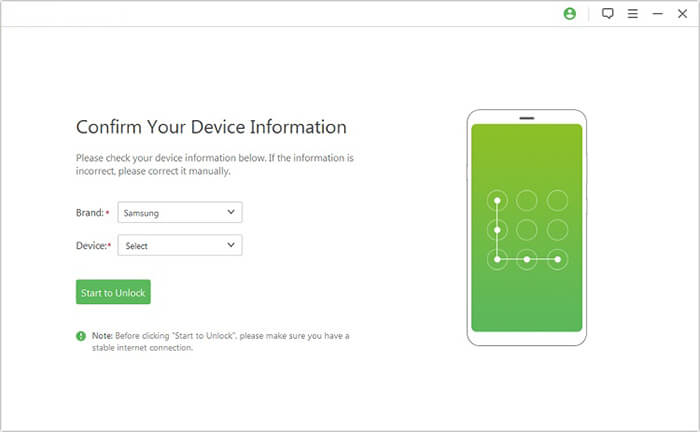
03The software will automatically detect your device and load its information. Confirm that the displayed details are correct, then click "Start to Unlock". If anything is incorrect, you can manually modify it.
04Wait while the program downloads the required data package and sends it to your device.
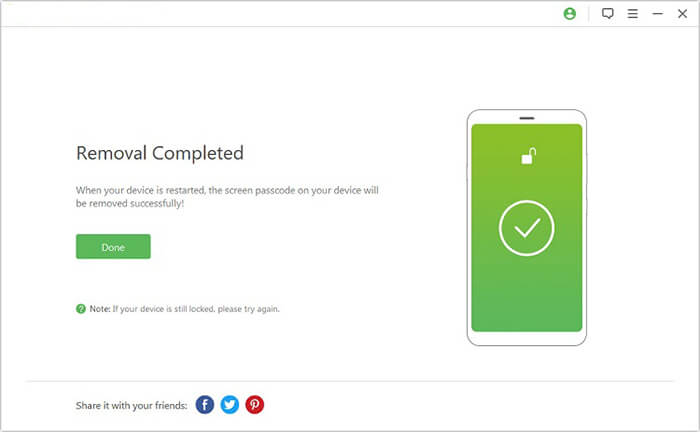
05Follow the on-screen instructions to reset your Motorola phone. Once the process is complete, the screen lock will be removed, and you can access your device again.
Motorola FRP Bypass is not as complicated as it may seem. If you still remember your Google account, signing in directly is the fastest way to remove the FRP lock. If the account details are lost, Google's official recovery system provides a safe and reliable way to restore access. For older Motorola models, the Emergency Call method may also work in certain situations.
However, if your Motorola phone is locked by a screen password, pattern, or fingerprint instead of FRP, Android Unlock is a practical solution worth trying. It allows you to remove different types of Android screen locks in just a few steps, helping you quickly regain control of your device. By using the right Motorola FRP bypass or unlock method, you can get your phone back up and running without unnecessary hassle.
Related Articles:
Top 11 FRP Bypass Tools for Android: Unlock Your Device Easily
How to Unlock Motorola Phone Password Without Factory Reset Easily
How to Bypass FRP with ADB Commands and Other Android Unlock
Google FRP Bypass - A Comprehensive How-to Guide with 6 Top Picks




 Free Download for PC


