TL;DR:
The TalkBack method is often used in some Samsung FRP bypass processes, but it may stop working due to system updates, security changes, or other issues. Here are the key points to know:
Samsung FRP (Factory Reset Protection) is a security feature designed to prevent unauthorized access after a factory reset. During some Samsung FRP bypass processes, users may rely on TalkBack, Android's built-in accessibility feature, to access certain settings or follow specific steps.
However, many users find that the Samsung FRP Bypass TalkBack is not working on their devices. The TalkBack shortcut may not respond, the accessibility menu may not appear, or the previous bypass steps may fail completely. This usually happens because Samsung and Google have introduced stronger security protections and changed how accessibility features work on newer Android versions.
If you are facing this issue, don't worry. This guide explains why TalkBack may fail during Samsung FRP bypass, how to troubleshoot common problems, and what alternatives you can try when the TalkBack method is no longer available.
The TalkBack method is commonly used in some Samsung FRP bypass processes, but it may stop working on certain devices. This usually happens because of system updates, security improvements, or changes to accessibility settings.
The main reasons include:
Before trying alternative FRP bypass solutions, you can first troubleshoot the TalkBack issue. Try the following fixes to see whether the TalkBack method can work again.
A stable internet connection is important during many Samsung FRP bypass processes. Some steps require accessing online services or loading specific pages, and an unstable network may prevent TalkBack-related actions from working properly.
If your Samsung phone is connected to a weak or restricted network, TalkBack may fail to respond, or certain options may not appear. Try switching to another network and then repeat the process.
You can try the following:
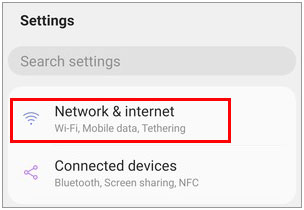
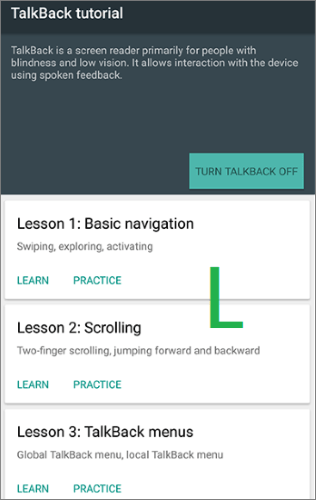
The way to activate TalkBack is not the same on every Samsung device. Depending on your phone model, Android version, and One UI version, the available accessibility shortcuts may have changed.
If you are following an older FRP bypass guide, the TalkBack shortcut mentioned there may no longer apply to your device. Trying different activation methods can help determine whether the issue is caused by an incorrect shortcut.
Try these methods:
If none of these methods work, your device may not support the TalkBack-based FRP bypass method anymore.
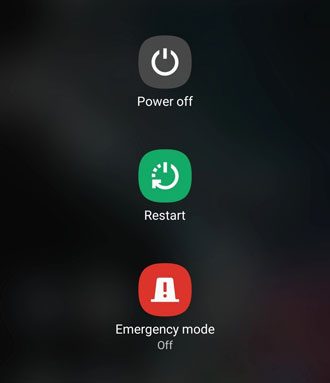
Sometimes, TalkBack may not work because of a temporary system glitch during the initial setup process. Restarting your Samsung phone can refresh system services and reload accessibility features that may not have started correctly.
Although this is a simple solution, it is worth trying before moving on to more complicated methods.
Follow these steps:
TalkBack depends on Android accessibility services to function properly. If these components contain bugs or are outdated, they may affect how TalkBack responds during certain processes.
If you can access your device before the FRP lock occurs, updating the accessibility components may help improve compatibility.
To update Android Accessibility Suite:
If TalkBack still does not work after troubleshooting, you can consider other options. The best choice depends on whether you still have access to the original account and your device situation.
The most reliable way to remove the FRP lock is to sign in with the Google account that was previously used on the Samsung device. Since FRP is linked to the Google account synced before the factory reset, recovering that account is the official method recommended by Google.
This option is suitable if you forgot your Google password, cannot remember your login details, or recently changed your account information. Once the account is recovered and verified, you can use it to complete the device setup without relying on TalkBack or other bypass methods.
Steps to recover your Google account:
Step 1. Open Google's account recovery page on another phone or computer.
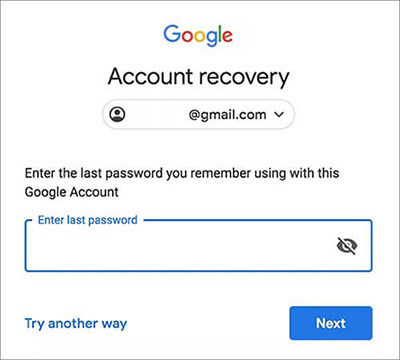
Step 2. Enter the Gmail address or phone number associated with your Samsung device.
Step 3. Follow the on-screen instructions to verify your identity, such as confirming a recovery email, phone number, or previous password.
Step 4. Create a new password after successful verification.
Step 5. Turn on your Samsung phone and connect it to Wi-Fi.
Step 6. When the FRP verification screen appears, enter the recovered Google account information.
Step 7. Complete the setup process after the account is successfully verified.
When the TalkBack method fails and you cannot access the original Google account, using a professional FRP bypass tool can be a simpler option. Unlike manual methods that depend on specific system vulnerabilities or accessibility shortcuts, dedicated FRP tools provide guided instructions and automatically adapt the process based on your Samsung model and Android version.
Android Unlock is one such tool that helps remove Google FRP locks on supported Samsung devices without requiring the previous Google account password. Besides FRP removal, it can also unlock various Android screen locks, including PIN, pattern, password, fingerprint, and face recognition.
Key features of Android Unlock:
How to remove Samsung FRP with Android Unlock?
01Download and install Android Unlock on your computer, then launch the program.
02From the main interface, select "Remove Google Lock (FRP)" and connect your Samsung phone to the computer using a USB cable.
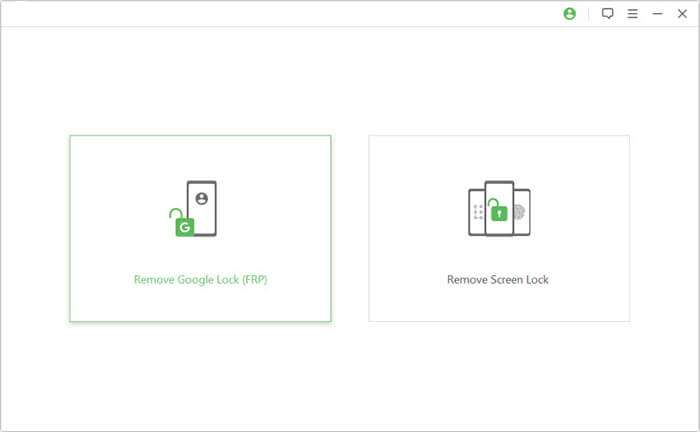
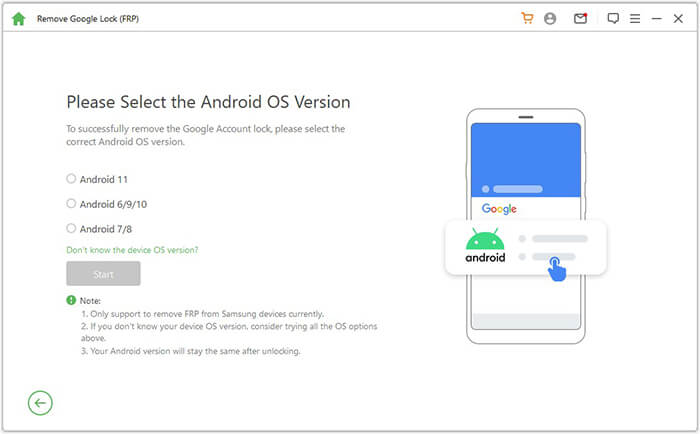
03Follow the on-screen instructions to select your device information and Android version, then click "Start" to begin the process.
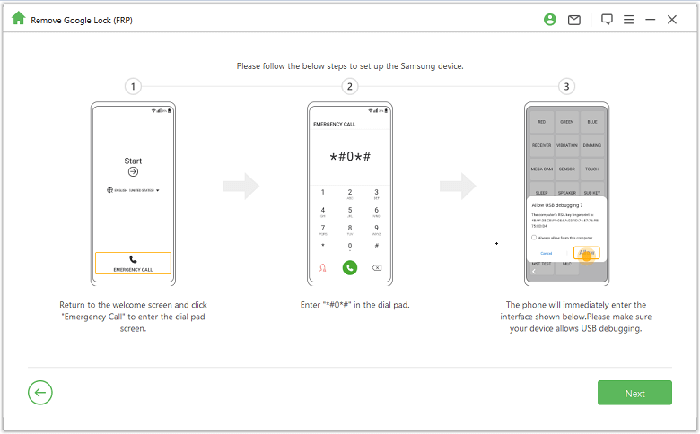
04Follow the guided steps displayed in the program to configure your Samsung phone and prepare it for FRP removal.
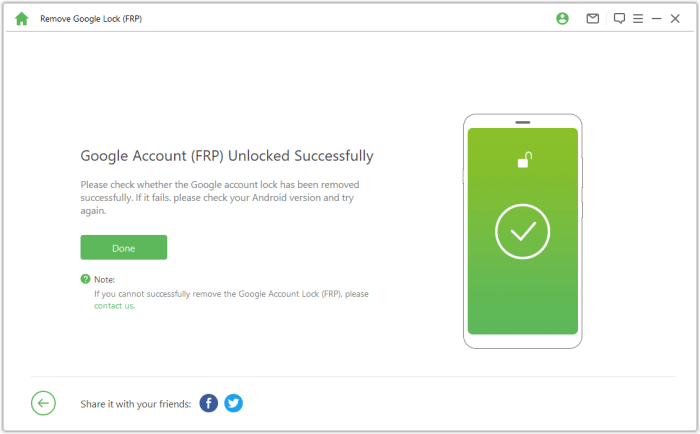
05Wait for the process to complete. During this time, avoid disconnecting your device or using your phone. Once the Google FRP lock is removed, restart your Samsung device and complete the setup process.
If your Samsung phone belongs to you but you cannot access the previously synced Google account, contacting Samsung Support is another safe option. This is especially useful for newer devices where older FRP methods may no longer work because of updated security protections.
Samsung may ask for proof of ownership before assisting. This helps ensure that FRP protection is not removed from devices that do not belong to the requester.
Steps to contact Samsung support:
Step 1. Prepare your device information, including the model number and IMEI number.
Step 2. Gather proof of purchase, such as an invoice or receipt.
Step 3. Visit the official Samsung Support website or contact a nearby Samsung service center.
Step 4. Explain that your device is locked by FRP after a factory reset.
Step 5. Provide the requested ownership information for verification.
Step 6. Follow the instructions provided by Samsung support to restore access to your device.
When Samsung FRP Bypass TalkBack is not working, the issue is usually related to outdated methods, Android updates, changed accessibility settings, or stronger FRP security protections. Firstly, you can check your network connection, try different TalkBack activation methods, restart your device, or update accessibility components.
If the TalkBack method still fails, there are other options available. Recovering the original Google account remains the official and safest approach. For users who cannot access their account, a professional tool like Android Unlock can provide a more convenient solution on supported Samsung devices. If you are the device owner but cannot resolve the issue, contacting Samsung Support with proof of ownership is also a reliable choice.
Related Articles:
Google FRP Bypass - A Comprehensive How-to Guide with 6 Top Picks
How to Bypass Google Account on Samsung? 5 Effective Ways for You
How to Bypass FRP with ADB Commands and Other Android Unlock




 Free Download for PC


