TL;DR:
VG Tool is designed for Android repair and unlocking tasks, especially for bypassing FRP locks on supported devices. Before using it, it is important to understand its features, supported models, technical requirements, and potential limitations. This review walks you through how VG Tool works, whether it is worth trying, and what other options are available if it does not meet your needs.
Factory Reset Protection (FRP) is a security feature introduced by Google to prevent unauthorized use of Android devices after a factory reset. While it effectively protects personal data if a phone is lost or stolen, it can also become a major obstacle when users forget the Google account credentials previously linked to the device. In such cases, the phone may remain locked and impossible to activate after a reset.
VG Tool has emerged as a popular Android unlocking solution designed to address this issue. Known for its relatively simple operation and broad device compatibility, it is widely used for FRP bypass tasks, especially on Samsung smartphones and tablets. In this article, we will walk you through a complete guide to VG Tool, covering its overview, download and setup process, practical usage for FRP bypass, and recommend an alternative.
VG Tool is a Windows-based device unlocking utility primarily designed for bypassing FRP and removing screen locks on Android devices. In addition to its core unlocking functions, it also supports flashing and servicing operations for multiple Android brands. Due to its relatively simple operation and broad functionality, VG Tool is widely used in the mobile phone repair industry as well as by ordinary users who need to regain access to locked devices.
VG Tool focuses on Android unlocking and flashing operations. While features may vary slightly across different versions, its core capabilities generally include the following:
The primary function of VG Tool is to bypass Google FRP verification after a factory reset. It helps users reactivate devices, especially Samsung phones, when the original Google account credentials are forgotten.
VG Tool supports removing various screen locks, including pattern locks, PIN codes, and passwords, without requiring the original credentials.
VG Tool integrates several service modes, including Qualcomm 9008 (EDL) mode, MediaTek BROM mode, and Fastboot mode. It also provides brand-specific unlocking and flashing features, such as OPPO and Huawei service functions, as well as Samsung MTP, ADB, and CSC flashing options.
Some versions of VG Tool include built-in USB drivers for Samsung and other devices, eliminating the need for manual driver installation. Certain versions also support offline operation, making them suitable for environments with limited or unstable internet access.
VG Tool offers relatively broad device compatibility, with particularly strong support for Samsung devices. Its supported range generally includes:
VG Tool works with many Galaxy S, Note, A, and J series models, covering both mid-range and flagship devices. It typically supports Android versions from Android 6 to Android 13, while support for Android 14 and later versions is limited due to stricter security patch restrictions.
Devices from Xiaomi, OPPO, vivo, Huawei, and realme using MediaTek or Qualcomm chipsets may be supported, depending on whether the required flashing or unlocking modes (such as Qualcomm 9008 or MediaTek BROM) are available.
VG Tool only runs on Windows systems (Windows 7, 8, 10, and 11) and usually requires administrator privileges. The Android device must support basic connection modes such as Download Mode or Fastboot Mode, and be connected using a functional USB cable.
VG Tool does not follow a single, unified pricing model. Whether it is free or paid depends largely on the version and distribution source.
Some versions, such as VG Tool 3.6 or 4.1, can be found online for free. These releases are often distributed through third-party websites and may include key generators or cracked activation files. However, such versions are not officially released, may have limited functionality, and pose potential security risks, including malware or system instability.
Licensed versions obtained from official or authorized channels generally offer better security and stability, with certain advanced features requiring paid activation. It is also important to note that similarly named "VG" software used in genomic or transcriptome analysis is a completely different paid product and should not be confused with Android unlocking tools.
Note: Using unofficial free versions is not recommended, as they may expose your device or computer to malware, data leakage, or even cause permanent device damage.
To better understand whether VG Tool is suitable for your specific needs, it is important to take a balanced look at its strengths and limitations.
Pros
Cons
To ensure a safe and smooth installation, it is important to download and set up VG Tool carefully. Follow the steps below to complete the process.
Step 1. Prepare Your Computer and Equipment
Make sure your Windows computer is running with administrator privileges. Some antivirus programs may mistakenly identify unlocking tools as potential threats, so temporarily disabling real-time protection can help prevent installation issues. Back up important data on your computer in advance to avoid unexpected risks. Prepare a working USB cable and, if necessary, download the official USB drivers for your device as a backup.
Step 2. Download VG Tool from a Reliable Source
Download VG Tool from reputable sources. Stable releases like VG Tool 4.1 are generally recommended. Avoid unknown links or third-party file-hosting platforms to reduce the risk of malware or corrupted files. If the selected version requires activation, ensure that the activation method is obtained from a legitimate source.
Step 3. Extract and Install the Tool
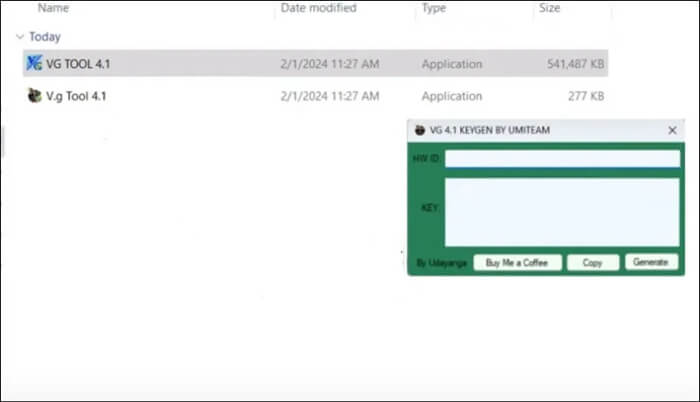
Extract the downloaded archive to the root directory of the C drive. This is important because some versions of VG Tool may not function properly if installed in other locations. Open the extracted folder and run the executable file (for example, "VG 4.1.exe"), then follow the on-screen instructions to complete the installation.
Step 4. Launch and Activate VG Tool
After installation, open VG Tool and complete the activation process if required. Enter the necessary license or activation information as prompted to gain access to the full interface and features.
To bypass the FRP lock on a Samsung device using VG Tool, it is important to follow each step carefully and ensure the device is placed in the correct mode throughout the process.
Step 1. Boot the Samsung Device into Download Mode
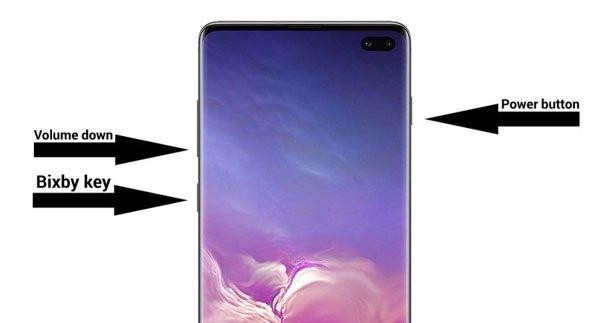
Power off the Samsung device completely. Press and hold "Volume Down" + "Power" + "Home" at the same time. For newer models without a physical Home button, use "Volume Down" + "Power" + "Bixby" instead. When the warning screen appears, press "Volume Up" to confirm and enter Download Mode.
Step 2. Connect the Device to the Computer
Use a USB cable to connect the Samsung device in Download Mode to the computer where VG Tool is installed. The tool should automatically detect the device model and Android version. If the device is not recognized, check the USB cable, installed drivers, and whether the device is in the correct mode.
Step 3. Launch the FRP Bypass Function
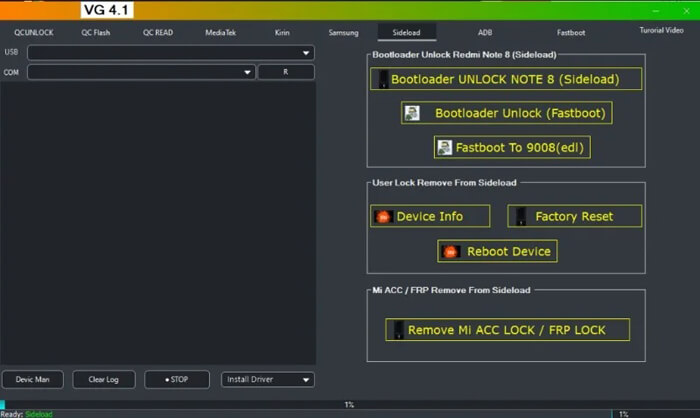
Open VG Tool and select the appropriate function, such as "FRP Lock" or "FRP Bypass", from the main interface. Follow the on-screen instructions provided by the tool to proceed.
Step 4. Wait for the Process to Complete
The FRP bypass process usually takes around 3 to 5 minutes. During this time, do not disconnect the USB cable, close the program, or restart the device, as doing so may cause the process to fail or potentially damage the device. Once the tool displays a success message, the phone will reboot automatically.
Considering the limitations of VG Tool, such as restricted compatibility with newer Android versions and the high security risks associated with unofficial releases, a more stable and reliable alternative is recommended. Android Unlocker is a professional Android unlocking solution developed by a well-known brand. With officially maintained security, broad device compatibility, and a user-friendly interface, it is widely trusted for FRP bypass and screen lock removal tasks, making it a suitable choice for users who value ease of use and data safety.
Key features of Android Unlocker
Follow the steps below to bypass the Samsung FRP lock using VG Tool alternative in Standard Mode:
01Download the alternative by clicking the button below and completing the installation on your computer. Launch the program after installation.
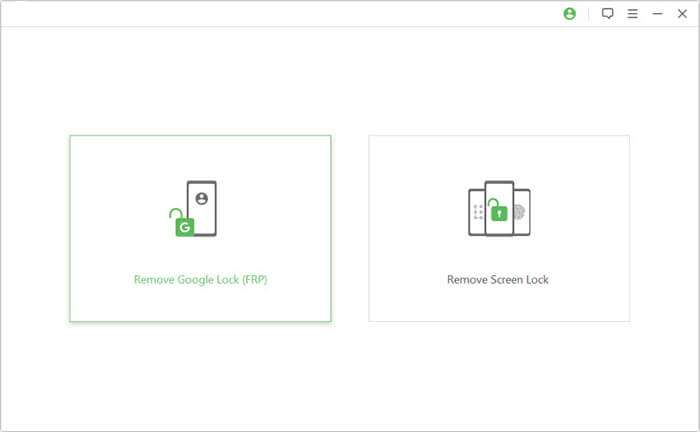
02On the main interface, choose "Remove Google Lock (FRP)". Connect the Samsung device you want to unlock to the computer using a USB cable.
03Follow the on-screen instructions to select the correct Android version for your Samsung device, then click "Start" to continue.
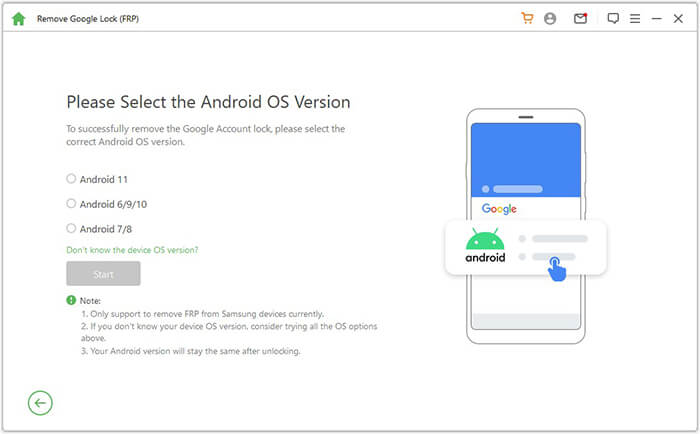
04Carefully follow the step-by-step guidance displayed on the screen to set up your Samsung phone as required by the program.
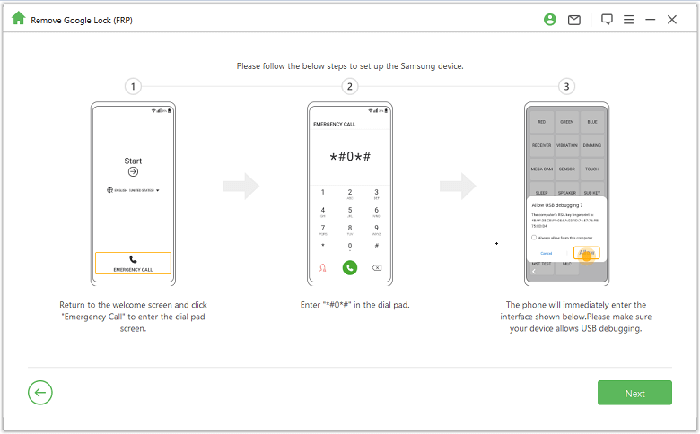
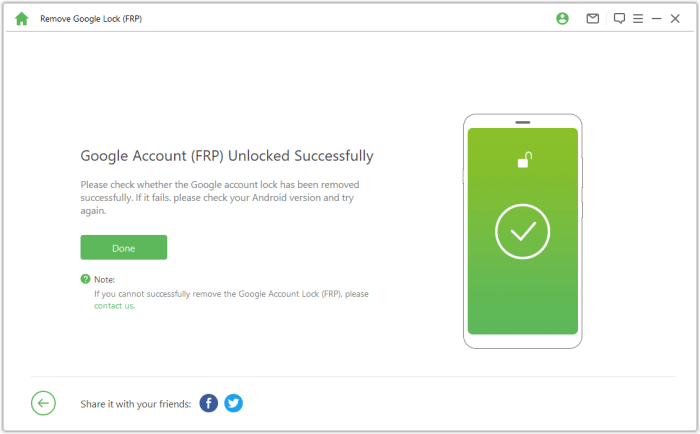
05Wait for a few minutes while the tool automatically removes the Google FRP lock. Do not use or disconnect the device during this process. Screen flickering after unlocking is normal. Once the process is complete, restart the device, and the Samsung FRP lock will be fully removed.
VG Tool is often searched as a free solution for Samsung FRP bypass, and it can still be effective on certain older Android devices under specific conditions. However, due to its limited support for newer Android versions, unstable success rates, and the security risks associated with unofficial downloads, VG Tool may not be the most reliable choice for all users.
For those seeking a safer and more efficient way to bypass Samsung FRP without complex manual operations, Android Unlocker is a strong alternative. It provides a more stable FRP removal experience and broader compatibility with modern Android systems. Ultimately, selecting the right FRP removal tool depends on your device model, Android version, and your tolerance for technical challenges and security concerns.
Related Articles:
7 Effective Samsung FRP Tools in 2026 [98% People Don't Know]
How to Bypass FRP with ADB Commands and Other Android Unlock
Unlock FRP with IMEI Free: What You Need to Know & Better Options




 Free Download for PC


