"Hi, I made a new Apple ID in 2021, but instead of using @icloud.com, I used @gmail.com and Apple validated it….I got locked out of it didn't have the email to recover it so I said oh well now I have the password to the email and since I forgot my Apple ID psw I tried to reset it by typing in the email I signed up with and it's saying user not valid but why when I still get billing subscriptions I even confirmed it was me by typing in my card info and since then it says my user isn't valid to reset my password APPLE HELP THAT APPLE LOGIN HAS ALL MY STUFF IN IT!"
- from Apple Community
Seeing the error message "Apple ID is not valid or supported" can be frustrating, especially when you're trying to sign in, download apps, update software, or use iCloud services. Why is your Apple ID not valid or supported? How to fix "this Apple ID is either not valid or not supported"? You can find the answer in this article. Let's look together.
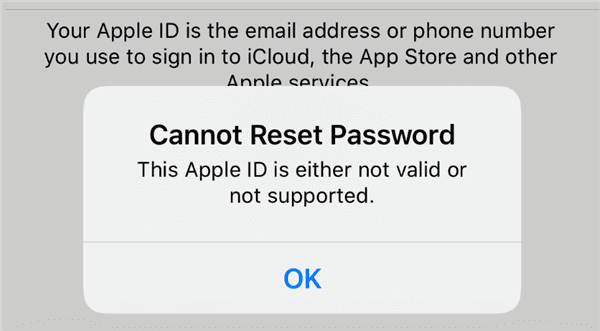
If you are facing the "Apple ID is not valid or supported" error, the possible reasons are as follows:
After you know the reasons for "cannot reset the password, this Apple ID is not valid or supported", here are 8 effective solutions you can try to fix it by yourself.
One of the most common reasons for the "Apple ID is not valid or supported" error is entering an incorrect Apple ID email address. This is the most basic step, yet it is often overlooked.
Go to "Settings" > Apple ID sign-in screen, and carefully check whether the email address is complete and spelled correctly. Make sure you are using the email address that was originally registered as your Apple ID.
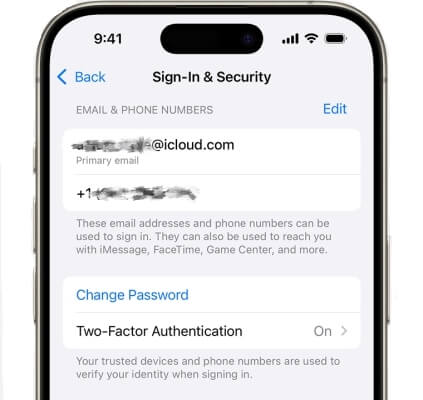
Another effective way to fix your Apple ID is not valid or supported issue is to sign out of your Apple ID and then sign back in. This process can help clear temporary glitches or unknown errors related to your Apple ID.
Follow the steps below to do so:
Step 1. Open "Settings" on your iPhone.
Step 2. Tap your name at the top, scroll to the bottom, and tap "Sign Out". (Can't sign out of your Apple ID?)
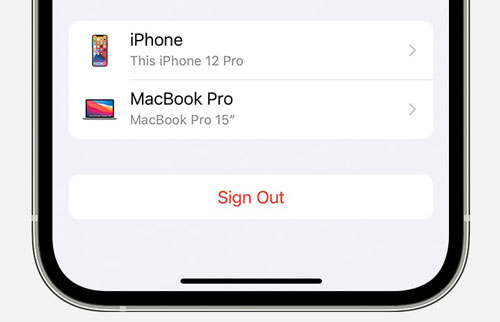
Step 3. Return to the same screen and tap "Sign In" to log back into your Apple ID.
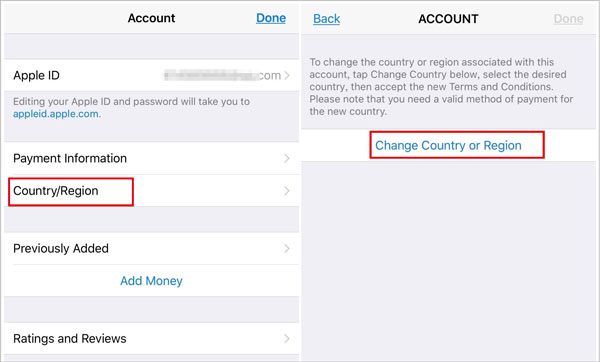
Apple IDs may be restricted by region depending on where the account was created or where the device is being used. If your Apple ID is set to a region where certain services are unavailable, you may encounter the Apple ID not valid issue—especially when traveling abroad. Updating your Apple ID to the correct region can help resolve this problem.
Follow the steps below:
Step 1. Open "Settings" on your iPhone/iPad.
Step 2. Tap "your name" > "Media & Purchases", then select "View Account".
Step 3. Tap "Country/Region" and choose a region where your Apple ID is supported.
Step 4. Follow the on-screen instructions to complete the region update.
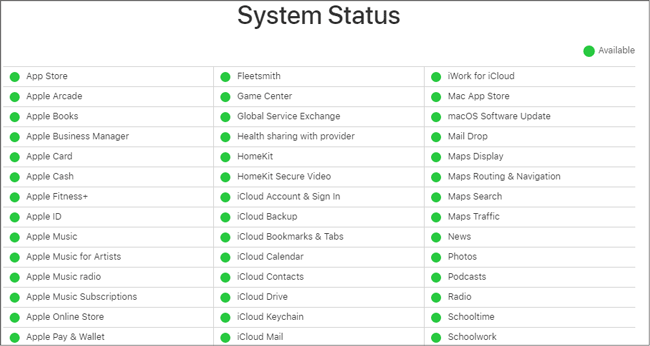
Apple's system status can occasionally experience temporary disruptions, which may affect Apple ID services. When this happens, users might encounter errors like an invalid Apple ID. It's a good idea to visit Apple's system status page to check for any ongoing outages or maintenance. If the servers are being repaired, you'll need to wait for the services to be restored.
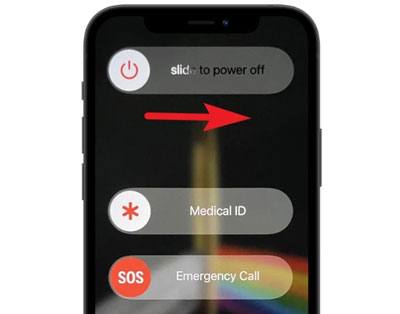
If you are still receiving the "Apple ID is not valid or supported" message, sometimes simply restarting your iPhone can restore your Apple ID to normal. To restart your iPhone, follow the steps below:
Step 1. Press and hold either "Volume" button together with the "Side" button until the power-off slider appears.
Step 2. Drag the slider to turn off your iPhone, then wait about 30 seconds.
Step 3. To power it back on, press and hold the "Side" button until the Apple logo appears.
Apple regularly releases iOS and iPadOS updates to fix bugs and improve performance. Outdated software can sometimes prevent your device from recognizing your Apple ID. To rule this out, make sure your iPhone or iPad is running the latest software.
Steps to update your device:
Step 1. Go to "Settings" > "General" > "Software Update". (iPhone software update failed?)
Step 2. If "Automatic Updates" is enabled, you'll see whether your device is already up-to-date.
Step 3. If a new update is available, tap "Update Now" to install the latest version.
Step 4. After updating, check your Apple ID to see if the invalid Apple ID issue has been resolved.

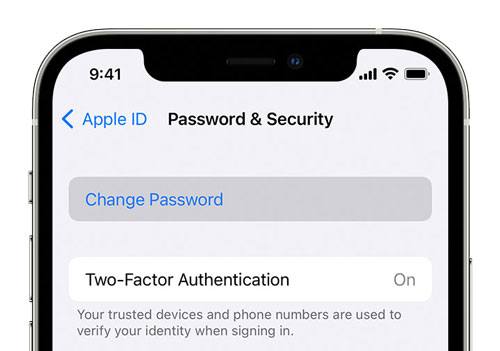
If you're still having trouble signing in, try resetting your Apple ID password. This can resolve the "this Apple ID is either not valid or not supported" error if it's caused by password issues.
To Reset Apple ID Password via Settings:
Step 1. On your iPhone or another trusted Apple device, open "Settings".
Step 2. Tap your name > "Sign-In & Security" > "Change Password", then follow the on-screen instructions to reset your Apple ID password.
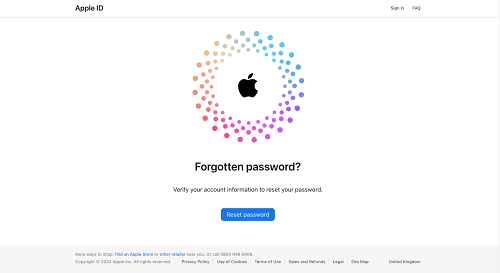
To Reset Apple ID Password on the Web:
Step 1. Open a browser on your phone or computer and go to the iForgot website.
Step 2. Click the "Reset Password" button on the main page.
Step 3. Enter your Apple ID email address or phone number, then tap "Reset My Password".
Step 4. Follow the on-screen instructions to complete the password reset.
If none of the above methods work, it's time to seek help. Visit support.apple.com, where you can chat, call, or schedule an appointment. Apple's support team can check your account and identify the issue. They may ask some security questions to verify your identity—this is normal. Just answer honestly, and they will guide you step by step to resolve the problem.
Although the steps above are usually effective, for some users, they can be a long and frustrating process. If you prefer a quick and efficient solution, the best option is to use third-party iOS unlock software, which can easily fix the "Apple ID not valid or supported" error in just a few minutes. iPhone Unlocker is one such tool. It allows you to unlock your Apple ID without a password, restoring access to all your services.
The main features of iPhone Unlocker:
* Fix Apple ID is not valid or supported in just a few steps.
* Quickly remove your Apple ID, Touch ID, and Face ID from your iPhone in just minutes.
* Unlock your iPhone, iPad, or iPod without a passcode.
* Effortlessly bypass all types of screen locks on iPhone, iPad, and iPod touch.
* Instantly remove MDM restrictions and profiles.
* Fully compatible with all iPhone models and iOS versions, including iPhone 17 and iOS 26.
Here's how to remove Apple ID from your iPhone without a passcode:
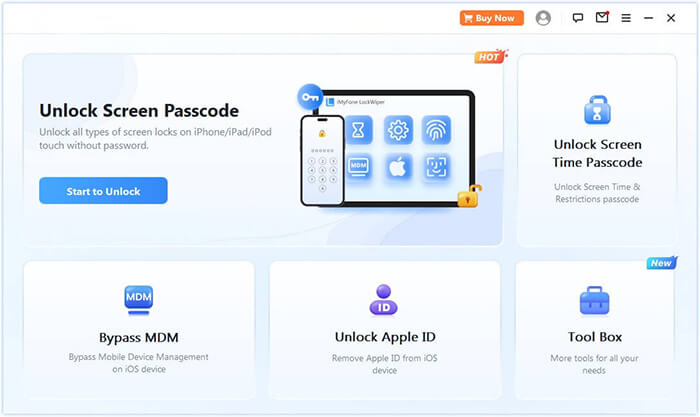
01Download and install iPhone Unlocker on your computer. Launch the program and select "Unlock Apple ID" on the main screen.
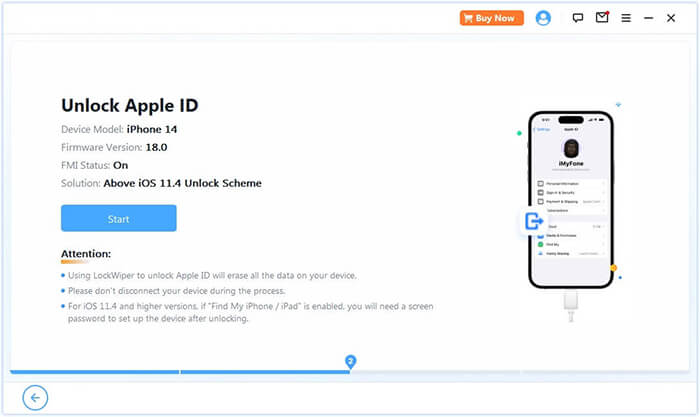
02Connect your iPhone to the computer. The program will detect your device automatically. Once detected, click "Start" to continue.
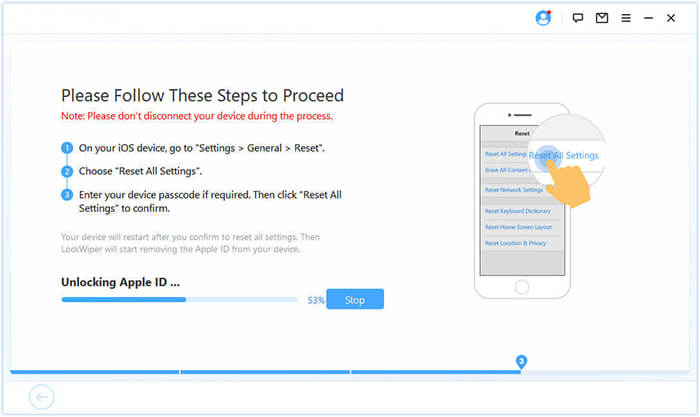
03If Find My iPhone is disabled, the program will start unlocking immediately. If Find My iPhone is enabled, go to Settings > General > Reset All Settings to disable it before proceeding. If Two-Factor Authentication is active, check your device status and click "Next". A confirmation pop-up will appear—enter "000000" and click Unlock to proceed.
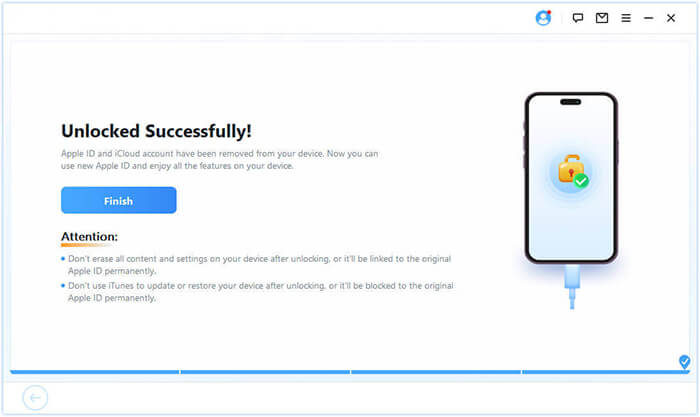
04Wait a moment while the program quickly unlocks your Apple ID without any issues.
In summary, this article explained why the "this Apple ID is not valid or supported" error occurs and shared 8 simple solutions. For most users, these methods work quickly, but if they don't, iPhone Unlocker provides a reliable way to unlock your Apple ID without a password and regain access to your device effortlessly. If you have any questions, feel free to leave a comment below.
Related Articles:
Cannot Create Apple ID at This Time on iPhone/iPad: 13 Easy Fixes
How to Fix iPhone Stuck on Setting Up Apple ID? - 8 Effective Ways
[Solved] How to Fix Repeated iCloud Sign-in Request on iPhone/iPad?




 Free Download for PC
  Free Download for Mac


