"When I create a new Apple ID, I go through everything fine, then I click continue, put in my email verification, but then it says 'Can't Create apple ID at this time'. I don't know why, but the email I used is not attached to an Apple ID. I have tried this multiple times and have put in the code, and it gives me the error. I also tried this about a month ago, and it didn't work."
- from Apple Community
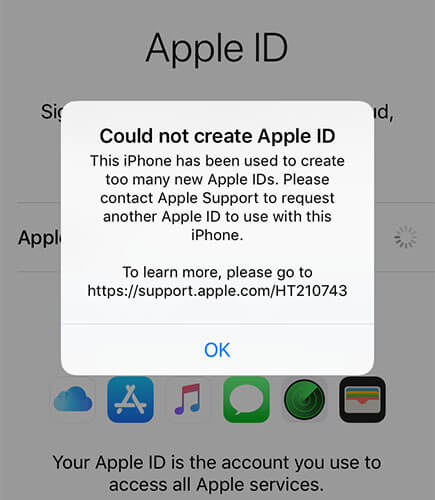
When registering for an Apple ID, many users encounter the error message "cannot create Apple ID at this time". Whether you are setting up a new iPhone for the first time or creating an account in the App Store, this error can directly prevent you from proceeding. Don't worry, this article will systematically analyze the reasons behind this issue and provide several proven solutions to help you successfully create your Apple ID.
Apple offers multiple flexible methods for registering an Apple ID.
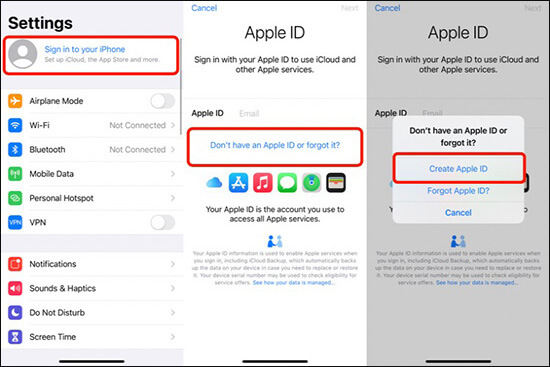
Create an Apple ID on an iPhone/iPad:
Step 1. Open the "Settings" app and tap "Sign in to your iPhone" at the top.
Step 2. Tap "Don't have an Apple ID or forgot it?".
Step 3. Select "Create Apple ID" and provide your name, birthdate, and email (or choose to create a free iCloud email).
Step 4. Set up a password and select your security questions.
Step 5. Enter your phone number for verification.
Step 6. Follow the on-screen instructions to verify your email and phone number.
Step 7. Agree to Apple's Terms & Conditions, and your Apple ID will be created.
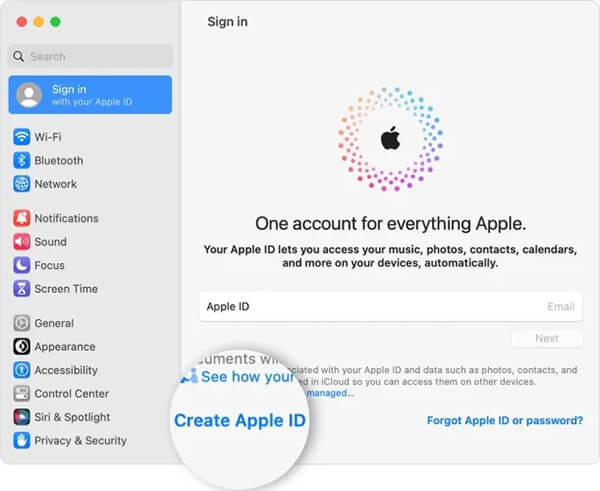
Create an Apple ID on a Mac:
Step 1. Click the "Apple menu" at the top and select "System Settings".
Step 2. In the sidebar, click "Sign In", then select "Create Apple ID" and enter the required information.
Step 3. Provide your payment method and billing details, then click "Continue".
Step 4. Check your email for a verification message from Apple and confirm your email address.
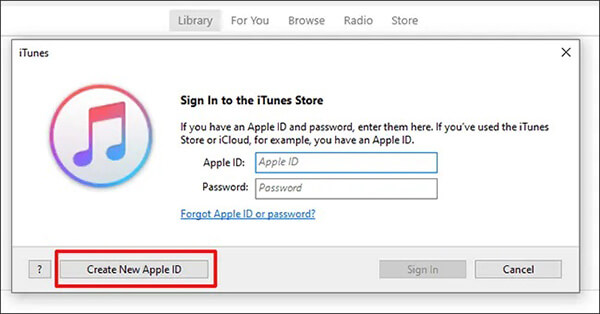
Create an Apple ID on a Windows:
Step 1. Open iTunes and click "Account" > "Sign In" at the top of the window.
Step 2. Select "Create New Apple ID" and enter the necessary information.
Step 3. Enter your payment method and billing details, then click "Continue".
Step 4. Check your email for a verification message from Apple and confirm your email address.
Create an Apple ID in a Browser:
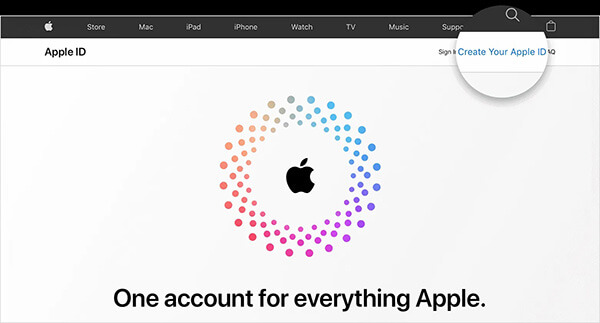
Step 1. Visit appleid.apple.com and click "Create your Apple ID".
Step 2. Enter a valid email address, create a strong password, and choose your device region.
Step 3. Provide a phone number and click "Continue".
Understanding the root causes can help you choose the most effective fix. The "cannot create Apple ID at this time" error usually occurs due to one or more of the following reasons:
* Unstable or restricted network connection.
* Apple servers are temporarily unavailable.
* Device or IP address is restricted from creating an Apple ID.
* Apple ID registration information does not meet the requirements.
* Outdated or malfunctioning iOS version.
* Your email address is already associated with an Apple ID.
There are some effective solutions to fix the issue of not create Apple ID at this time. You can try them in order for the best results.
Apple applies strict validation rules when creating an Apple ID. Even small mistakes can result in the "cannot create Apple ID at this time" error. Make sure the following:
If your email address is already linked to an existing Apple ID, you cannot use it to create a new one. You will need to use a different email address to associate with the new Apple ID.
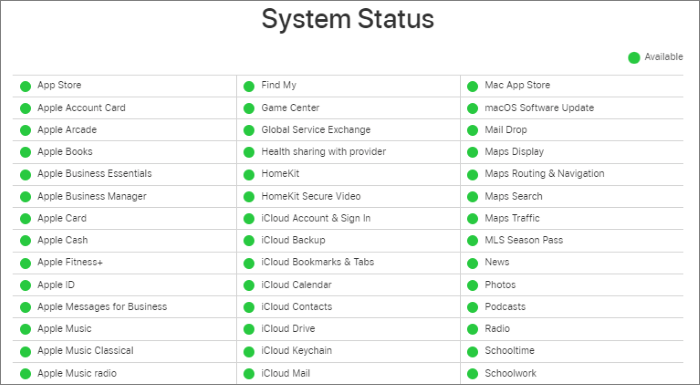
Sometimes the issue is not with your device, but rather a temporary problem with Apple's servers. Open your browser and visit the Apple System Status page to check if Apple ID and iCloud Account & Sign In are marked green. If there are any issues, you'll need to wait until Apple resolves them before trying again.
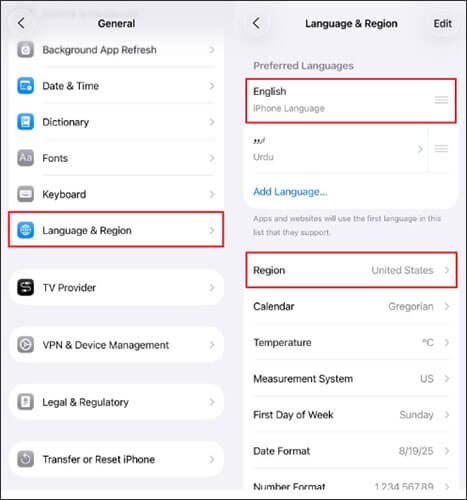
Sometimes, the issue may be related to the region set on your iPhone. Try changing your country or region to your current location and see if that resolves the problem. Here's how to update your region:
Step 1. On your iPhone, go to "Settings" > "General".
Step 2. Tap "Language & Region" under "General".
Step 3. Select "Region" and choose the country where you are currently living.
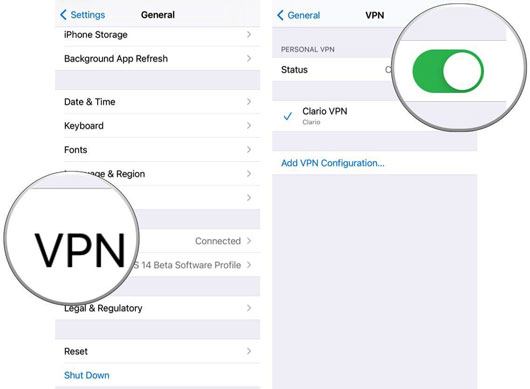
If you're using a VPN or proxy, try disabling it and then attempting to create your Apple ID again, as these tools can sometimes interfere with the connection to Apple's servers.
Here are the steps:
Step 1. Open the "Settings" app.
Step 2. Scroll down and tap "VPN".
Step 3. If a VPN is connected, you will see a toggle switch next to "Status".
Step 4. Simply toggle the switch off to disconnect the VPN.
If you're already signed into an Apple ID, your iPhone might not allow you to create a new one. Some users have found that signing out first resolves the issue.
Step 1. Go to "Settings" and tap your name at the top.
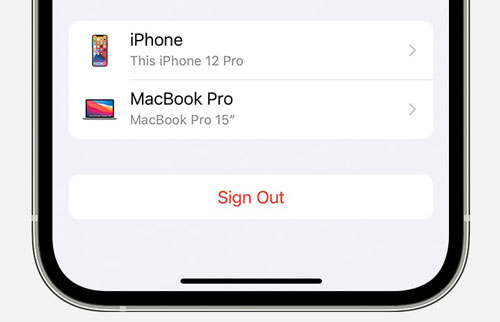
Step 2. Scroll down and tap "Sign Out".
Step 3. Enter your Apple ID password (if prompted) and tap "Turn Off for Find My iPhone".
Step 4. Choose whether to keep a copy of your data or remove it.
Step 5. Tap "Sign Out" again and confirm. (Can't sign out of your Apple ID?)
Step 6. After signing out, restart your iPhone and try creating a new Apple ID.
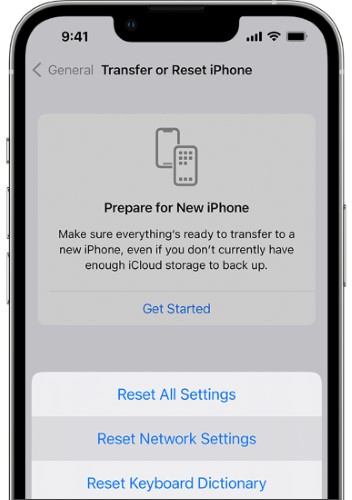
An unstable network connection or incorrect settings can sometimes prevent your device from communicating properly with Apple's servers, causing the "cannot create Apple ID at this time" error. Resetting the network settings can restore the default configuration and fix any connection issues.
Here is how to do it:
Step 1. Open the "Settings" app, go to "General" > "Transfer or Reset iPhone" > "Reset".
Step 2. Tap "Reset Network Settings". If prompted, enter your password and confirm the reset.
Step 3. Wait for your device to reboot, and you should be able to create a new Apple ID without any issues.
The issue of not being able to create an Apple ID is often related to the iOS version on your device. Updating to the latest version of iOS can resolve this problem. Follow the steps below to update your iPhone:
Step 1. Open the "Settings" app and scroll down to select "Software Update". (iPhone won't update?)
Step 2. If a new version is available, tap "Download and Install", then choose "Install Now".
Step 3. Once the update is complete, check if you can now create a new Apple ID.

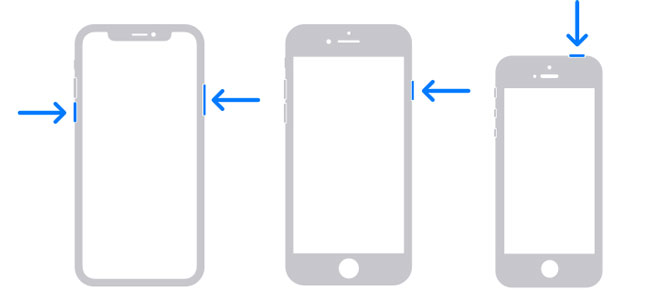
Restarting your iPhone can also help resolve issues when you're unable to create an Apple ID.
For iPhone X, 11, 12, 13, or newer models:
For iPhone 6, 7, 8, or SE (2nd and 3rd generation):
For iPhone SE (1st generation), iPhone 5, or earlier:
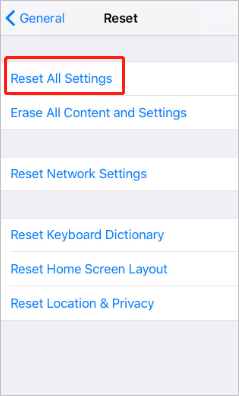
Sometimes, incorrect settings on your iPhone can cause this error. Resetting all settings can help fix the issue. To do this, follow these steps:
Step 1. Go to "Settings", tap "General", then select "Transfer or Reset iPhone".
Step 2. Next, tap "Reset" and choose "Reset All Settings".
After completing the steps above, the issue with your iPhone should be resolved. However, many users still cannot fix the error even after following these steps. In such cases, another effective solution is to use an iPhone system recovery tool, such as iOS System Recovery. This tool can fix a variety of system issues on iPhone, iPad, and iPod touch, including the "Apple ID could not be created" error, iPhone stuck on the Apple ID setup screen, devices stuck in recovery mode, and more, all without causing any data loss during the process.
Key features of iOS System Recovery:
How do you fix you cannot create an Apple ID at this time without losing data?
01Launch the software on your computer and connect your iPhone using a USB cable. Click on "More Tools" in the bottom left corner, then select "iOS System Recovery".

02The program will automatically detect the issue on your iPhone. Click "Start" to proceed.

03Verify your iPhone's details as prompted. Once confirmed, click "Repair" to begin the process. The software will download the latest firmware for your device. In about 5 to 10 minutes, your iPhone will return to normal.

Now, you can go to the Settings app and try setting up your Apple ID again.
If none of the previous methods resolve the "Apple ID could not be created at this time" issue, performing a factory reset on your device is a comprehensive and effective solution. Keep in mind that this will erase all data and settings, so make sure to back up any important information before proceeding to avoid losing your data.
Here is how to erase all content and settings on iPhone:
Step 1. Go to "Settings" > "General", then select "Transfer or Reset iPhone".
Step 2. Scroll down and tap "Erase All Content and Settings".
Step 3. Tap "Continue" and enter your iPhone passcode. You'll be prompted to back up your device to iCloud.
Step 4. Tap "Erase" to restore your iPhone to its factory settings.

If none of the solutions resolve the issue, it may be a problem that only Apple can address. Contact Apple Support through their official website and arrange an appointment at an Apple Store or an Apple Authorized Service Provider.
The above methods are ways to fix the issue of being unable to create an Apple ID. If you still haven't resolved the problem of removing and recovering the password for your old Apple ID, we recommend using a tool that can quickly remove the Apple ID without requiring credentials. iPhone Unlocker is such a tool—it's a comprehensive iOS unlocker that's user-friendly for beginners. It allows you to remove your Apple ID with just one click, without needing a password. Additionally, it can help you unlock other iOS locks, such as iPhone/iPad screen locks, MDM locks, and more.
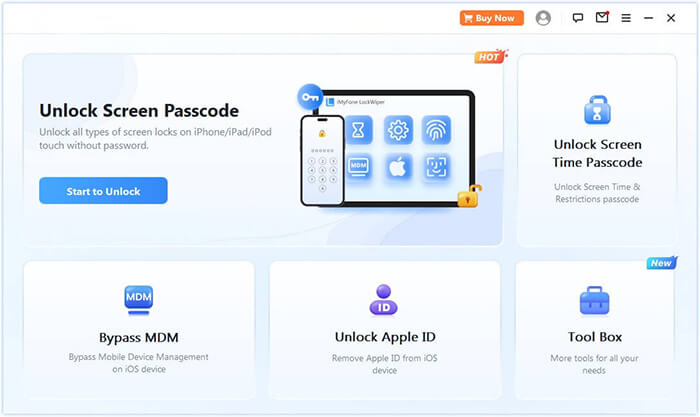
Here is how to remove Apple ID from your iPhone/iPad without a password:
01Download and install iPhone Unlocker on your computer. Launch the program and select "Unlock Apple ID" from the main screen.
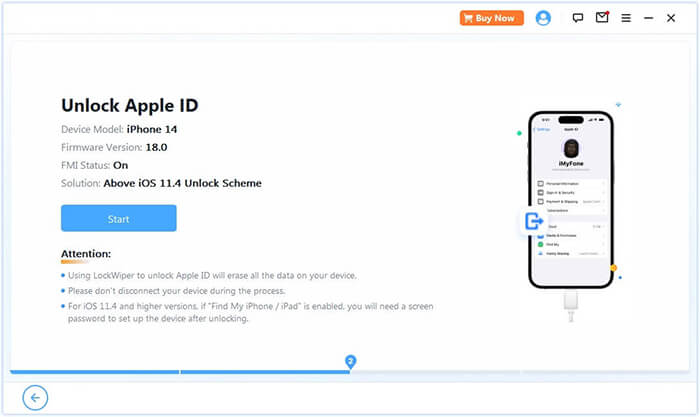
02Connect your iPad/iPhone to the computer, and the program will automatically detect your device. Once detected, click "Start" to continue.
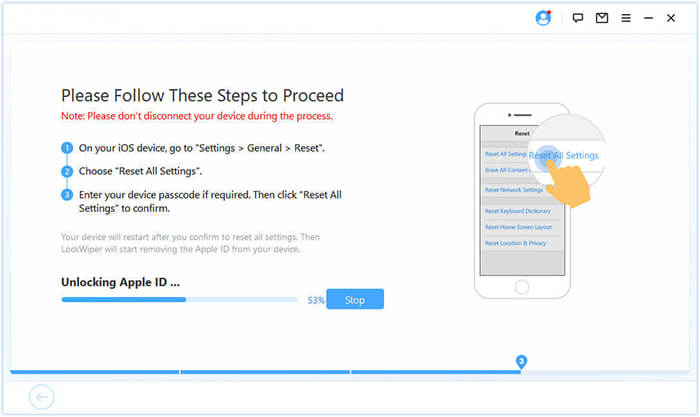
03If Find My is disabled, the program will begin unlocking your Apple ID immediately. If Find My iPad/iPhone is enabled, go to Settings > General > Reset All Settings to disable it before proceeding. If two-factor authentication is active, check the device status and click "Next". A pop-up will appear asking for confirmation—enter "000000" and click "Unlock" to proceed.
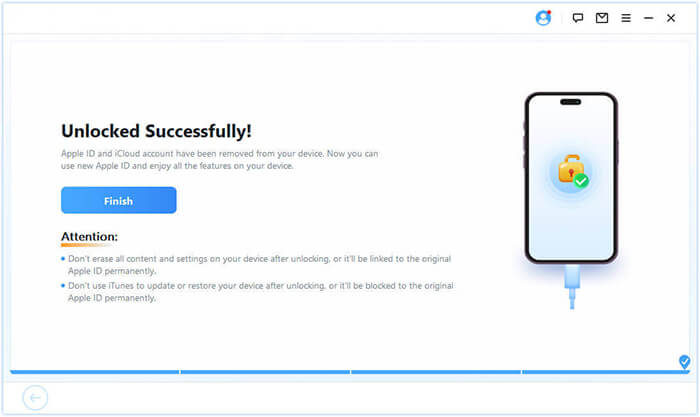
04Wait for a moment, and the program will quickly unlock your Apple ID without any issues.
That's all about how to fix cannot create Apple ID at this time on iPhone/iPad. In most cases, basic troubleshooting steps can resolve the issue. We have prepared 13 common and effective solutions to fix this problem. Among them, iOS System Recovery is your best choice. With just a few clicks, this program can easily fix the system issues you're facing without worrying about data loss.
Additionally, if you've forgotten your Apple ID password and want to remove your old Apple ID, using iPhone Unlocker is the easiest and most time-saving method.
Related Articles:
How to Unlock Apple ID without Phone Number or Password in 5 Proven Ways?
How to Unlock Apple ID without Security Questions/Email? [Comprehensive Guide]
[100% Works] How to Bypass the Verification Required on App Store?
How to Change Apple ID without Losing Data [Proven Tutorial]




 Free Download for PC
  Free Download for Mac


