TL;DR: Can't reset Apple ID password? This guide explains the common causes and provides 6 effective solutions, including checking account details, fixing network issues, using trusted devices, Apple Account Recovery, the Apple Support App, and iPhone Unlocker to regain access to your Apple account.
Apple ID is an important account for accessing Apple devices and services. If you forget your Apple ID password, you can usually regain access through Apple's official password reset options. However, some users may encounter the "can't reset Apple ID password" issue and find that they are unable to complete the reset process.
So, why am I not able to reset my Apple ID password, and what to do if you can't reset Apple ID password? In this guide, we will explain the common reasons for the "can't reset Apple ID password" issue and provide step-by-step solutions to help you regain access to your Apple account.
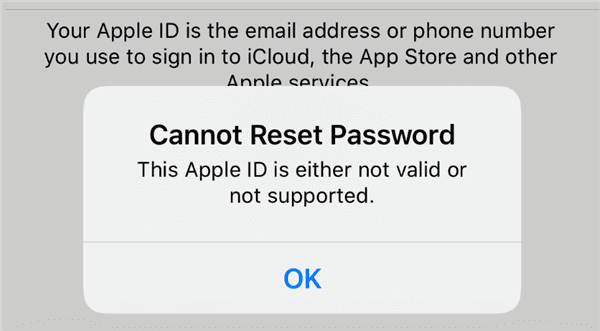
If you can't reset your Apple ID password, it may be caused by the following reasons:
If you encounter the can't reset Apple ID password issue, you can try the following methods to fix it.
Before resetting your Apple ID password, make sure your account information is correct. Visit the Apple ID recovery page, enter your Apple ID email, and complete the verification process. If you see messages like "Cannot reset password", check that you are using the correct Apple ID email, a valid trusted phone number, and the right account.
Sometimes the can't reset Apple ID password server error is caused by network or server problems rather than your account. Try switching networks, restarting your router, disabling VPN or proxy settings, and using a different browser. You can also check Apple's system status page to confirm whether Apple ID services are working properly. If there is a server outage, wait until Apple fixes the issue.
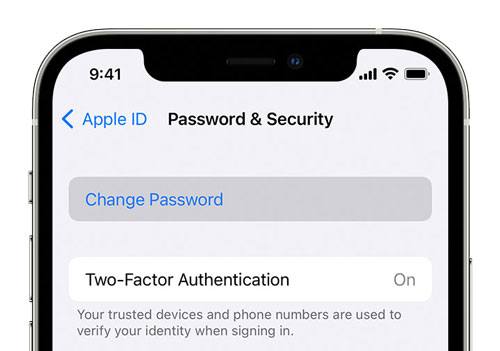
If your iPhone, iPad, or Mac is already signed in with the Apple ID and the device is still working normally, you can change your password directly through the trusted device. This is one of the fastest ways to fix the can't reset Apple ID password issue. Here is how to reset your Apple ID password if you can't remember it.
On iPhone:
Step 1. Open the "Settings" app and tap your name at the top.
Step 2. Select "Sign-In & Security".
Step 3. Tap "Change Password" to reset your Apple ID password.
Step 4. Enter your device passcode and follow the on-screen instructions to create a new Apple ID password.
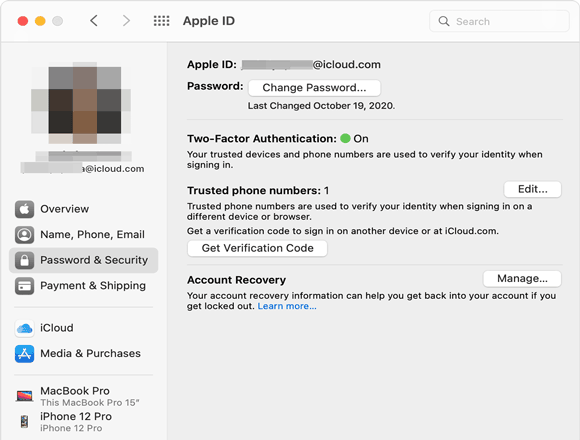
On Mac:
Step 1. Click the "Apple" menu and select "System Settings".
Step 2. Choose your name, then click "Sign-In & Security".
Step 3. Select "Change Password". Enter the password you use to unlock your Mac, then follow the on-screen instructions to update your Apple Account password.
If you don't have enough information to verify your identity and reset your password, Apple provides an Account Recovery option to help you regain access to your Apple ID. However, the recovery process may take several days or longer, depending on your account situation. Once approved, Apple will guide you through the steps to reset your password and restore access.
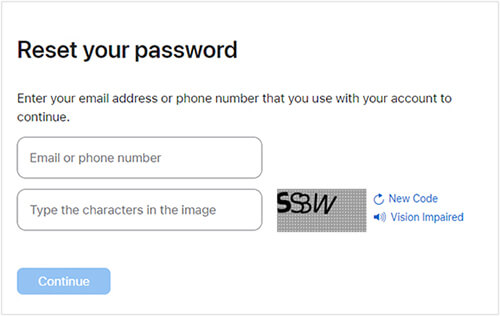
Here is how to reset your Apple ID password online:
Step 1. Visit iforgot.apple.com.
Step 2. Enter the email address or phone number associated with your Apple ID and follow the on-screen instructions to start the account recovery process.
Apple will send a confirmation email within 72 hours with details about your recovery request and the estimated time when you can access your account again. After the waiting period ends, follow Apple's instructions to reset your password and sign in to your Apple ID.
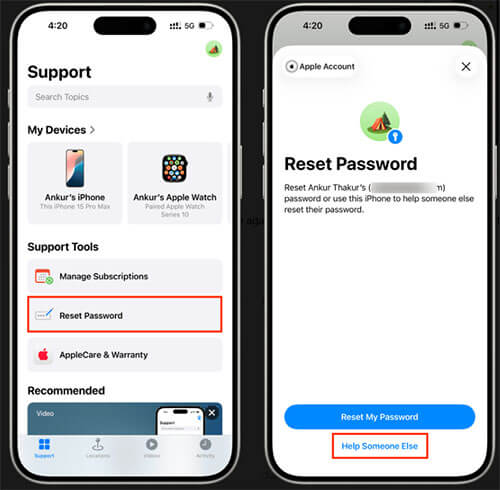
If you cannot reset your Apple ID password online, you can try using the Apple Support app instead. Here is how to do it:
Step 1. Open the Apple Support app on another Apple device. If the app is not installed, download it from the App Store.
Step 2. Scroll down to "Support Tools" and tap "Reset Password".
Step 3. Select "Help Someone Else".
Step 4. Enter your Apple Account email address or phone number.
Step 5. Tap "Continue" and follow the on-screen instructions to reset your password.
Some users encounter the can't reset Apple ID password issue because they forget their Apple ID and can no longer access or use their devices. Common situations include a second-hand iPhone still being linked to the previous owner's Apple ID or forgetting the Apple ID login information. In this case, you can consider using a professional iPhone unlocking tool — iPhone Unlocker.
When you can't reset your Apple ID password, it can help remove the Apple ID from your iOS device without requiring the password. After removing the current Apple ID, you can create a new Apple ID and continue using your Apple device.
Key features of iPhone Unlocker:
Here is how to remove Apple ID from iPhone without password:
01Download and install iPhone Unlocker on your computer. Open the program and choose "Unlock Apple ID" from the main interface.
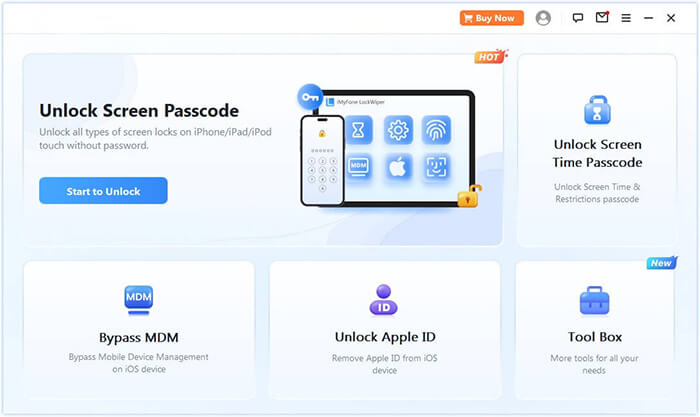
02Connect your iPhone to the computer using a USB cable. The software will automatically recognize your device. Once detected, click "Start" to continue.
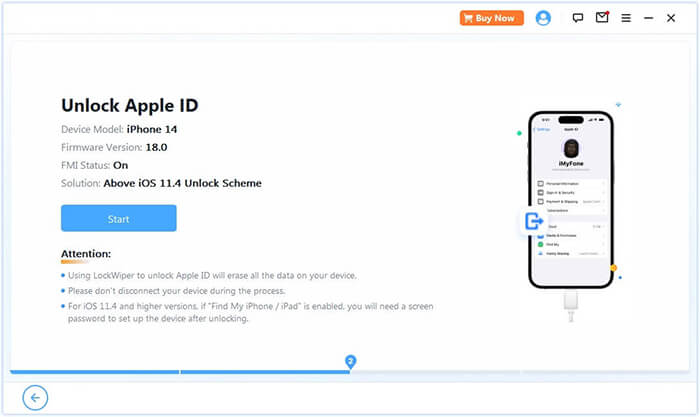
03If Find My iPhone is turned off, the unlocking process will begin automatically. If it is enabled, go to Settings > General > Transfer or Reset iPhone > Reset > Reset All Settings on your device to disable it first. If Two-Factor Authentication is enabled, verify your device status and click "Next". When the confirmation window appears, enter "000000" and click "Unlock" to proceed.
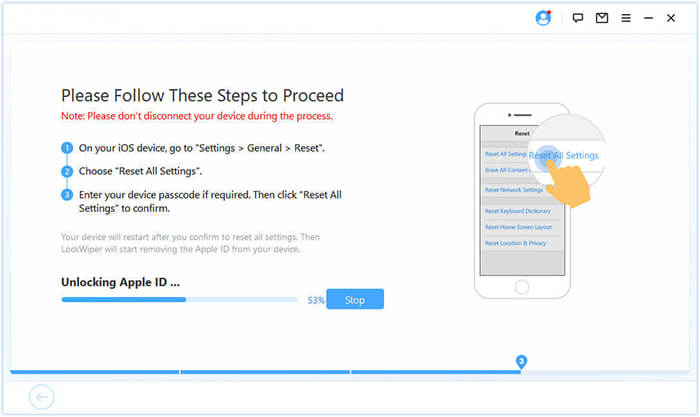
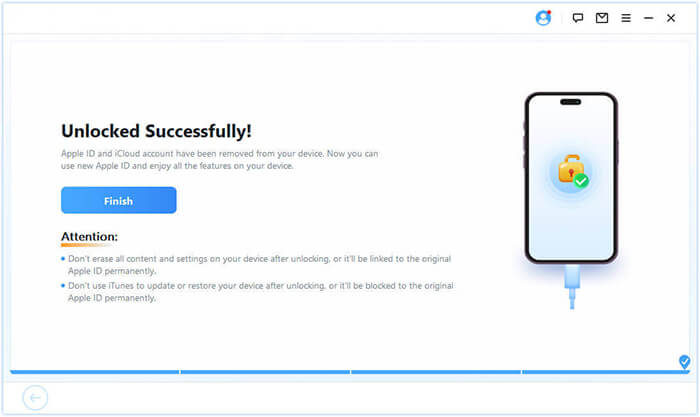
04Wait a few moments while iPhone Unlocker removes the Apple ID from your device quickly and securely.
The "can't reset Apple ID password" issue can happen for various reasons. Fortunately, using account recovery, a trusted phone number or device, or a professional unlocking tool like iPhone Unlocker can help you regain access to your account. Follow the steps above to access your Apple ID again.
Related Articles:
How to Fix "This Apple ID Is Not Valid or Not Supported" Error - 9 Ways
[Solved] What to Do When You Forgot Apple ID Security Questions?
[Solved] How to Fix Can't Sign into Apple ID on iPhone/iPad?
How to Fix Updating Apple ID Settings Stuck on iPhone/iPad/Mac?




 Free Download for PC
  Free Download for Mac


