TL;DR:
To remove an Apple ID from an stolen iPhone, choose a method based on device ownership and Activation Lock status rather than relying on a factory reset alone.
Trying to remove Apple ID from a stolen iPhone isn't as simple as resetting the device or entering a few commands. If the iPhone is protected by Activation Lock, it may remain tied to the original Apple Account even after being erased. Whether you've lost your own iPhone, purchased a second-hand device with an unfamiliar account, or are dealing with an activation problem, the available options can be quite different. In this guide, we'll explain how to remove Apple ID from a stolen iPhone, what methods are worth trying, and where their limitations lie.
Yes, removing an Apple ID from a stolen iPhone depends on the device's status and your ownership. Here are three common situations:
If you are the rightful owner of the iPhone and still have access to your Apple Account, you can use iCloud to manage the device remotely. This is especially useful if your iPhone was stolen and you want to protect your personal information. However, removing a device from your account may disable Activation Lock, so do not do this if you still want to prevent someone else from using your stolen iPhone.
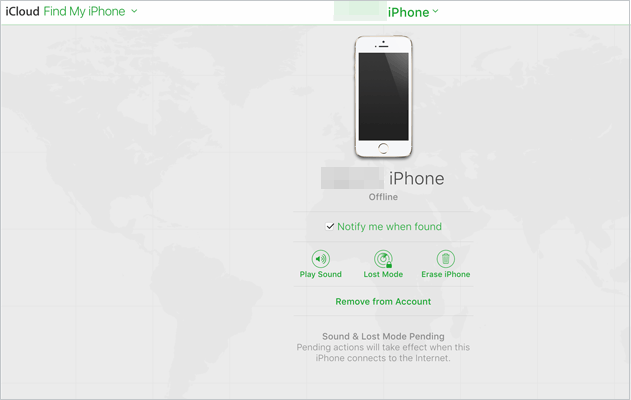
Note: Erasing your iPhone does not automatically remove Activation Lock. Avoid selecting "Remove This Device" or removing the iPhone from your Apple Account, as doing so may allow someone else to activate and use it.
If you bought a used iPhone that still displays the previous owner's Apple ID or Activation Lock screen, the easiest solution is to contact the original owner and ask them to remove the device from their Apple Account. They don't need to meet you in person and can do this remotely.
Once the previous owner successfully removes the device from their account, you should be able to activate and set it up with your own Apple Account. (How to Remove Activation Lock Without Previous Owner?)
Note: If your own iPhone was stolen, do not ask anyone to remove it from your Apple Account. Keeping it linked to your account helps protect it with Activation Lock.
If you are the rightful owner of the iPhone but cannot remove Activation Lock yourself, contacting Apple Support is another option. Apple may help remove the lock if you can provide valid proof of purchase showing that you own the device.
Keep in mind that Apple does not guarantee approval. If the iPhone was reported as lost or stolen, Apple may refuse the request. A receipt or other valid ownership documentation is important when submitting your case.
If you own the iPhone and simply want to remove an existing Apple ID but cannot remember its password, iOS Unlocker may offer a convenient solution. This desktop tool can remove Apple IDs from supported iOS devices without requiring the original password under certain conditions. Besides Apple ID removal, it also handles several common iPhone and iPad lock issues. Before proceeding, make sure your device meets the software's requirements. This method is not intended to unlock stolen devices or bypass Activation Lock on an iPhone reported as lost or stolen.
Main Features of iOS Unlocker:
How to Remove Apple ID with iOS Unlocker?
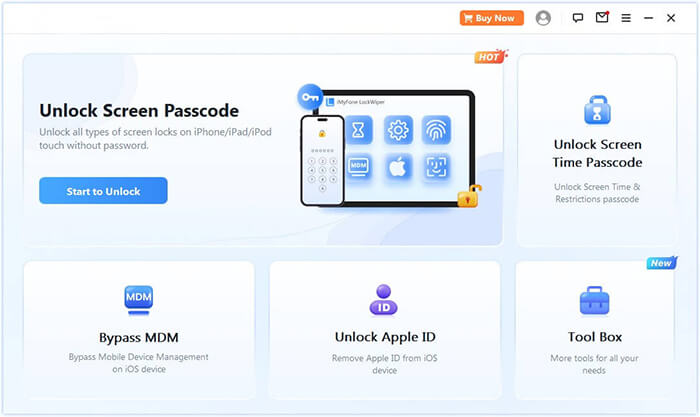
01 Download and install iOS Unlocker on your Windows PC or Mac. Launch the program and select "Unlock Apple ID" from the main interface.
02 Connect your eligible iPhone to the computer using a USB cable. Once the software detects your device, click "Start" to continue.
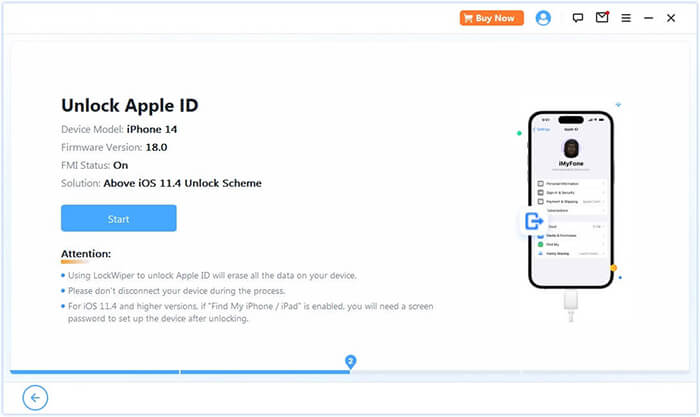
03 If Find My iPhone is disabled, the software can proceed with Apple ID removal automatically. If it is enabled, check your device's eligibility and follow the program's on-screen instructions. On supported devices, you may need to go to "Settings" > "General" > "Transfer or Reset iPhone" > "Reset" > "Reset All Settings" to meet the requirements. If Two-Factor Authentication is enabled, verify your device information and click "Next". When prompted, enter "000000" and click "Unlock".
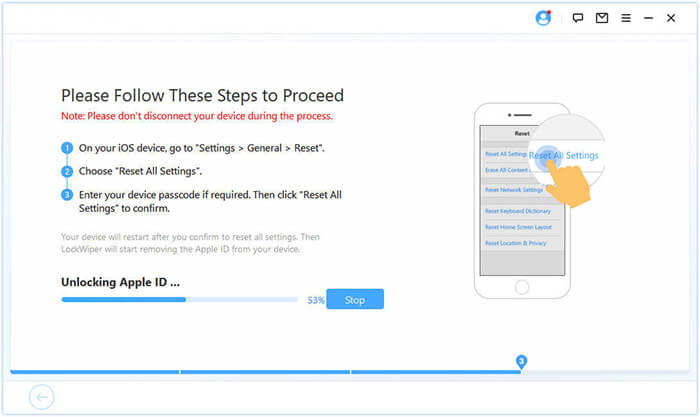
04 Wait for the process to finish. Keep your iPhone connected to the computer until iOS Unlocker confirms that the Apple ID has been removed.
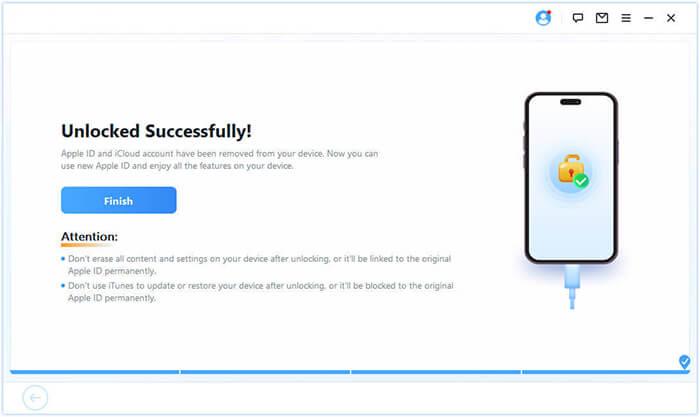
Note: The available removal process depends on your iOS version, device settings, and security status. iOS Unlocker cannot remove Activation Lock from an iPhone reported as lost or stolen. If the device belongs to someone else, ask its original owner or contact Apple Support instead.
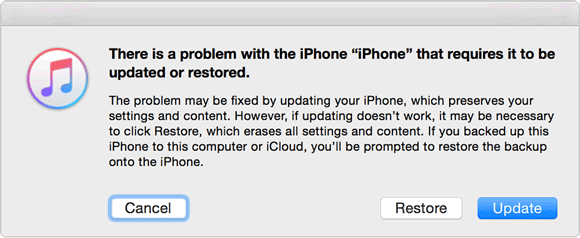
If your iPhone is stuck on the Apple ID screen or experiencing system issues, you can try restoring it in Recovery Mode. This process erases all data and settings and reinstalls iOS, but it does not remove the Apple ID or bypass Activation Lock. If Find My is enabled, you will still need the original Apple Account credentials to activate the device.
1. Connect your iPhone to a computer using a USB cable and open the latest version of iTunes or Apple Devices.
2. Turn off your iPhone.
3. Put your iPhone into Recovery Mode:
4. When prompted on your computer, select "Restore" and wait for the process to finish.
5. Set up your iPhone and enter the original Apple Account credentials if Activation Lock appears.
Note: Only restore an iPhone that you own or are authorized to manage. If the device was stolen, keep it linked to the owner's Apple Account rather than trying to make it usable for someone else.
Q1. Can someone use my stolen iPhone without my Apple ID password?
Generally, no. If Find My was enabled before the theft, Activation Lock remains active even after the device is erased. Anyone trying to reactivate the iPhone will need the linked Apple Account credentials or another authorized removal method. This makes it much harder for someone else to reuse your device.
Q2. Can I track my stolen iPhone after removing it from my Apple Account?
Removing the iPhone from your Apple Account can affect your ability to locate and protect it through Find My. If your device is missing, keep it linked to your account and use Find My to check its location or mark it as lost. Avoid removing it even if someone claims they have found it.
Q3. Does changing my Apple ID password lock a stolen iPhone?
Changing your Apple Account password helps protect your personal information and prevents unauthorized access to your account. However, it does not replace Lost Mode or guarantee that the stolen iPhone will be locked immediately. You should also mark the device as lost through Find My and contact your wireless carrier to report the theft.
Q4. Can I remove Apple ID from a stolen iPhone using its IMEI number?
No. An IMEI number identifies a mobile device but cannot remove its Apple ID or Activation Lock. You can provide the IMEI to your carrier or law enforcement when reporting the theft. Your carrier may also be able to block the device from accessing its cellular network.
Q5. Will erasing a stolen iPhone delete the Apple ID permanently?
No. Erasing an iPhone removes its local data and settings, but it does not automatically remove Activation Lock. If Find My was enabled, the device remains associated with the original Apple Account. This protection helps prevent unauthorized reuse after a theft.
Q6. Can Apple unlock a stolen iPhone without proof of purchase?
Apple generally requires valid proof of purchase before considering an Activation Lock support request. Without sufficient documentation, Apple may not approve the request. If the iPhone was stolen, the original owner should keep it linked to their account and report the incident rather than request an unlock.
Finding a way to remove Apple ID from a stolen iPhone starts with understanding its ownership and Activation Lock status. While iCloud.com, the original owner, and Apple Support can provide legitimate solutions in different situations, third-party unlocking tools like iOS Unlocker have specific limitations. A factory reset alone won't clear the linked account. Choose the method that matches your device's circumstances, and if the iPhone was stolen from you, keep it connected to your Apple Account to protect it from unauthorized use.
Related Articles:
App Store Keeps Asking for Password? 11 Ways to Fix It
Can't Reset Apple ID Password? 6 Ways to Fix It Quickly
How to Create a New Apple ID and Transfer Everything?
Apple ID Greyed Out in Settings on iPhone? 8 Effective Fixes




 Free Download for PC
 Free Download for Mac


