TL;DR:Want to convert from WebM to MP4 for better compatibility? This guide introduces 5 simple methods to convert WebM videos, including professional converters, free desktop tools, command-line solutions, and online services. Choose the method that fits your needs.
For fast, stable, and easy WebM to MP4 conversion, Video Converter Ultimate is a recommended choice.
"I am new to Windows 11. Recently downloaded a few WEBM videos that I need to share with someone, but their device doesn't support WEBM files. I'm using a Windows 11 PC and would like to convert these WEBM files to MP4 format for better compatibility. Does Windows 11 have any built-in tools for this purpose?"
- from Microsoft Community
WebM is a video format specifically designed for web playback and is commonly used for YouTube videos, online courses, and web-based content. Although WebM offers advantages such as smaller file sizes and faster loading speeds, its compatibility is not as extensive as MP4. Many users encounter issues when trying to open WebM videos with certain media players, video editing software, or mobile devices. Therefore, converting WebM to MP4 is a simple and effective solution.
But how can you convert WebM to MP4? In this article, we will introduce 5 easy methods to help you convert videos from WebM to MP4. You can choose the method that best suits your needs.
If you need to convert multiple WebM files quickly while maintaining control over the output quality, professional video converter software is usually the most convenient choice. Video Converter Ultimate supports conversion between more than 1,000 video and audio formats, making it easy to convert WebM to MP4. Besides format conversion, it also offers features such as video compression, trimming, cropping, subtitle adding, and parameter adjustment, making it ideal for users who frequently work with videos.
Key features of Video Converter Ultimate:
How do I convert a WebM file to MP4 without losing quality?
01Download and install the software on your Windows or Mac computer. Launch Video Converter Ultimate, then click "Add Files" to import the WebM video you want to convert.
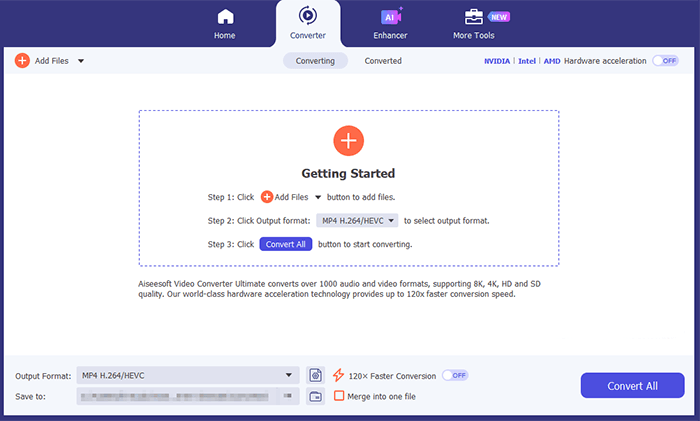
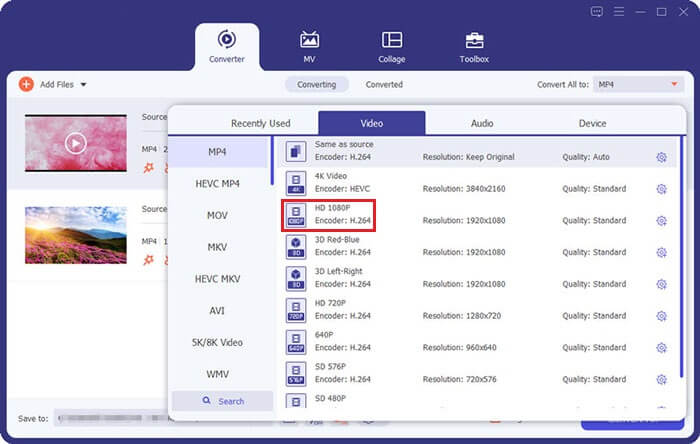
02Open the "Output Format" drop-down menu, go to the "Video" category, and select MP4 as the output format. Then choose a destination folder to save the converted file.
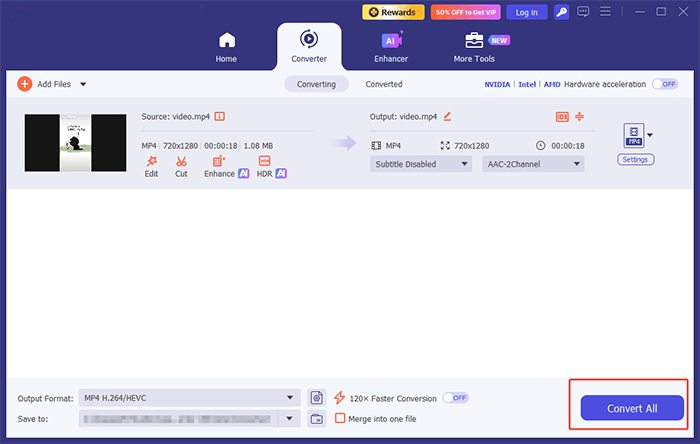
03Click "Convert All" to start converting WebM to MP4. After the conversion is finished, you can find the converted MP4 video in the selected output folder.
VLC Media Player is a free and open-source media player that can also be used for basic video format conversion in addition to video playback. If you only need to convert WebM to MP4 occasionally, VLC is a good option. However, some users have reported issues such as missing audio or audio-video synchronization problems after conversion.
Here is how to convert a WebM file to MP4 with VLC Media Player:
Step 1. Open VLC Media Player on your computer.
Step 2. Click "Media" in the top menu and choose "Convert/Save".
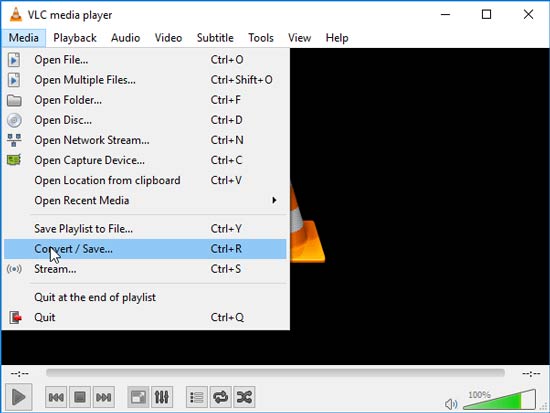
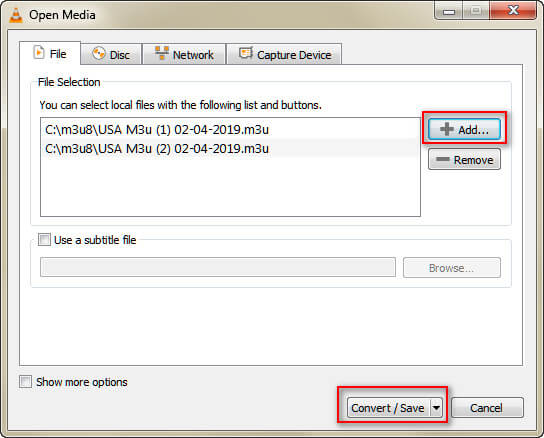
Step 3. Click the "Add" button and select the WebM file you want to convert.
Step 4. Click "Convert/Save" to open the conversion settings window.
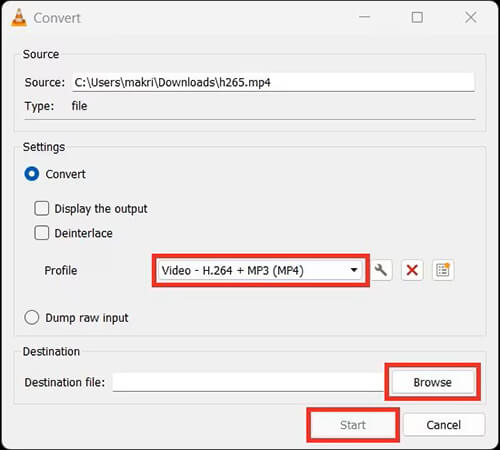
Step 5. In the "Profile" section, choose "Video - H.264 + MP3 (MP4)" as the output format.
Step 6. Click "Browse" to select where you want to save the converted MP4 file.
Step 7. Click "Start" to begin converting the WebM video into MP4 format.
HandBrake is a professional open-source video transcoding tool that supports Windows, Mac, and Linux systems. It is mainly designed for video compression and format conversion, allowing users to convert WebM to MP4 for free.
Compared with VLC, HandBrake provides more encoding control options, such as adjusting video quality, encoder settings, and frame rate. Therefore, it is more suitable for users who want to optimize video file sizes or customize output settings.
However, since HandBrake offers more advanced features, beginners may need some time to learn and understand the various parameters before using it effectively.
Here is how to convert a WebM file to MP4 for free on Mac/PC with HandBrake:
Step 1. Download and install HandBrake from its official website.
Step 2. Open HandBrake and click "Open Source" to load your WebM video file.
Step 3. Go to the "Summary" tab and choose "MP4" as the output format.
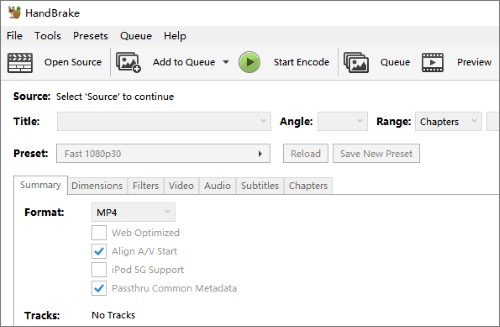
Step 4. Open the Video tab and adjust settings such as encoder, frame rate, and quality if needed.
Step 5. Choose a destination folder for the converted file.
Step 6. Click "Start Encode" to begin converting WebM to MP4.
Step 7. Wait until HandBrake finishes the conversion process and check the MP4 output file.
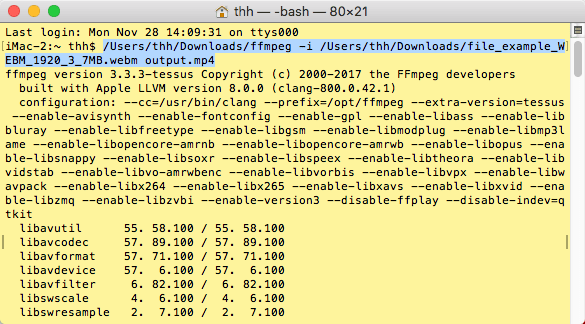
FFmpeg is a powerful command-line video processing tool widely used by professionals, developers, and video editors. It supports almost all major video format conversions, making it easy to convert WebM to MP4.
Compared with software that provides a graphical interface, FFmpeg's biggest advantage is its high level of flexibility. Users can precisely control video encoding methods, quality settings, audio parameters, and more through commands.
However, since FFmpeg does not offer an intuitive user interface, it can be more challenging to use for beginners or users who are not familiar with command-line tools.
Here is how to convert from WebM to MP4 using FFmpeg:
Step 1. Download and install FFmpeg on your Windows, Mac, or Linux computer.
Step 2. Open Command Prompt on Windows or Terminal on Mac.
Step 3. Navigate to the folder containing your WebM file.
Step 4. Enter the following command: "ffmpeg -i input.webm output.mp4".
Step 5. Replace "input.webm" with your original WebM filename and "output.mp4" with your preferred MP4 filename.
Step 6. Press "Enter" and wait for FFmpeg to complete the conversion.
Step 7. Open the output folder and check the converted MP4 video.
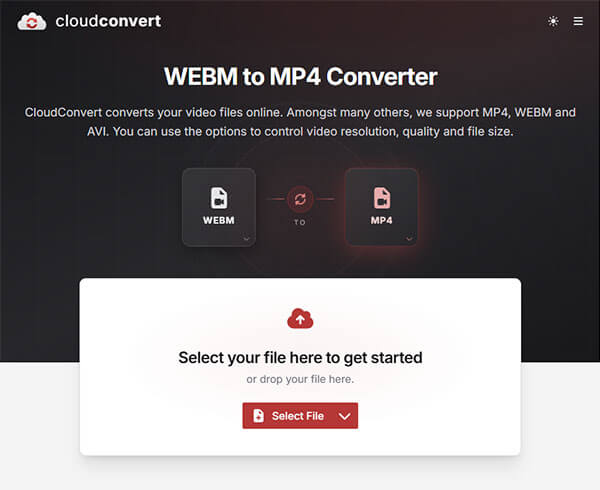
If you do not want to install software, you can choose an online video converter instead. CloudConvert is an online file conversion platform that supports converting WebM to MP4 without requiring any program installation. Users only need to upload their WebM files, select MP4 as the output format, and wait for the conversion process to complete.
However, since online converters rely on internet speed, converting large files may take longer time. In addition, when uploading private videos to online platforms, users should also pay attention to file privacy and security concerns.
Here is how to convert a video from WebM to MP4 free online via CloudConvert:
Step 1. Open the CloudConvert WebM to MP4 website in your browser.
Step 2. Click "Select File" and upload the WebM video from your computer.
Step 3. Select MP4 as the target output format.
Step 4. Adjust video settings such as resolution, quality, or codec if necessary.
Step 5. Click "Convert" to start the WebM to MP4 conversion process.
Step 6. Wait until the conversion finishes and click "Download" to save the converted MP4 file to your device.
There are many ways to convert from WebM to MP4, and the best method depends on your needs. Among them, Video Converter Ultimate not only supports WebM to MP4 conversion but also provides comprehensive features for video editing, compression, enhancement, and format conversion. Whether you need to convert online videos, edit video footage, or prepare files for uploading to YouTube, social media platforms, or mobile devices, it delivers a more stable and efficient video processing experience. For most users, it is one of the easiest and most reliable choices for completing WebM to MP4 conversion.
Related Articles:
How to Convert iPhone Video to MP4 Without Quality Loss in 8 Ways?
5 Practical Ways to Convert M4A to MP4 Without Losing Quality
Step-by-Step Tutorial: How to Convert VOB to MP4 Effectively?
How to Convert AVI to MP4 on Windows/Mac/Online? Solved in 7 Effective Ways




 Free Download for PC
  Free Download for Mac


