TL;DR: Converting WAV to MP3 helps reduce file size while improving compatibility for easier storage, sharing, and playback. This guide introduces 5 simple methods to convert WAV files to MP3, including using Video Converter Ultimate, VLC Media Player, Audacity, iTunes/Music app, and CloudConvert. Among them, Video Converter Ultimate is the best choice for users who need fast batch conversion, high-quality output, and customizable audio settings.
WAV files are well known for their lossless audio quality and are widely used in professional recording, music production, and audio editing. However, because WAV files are usually much larger in size, they can take up significant storage space and may cause compatibility or file size issues when playing on mobile devices, sharing online, or uploading to platforms. In comparison, MP3 is a more widely used compressed audio format that offers smaller file sizes and broader compatibility. Therefore, many users want to convert WAV to MP3 for easier storage, transfer, and playback.
So, how can you quickly complete a WAV to MP3 conversion? In this article, we will introduce 5 effective methods to help you easily convert WAV files to MP3 format.
If you need to convert multiple WAV files at once or want to maintain high audio quality during the conversion process, using a professional audio converter is the best choice. Video Converter Ultimate is a comprehensive audio and video conversion tool that supports over 1,000 media formats, including WAV, MP3, AAC, FLAC, WMA, and more.
Compared with ordinary converters, it not only performs fast and efficient WAV to MP3 conversion, but also allows you to customize audio settings such as the encoder, sample rate, and bitrate to meet different audio quality requirements. In addition, it supports batch conversion, enabling you to process multiple WAV files simultaneously and significantly improve conversion efficiency.
The highlights of Video Converter Ultimate:
How do I convert a WAV file to MP3 using this WAV to MP3 converter software?
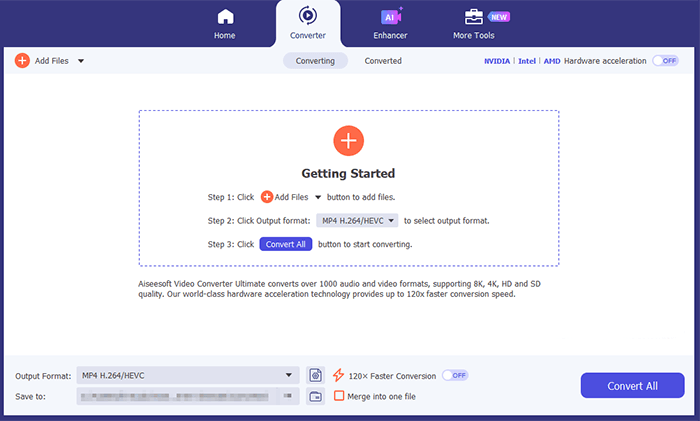
01Download and install this tool on your computer. Launch the program, navigate to the "Converter" tab, and click "Add Files" to import the WAV audio file you want to convert.
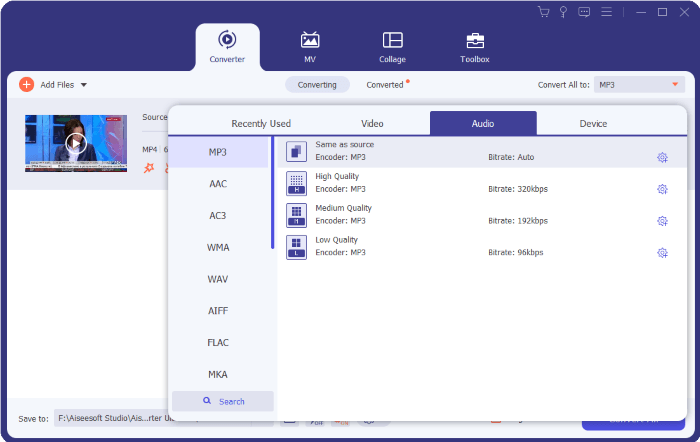
02Open the "Output Format" menu, select "MP3" from the "Audio" category, and customize settings such as bitrate, sample rate, and audio channels to achieve the desired output quality.
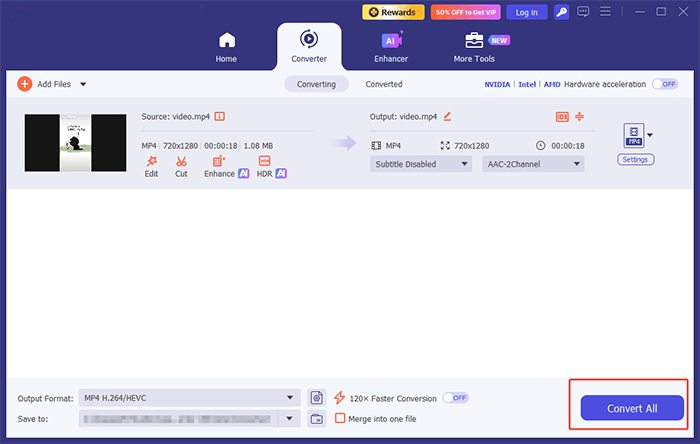
03Select a destination folder for the converted files, then click "Convert All" to start the WAV to MP3 conversion process. Once the conversion is complete, open the output folder to access your newly converted MP3 files.
VLC Media Player is a free and open-source media player that, in addition to playing various media files, also provides basic format conversion features. If you are looking for a free way to convert WAV to MP3, VLC is a practical option.
VLC supports Windows, Mac, and Linux systems and can convert a variety of audio and video formats. However, compared with professional conversion tools, VLC's conversion capabilities are relatively limited and are not suitable for processing a large number of files.
Here is how to convert WAV to MP3 for free using VLC:
Step 1. Download and install VLC Media Player on your computer, then launch the program.
Step 2. Click "Media" in the top menu and select "Convert / Save". In the pop-up window, click "Add" to import the WAV file you want to convert.
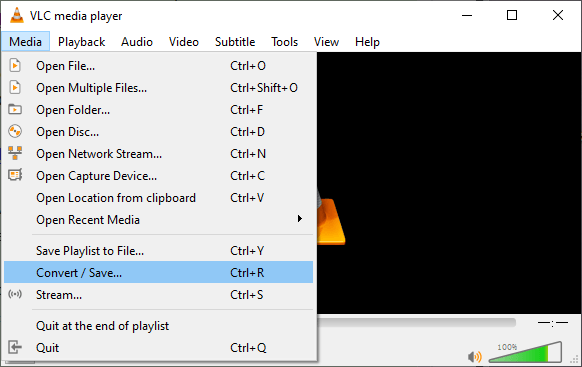
Step 3. Click "Convert / Save" at the bottom, then choose "Convert" in the next window.
Step 4. Under the "Profile" section, open the format list and select "Audio - MP3" as the output format.
Step 5. Click "Browse" to choose a destination folder and enter a name for the output file with the .MP3 extension.
Step 6. Click "Start" to begin converting the WAV file to MP3. Once the process is complete, open the selected folder to find your converted MP3 audio file.
Audacity is a free and open-source audio editing software that is widely used for recording, cutting, and processing audio. In addition to editing audio files, Audacity also allows users to export WAV files as MP3. For users who need to modify audio content before conversion, Audacity is a great choice. For example, you can trim audio clips, adjust volume, and apply effects before exporting the file as an MP3.
How do you convert a WAV file to MP3 with Audacity? Follow the steps below:
Step 1. Download and install Audacity on your computer, then open the program.
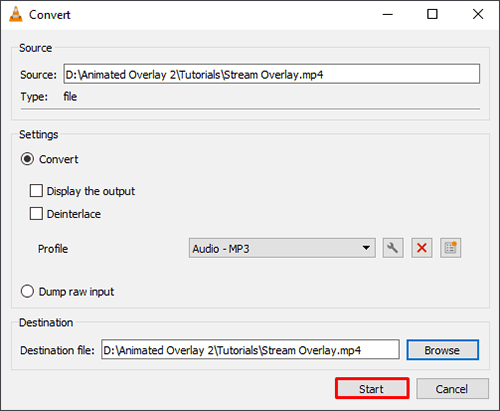
Step 2. Click "File" in the top menu and select "Import" > "Audio" to load the WAV file you want to convert.
Step 3. Edit the audio if needed, such as trimming unwanted sections, adjusting volume, or applying audio effects.
Step 4. Click "File" again, choose "Export Audio", and select "MP3 Files" as the output format.
Step 5. Customize the MP3 settings, including audio quality, bitrate mode, and bitrate value according to your needs.
Step 6. Choose a destination folder, enter the file name, and click "Export" to start converting the WAV file to MP3.
If you are an Apple user, you can also use iTunes or the Music app (for macOS Catalina or later) to convert WAV files to MP3. This method is suitable for users who already manage their music libraries within the Apple ecosystem. However, it is mainly designed for music library management, so its conversion features are relatively basic.
Here is how to convert a WAV file to MP3 on Mac using iTunes:
Step 1. Open the Music app on your Mac. (If you are using iTunes, launch iTunes instead.)
Step 2. Click "Music" in the top menu bar and select "Settings". For iTunes users, go to "Edit" > "Preferences".
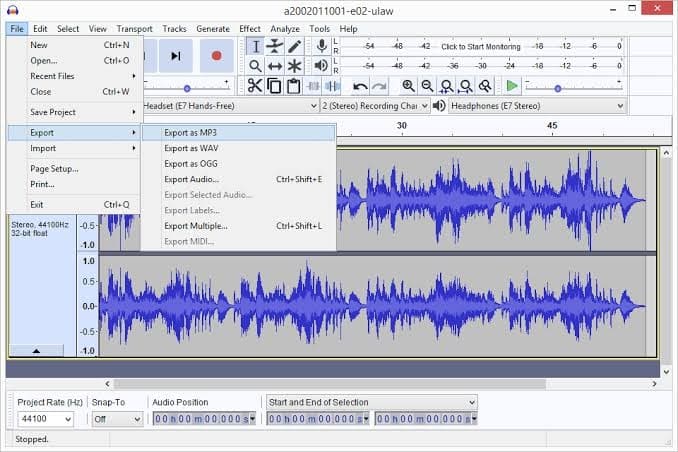
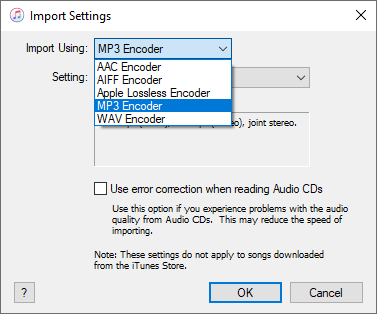
Step 3. Open the "Files" tab in the Music app (or the "General" tab in iTunes), then click "Import Settings".
Step 4. Select "MP3 Encoder" from the "Import Using" drop-down menu, then click "OK" to save the settings.
Step 5. Add the WAV file you want to convert to your Music Library or iTunes Library.
Step 6. Select the WAV files you want to convert, then go to "File" > "Convert" > "Create MP3 Version" from the top menu.
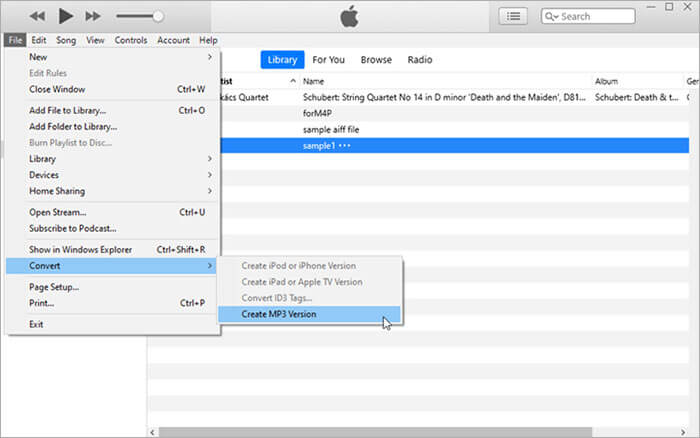
Step 7. Wait for the conversion process to finish. The newly created MP3 files will appear in your music library alongside the original WAV files.
If you only need to convert a small number of files and do not want to install any software, online conversion tools can provide a quick solution. CloudConvert is a web-based converter that supports multiple formats and allows users to complete the free WAV to MP3 conversion process directly from a browser. However, online converters rely heavily on internet speed, and uploading and processing large WAV files may take more time.
Here is how to convert WAV to MP3 online via CloudConvert:
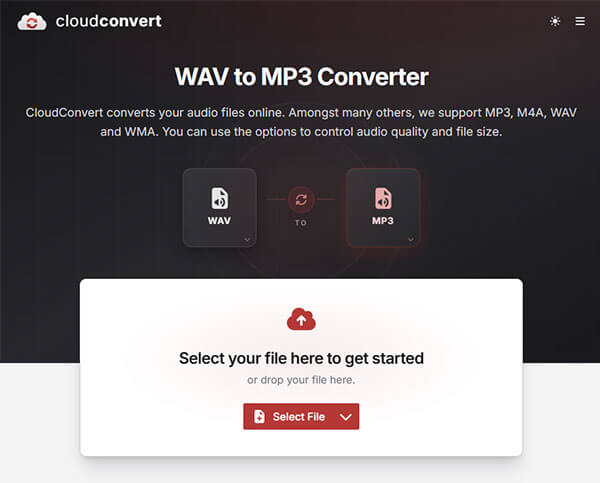
Step 1. Open the CloudConvert website in your browser and select the WAV to MP3 Converter tool.
Step 2. Click "Select File" and upload the WAV file you want to convert from your computer, Google Drive, Dropbox, or other supported sources.
Step 3. Make sure the output format is set to MP3. If needed, click the settings icon to adjust audio options such as bitrate, codec, and volume.
Step 4. Click "Convert" to start the WAV to MP3 conversion process. Wait while CloudConvert uploads and processes your audio file.
Step 5. Once the conversion is complete, click "Download" to save the converted MP3 file to your computer.
Converting WAV to MP3 can help reduce file size, improve compatibility, and make audio files easier to store, share, and play on different devices. For users who want a fast, reliable, and high-quality conversion experience, Video Converter Ultimate is an excellent choice.
As a professional WAV to MP3 converter software, it supports various audio formats, allows batch conversion, preserves sound quality, and provides flexible settings to customize output files. Whether you need to convert a single WAV file or process multiple audio files, Video Converter Ultimate offers a simple and efficient solution for all your WAV to MP3 conversion needs.
Related Articles:
How to Convert MP4 to MP3 on Windows10/11: 5 Easy Methods Guide
[Step-by-Step Guide] How to Convert Voice Memos to MP3 in a Snap?
How to Convert WMA to MP3 Effortlessly: A Comprehensive Guide
[2026 Updated] The Best 10 MP3 Converters for Mac You Can't Miss




 Free Download for PC
  Free Download for Mac


