TL;DR: Converting MP4 to MP3 on Windows lets you extract audio from videos and save storage space while improving compatibility across devices. This guide introduces 5 methods: a professional converter (Video Converter Ultimate) for fast, high-quality batch conversion, VLC Media Player and iTunes for free desktop solutions, Windows Media Player for a built-in but limited option, and FreeConvert for quick online conversion.
Among them, Video Converter Ultimate is the most recommended due to its speed, batch support, and lossless audio quality.
If you are searching for how to convert MP4 to MP3 on Windows, you are likely trying to extract audio from a video file such as music, lectures, podcasts, or recordings. MP4 is a video format that contains both audio and video tracks, while MP3 is an audio-only format that is smaller in size and compatible with almost all devices.
Learning how to convert MP4 to MP3 on Windows helps you save storage space, extract useful audio content, and make files easier to play on smartphones, car systems, and music players. In this guide, we will introduce 5 practical methods, including professional software, free tools, and online converters.
Video Converter Ultimate is a professional-grade video conversion tool designed for users who need high-quality audio output or batch file processing. It supports almost all mainstream audio and video formats and is able to preserve the original audio quality to the greatest extent during conversion.
This tool is suitable for users who require high audio quality or need batch conversion. It offers fast and stable conversion performance, and also includes video editing and compression features.
Key features of Video Converter Ultimate:
Here is how to convert MP4 into MP3 on Windows 10/11 without losing quality:
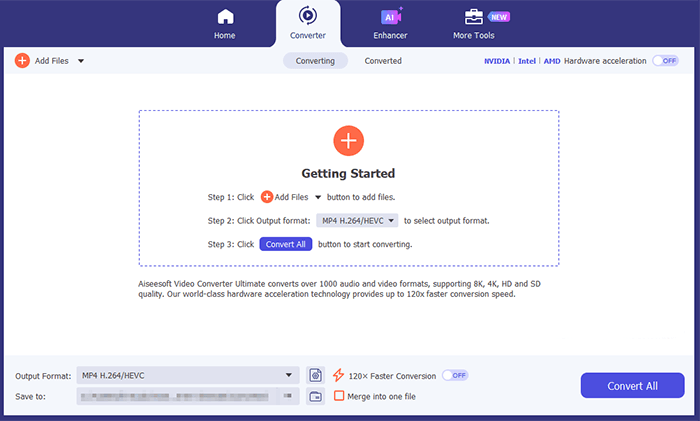
01Download and install the MP4 to MP3 converter on your Windows computer, open the software, then go to the "Converter" tab and click "Add Files" to import your MP4 video.
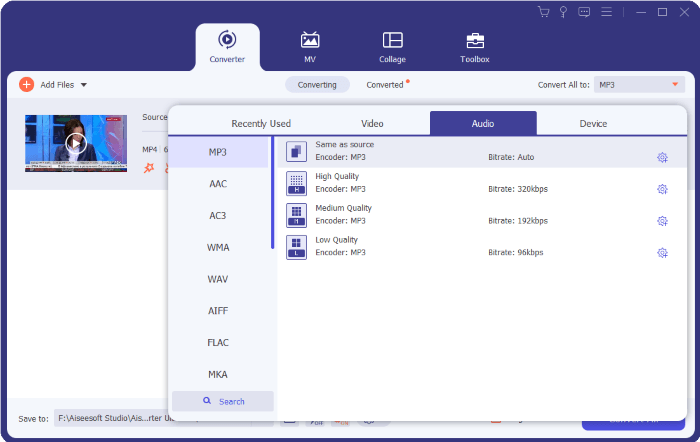
02Open the "Output Format" menu, select "MP3" under the "Audio" section, and adjust settings such as bitrate, sample rate, and channels if needed to fine-tune the audio quality.
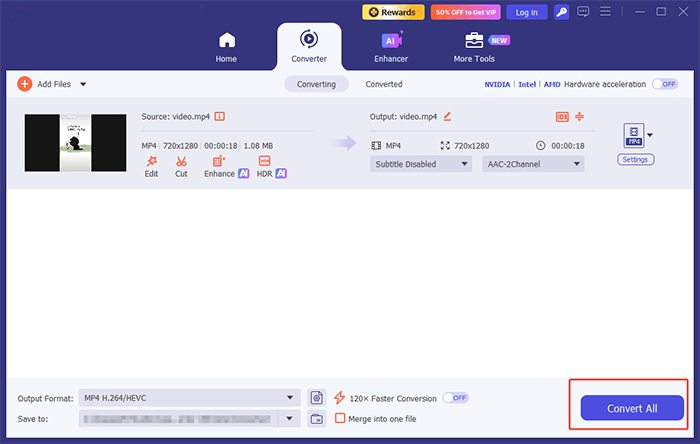
03Choose an output folder, then click "Convert All" to begin converting MP4 to MP3. After the process is complete, open the output folder to find your converted MP3 files.
If you prefer a free solution to convert MP4 to MP3 on Windows, VLC Media Player is a popular choice. It is a free, open-source media player that also includes a built-in conversion feature.
Here is how to convert MP4 to MP3 on Windows for free with VLC:
Step 1. Open VLC Media Player on your computer and click "Media" in the top menu.
Step 2. Select "Convert / Save" and click "Add" to import your MP4 file.
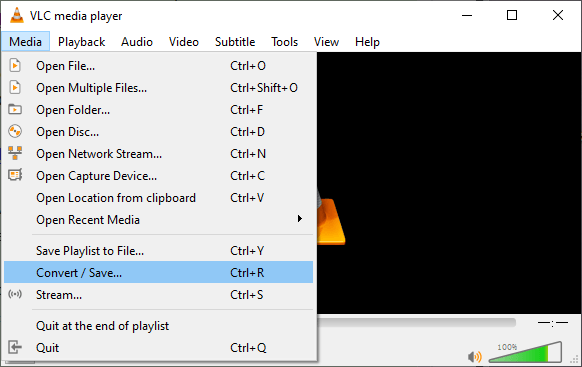
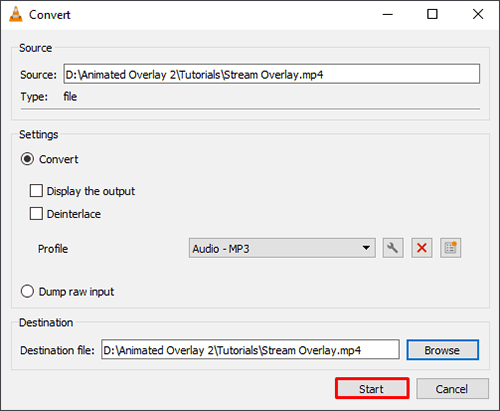
Step 3. Click "Convert / Save" again at the bottom of the window.
Step 4. Under "Profile", choose "Audio - MP3" and click "Browse" to set the output location.
Step 5. Click "Start" to begin converting the MP4 file to MP3.
If you are a Windows user who still uses iTunes to manage and play your music and video library, you can also use it to convert MP4 to MP3 on Windows 10/11.
Here is how to convert MP4 into MP3 on PC using iTunes:
Step 1. Open iTunes on your Windows computer.
Step 2. Go to "Edit" > "Preferences" > "General", then click "Import Settings". Under "Import Using", select "MP3 Encoder" and click "OK".
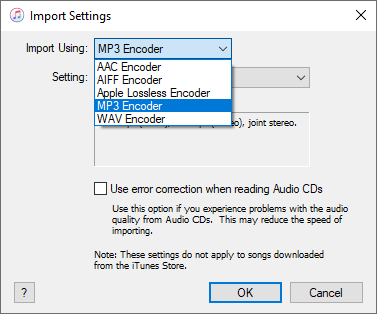
Step 3. Add your MP4 files to the iTunes library by dragging and dropping them in.
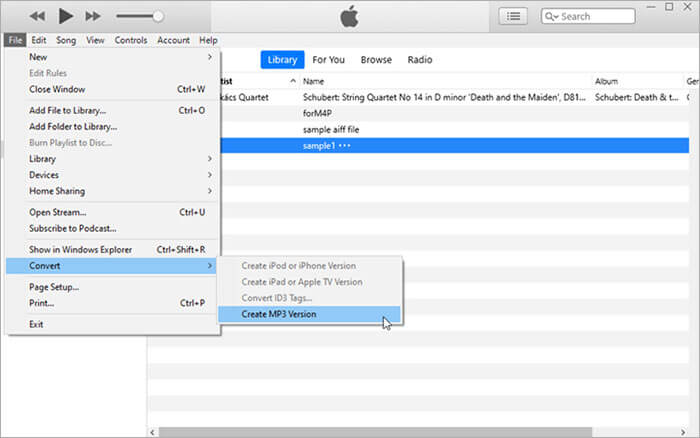
Step 4. Select the MP4 file you want to convert, click "File" > "Convert" > "Create MP3 Version" to generate an MP3 copy.
Step 5. Wait for iTunes to generate the audio file and locate the MP3 file in your library folder.
If you are using a Windows computer, you can also convert MP4 to MP3 for free using the built-in Windows Media Player. This method is worth trying, but it has a limitation: if you have multiple MP4 files, you can only convert them one at a time. Here's how to do it:
Step 1. Open the MP4 video file using Windows Media Player.
Step 2. Click the menu icon in the top-right corner to access the main interface, then go to "Organize" > "Options".
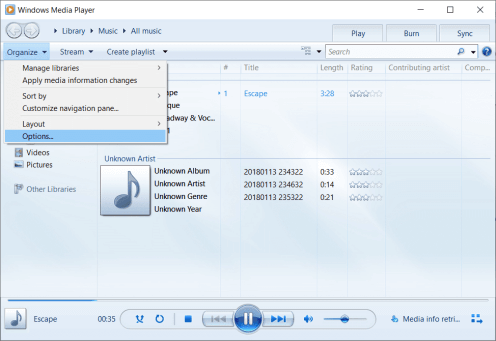
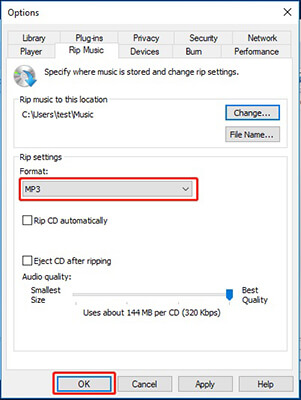
Step 3. In the pop-up window, select the "Rip Music" tab and click "Change" to choose where you want to save the converted MP3 file.
Step 4. Under "Rip settings," set the format to "MP3", then click "OK" to start converting MP4 to MP3.
If you do not want to install any software, online tools like FreeConvert provide a quick way to convert MP4 to MP3 on Windows directly in your browser. However, most online tools have limitations on file size and speed, making them unsuitable for converting large MP4 files.
Here is how to convert MP4 to MP3 on Windows online via FreeConvert:
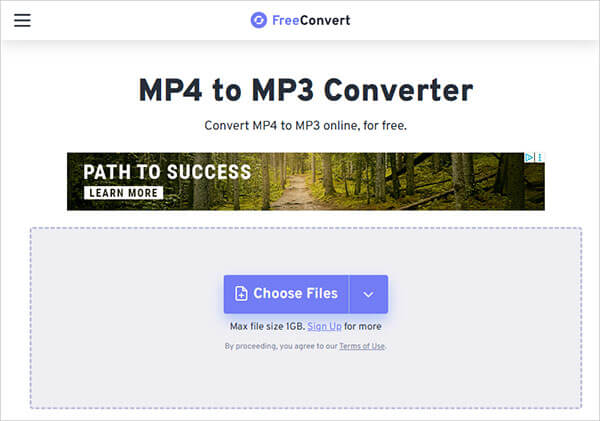
Step 1. Visit the FreeConvert MP4 to MP3 Converter website.
Step 2. Click "Choose Files" and upload your MP4 file.
Step 3. Select "MP3" as the output format.
Step 4. Click "Advanced Settings" to adjust audio quality if needed.
Step 5. Press "Convert" to start processing.
Step 6. Download the converted MP3 file once finished.
That's all about how to convert MP4 to MP3 on Windows. Among all these methods, it is highly recommended to use Video Converter Ultimate, the most convenient. It allows batch conversions with no quality loss.
Related Articles:
11 Best MP4 to MP3 Converters for PC, Mac, Online, Android & iPhone
How to Convert Video to Audio on Windows/Mac/Android/iPhone/Online?
[Step-by-Step Guide] How to Convert Voice Memos to MP3 in a Snap?
[Full Guide] 3 Effective Ways to Convert M3U8 to MP3 in Minutes




 Free Download for PC
  Free Download for Mac


